
A quick tour of the trading widget order form
The order form, the panel on the right of the trading terminal, is where you place every order. This is a map of its parts and where to read more about each. For the difference between placing a single order and setting up a managed smart position, start with what’s the difference between an order and a smart position?.
Simple and Advanced modes
 🔍 Click the image to see a larger version
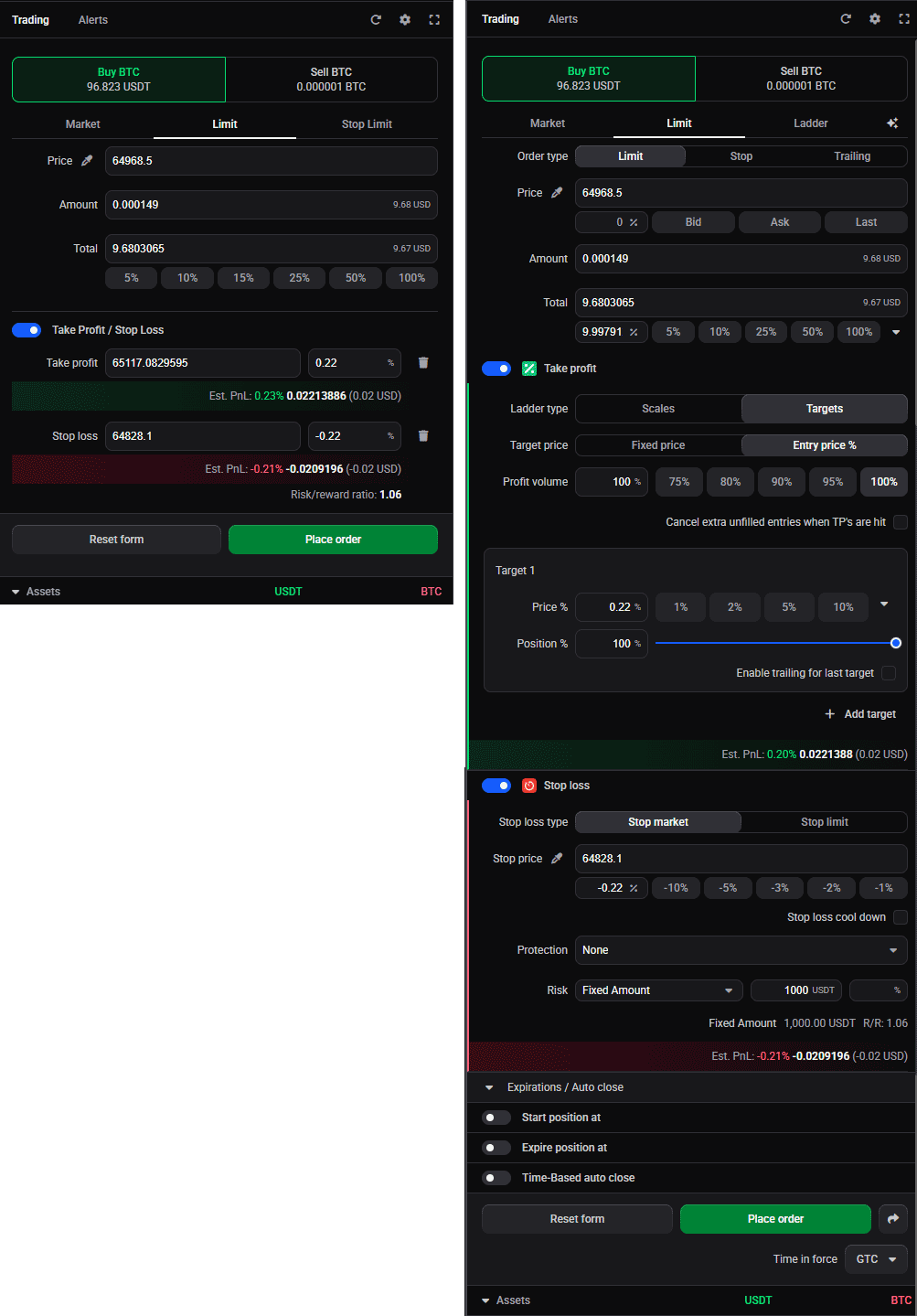
The order form has two modes, set by Widget Mode in the widget’s settings (the cog icon). Simple keeps it to the essentials: one order, one take profit, one stop loss. It’s the default if you chose Beginner or Intermediate during onboarding. Advanced adds the full set of controls below, and is the default for Advanced onboarding. You can switch any time; see what can I change in the trading widget settings?. And if you need to add extra features or orders to an existing smart position, you will be asked to swap to advanced mode.
🔍 Click the image to see a larger version
The order form has two modes, set by Widget Mode in the widget’s settings (the cog icon). Simple keeps it to the essentials: one order, one take profit, one stop loss. It’s the default if you chose Beginner or Intermediate during onboarding. Advanced adds the full set of controls below, and is the default for Advanced onboarding. You can switch any time; see what can I change in the trading widget settings?. And if you need to add extra features or orders to an existing smart position, you will be asked to swap to advanced mode.
Available Balance and Assets
The top of the order form shows your Available Balance: how much you can buy or sell on the selected pair and account. The bottom shows your Assets: your holdings on that account. The two can differ, because Available Balance also reflects leverage and how the exchange manages your account (for example a unified or portfolio-margin account). See Available Balance vs your Assets.
Order types
At the top, you choose the order type: Market, Limit, Stop, OCO, Trailing, or Ladder. Each is a different way to set the price or the trigger. See how do I place a market, limit, or stop order?, how do OCO and trailing stop orders work?, and how do I place ladder orders?.
This top part of the trading widget must always be filled in. Then if you want a smart order (with TPs, SL or other features, you can also complete additional parts below, as needed.
Take profit and stop loss
Below the order, you can turn on a take profit and a stop loss to set your exits in the same ticket. Doing so makes it a smart position, which Altrady manages for you. See how do I set up a smart position with take profit and stop loss? and how do stop loss and trailing stop protections work on a smart position?.
Order options
On a limit order, Post Only (in the Settings) and Time in Force control whether the order takes liquidity and how long it stays active. See what do Post Only and Time in Force do?.
Futures controls
On a futures market, the widget adds controls for margin type and leverage, the position mode (One-Way or Hedge), and Reduce Only. See how do I trade futures with leverage? and hedge mode vs one-way mode.
Order presets
Once you’ve set an order up the way you like, save it as a preset and apply it again in one click. See how do I create and use order presets?.
Still stuck?
If a control isn’t where this tour says, check your Widget Mode (Simple hides the advanced controls) and whether you’re on a spot or a futures market. Reach out through support chat if you’re still stuck.