
How do I place a market, limit, or stop order in Altrady?
Altrady’s Trading widget gives you three ways to place an order: fill right away at the best price (Market), set your own price and wait (Limit), or trigger the order only once the market reaches a price you choose (Stop). This walks through all three.
Placing a market order
 🔍 Click the image to see a larger version
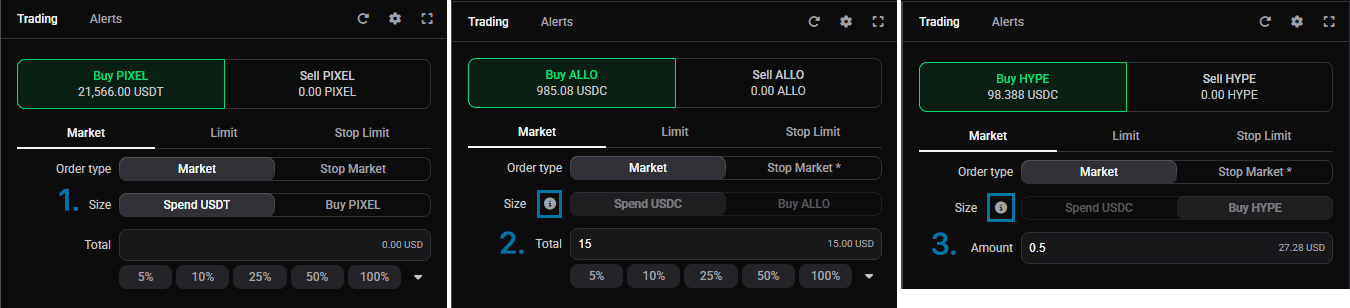
Open the Trading widget for the market you want and select Market. A market order fills right away at the best available price, so there’s no price to set: just size the order and place it.
🔍 Click the image to see a larger version
Open the Trading widget for the market you want and select Market. A market order fills right away at the best available price, so there’s no price to set: just size the order and place it.
Altrady offers two market-based types. Market fills instantly. Stop Market waits until a Stop price you set is reached, then fires as a market order, which is useful when you want to act only after the market confirms a move.
When buying, you size a market order in either the Spend field (how much of your quote currency to use) or the Buy field (how much of the coin to buy); when selling, the two fields are Sell and Receive. Which of the two you get depends on the exchange: some accept either currency, so you pick whichever is easier and Altrady fills in the other; some accept only the quote amount; and some only the base amount. The Trading widget always shows the option(s) the exchange allows, so it’s the quickest way to see how you can size a market order on a given exchange.
Placing a limit order
 🔍 Click the image to see a larger version
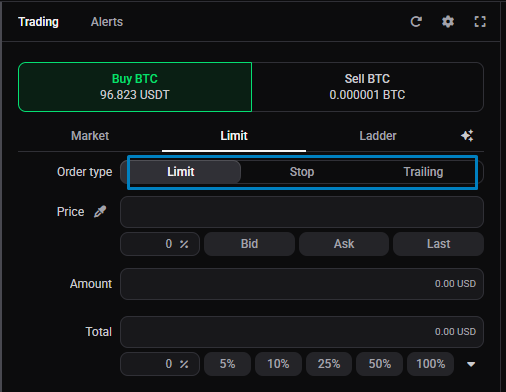
Select Limit to set your own price instead of taking whatever the market offers right now. The order stays open until the market reaches your price or you cancel it, so it’s normal for it not to fill straight away while price gets there.
🔍 Click the image to see a larger version
Select Limit to set your own price instead of taking whatever the market offers right now. The order stays open until the market reaches your price or you cancel it, so it’s normal for it not to fill straight away while price gets there.
You can also place a Stop Limit: set a Stop price (the trigger) and a Limit price (the price your order is placed at once the trigger is hit). Some exchanges support stop orders natively; on the ones that don’t, Altrady watches the trigger and submits the order for you, so stop orders work either way.
For OCO and trailing stop orders, which have their own conditions, see How do OCO and trailing stop orders work in Altrady?.
Placing a stop order
A stop order waits for a trigger price before it goes live. There are two kinds, depending on how you want it to fill:
- Stop Market: once the stop price is hit, it fires as a market order and fills immediately at the best available price. Note that a Stop market is managed by Altrady, and the market order is placed on the exchange when the Stop price is reached. For this reason, the order is not reserved until the stop price is reached.
- Stop Limit: once the stop price is hit, it places a limit order at the limit price you set. This order type uses the native exchange Stop Limit order which in most cases reserves the coins (Kucoin is the exception).
Choose Stop Market when getting filled matters most, and Stop Limit when you want to control the fill price and accept that it might not fill.
Simple and Advanced widget modes
 🔍 Click the image to see a larger version
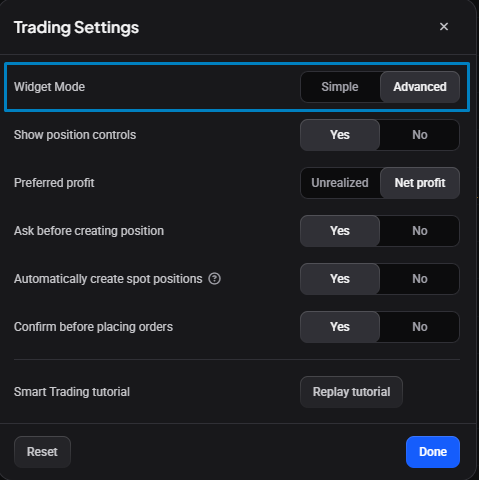
The Trading widget has two modes. Simple keeps the order form to the essentials so you can place an order quickly. Advanced adds the full set of order types and risk settings, including ladder (scaled) entries and OCO. Some order types only appear in Advanced mode, so if a tab you expect is missing, switch to Advanced with the Widget Mode setting in the Trading widget’s settings, accessed by the cog icon.
🔍 Click the image to see a larger version
The Trading widget has two modes. Simple keeps the order form to the essentials so you can place an order quickly. Advanced adds the full set of order types and risk settings, including ladder (scaled) entries and OCO. Some order types only appear in Advanced mode, so if a tab you expect is missing, switch to Advanced with the Widget Mode setting in the Trading widget’s settings, accessed by the cog icon.
Ladder (scaled) entries also live in Advanced mode, covered in How do I place ladder orders in Altrady?.
Still stuck?
If an order type you expect isn’t showing up, it’s usually because your exchange doesn’t support it, or because you’re in Simple mode. Reach out to Altrady support chat and we’ll check your exchange connection and widget settings with you.