
How do I set up a smart position with take profit and stop loss?
A smart position lets you place your entry, take profit targets, and stop loss together as one order ticket, so the exit rules are already in place the moment your entry fills. This walks through building one from the trading terminal.
You’ll need a connected exchange account, or a paper trading account, before you can place an order. If this is your very first trade in Altrady, start with how do I place my first trade in Altrady? instead: it walks through the basics this article builds on.
Find the order form
Pick a market on your connected exchange and open its chart in the Trading Terminal. The order form sits on the right side of the chart, and that’s where every step below happens.
Choose your entry type
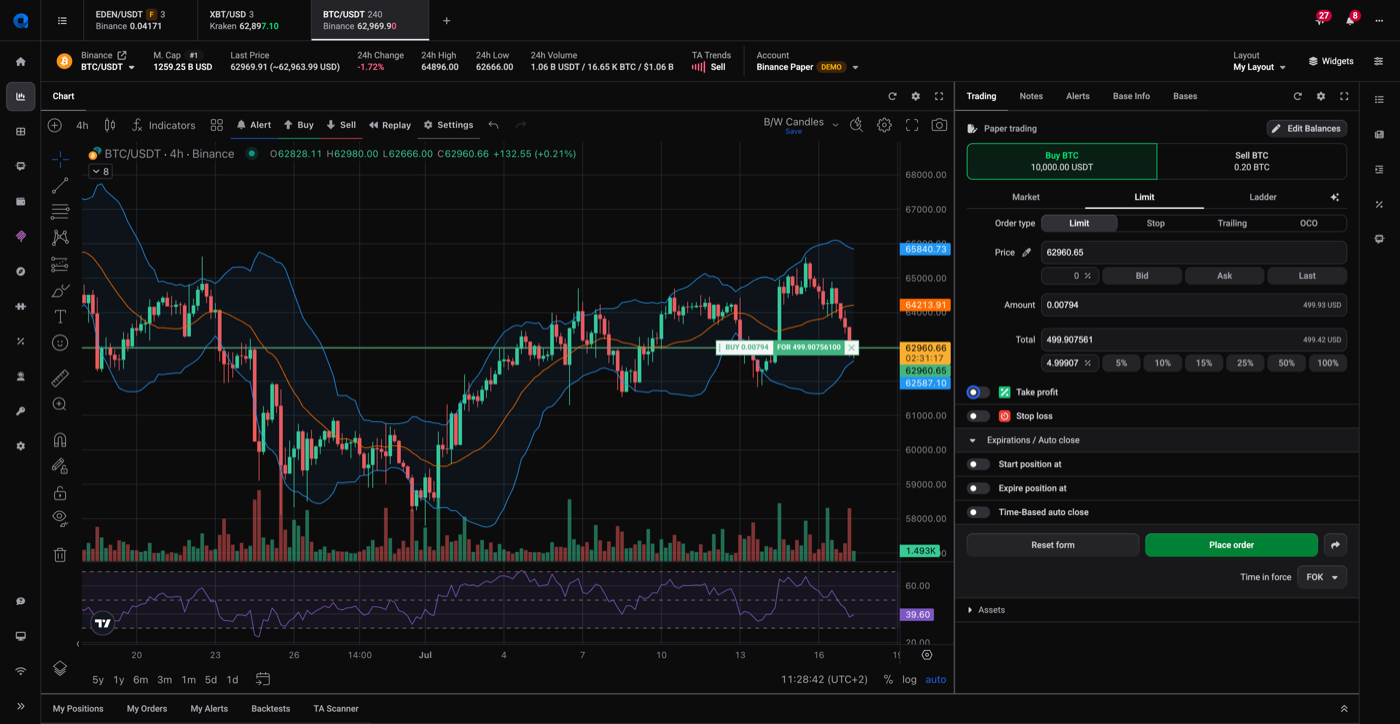
Pick how you want to enter: Market, Limit, or Ladder. Market fills at the current price, Limit waits for the price you set, and Ladder splits your entry across several price levels. Altrady also offers stop and trailing-stop entries: see placing market, limit, and stop orders. For this walkthrough we use a Limit entry.
 🔍 Click the image to see a larger version
Set your entry size
Enter the Price you want to buy or sell at, then set Amount or Total. The Total field has quick percentage buttons (25%, 50%, 100% and so on) so you can size the order as a share of your available balance instead of typing an exact number.
Turn on take profit and set your targets
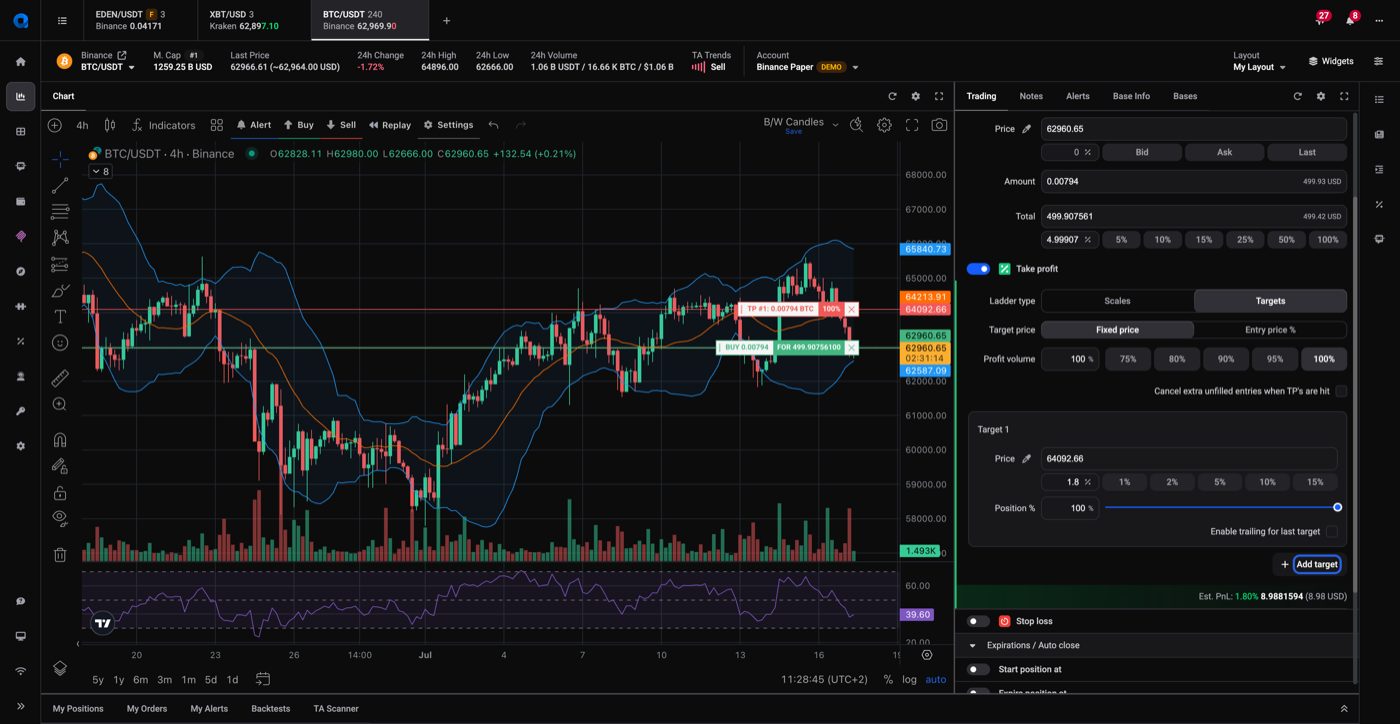
Below the entry fields, switch on the Take profit toggle. Your take profit is a ladder of exit targets, and it works the same way as a standalone ladder order, so see how do I place ladder orders? for the full detail on the ladder settings. In short:
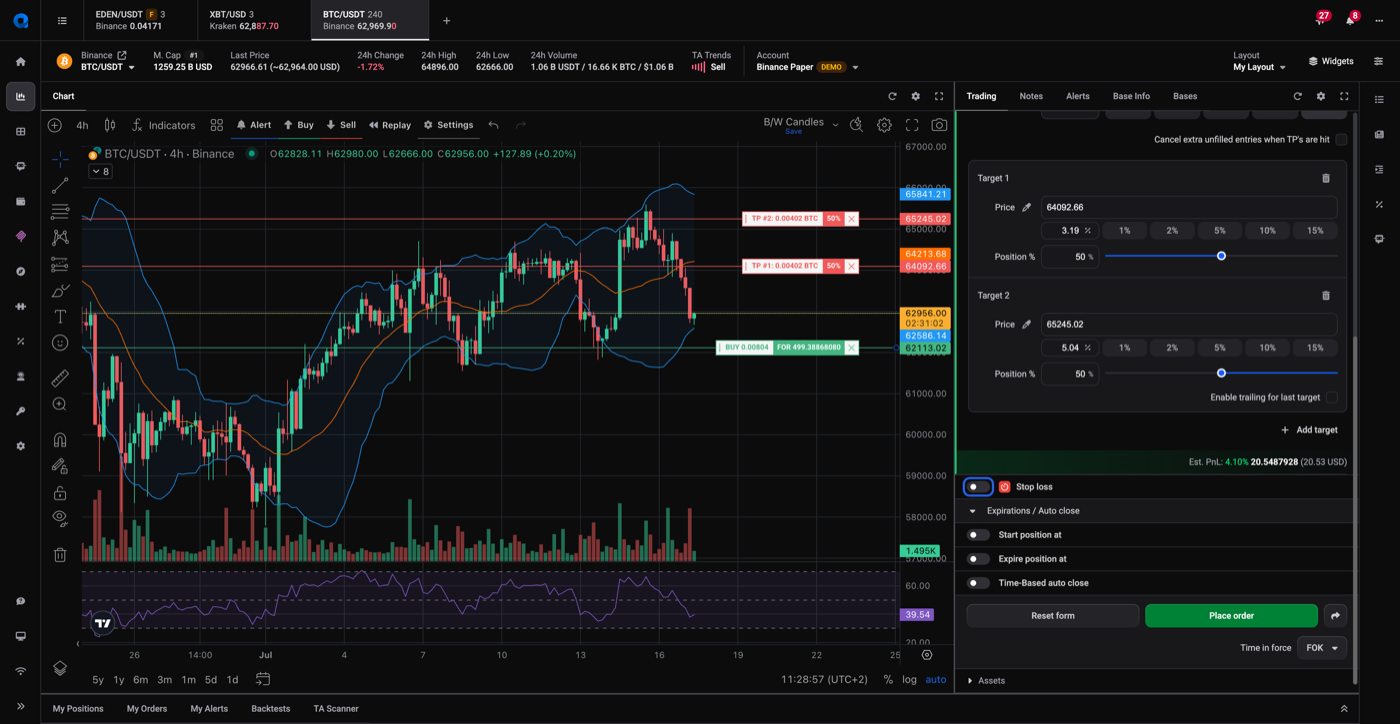
- Pick a Ladder type: Targets to set each exit yourself, or Scales to spread them across a range.
- Set each target’s price as a Fixed price or an Entry price % (a percentage above your entry), and how much of the position it closes.
- Use Profit volume to set how much of the position the ladder closes in total, and Add target to add more levels.
 🔍 Click the image to see a larger version
 🔍 Click the image to see a larger version
The Cancel extra unfilled entries when TP’s are hit toggle cancels any entry orders that haven’t filled once a take profit target is reached. Turn it on if you don’t want a late entry fill working against targets that already closed part of the position.
Set your stop loss
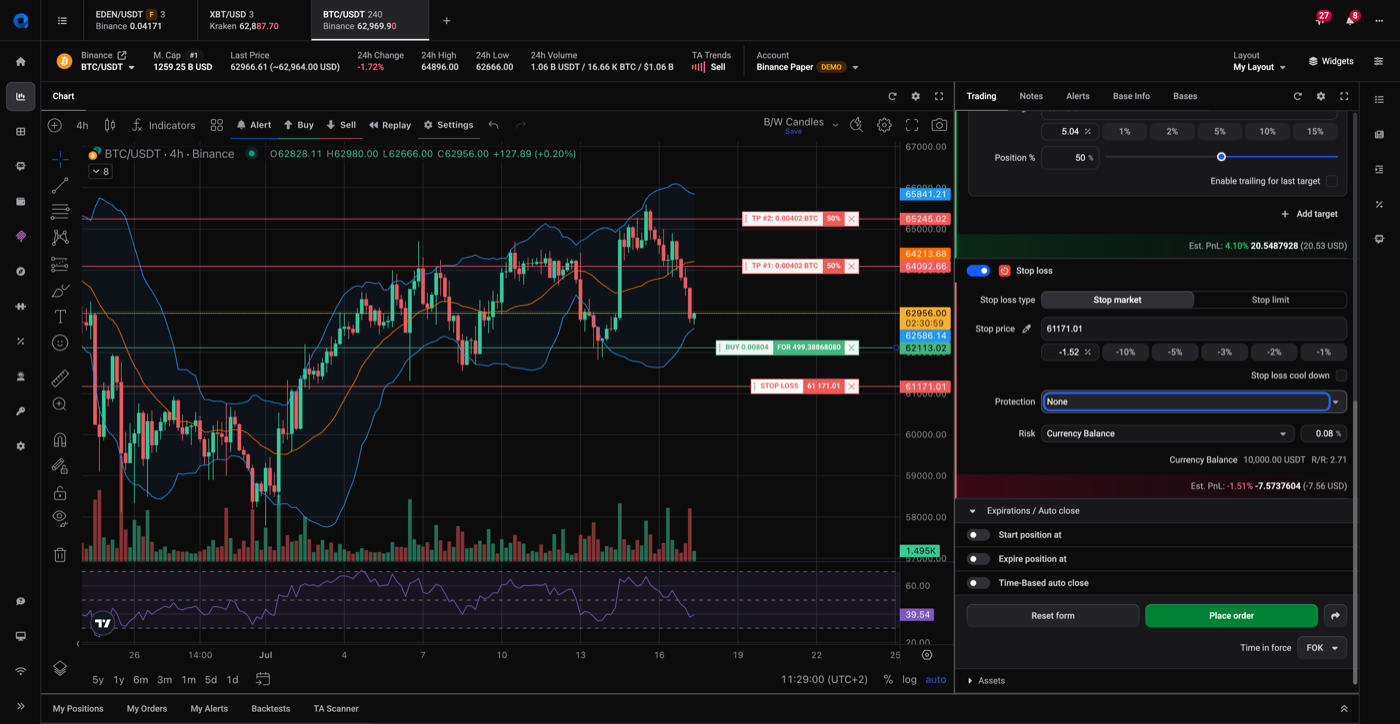
Turn on the Stop loss toggle to reveal Stop loss type (Stop market or Stop limit), the Stop price, and a Limit price for Stop limit. Choose Stop market for a straightforward exit, or Stop limit to control the fill price.
 🔍 Click the image to see a larger version
A Protection dropdown decides how the stop behaves after the position opens: it can stay fixed, move to break even after your first target fills, follow your targets up, or trail price. For the full explanation of each mode, plus stop-loss cool-down and trailing, see how do stop loss and trailing stop protections work on a smart position?.
Review and place the order
Select Place order. Altrady shows a Confirm orders summary listing your entry order, each take profit target, and your stop loss before anything is submitted.
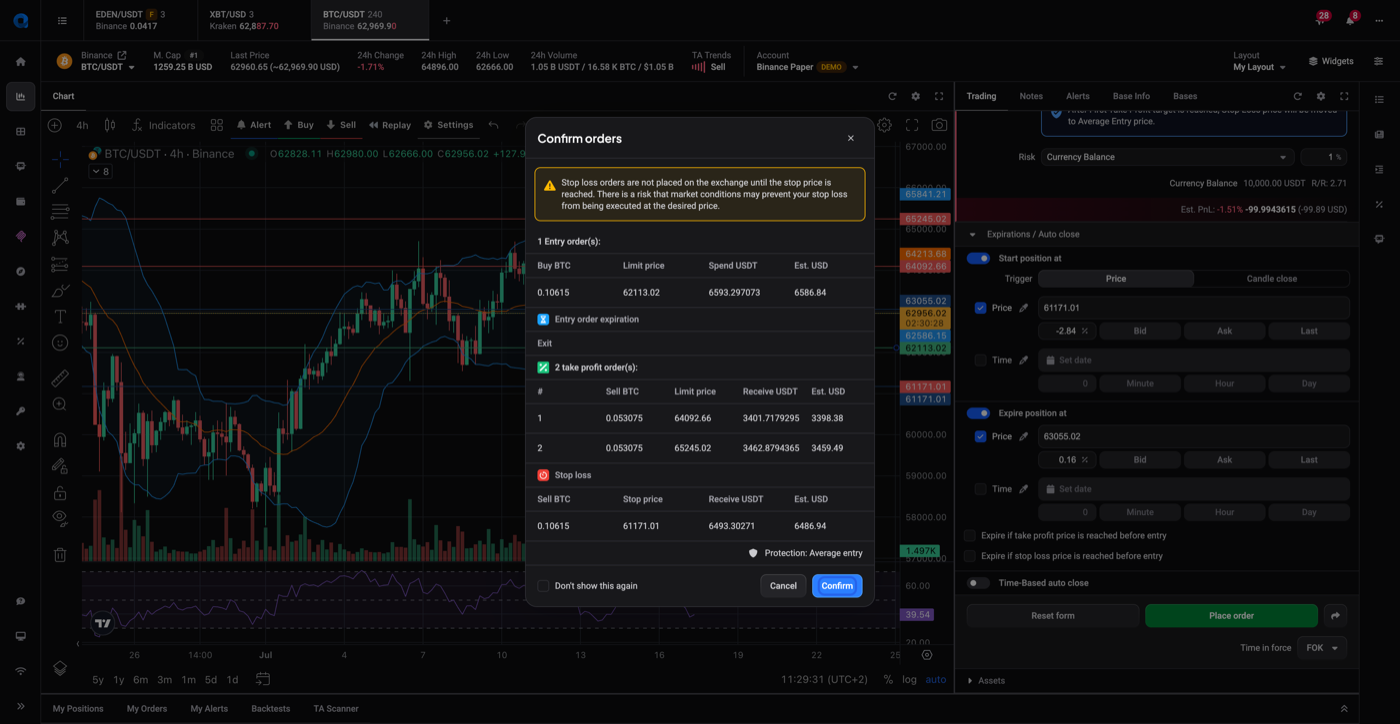 🔍 Click the image to see a larger version
Don’t worry if the summary calls out your stop loss separately: it isn’t sent to the exchange until the trigger price is hit. Until then Altrady holds and monitors it for you, so it never sits on the exchange order book waiting to be seen by other traders.
If you’re trading on a live exchange account and haven’t connected one yet, Altrady blocks the order with “Connect a live exchange account first to create a smart position.” Add your exchange API keys in Settings, then return to place the order.
To adjust take profit or stop loss on a position you already opened, see how to set or adjust take profit and stop loss on an open position.
Where your position lands
Once your order is placed, find it under My Positions. Entry, take profit, and stop loss each show as their own line, updating as orders fill so you can see progress without digging into order history. For more on trailing stops and deeper protection settings, see how do stop loss and trailing stop protections work on a smart position?.
Still stuck?
If your smart position isn’t behaving the way you set it up, reach out through the in-app support chat and our team will take a look with you.