
How do I create and use order presets in Altrady?
An order preset saves a configured order in the Trading widget so you can apply the same setup again in one click, instead of filling in the fields each time. Presets live in the Advanced Trading widget and can capture whatever order settings you have turned on.
Where presets live
 🔍 Click the image to see a larger version
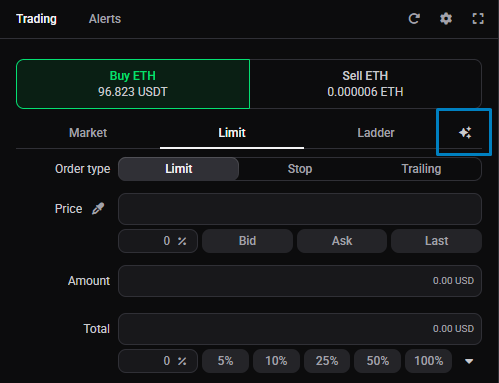
In the Trading widget, look for the star icon to the right of the order sub-type selector. That is where you create, apply, and manage your presets. Presets are an Advanced-mode feature, so if you don’t see the star, switch the widget to Advanced with the Widget Mode setting.
🔍 Click the image to see a larger version
In the Trading widget, look for the star icon to the right of the order sub-type selector. That is where you create, apply, and manage your presets. Presets are an Advanced-mode feature, so if you don’t see the star, switch the widget to Advanced with the Widget Mode setting.
Create a preset
 🔍 Click the image to see a larger version
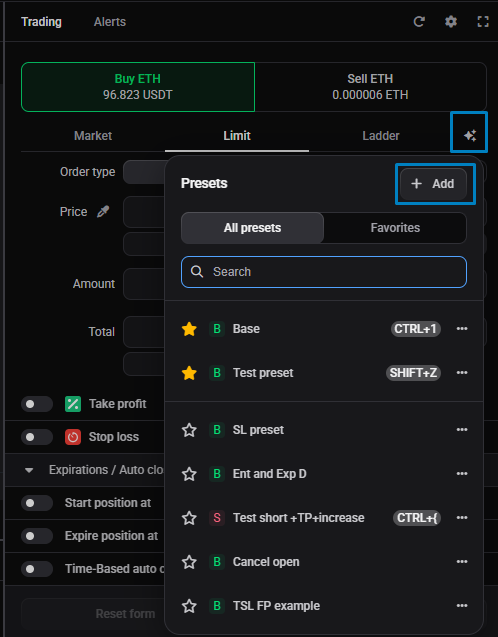
1. Set up an order in the Trading widget the way you want to save it.
🔍 Click the image to see a larger version
1. Set up an order in the Trading widget the way you want to save it.
2. Click the star icon, then + Add.
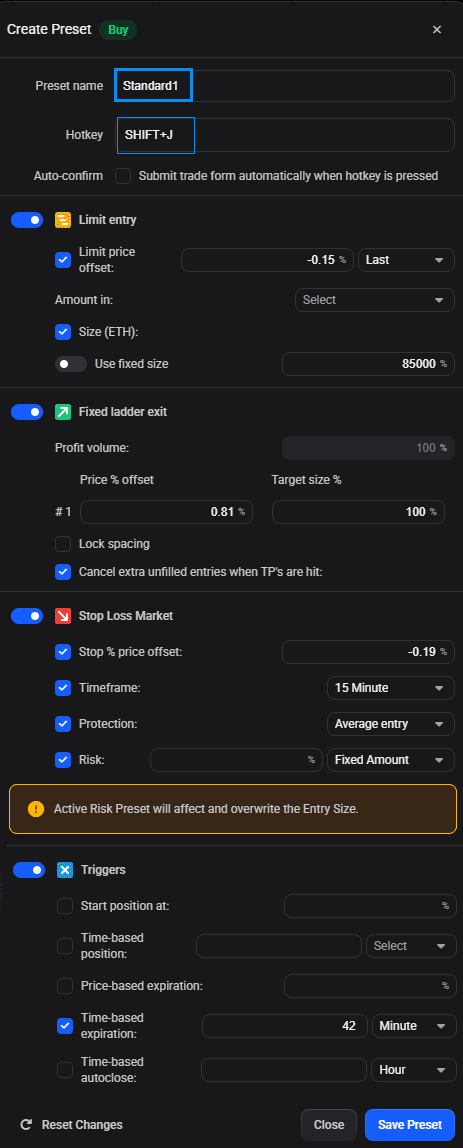
3. Give the preset a name, and optionally assign a hotkey.
4. Adjust any of the values if you like, then click Save Preset.
 🔍 Click the image to see a larger version
You don’t have to fill in everything. Any values you leave out, such as the order size, you can enter in the widget when you apply the preset. One thing to know: a preset can only include settings you have already enabled in the Trading widget. If an option isn’t turned on in the widget, it won’t be available to add to the preset.
🔍 Click the image to see a larger version
You don’t have to fill in everything. Any values you leave out, such as the order size, you can enter in the widget when you apply the preset. One thing to know: a preset can only include settings you have already enabled in the Trading widget. If an option isn’t turned on in the widget, it won’t be available to add to the preset.
Apply a preset
Click the star icon and pick a saved preset: it fills the widget’s fields for you. Check the values, add anything you left out (like size), and place the order. If you gave the preset a hotkey, pressing it fills the fields the same way, ready for you to confirm and place.
Good to know
- You can keep up to 10 presets at once, and mark any as a favourite.
- Order size in a preset defaults to a percentage of your account balance. A fixed size only carries across if the quote currency matches the market where you first built the preset; otherwise, set the size when you apply it.
- On futures markets, a preset can store a leverage value. If it differs from the leverage currently set for the pair, Altrady warns you before applying.
- Hotkeys work on desktop (any non-conflicting combination on Windows; Shift or Command combinations on macOS). Hotkeys aren’t available on mobile.
Still stuck?
If a preset doesn’t fill the fields you expect, check that those options were enabled in the Trading widget when you saved it. Reach out through support chat and we’ll take a look with you.