
Hedge mode vs One-Way mode for futures positions
When you trade futures, your exchange runs each market in one of two position modes. One-Way mode lets you hold a single position per market, long or short. Hedge mode lets you hold a long and a short on the same market at the same time. The mode you’re in decides what happens when you place an order against a position you already have, so it’s worth knowing which one is active before you trade.
On exchanges that offer both One-Way and Hedge mode, it’s possible to select the mode for each pair. However, changing mode for a pair is only possible if there are no open positions.
One-Way mode: one position per market
In One-Way mode, a market can hold only one open position at a time, in either direction. If you already have a position and place an order on the opposite side, Altrady does not open a second, opposing position. Instead, that order reduces the one you have.
Altrady warns you before this happens: “You’re in One-Way mode with an open/pending {position} position. Placing a {order} order will only reduce the open position.” If that’s what you wanted (taking some profit off a long by selling, for example), you can continue. If you actually wanted a separate short next to your long, you need Hedge mode.
Hedge mode: a long and a short at the same time
In Hedge mode, the same market can carry two open positions at once, one long and one short. Each side is tracked and closed independently, so an opposite-side order opens or adds to the other side instead of reducing the first one. That means up to two open positions per market: one per side.
Hedge mode also matters for smart orders (Altrady’s automated take-profit, stop-loss, and trailing setups): placing smart orders in both directions on the same market requires it. On a market where the exchange doesn’t support hedge mode, trying to do so shows the message “Hedge mode not supported. Smart orders cannot be placed in both directions.”
In short: if you only ever hold one position per market, One-Way mode covers you and prevents an accidental second position. If your setup holds longs and shorts on the same market at once, that requires Hedge mode.
Where to find the position mode setting
 🔍 Click the image to see a larger version
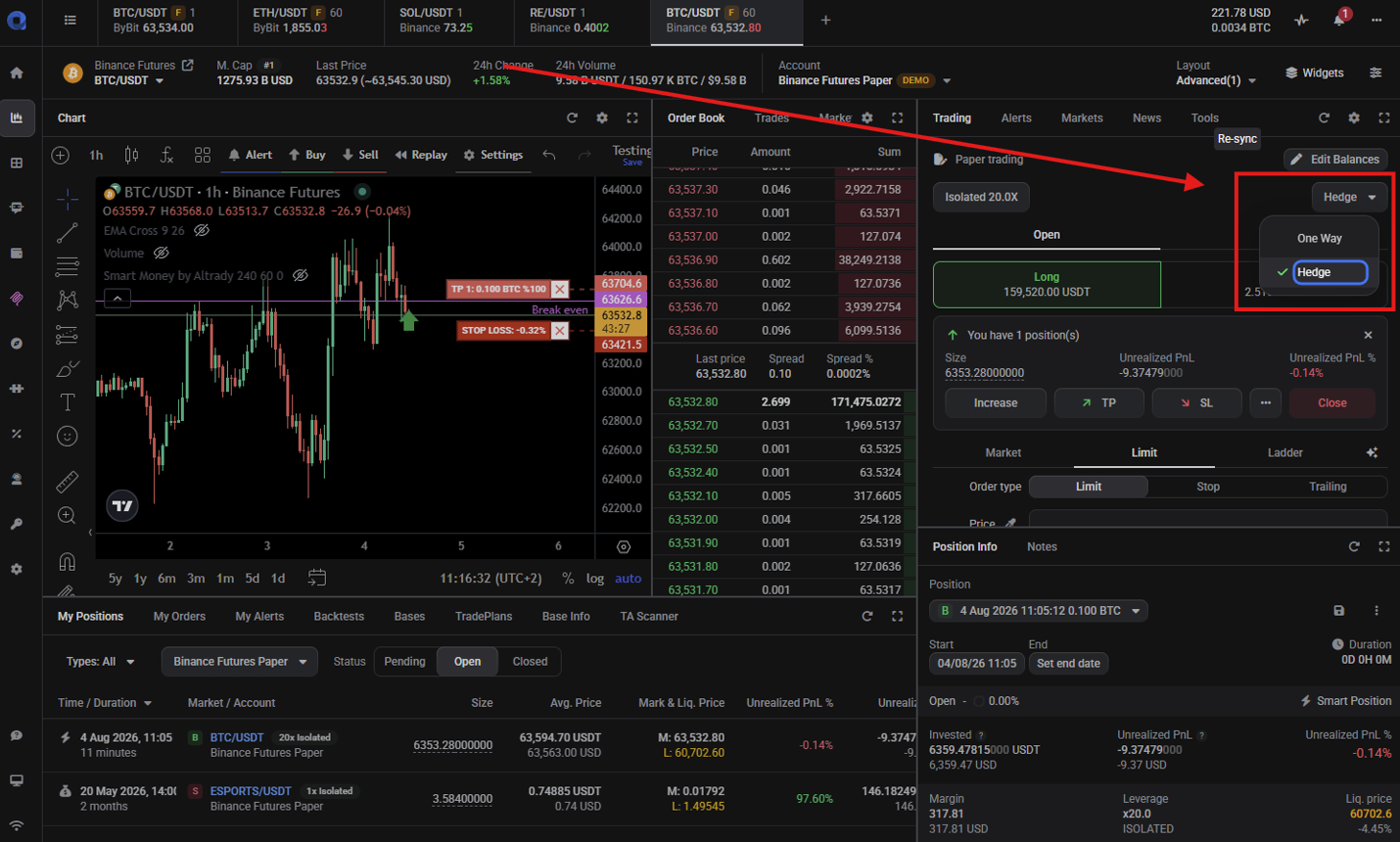
1. Open a futures market in the trading terminal. 2. Look at the trading controls above the order form. Next to the Margin Settings button you’ll see a button labeled One Way or Hedge, showing the current mode for that market. 3. Click it and pick the mode you want from the dropdown.
🔍 Click the image to see a larger version
1. Open a futures market in the trading terminal. 2. Look at the trading controls above the order form. Next to the Margin Settings button you’ll see a button labeled One Way or Hedge, showing the current mode for that market. 3. Click it and pick the mode you want from the dropdown.
It’s worth checking this button the first time you trade futures on a new exchange connection, before placing an order.
Reduce Only: closing without opening a new position
 🔍 Click the image to see a larger version
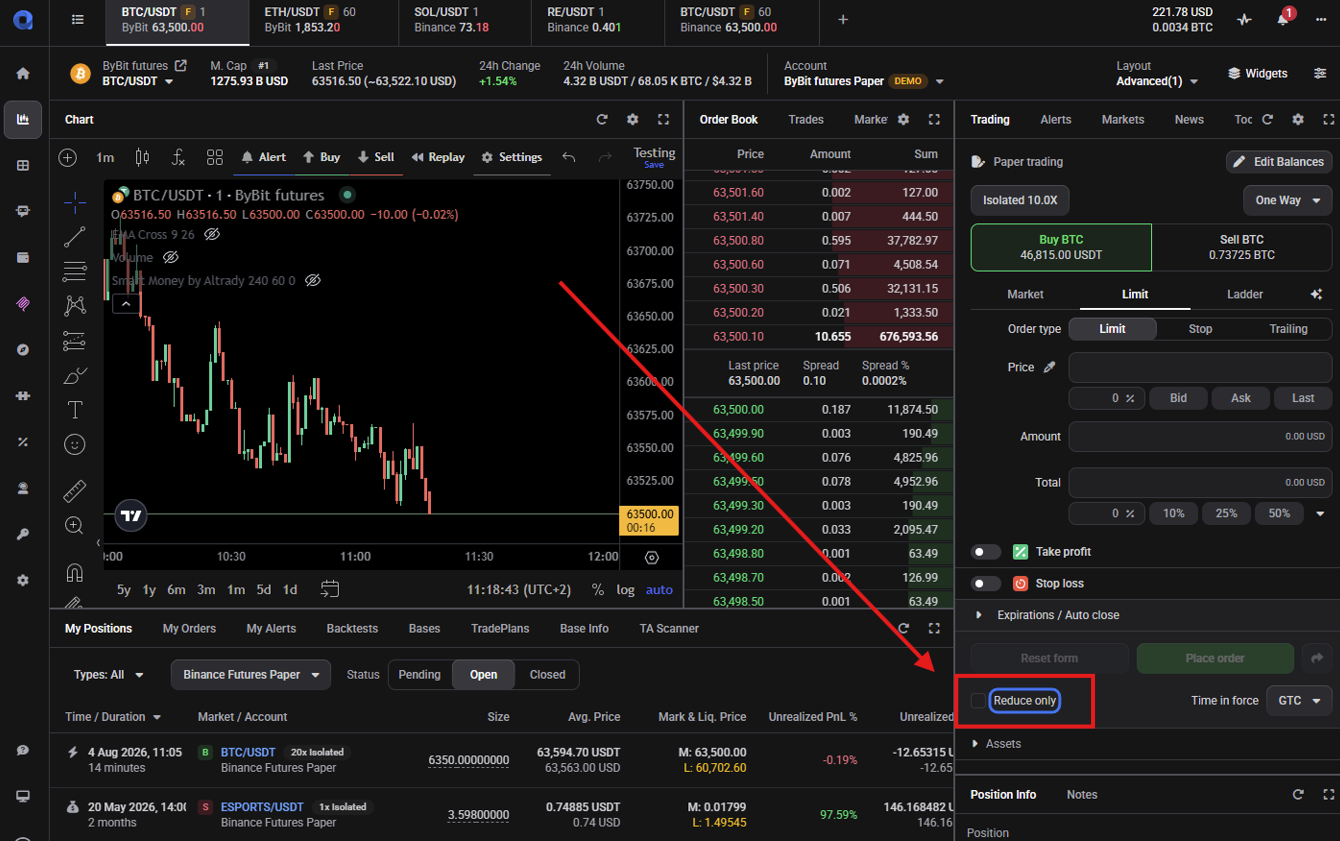
The Trading widget has a Reduce Only option that guarantees an order can only close or reduce your current position, never increase it or open one on the opposite side. Use it when you’re taking profit or cutting a position and want to be certain the order won’t accidentally add exposure. The controls differ by position mode:
🔍 Click the image to see a larger version
The Trading widget has a Reduce Only option that guarantees an order can only close or reduce your current position, never increase it or open one on the opposite side. Use it when you’re taking profit or cutting a position and want to be certain the order won’t accidentally add exposure. The controls differ by position mode:
- In One-Way mode, the order form shows Buy and Sell plus a Reduce Only toggle: leave it off to open or add to a position, turn it on to close or reduce one.
- In Hedge mode, the order form shows Long and Short with Open and Close instead, and there’s no Reduce Only toggle. Choosing Close applies reduce-only for you automatically, so a closing order can’t flip into a new position on the other side.
Leave Reduce Only off for any order that’s meant to open or add to a position.
One thing to watch: if your Available Balance reads zero everywhere in the Trading widget and you can’t open a position, Reduce Only has most likely been left on — turn it off to trade normally. See why is my Available Balance zero or lower than expected? for this and the other causes.
Why you might not be able to switch
The mode button follows what your exchange supports, so on some accounts there is nothing to change:
- No button at all: the connected exchange doesn’t support hedge mode. The market simply runs in whichever mode the exchange uses, and there’s nothing you need to configure.
- Button visible but disabled: some exchanges only support Hedge mode and don’t offer One-Way at all. Altrady shows the mode with a tooltip that reads “This exchange supports Hedge mode only.” Again, nothing to fix; the exchange itself doesn’t offer the other option.
- If you already have an open position on the selected market, it won’t be possible to change mode. Close any open positions on the market before trying again.
Still stuck?
If your exchange’s futures markets behave differently than described here, or a mode switch doesn’t take effect, reach out through support chat in the app and the team will take a look at your account and exchange connection.