
What can I change in the trading widget settings?
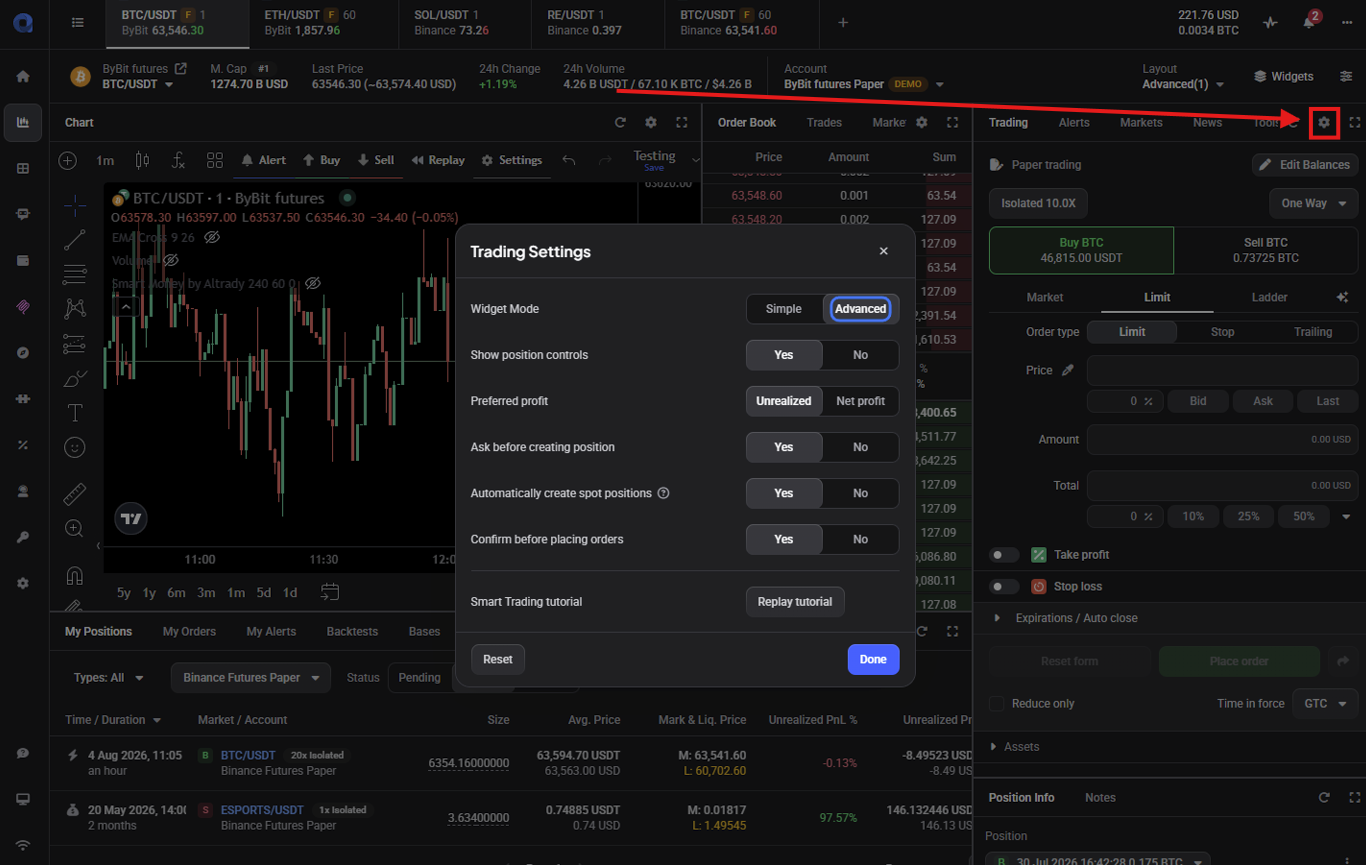
The Trading widget has a small settings menu, opened from the cog icon at the top right of the widget. It holds a handful of options that change how the widget looks and behaves when you place orders.
Opening the settings
 🔍 Click the image to see a larger version
Click the cog icon at the top right of the Trading widget to open the settings menu.
🔍 Click the image to see a larger version
Click the cog icon at the top right of the Trading widget to open the settings menu.
The settings
-
Widget Mode: switch the widget between Simple and Advanced. Simple keeps the order form to the basics (one entry, one take profit, one stop loss); Advanced adds the full set of order types, take-profit and stop-loss options, and automated controls.
-
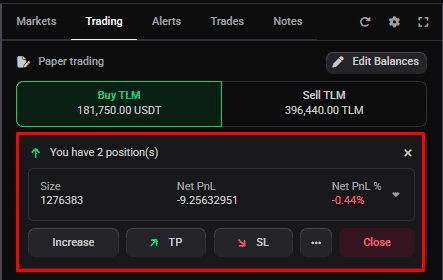
Show Position Controls: show position-management options at the top of the widget when you have an open or pending position.
 🔍 Click the image to see a larger version
-
Preferred profit: choose whether profit is shown as Unrealized or Net Profit. This also sets which column appears in My Positions and on the Dashboard.
-
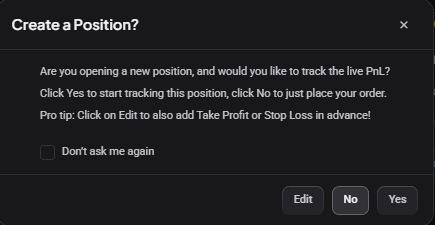
Ask before creating position: on spot pairs, prompt you before a regular order creates a position.
 🔍 Click the image to see a larger version
-
Automatically create spot positions: on spot pairs, create the position automatically when a regular order fills, without prompting.
-
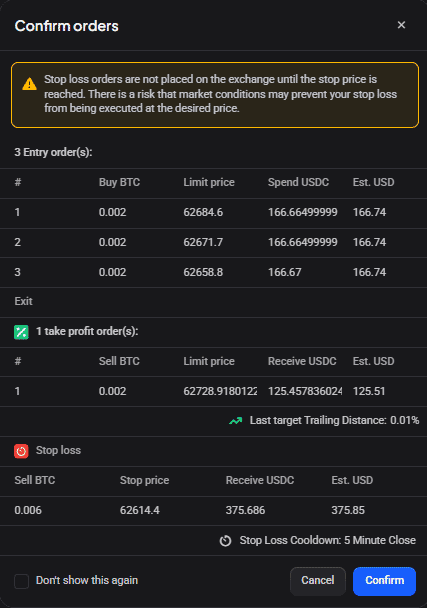
Confirm before placing orders: show a confirmation summary with the full order details after you click Place Order. Turn it off to skip the summary.
 🔍 Click the image to see a larger version
-
Smart Trading Tutorial: opens a short walkthrough of placing a smart order.
-
Reset: restore the settings to their defaults.
Still stuck?
If a setting isn’t doing what you expect, reach out through support chat and we’ll walk through your widget setup with you.