
How do OCO and trailing stop orders work in Altrady?
OCO and Trailing are two extra order types you’ll find next to Limit and Stop on the order form. OCO places a target limit order and a stop order together, and whichever one fills first cancels the other. Trailing follows the market price and only places its stop once price has moved in your favour, then keeps the stop trailing behind by the percentage you choose.
Why you might not see OCO
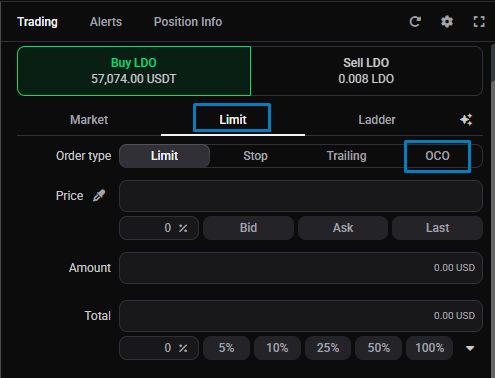 🔍 Click the image to see a larger version
OCO works through the exchange’s own native OCO order, and among Altrady’s exchanges that’s currently only Binance. On other exchanges the tab simply doesn’t appear, with no error message: that’s the most common reason people can’t find it. It isn’t often needed elsewhere, because Altrady’s smart order features cover the same ground.
🔍 Click the image to see a larger version
OCO works through the exchange’s own native OCO order, and among Altrady’s exchanges that’s currently only Binance. On other exchanges the tab simply doesn’t appear, with no error message: that’s the most common reason people can’t find it. It isn’t often needed elsewhere, because Altrady’s smart order features cover the same ground.
If your plan includes Smart Positions, a smart position does what OCO does and more (a combined entry with take-profit and stop-loss), and it works on any exchange, so that’s usually the better route. See the Smart Positions guides for how those work.
Placing an OCO order
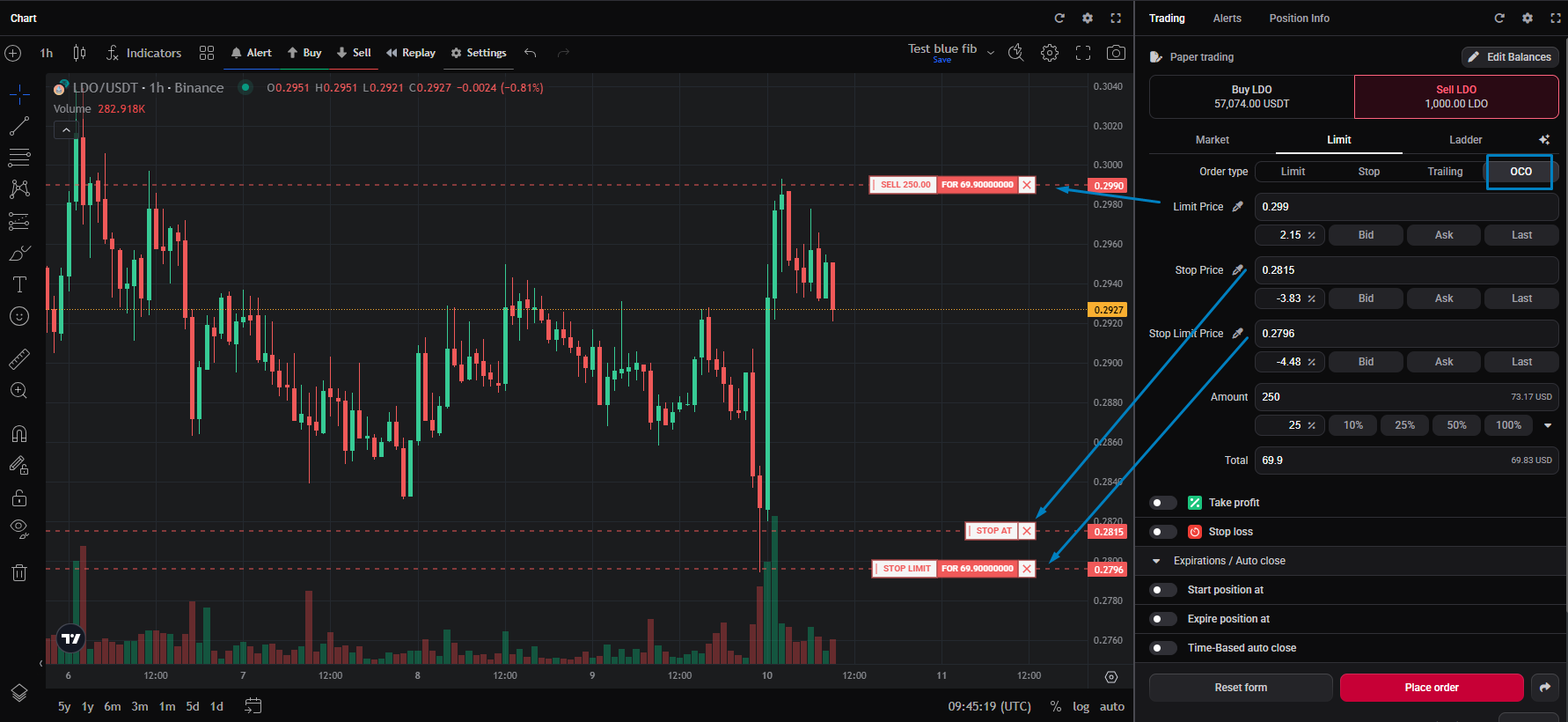 🔍 Click the image to see a larger version
1. Open the order form for the market you want and set the order type to OCO.
🔍 Click the image to see a larger version
1. Open the order form for the market you want and set the order type to OCO.
2. Set the Limit Price: the price your target limit order fills at if the market reaches it.
3. Set the Stop Price: the trigger that activates the protective order.
4. Set the stop’s Limit Price: the price that order is placed at once the stop triggers.
5. Set your amount and place the order.
Whichever side fills first, the target or the stop, cancels the other. That’s the “one cancels the other” behaviour the order type is named for.
Why you might not see Trailing
Trailing is part of Altrady’s Smart Orders feature, and it needs an exchange that supports stop orders. If either isn’t available, the tab won’t show up on the order form.
Setting up a trailing stop
A Trailing order works in both directions: a trailing sell trails a stop out of a position, and a trailing buy gets you a better entry — it follows price down and only fills once price bounces back up by your Stop %. (The sell is the mirror: it follows price up and fills when price drops by your Stop %.)
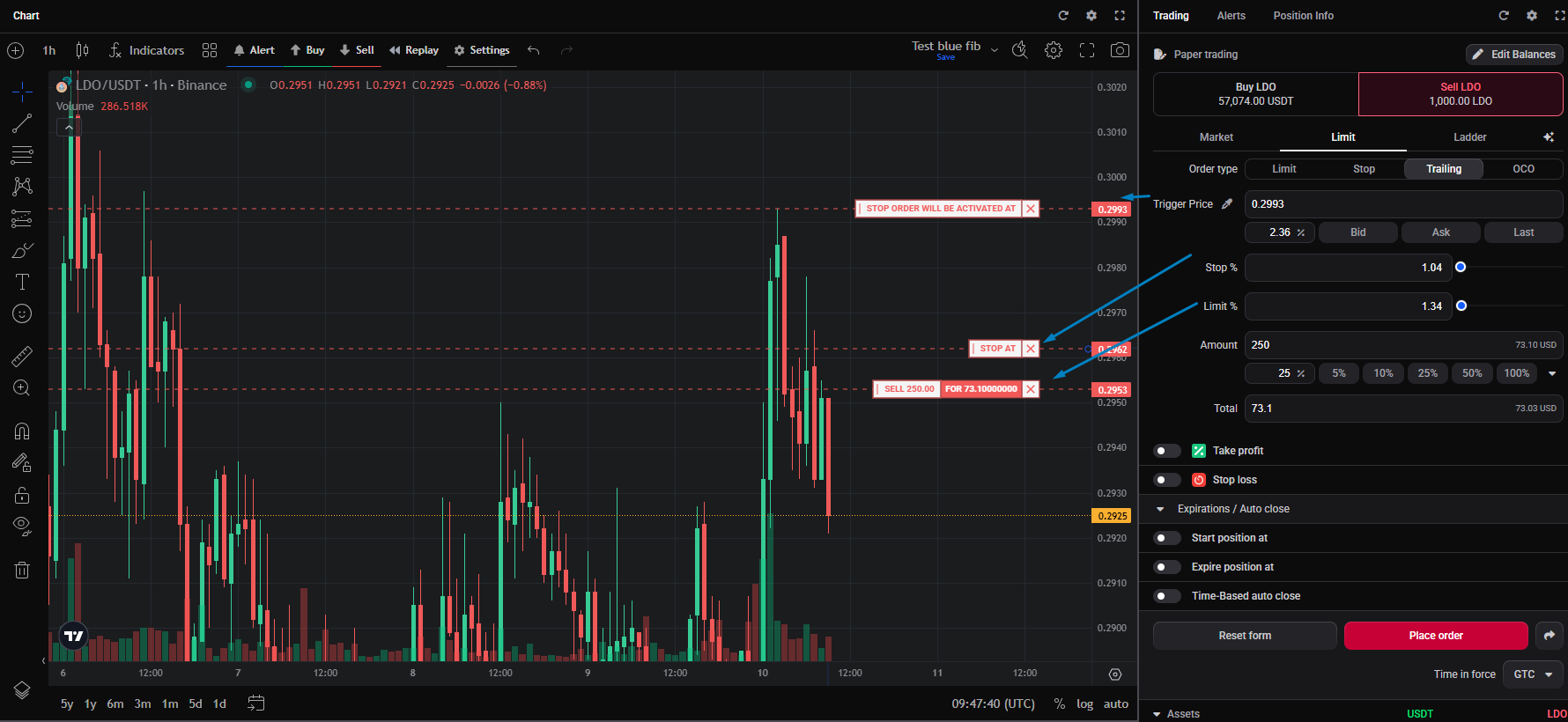 🔍 Click the image to see a larger version
1. Set the order type to Trailing on the order form.
🔍 Click the image to see a larger version
1. Set the order type to Trailing on the order form.
2. Set the Trigger Price: the price the trailing logic starts watching from.
3. Set the Stop Percentage: how far price can pull back from its best point before the stop fires.
4. Set the Limit Percentage: the offset used for the limit price once the stop triggers.
Once the order is live, Altrady tracks the market price and moves the stop behind it. Each time price makes a new high in your favour, the stop is re-placed on the exchange at the new level. It only fires when price actually pulls back by your Stop Percentage, not on the way up. The trailing distance is the fixed percentage you set, not a volatility-based (ATR) distance.
Set the Limit % a little wider than the Stop % (say 5% and 6%) so the order fills cleanly once it triggers — the bigger the gap, the more it behaves like a market order. Avoid a very tight Stop %: in a fast market, price can slip past before the order is placed.
Trailing while managing a position
For trailing as you manage an open position, most traders use a smart order’s trailing rather than a standalone Trailing order — see Trailing stop loss (Follow Price) and Trailing take profit. Reach for the standalone Trailing order type when you just want a quick trailing entry or exit on a market without setting up a full smart position.
Trailing on signal bots is separate
If you’re running a signal bot, its trailing take profit is configured on the bot itself, not on this order form, so don’t look for it here. It also works differently: once the bot’s last take-profit target is reached, the exit price follows the market upward and only sells when price pulls back by the trailing percentage you set. See How to set up and configure a DCA / signal bot for how to configure it.
Still stuck?
If OCO or Trailing still won’t show up after checking the conditions above, reach out through support chat and we’ll check your account’s feature access and your exchange’s supported order types together.