
How do I place ladder orders in Altrady?
In the Trading widget’s Ladder tab you can split a single entry across several price levels instead of placing one order, and, in the same ticket, set a matching ladder of take-profit exits. Entry and exit ladders work the same way, and each comes in two types: Scales, where you set a price range and Altrady spaces the orders across it for you, and Targets, where you set every order’s price and size yourself.
Opening a ladder order
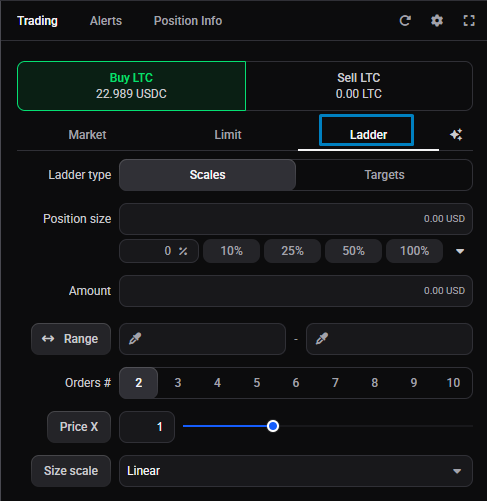
- Open the Trading widget for the market you want.
- Select the Ladder tab, next to Market and Limit.
- Set Ladder type to Scales or Targets.
If you don’t see the Ladder tab, switch the widget to Advanced with the Widget Mode setting in the Trading widget’s settings.
 🔍 Click the image to see a larger version
## Setting up a Scales ladder
🔍 Click the image to see a larger version
## Setting up a Scales ladder
With Ladder type set to Scales, Altrady spreads your orders across a price range for you. Fill in:
- Position size: how much to invest, in your quote currency. Type an exact percentage in the field, or use the quick buttons (10%, 25%, 50%, 100%) to set it as a share of your available balance.
- Amount: the quantity of the coin, if you’d rather size it that way. Altrady keeps Position size and Amount in step, so you only need to set one.
- Range: the high and low prices your orders spread between. Type them in, use the eyedroppers to pick from the chart, or drag the range on the chart.
- Orders #: how many orders to split the entry into, from 2 to 10.
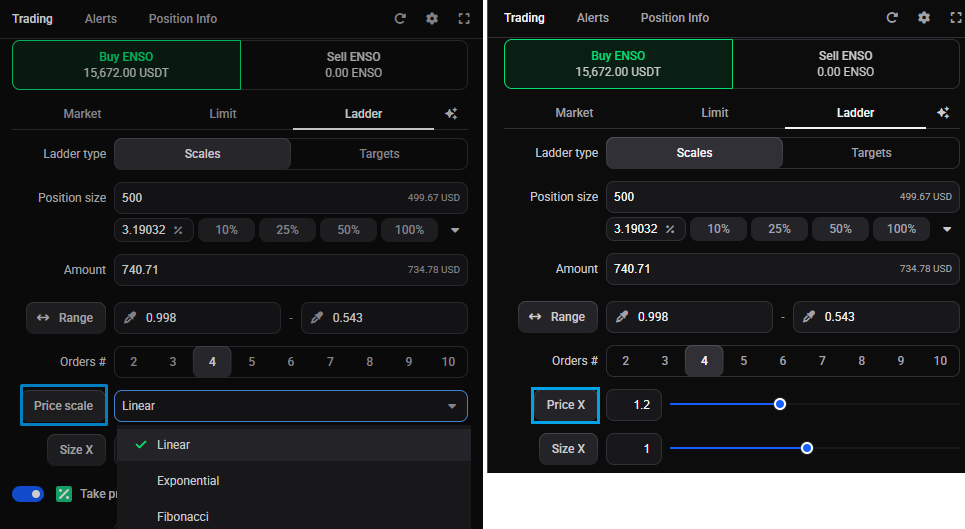
- Price X: a multiplier that adjusts the spacing between the order prices across the range. Leave it at 1 for even spacing. Or switch to Price scale and pick a preset spacing: Linear, Exponential, or Fibonacci.
 🔍 Click the image to see a larger version
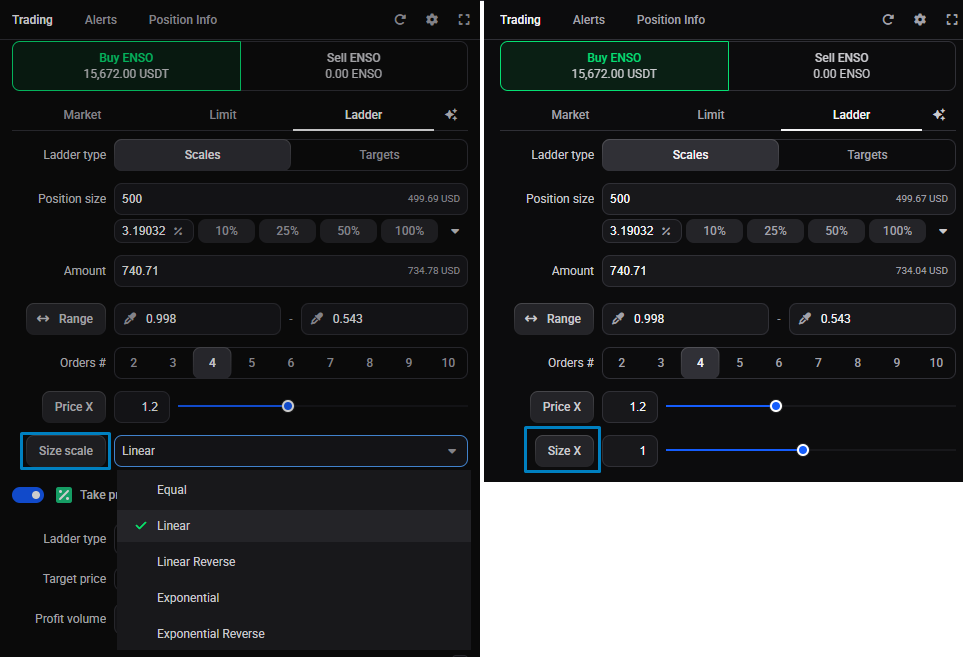
6. Size scale: how the order sizes are distributed, either Equal, Linear, Linear reverse, Exponential, or Exponential reverse. Or swap to Size X by clicking on the button.
🔍 Click the image to see a larger version
6. Size scale: how the order sizes are distributed, either Equal, Linear, Linear reverse, Exponential, or Exponential reverse. Or swap to Size X by clicking on the button.
 🔍 Click the image to see a larger version
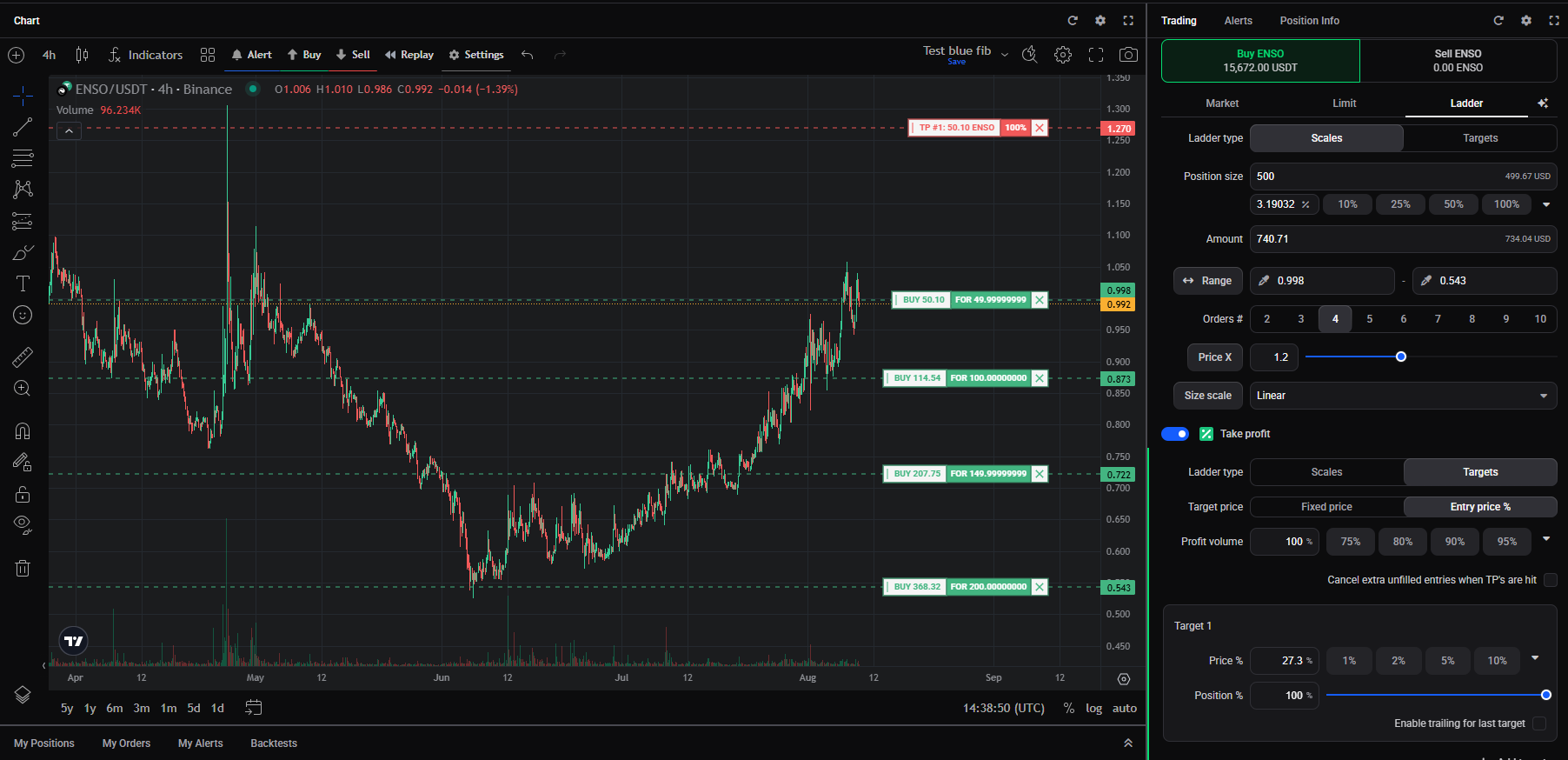
Changing the Range or Orders # recalculates every order in the ladder, since they all sit inside the same range. If a middle price suddenly looks different, that’s why: one of those inputs shifted the whole spread. Each order still has to meet the exchange’s minimum order size, so splitting a small amount into many orders can be rejected.
🔍 Click the image to see a larger version
Changing the Range or Orders # recalculates every order in the ladder, since they all sit inside the same range. If a middle price suddenly looks different, that’s why: one of those inputs shifted the whole spread. Each order still has to meet the exchange’s minimum order size, so splitting a small amount into many orders can be rejected.
 🔍 Click the image to see a larger version
## Setting up a Targets ladder
🔍 Click the image to see a larger version
## Setting up a Targets ladder
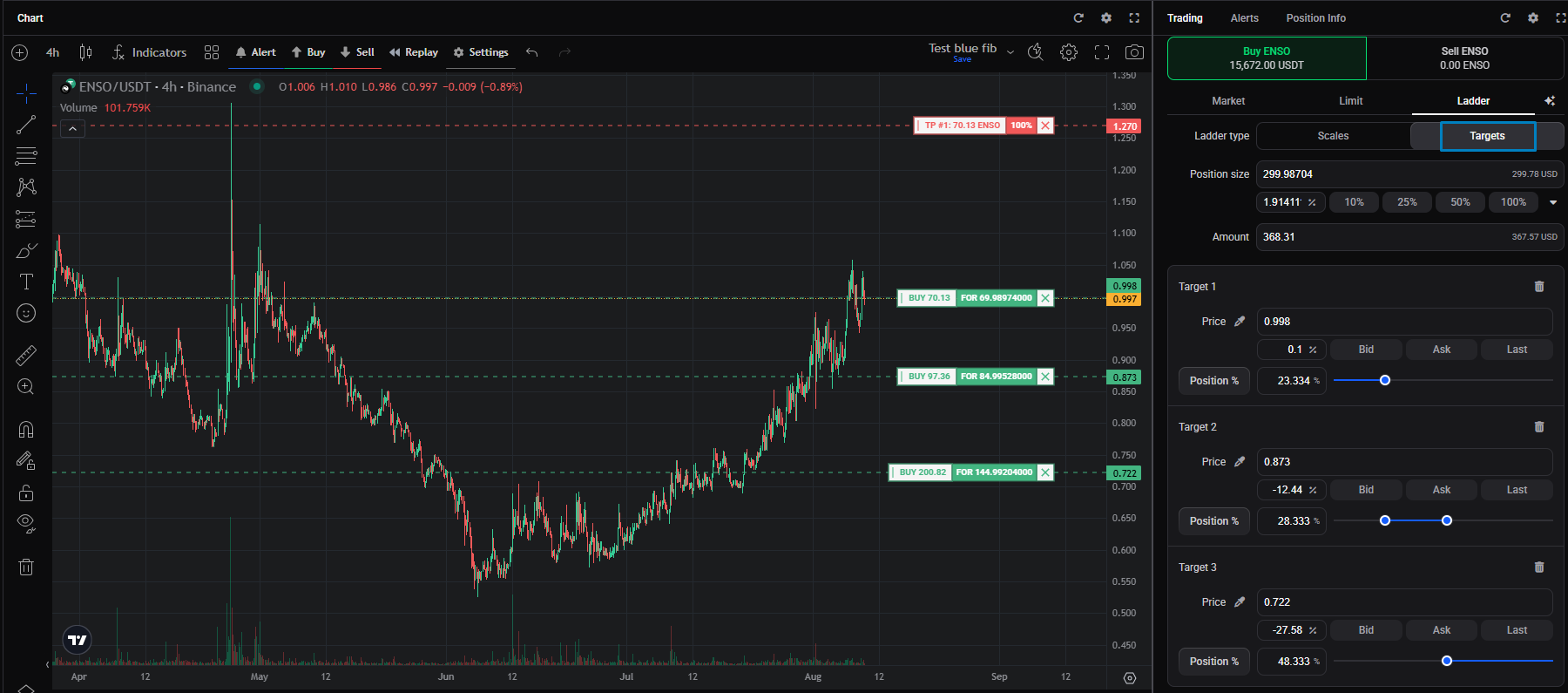
Set Ladder type to Targets for complete control over each order: you set every order’s price and size yourself instead of letting Altrady space them. Add a level for each order, give it a price and a share of your size, and Altrady shows the resulting amount. You can also drag the levels on the chart. That’s really all there is to it: Targets is simply the fully manual version of the same ladder.
 🔍 Click the image to see a larger version
## Adding a take-profit ladder
🔍 Click the image to see a larger version
## Adding a take-profit ladder
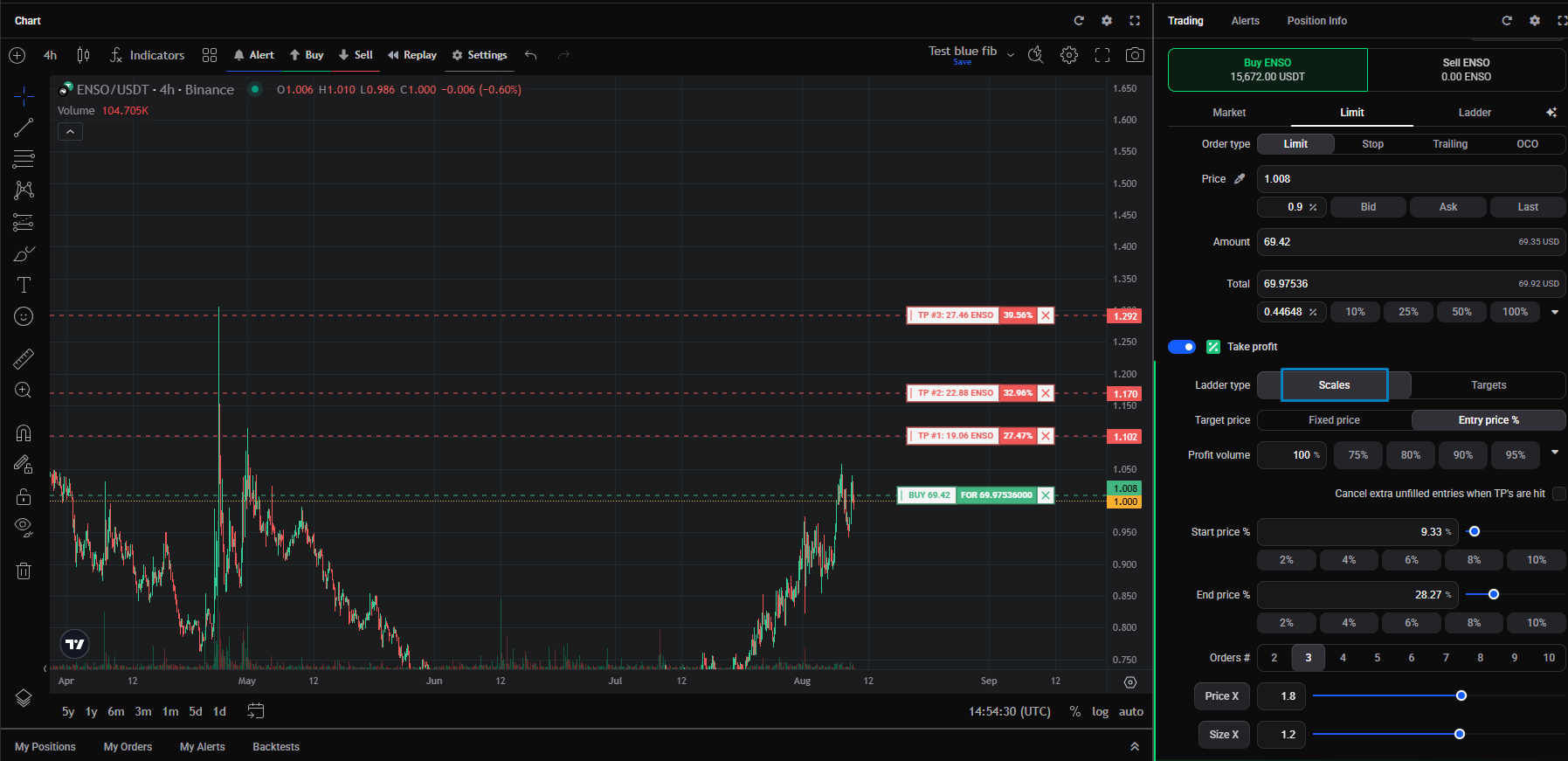
In the same ticket, turn on Take profit to close the position in stages with its own ladder of exit orders. It has the same Scales and Targets types, plus a few exit-specific settings:
- Target price: choose Fixed price to type the actual exit prices, or Entry price % to set each level as a percentage above your average entry price.
- Start price % and End price %: in Entry price % mode, the nearest and furthest exit levels as a percentage from your entry. In Fixed price mode you set an actual start and end price instead.
- Profit volume: how much of the position the ladder closes in total. The quick buttons cover 75%, 80%, 90%, 95%, and 100%.
- Cancel extra unfilled entries when TP’s are hit: tick this to cancel the ladder’s remaining open orders as soon as a take-profit target fills. Leave it off and they stay on the book, so they can still fill later if price comes back.
Orders #, Price X, and Size scale work exactly as they do for the entry ladder.
 🔍 Click the image to see a larger version
## Editing a ladder after an order fills
🔍 Click the image to see a larger version
## Editing a ladder after an order fills
Once one of a ladder’s orders has filled, you can no longer edit it as a Scales ladder: Altrady switches it to a Targets ladder for editing, so from then on you adjust the remaining orders individually by price and size. This applies to both entry and take-profit ladders.
Still stuck?
If your ladder orders aren’t behaving the way you expect, reach out through support chat in the app and the team can look at your account directly.