
What do the position controls do?
When you have an open position on a market, the position controls appear at the top of the trading widget. They let you adjust that position without building a new order from scratch: add to it, add exits, add automation, or close it. This article explains what each control does. For what positions are, and the difference between smart and manual, see an overview of positions.
Every control except Close acts on a smart order, so it needs a smart position. If the selected position is manual, Altrady offers to convert it to smart first.
Selecting a position
If more than one position is open on a market, click the triangle to show the list, and choose which position the controls act on.
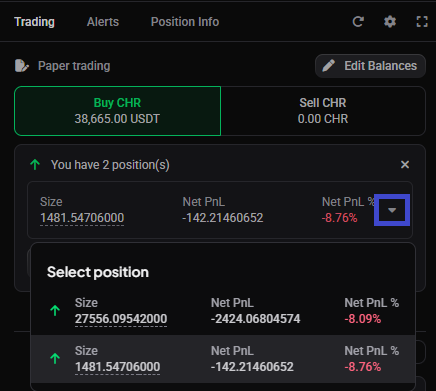 🔍 Click the image to see a larger version
How the controls work
Every control except Close works the same way:
- Click the control. The position is opened in Edit Mode in the trading widget, the relevant section opens, and a draft order or setting is added for you.
- Adjust the draft as needed.
- Scroll to the bottom of the trading widget and click Place Order to save your changes.
To discard your changes and leave Edit Mode, click Reset Form.
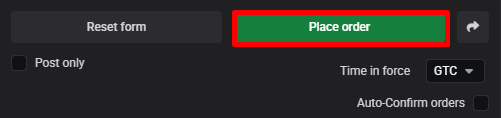 🔍 Click the image to see a larger version
The controls
Increase
Increase adds size to an open position. It adds a new draft entry order, and you can add more with + Add Target to split the added size across several orders. For the full flow, and how average entry and break-even recalculate, see how to edit or scale into an open position.
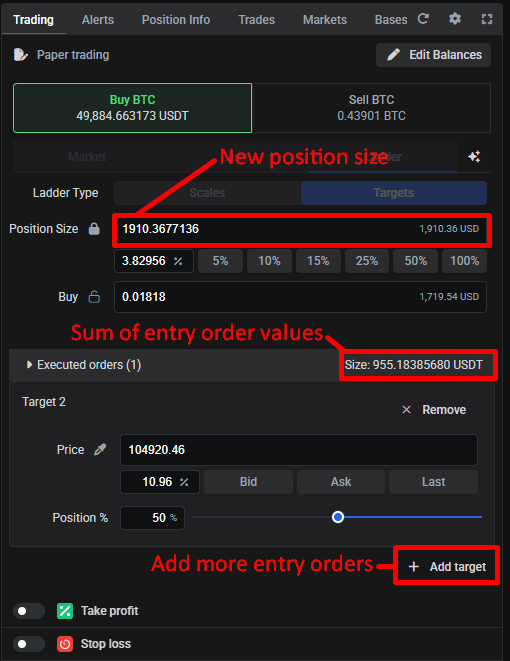 🔍 Click the image to see a larger version
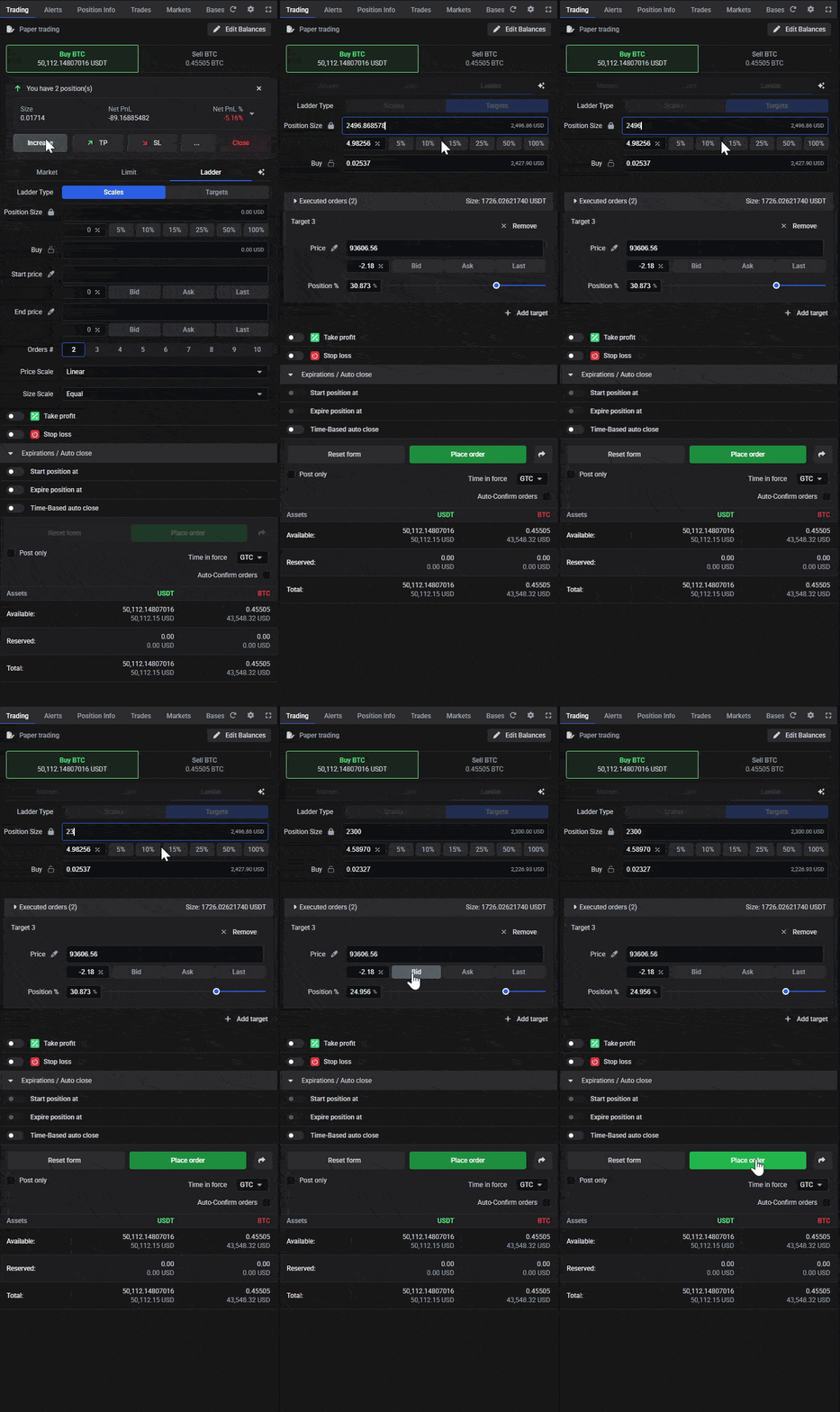 🔍 Click the image to see a larger version
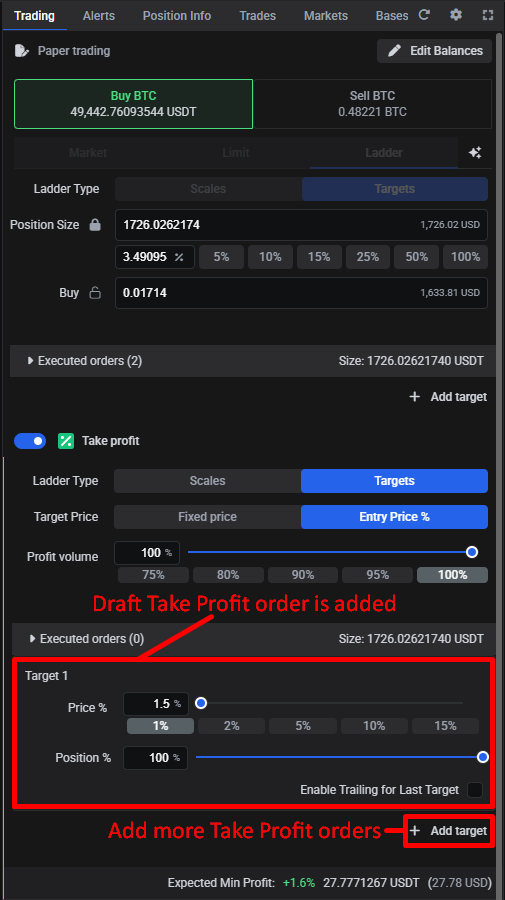
TP (take profit)
TP adds a draft take-profit order. For the take-profit options, including exit ladders, see how to set or adjust take profit and stop loss.
 🔍 Click the image to see a larger version
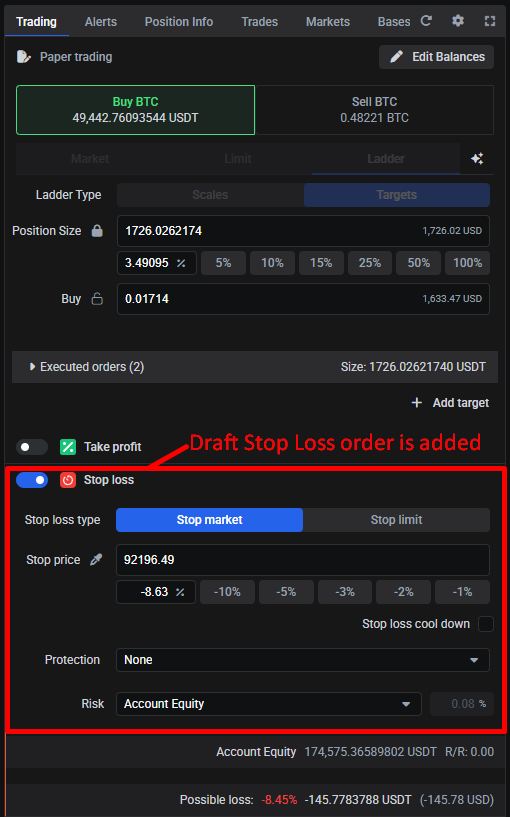
SL (stop loss)
SL adds a draft stop-loss order, or allows you to edit the existing SL. For the stop-loss options, including trailing stops, cool-downs, and protection modes, see smart order stop loss and protections.
 🔍 Click the image to see a larger version
More options (3-dot menu)
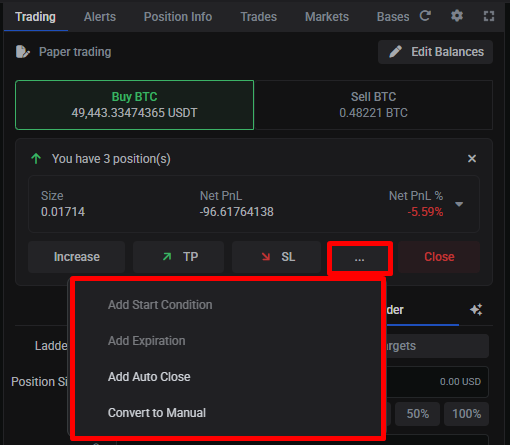
The 3-dot menu holds the position’s automation settings and the option to convert it. A position that is already open (with an entry filled) will have fewer options:
 🔍 Click the image to see a larger version
| Option | What it does | More |
|---|---|---|
| Add / Edit Start Condition | Delays the entry until a price (or candle close) and/or time is reached | Smart order timing |
| Add / Edit Expiration | Cancels a pending entry, and the position, if it hasn’t filled by a set time | Smart order timing |
| Add / Edit Auto Close | Closes the position at market after a set time | Smart order timing |
| Convert to Manual / Convert to Smart | Changes the position type | Converting between smart and manual |
Each option reads Add or Edit depending on whether that setting already exists on the position.
Close
Close places an order to exit the position. It is the only control that doesn’t use the Edit Mode pattern: for a smart or bot position it opens a Close dialog, and for a manual position it pre-fills a close order in the trading widget. Close is also available from the My Positions widget, the Account Dashboard, and the Position Info widget.
Close is not the same as Mark as Closed. Close places a real order and your holdings change; Mark as Closed only records an end date and places no order. See how do I close, exit, or cancel a position?.
When a control is greyed out
| Control | Unavailable when |
|---|---|
| Every control except Close | The position is manual (Altrady offers to convert it to smart) |
| Add Start Condition | An entry order has already filled |
| Add Expiration | An entry order has already filled |
| Convert to Manual | The position is already manual |
| Convert to Smart | The position is already smart, or an exit order has filled or partly filled |
Related articles
- An overview of positions: what positions are, and the two types.
- How do I close, exit, or cancel a position?.
- Converting between smart and manual positions.
- How do I set up a smart position with take profit and stop loss?.
- Viewing your open positions and orders.
Still stuck?
If a control is greyed out and the table above doesn’t explain why, or a change didn’t save after Place Order, reach out through support chat in the app with the market and the account.