
How do I close, exit, or cancel a position?
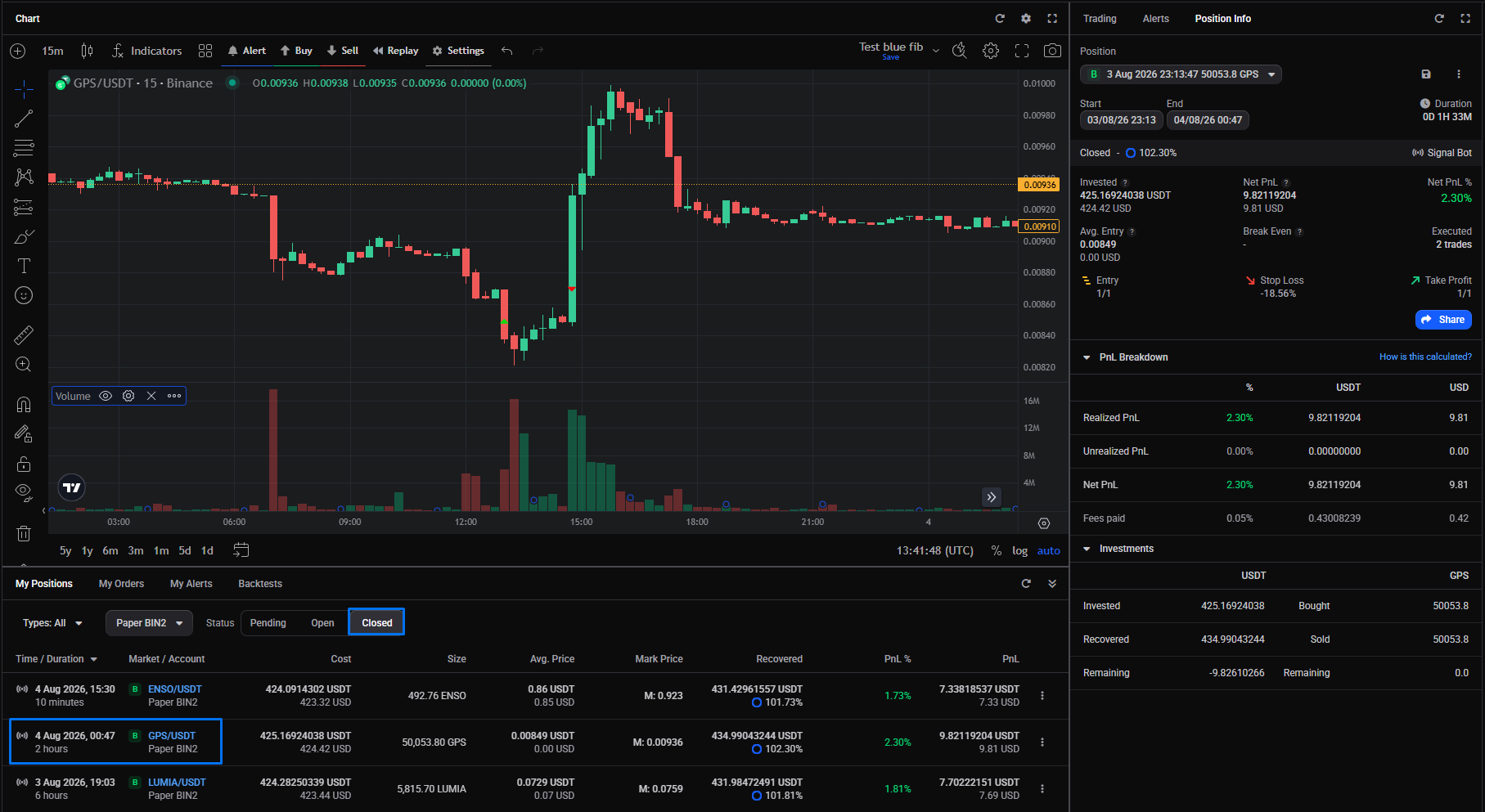 🔍 Click the image to see a larger version
Closing and cancelling do different things in Altrady, and it helps to know which you need. Closing exits a position you hold. Cancelling removes something that hasn’t filled yet: an order still waiting, or a position that hasn’t started. This article covers both, on Smart, bot, and manual positions across spot and futures.
Cancel vs close: what’s the difference?
Close exits a position you hold. Altrady sells what you’re holding, or buys it back for a short, and you are out of the trade.
Cancel applies to what hasn’t filled yet, and it takes two forms:
- Cancel a position that hasn’t started. Before any entry fills, the position shows as an empty placeholder: on the Account Dashboard, in My Positions > Pending, and in the signal bot if one created it. Cancelling it cancels all of its orders and removes it from the Dashboard and My Positions.
- Cancel a single order. What happens next depends on whether the order belongs to a smart position. If it doesn’t, the order is simply cancelled. If it does, Altrady asks what you want to do: edit the position to remove just that order, or cancel the whole position.
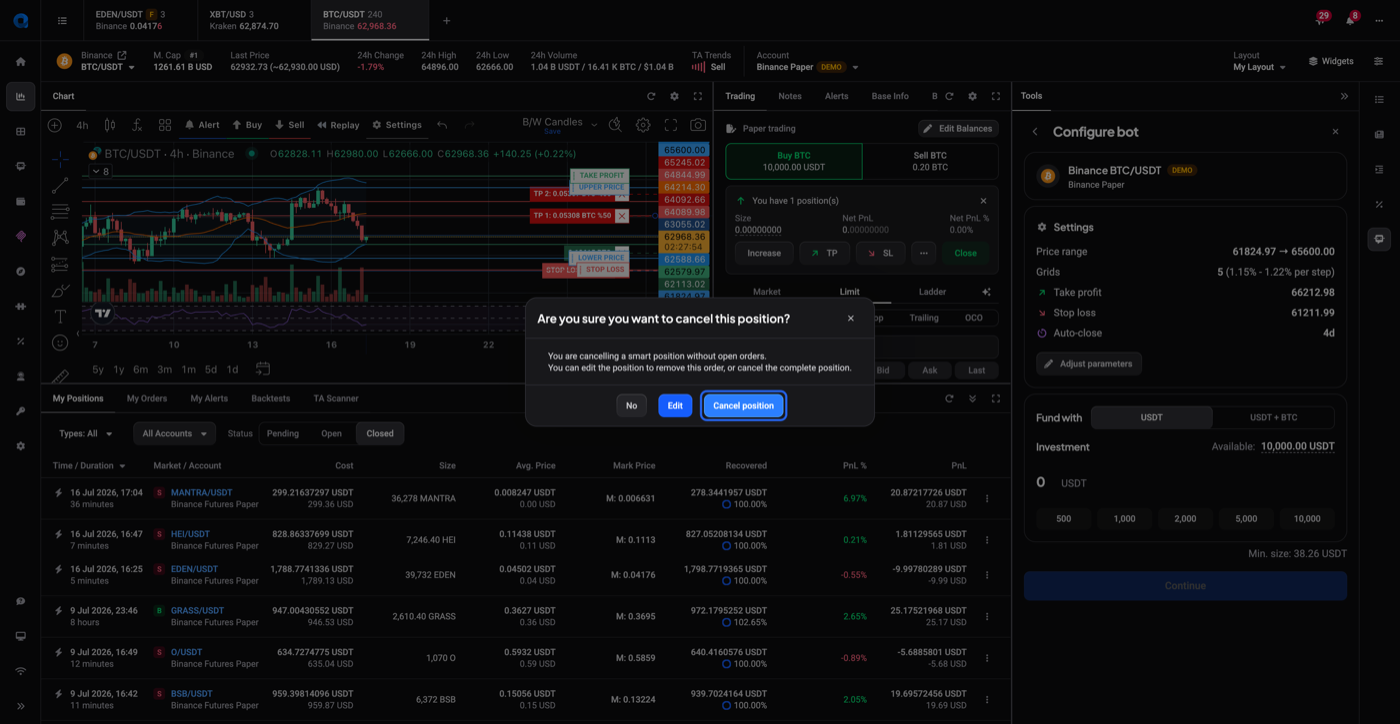 🔍 Click the image to see a larger version
Mark as Closed is a third action that looks like closing but places no order; it only relabels a position as closed. It has its own section below.
Where you can close a position from
Close is available from several places, and they all lead to the same result:
- The position controls in the Trading widget
- The My Positions widget
- The Account Dashboard
- The Position Info widget
What happens after you click Close depends on the position’s type, not on where you clicked.
Closing a Smart or bot position
Right-click the position row in My Positions (or open its actions menu) and choose Close position MARKET to exit immediately at the current price, or Close position LIMIT to set your own exit price. Either one opens the Close position window.
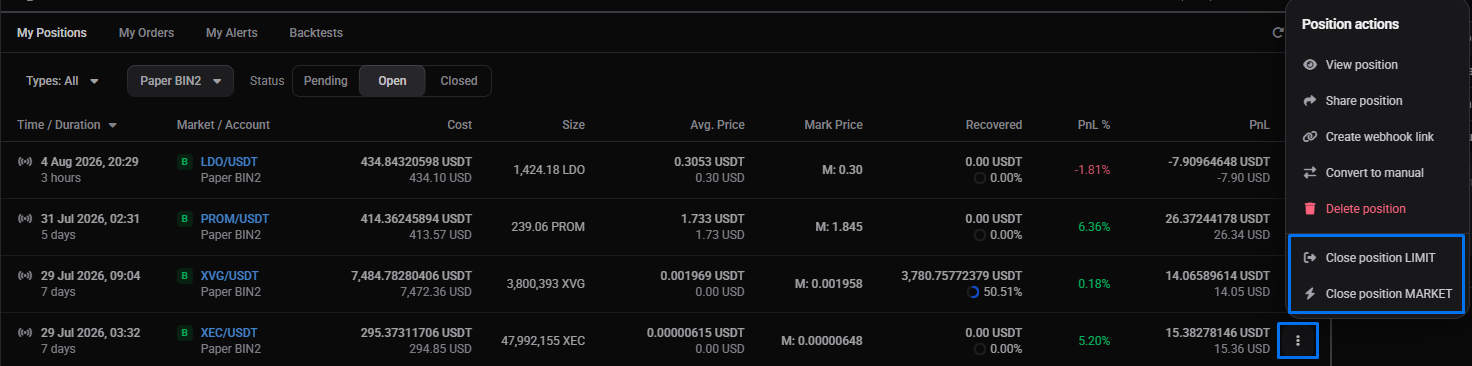 🔍 Click the image to see a larger version
 🔍 Click the image to see a larger version
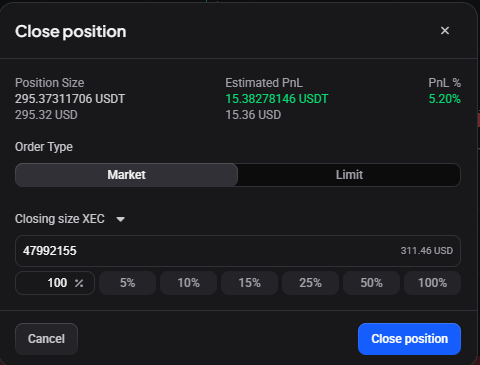
The window opens with the current price, a closing size of 100%, and your selected order type. You can change any of these before placing the order. Its fields:
| Field | What it is |
|---|---|
| Position Size | The remaining open amount, at the moment the window opened. The closing percentage is based on this |
| Estimated PnL | The estimated profit or loss, based on the total position size (it takes into account any exit orders that have already filled) |
| PnL % | The same figure, as a percentage |
| Order Type | Market takes the best available price now; Limit adds a Price field for your target exit |
| Closing Size | Click to switch the size currency between base and quote |
| Size | The exact amount to close with; entering a percentage fills this in |
| Percentage | Type a percentage, or use a preset, to set the size |
With the closing size at the full amount, the confirm button reads Close Position. Confirm to place the exit order.
There’s also a one-click Close in the Trading widget’s position controls that closes at market immediately, handy when you don’t need to review the details first.
Taking partial profit: reducing a position
You don’t have to exit all at once. In the same window, set the Closing Size below the full amount (in base or quote currency), and the confirm button changes from Close Position to Reduce Position. Confirm to lock in that portion.
Your remaining Take Profit and Stop Loss orders aren’t cancelled: Altrady scales them proportionally to match the smaller position size.
The Estimated PnL shown for a partial close is the same figure as a full close. Later close orders show a different Estimated PnL if you change their price.
Looking to add to a position instead of trimming it? See how to edit or scale into an open position.
Closing a manual position
Some positions are manual (analytics only), including ones that came from trades you made directly on the exchange. Close position MARKET and Close position LIMIT still work, but instead of the Close position window they pre-fill a full-size exit order in the Trading widget for you to review and place.
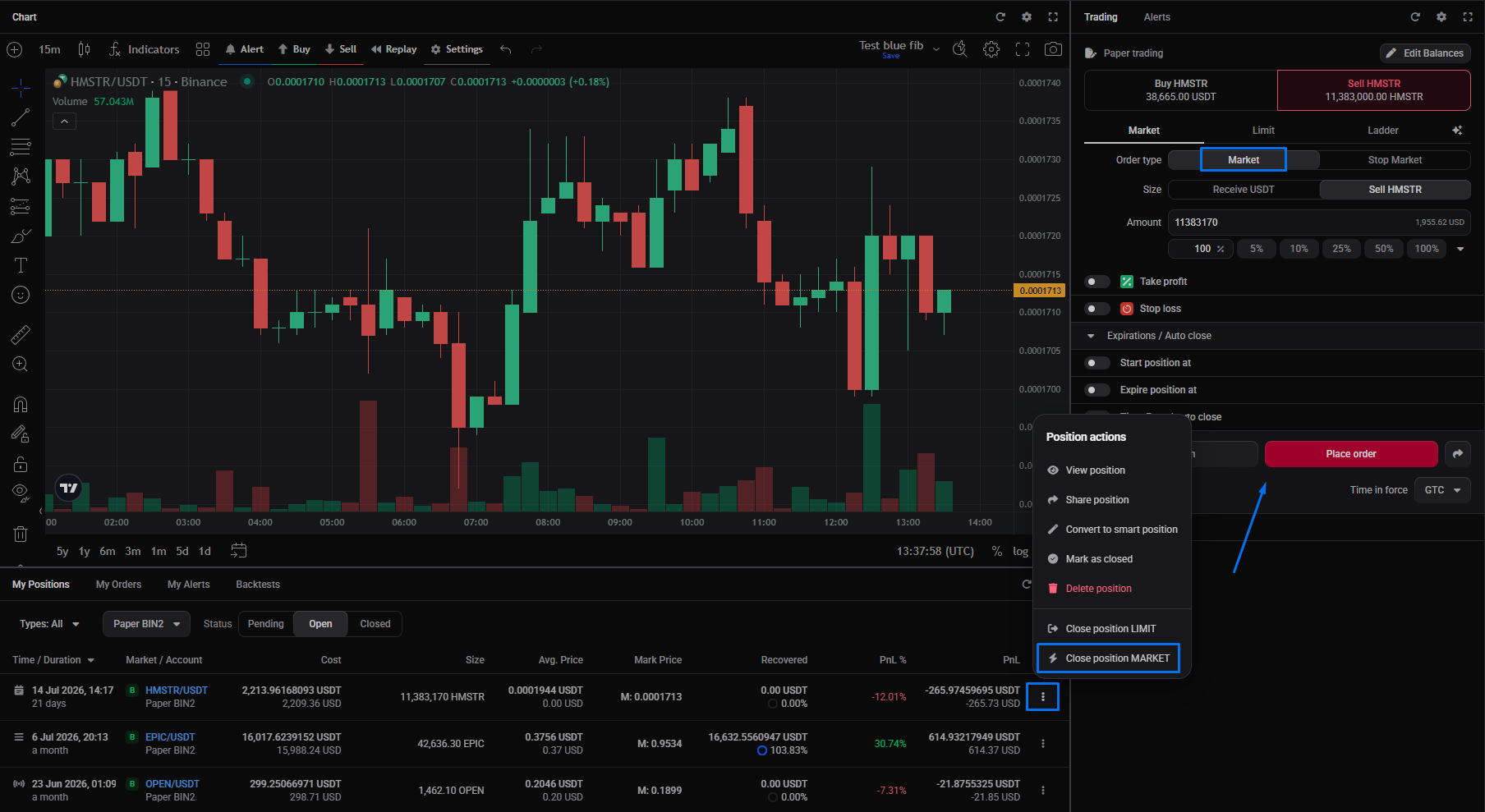 🔍 Click the image to see a larger version
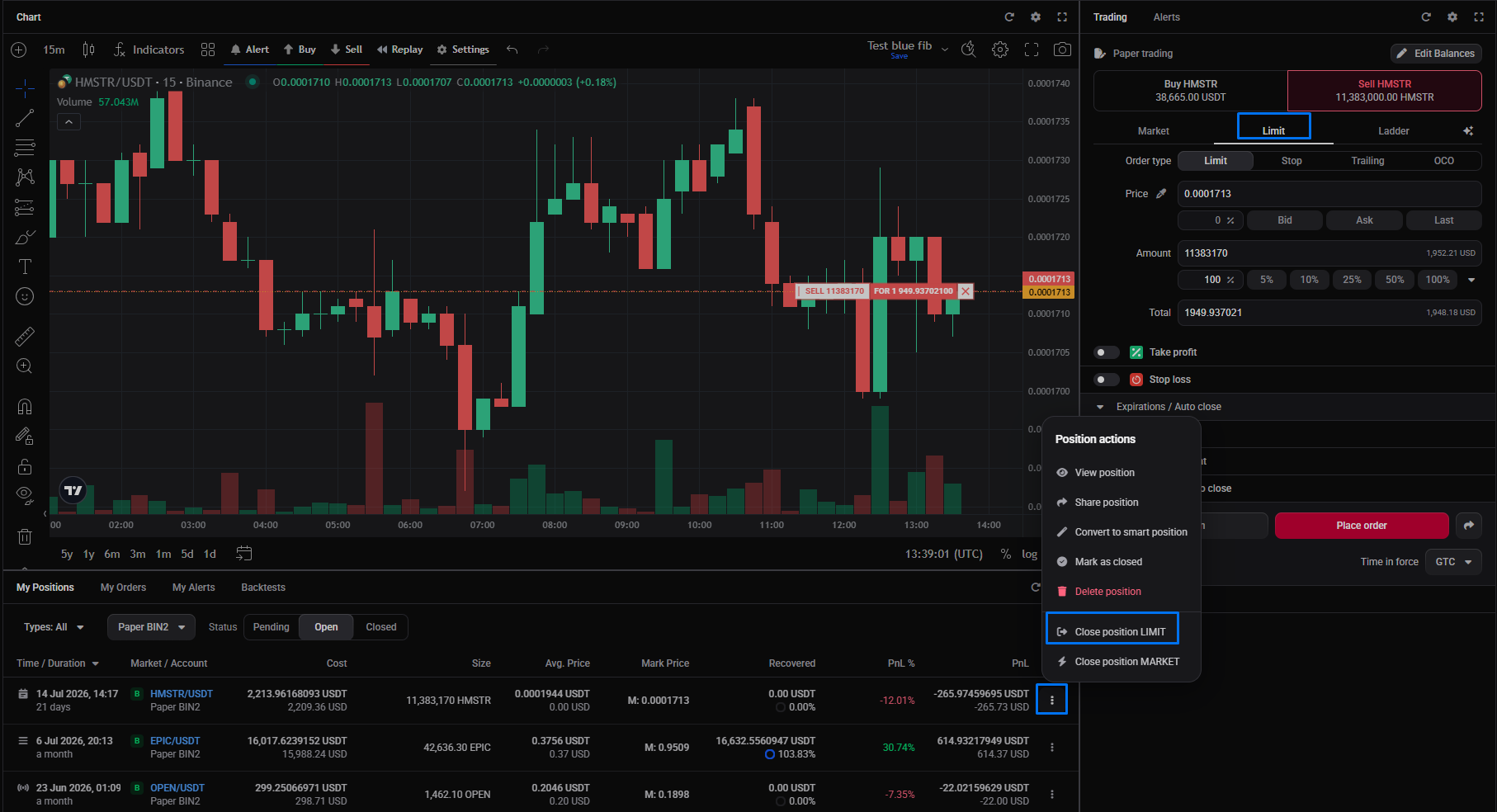 🔍 Click the image to see a larger version
As long as you don’t change the Spend and Buy/Receive fields, the order stays at the exact amount needed to close the position.
If you’d rather manage the position fully inside Altrady, right-click it and choose Convert to smart position to get the Close position window and TP/SL management. See converting between smart and manual.
If you already closed it on the exchange
If you closed the position on the exchange yourself, bring Altrady into step rather than placing another order:
- Click the resync arrow so the external trade is pulled into Altrady.
- If it is a smart position, convert it to manual. The external trade is then included in the open manual position automatically.
- If that brings the remaining amount to zero (or to dust), the manual position closes itself. If it doesn’t, you can close the manual position yourself.
Use Mark as Closed when Altrady doesn’t have all the trades needed for the position to balance, but you know it is actually at zero. Recording a close date draws a line under it so a new position can start fresh from the correct trade and date.
How the close amount is calculated
The close order is pre-filled from the trades in the position: what you bought and sold since its start date.
| Position | Close order | Amount is based on |
|---|---|---|
| Spot long | Sell | Base currency bought minus sold |
| Spot short | Buy | Quote currency received when the coins were sold |
| Futures long | Sell | Base currency bought minus sold |
| Futures short | Buy | Base currency sold minus bought |
Spot shorts are the exception: a spot short must be based on the quote amount, so its close order uses the quote currency you received when you sold. Every other case uses the base amount. See how do spot short positions work?.
Reduce-only on futures
Reduce-only tells the exchange that an order may only reduce a position, never open or increase one. On futures, Altrady sets it for you whenever an order is meant to close or reduce:
| Case | Reduce-only |
|---|---|
| Smart position exit orders (Take Profit, Stop Loss, trailing, auto-close) | Set automatically |
| Closing a manual position with Close market or Close limit | Set automatically |
| Hedge mode, orders using the Close option | Enabled by Close |
| Hedge mode, orders using the Open option | Not set (Open creates or increases) |
| A regular order that opens or increases a position | Not set: enable it manually above Place Order |
Because closing sets reduce-only for you, a close order can only ever reduce the position, even on a one-way account.
What happens to your orders when you close
Closing a Smart position automatically cancels its attached orders (Take Profit, Stop Loss, and any trailing orders) and closes the position. You don’t cancel targets one by one; a Take Profit ladder is cancelled in full. A partial reduce resizes them instead, as above.
With a Close limit, the Stop Loss is cancelled the moment you place the close order. If the limit price is never reached, the position is unprotected in the meantime, so keep an eye on it, or use a market close when you need the exit to be certain.
Closing a manual position does not cancel any orders you hold on the market; a manual position doesn’t own them.
After a position closes (fully, or reduced down to zero) it moves from your open list into the Closed view under My Positions.
🔍 Click the image to see a larger version
Any orders still working show up under My Orders with a Pending status, so check that tab to confirm nothing was left behind.
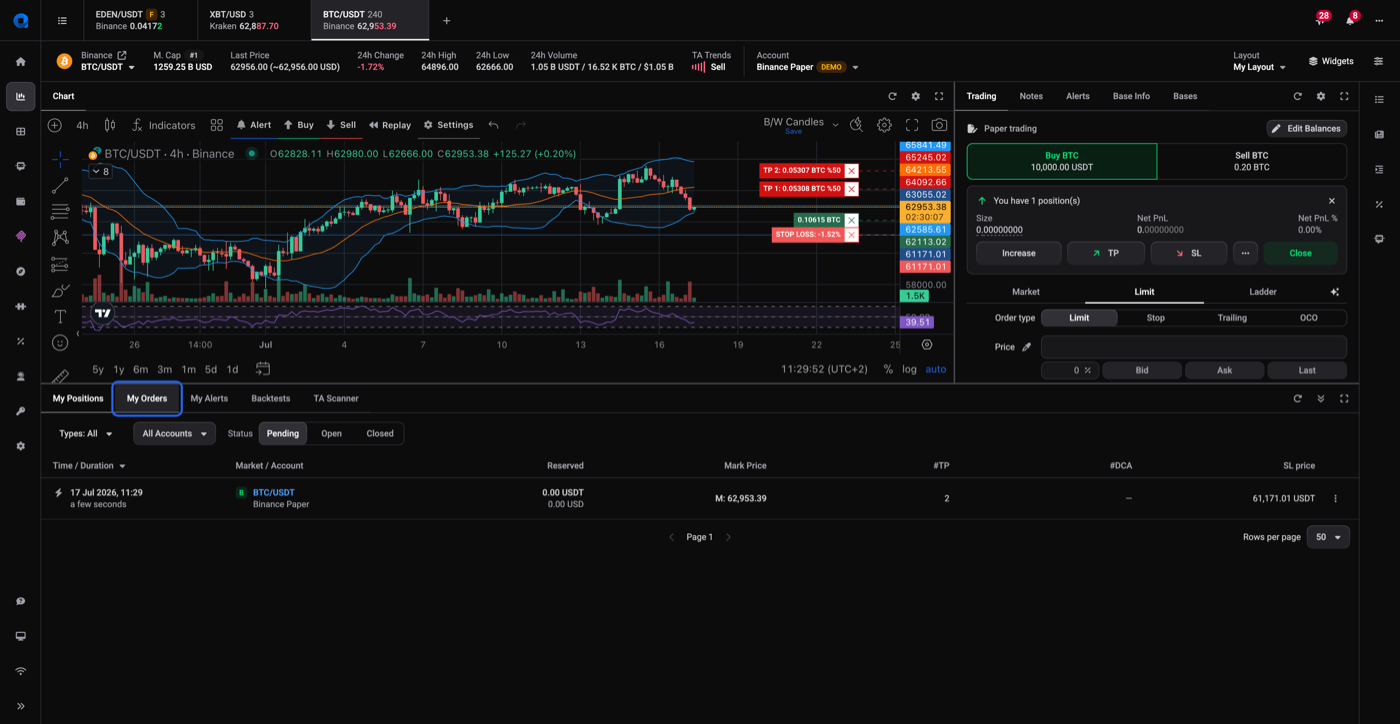 🔍 Click the image to see a larger version
Mark as Closed
Mark as Closed is available on manual positions, from the Position Info widget. It records an end date and moves the position to your closed list. It places no order: for a long, the coins you bought are still yours; for a short, the coins you sold are still sold.
Use it when you no longer want to transact on a position but want to keep its analytics, or to draw a line under a position when Altrady is missing some of its trades but you know it is actually at zero. To mark a Smart position as closed, convert it to manual first.
On futures, Mark as Closed behaves differently. The end date is recorded and the position closes, but if the exchange still reports an open amount, Altrady would then create a new futures position for it. So on futures, Mark as Closed restarts a position rather than retiring it, which is useful if you want to draw a line under its analytics without changing your holdings. On spot there’s no equivalent; a marked-closed spot position stays closed.
Mark as Closed is for finishing a position you no longer want to track. If instead a position is showing the wrong open or closed status after a sync, see why does my position show the wrong status?, which covers Mark as closed and Mark as open for correcting the label.
Delete position
Delete position removes Altrady’s record of the position. It is not a close and not a status change: it places or cancels no orders, it just removes the record.
Any orders linked to a deleted position are left open on the exchange and may still fill. If you want those orders gone, cancel them first, or cancel or close the position instead, and only then delete the record if you still need to.
Use Delete only for a position record you don’t want at all. To correct an open label, use Mark as closed instead, not Delete: see why does my position show the wrong status?.
Troubleshooting: the close amount looks wrong
A manual position contains the trades that fall after its start date. If the start date is wrong, the position holds the wrong trades, and the close amount worked out from them is wrong too, so Close may place an incorrect order.
To check it, open the Investments section of the Position Info widget and confirm the entry and exit amounts look right so far: the totals should match the filled buy and sell orders. To fix it, change the position’s start date so it includes the correct trades. Don’t adjust the close order amount by hand: that treats the symptom and leaves the analytics wrong.
This only affects manual positions. Smart and bot positions track their own orders, so their open amount is always correct.
Quick reference
| You want to… | Do this |
|---|---|
| Exit a position right now | Market close |
| Exit at a specific price | Limit close |
| Exit part of the position | Set Closing Size below the full amount (Reduce Position) |
| Remove one or more pending or open orders, keep the position | Edit the position, remove those orders |
| Cancel a position that hasn’t started | Cancel position (removes the placeholder and all its orders) |
| Remove the whole position and its open and pending orders | Close (or cancel) the position |
| Exit a manual position | Close position LIMIT/MARKET (pre-fills the Trading widget), or Convert to smart position |
| Stop tracking a position without trading | Mark as Closed (manual positions) |
| Remove Altrady’s record of a position (leaves its orders open) | Delete position |
For the different position types, see an overview of positions.
Still stuck?
Still not sure which button you need? Reach out to support and describe what you’re trying to do, and we’ll walk you through it.