
How to Set or Adjust Take Profit and Stop Loss on an Open Position
A smart position in Altrady carries its own take profit (TP) and stop loss (SL), and you can set or adjust them any time while it’s open. This covers opening the position editor, setting multiple TP targets, moving your stop to break-even, dragging TP/SL lines on the chart, and why a TP/SL sometimes doesn’t show up as an order on your exchange.
A plain manual position (essentially a grouping of your trades with analytics) doesn’t carry this management on its own. To add or adjust TP/SL on one, convert it to a smart position first: right-click the position and choose Convert to smart position.
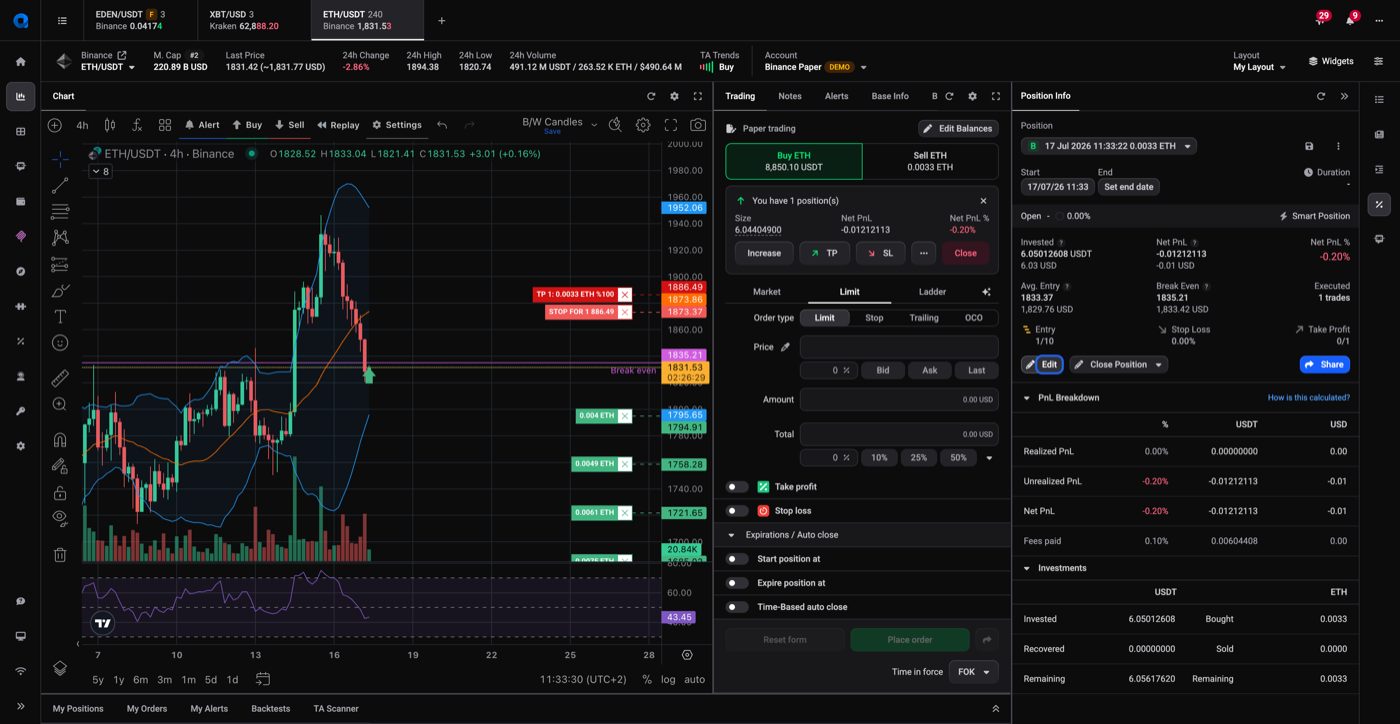
Opening the position editor
- Go to your open positions and find the position you want to adjust.
- Open the Position Info widget for that position.
- Click Edit, or use the TP or SL buttons directly, to open the position editor.
 🔍 Click the image to see a larger version
The editor is where you set or change TP, SL, and other position parameters.
🔍 Click the image to see a larger version
The editor is where you set or change TP, SL, and other position parameters.
Adding or adjusting TP levels (multiple targets)
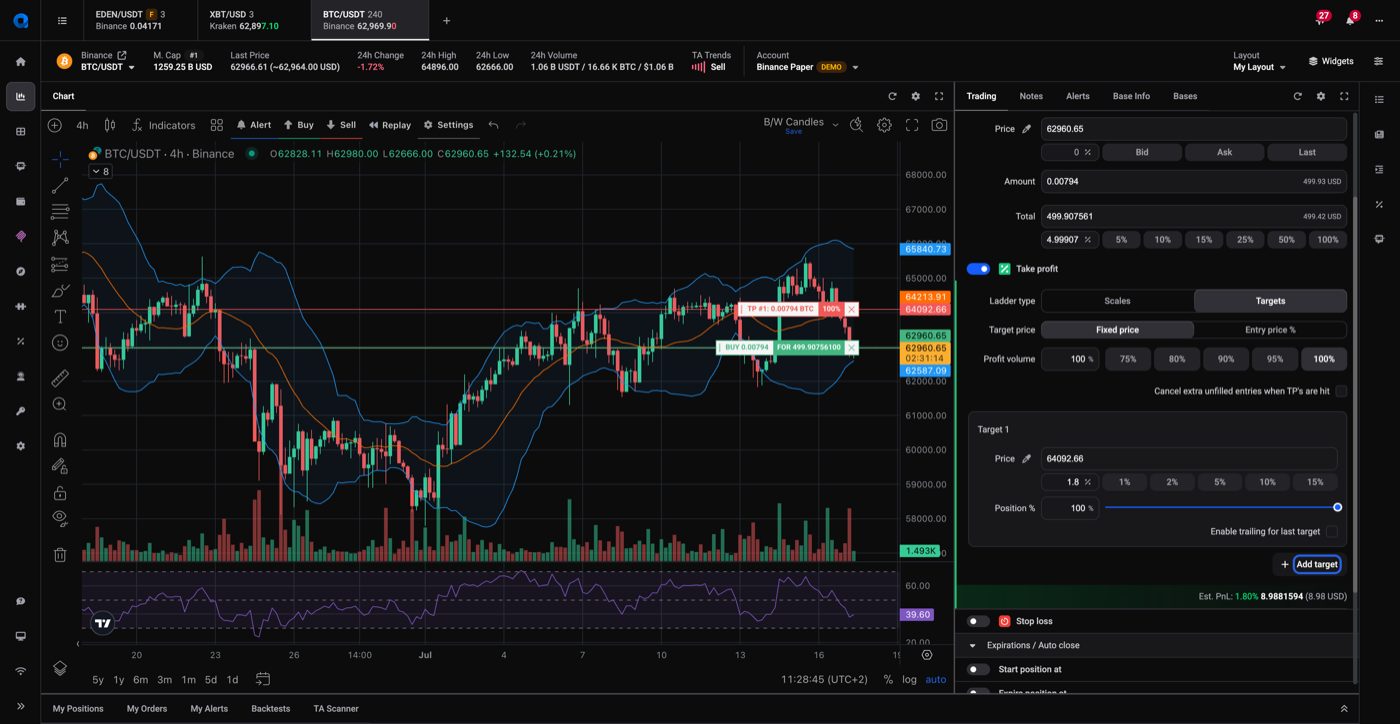
Altrady supports multiple take profit targets on a single position, each closing a percentage of your position.
- In the position editor, open the Take Profit panel.
- Set the Ladder type to Targets.
- Enter Target 1’s price and the percentage of the position it should close.
- Click Add target to stack additional TP levels, each with its own price and percentage.
- Save your changes.
 🔍 Click the image to see a larger version
Make sure your target percentages add up to 100% or less. Any leftover percentage stays open after your last target fills.
🔍 Click the image to see a larger version
Make sure your target percentages add up to 100% or less. Any leftover percentage stays open after your last target fills.
Adding or adjusting SL, moving to break-even
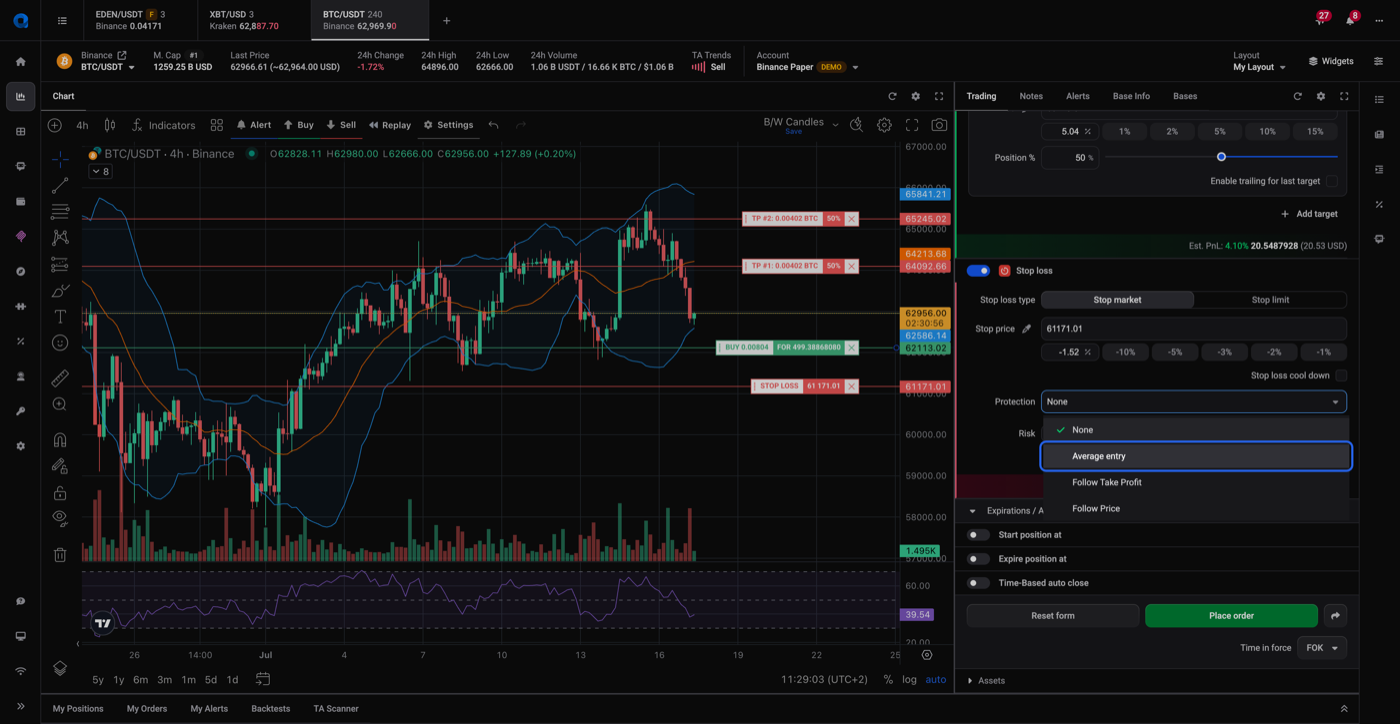
- In the position editor, open the Stop Loss panel.
- Set the Stop loss type and Stop price.
- To move your stop to break-even once the trade is in profit, open the Protection dropdown and select Average entry. This sets your SL to the position’s average entry price, so the trade can no longer lose money.
- Save your changes.
For the full set of protection modes (break-even, follow take profit, trailing) and the stop-loss cool-down, see how do stop loss and trailing stop protections work on a smart position?.
 🔍 Click the image to see a larger version
You can also trigger the break-even move from the position menu, without opening the full editor.
🔍 Click the image to see a larger version
You can also trigger the break-even move from the position menu, without opening the full editor.
Dragging TP/SL lines on the chart
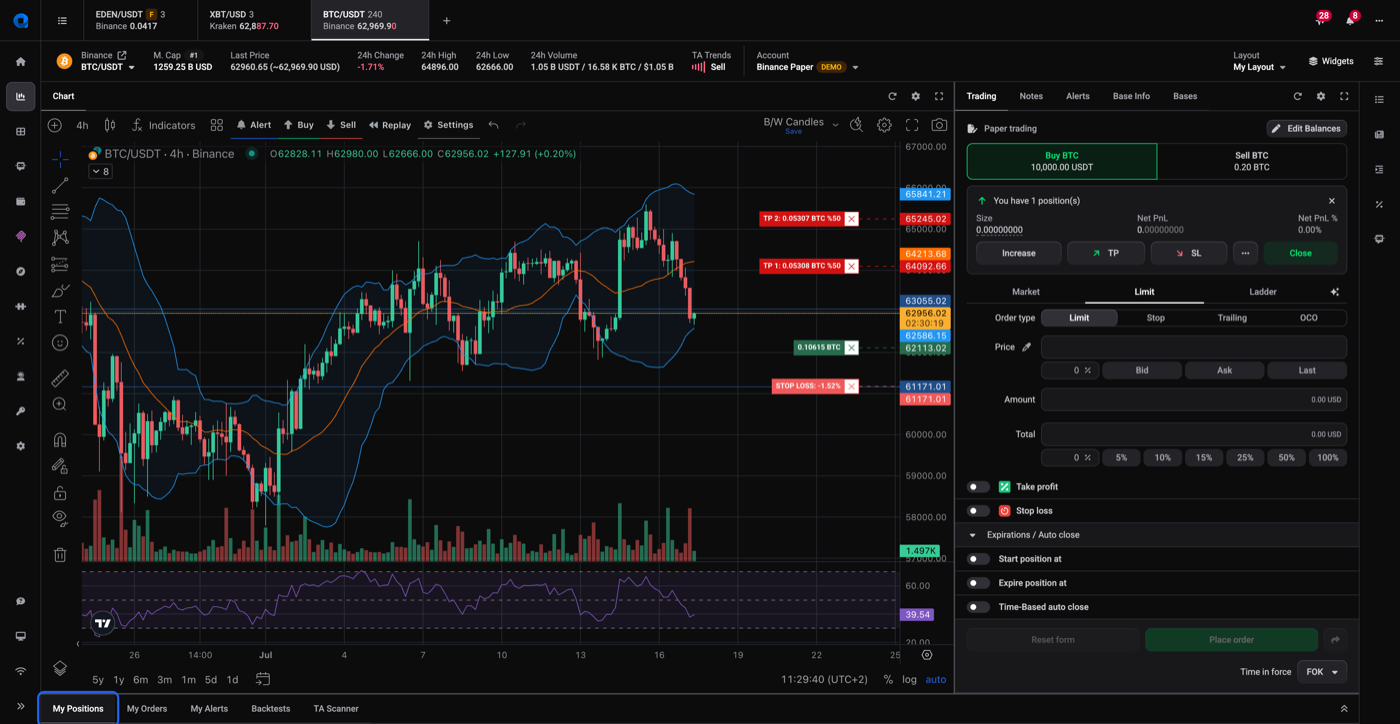
Once set, TP and SL show up as draggable horizontal lines directly on the chart, next to your position’s Edit and Close Position controls.
- Open the chart for the market you’re trading.
- Locate the TP1, TP2 (if set), and Stop Loss lines.
- Click and drag any line to a new price to adjust it, with no need to reopen the editor.
 🔍 Click the image to see a larger version
Dragging a line updates the position the same way editing the value in the panel would.
🔍 Click the image to see a larger version
Dragging a line updates the position the same way editing the value in the panel would.
Why a TP/SL might not appear on the exchange
 🔍 Click the image to see a larger version
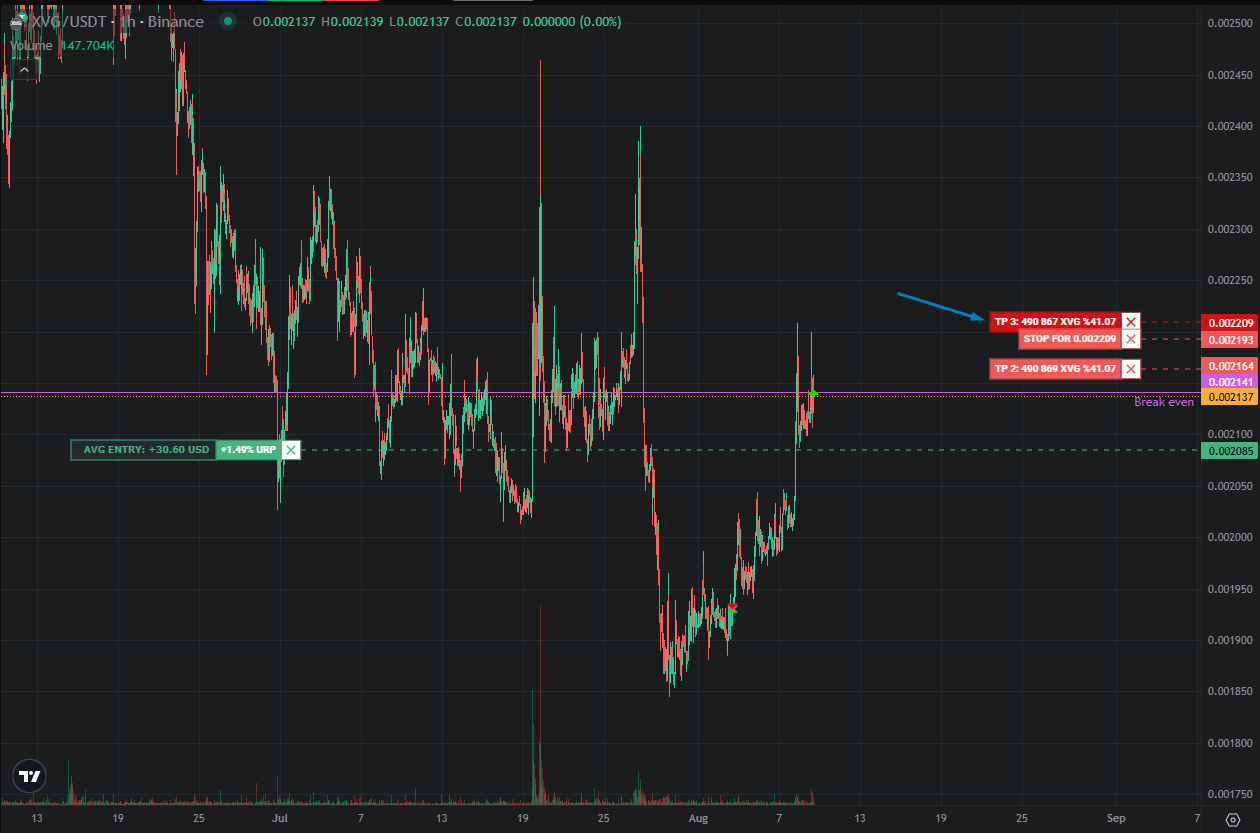
For some setups, Altrady manages your TP/SL itself instead of placing a native order on the exchange. When that’s the case, you won’t see a matching TP or SL order in your exchange account: this is expected, not a sign that your protection is missing.
🔍 Click the image to see a larger version
For some setups, Altrady manages your TP/SL itself instead of placing a native order on the exchange. When that’s the case, you won’t see a matching TP or SL order in your exchange account: this is expected, not a sign that your protection is missing.
Examples include:
- Trailing Take Profit (see image above: TTP price handle is darker red denoting it’s not placed)
- All smart Stop Losses on spot accounts
- Smart Stop losses with cooldowns on Futures accounts
- Smart orders awaiting an entry condition to be met
Altrady is still watching the market and will close the position when the price hits your TP or SL level. If you’re unsure whether a position is protected, check the position editor in Altrady, which is always the source of truth, not your exchange’s order list.
If you have any doubts about a specific position, contact support with the position’s exchange and pair and we’ll confirm exactly how it’s protected.