
Viewing your open positions and orders
Altrady gives you one place to see everything you have open across your connected exchanges: active positions and pending orders. This article covers where to find them and how to read them. For what a position actually is and the types Altrady uses, see an overview of positions.
Where to find your open positions
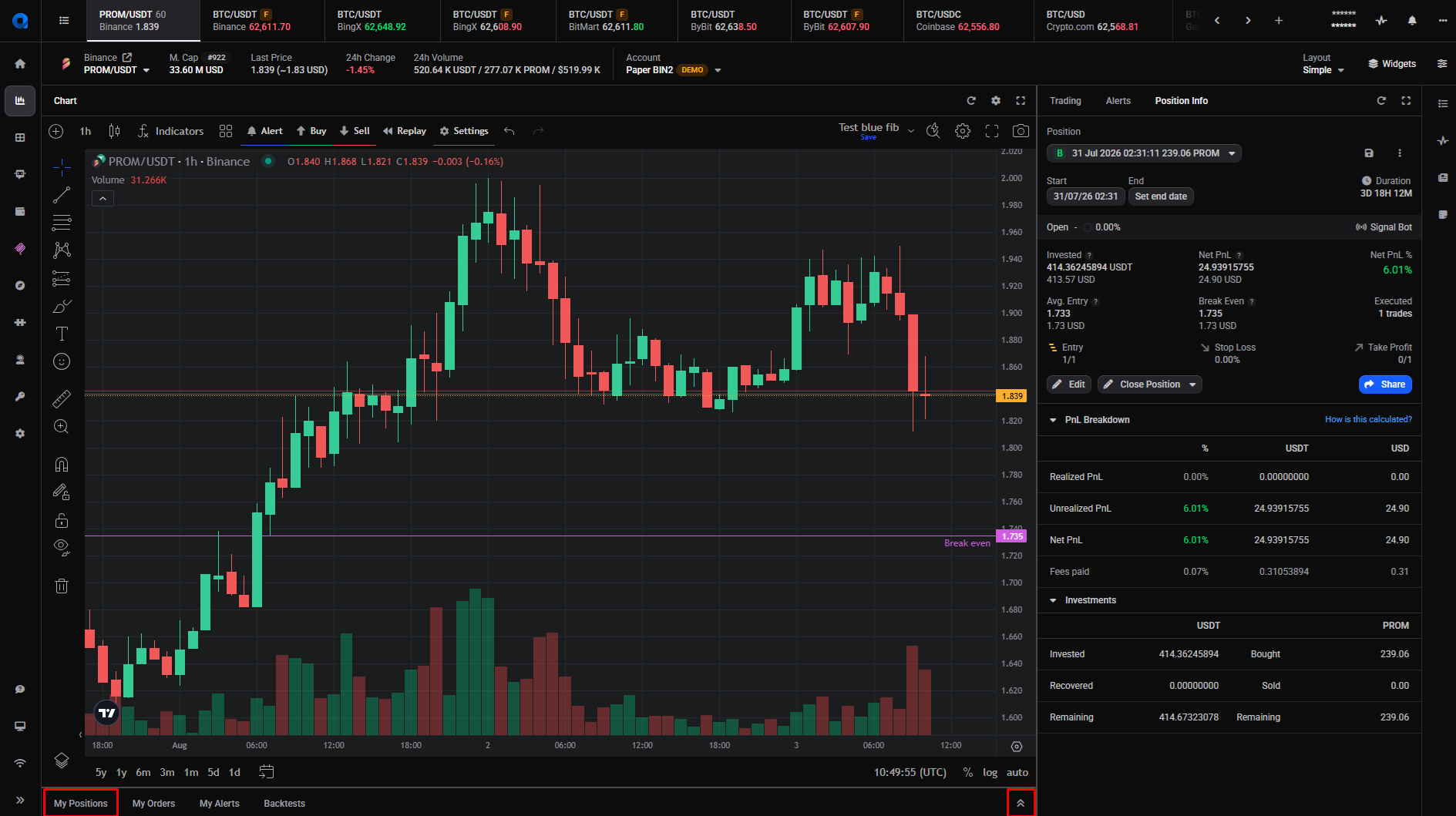
In the Simple and Advanced layouts, your open positions are in the My Positions tab in the bottom drawer. It lists every open position on the active exchange account. Your open positions also appear on the Dashboard.
 🔍 Click the image to see a larger version
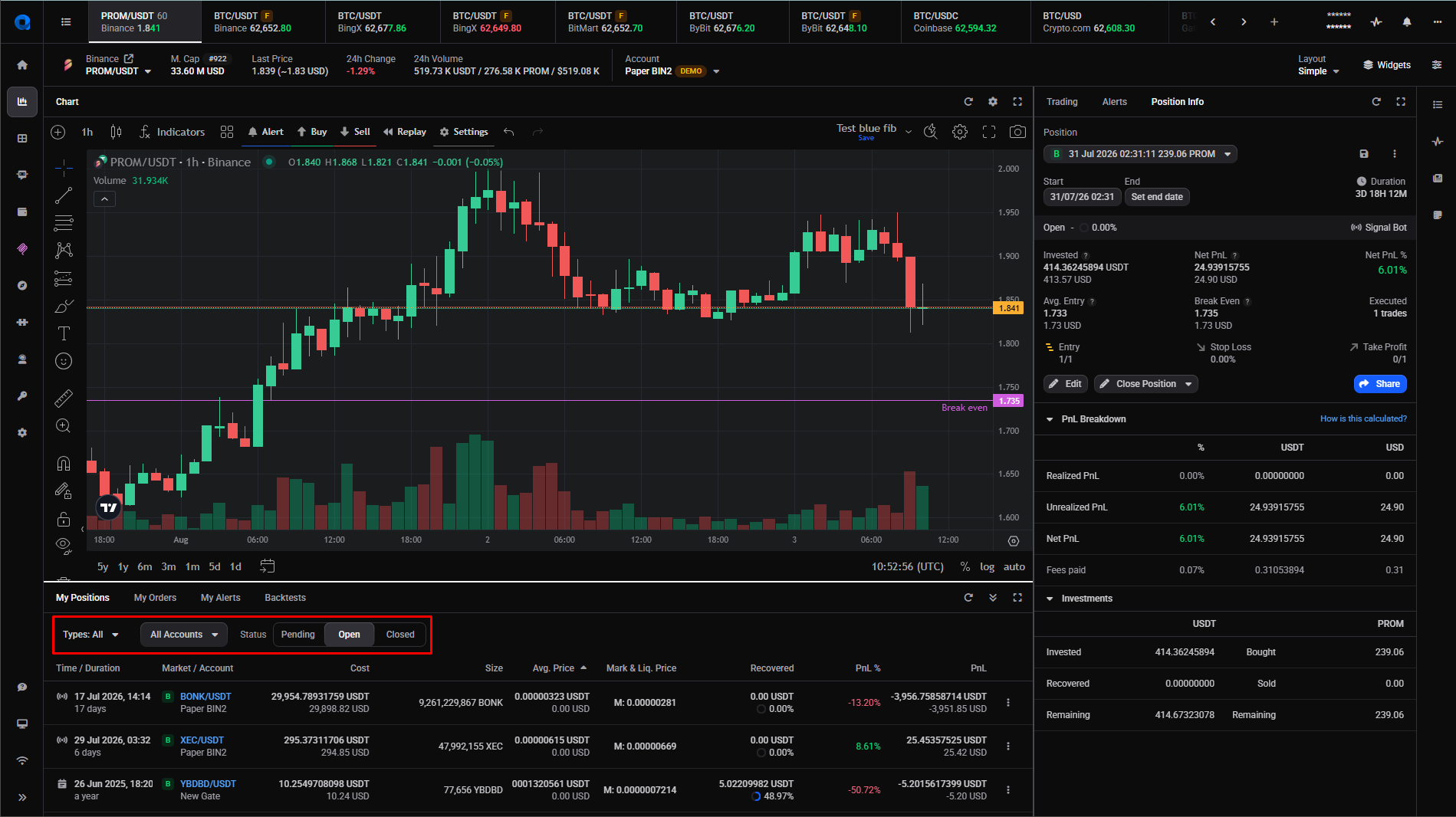
Use the account filter at the top of the list to pick a specific account, or All Accounts to see everything you have open in one view.
Each row shows the position’s Time/Duration, Market/Account, Cost, Size, Average Price, Mark Price, Recovered, PnL %, and PnL. The PnL column follows your Preferred profit setting in the trading widget settings. Each position’s take-profit and stop-loss levels are also plotted on the chart.
 🔍 Click the image to see a larger version
The Position Info widget
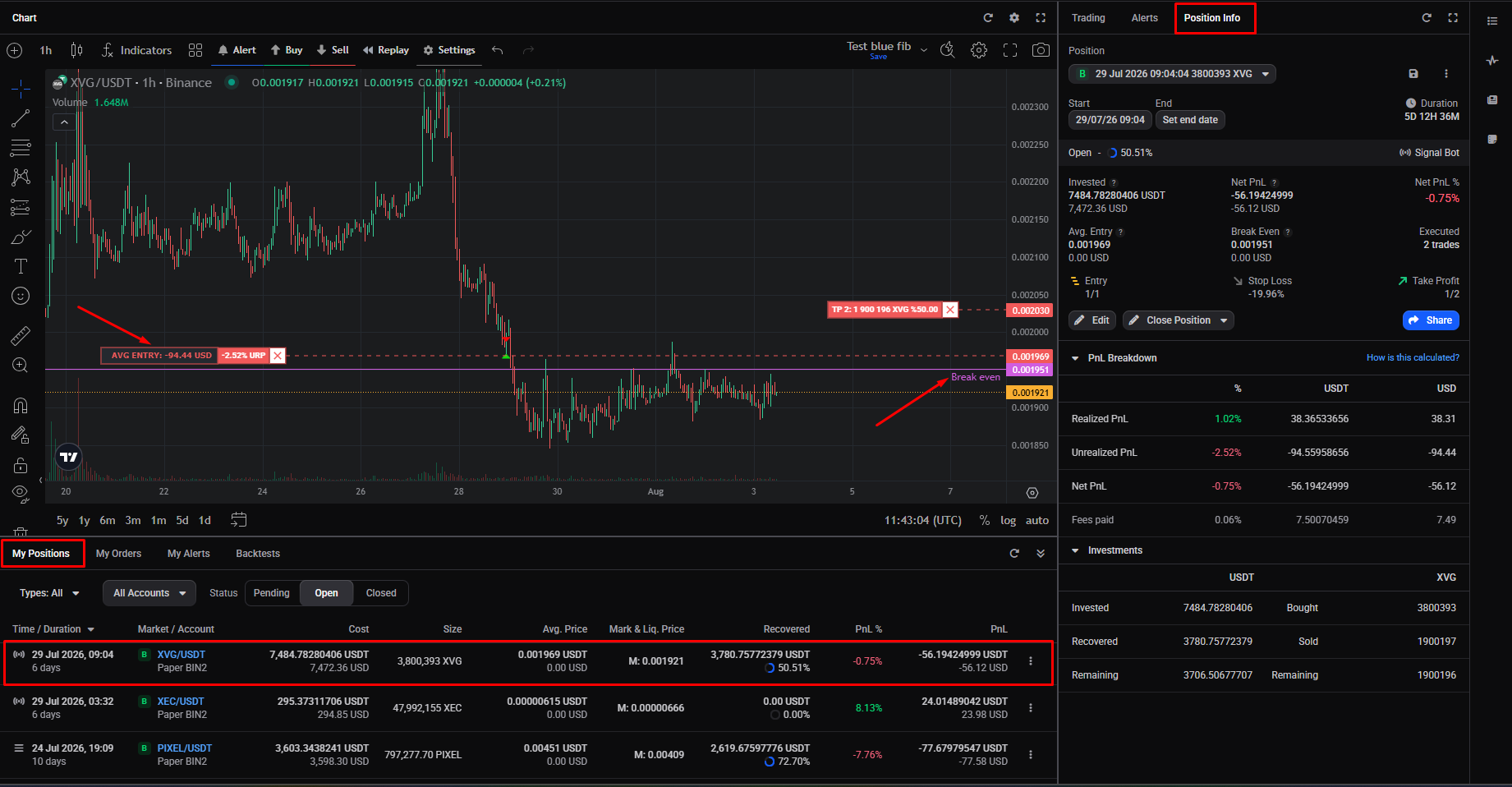
The Position Info widget is the fullest view of a single position. It isn’t shown by default, so you may need to add it: in the Simple layout, click in the trading widget and turn it on from the widgets list; in the Advanced layout, it’s in the right-hand widget list. (See understanding your position numbers for more on finding it.)
It shows Invested, average entry, break-even, the attached stop loss and take profit, and Net PnL. Click the triangles to expand the PnL Breakdown (Realized, Unrealized, Net PnL, Fees paid) and the Investments section. This is the best place to see every detail of a position, and you can view and edit the position from here too.
 🔍 Click the image to see a larger version
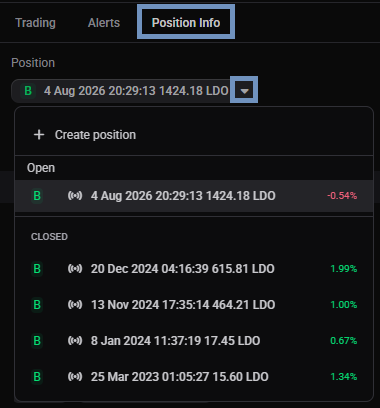
To look at a different position, use the Position dropdown at the top of the widget: it lists your open positions first, then your closed ones. Select one to view it.
 🔍 Click the image to see a larger version
For what each number means and how it moves, see understanding your position numbers.
Positions and open orders
A position is what you hold once an order has filled: you own the size shown, and it’s exposed to the market now.
An order is what you place. It sits either on the exchange, or as a Pending order managed by Altrady until its conditions are met, for example a take-profit order stays pending until an entry fills.
You can see your open orders on the chart, or in My Orders > Open. My Orders is in the bottom drawer next to My Positions. Each pending order shows its Reserved amount (the funds set aside for it), its Mark Price, how many take-profit levels are queued (#TP), and its stop-loss price.
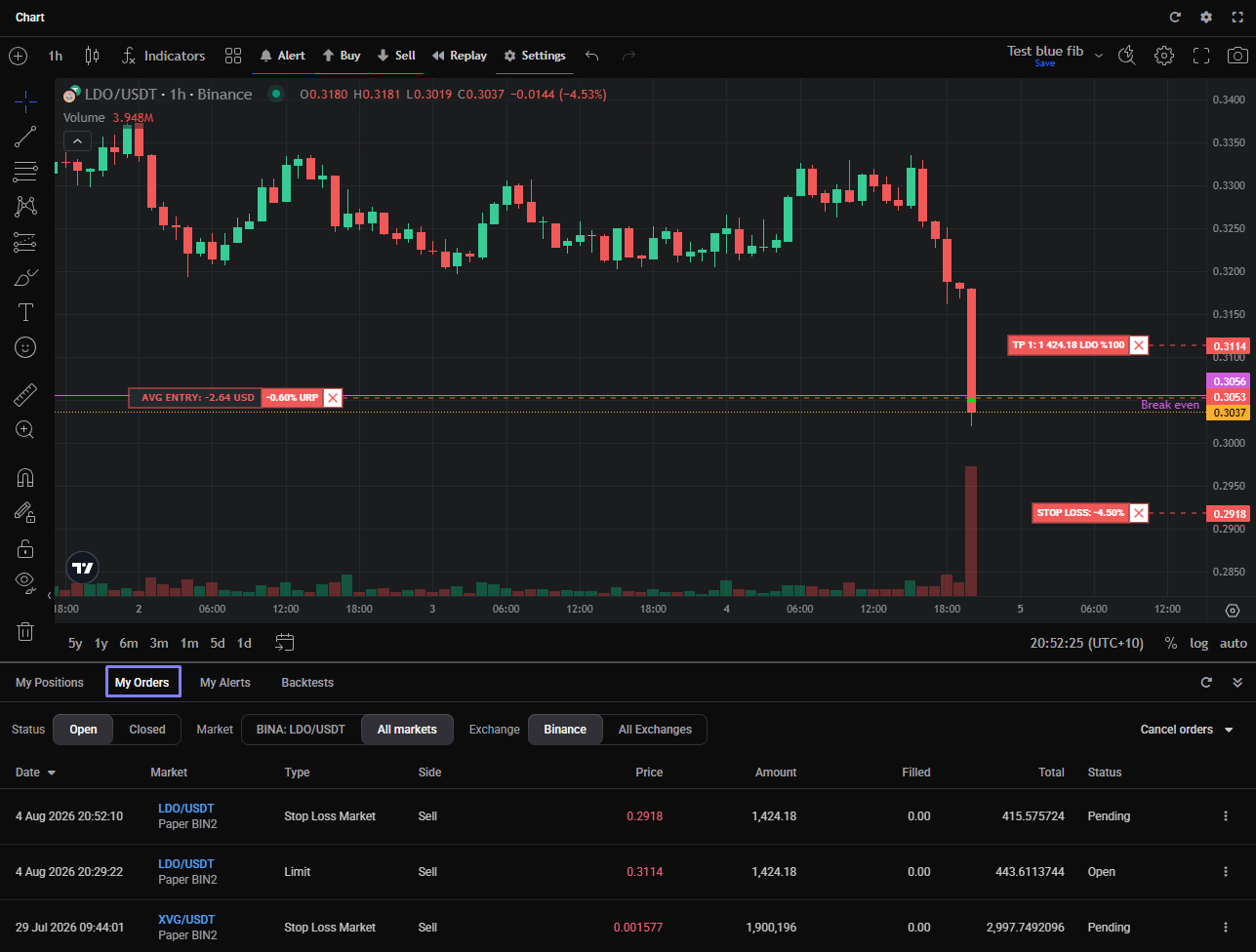 🔍 Click the image to see a larger version
A regular pending order won’t appear under My Positions; it moves there automatically once it fills. A Pending smart order is shown in the Pending list. To move or edit a position’s take-profit and stop-loss, see what do the position controls do?.
Order statuses
Your orders move through a few statuses, shown in My Orders:
- Pending: Altrady is holding the order until its conditions are met, so it hasn’t reached the exchange yet. A take-profit stays pending until an entry has filled to take profit on; a stop loss stays pending until the stop price is hit; and every order on a smart position with a conditional start waits until that start is triggered.
- Open: the order is live on the exchange’s order book. A limit order stays open until the market reaches its price, which is normal, especially in a quiet market. An open order can also fill in parts.
- Cooling down: a timing pause is holding the order back before it reaches the exchange, such as a smart position’s stop-loss cool-down.
- Closed: the order has fully filled and moves to your closed orders.
- Canceled: the order was called off, either by you or automatically.
If an order is sitting at one of these and you’re not sure why it hasn’t filled, see why hasn’t my order filled?.
Closed positions and orders
Closed positions and closed orders have their own view. See viewing your closed positions and orders.
Common gotchas
Positions opened outside Altrady. If you open a position directly on the exchange, it still appears in My Positions once Altrady syncs with that account, as a manual position. It won’t have Altrady’s automated take-profit and stop-loss management, since that is only set up for positions opened through Altrady. You can add take-profit and stop-loss yourself, or convert the position to smart to manage it fully.
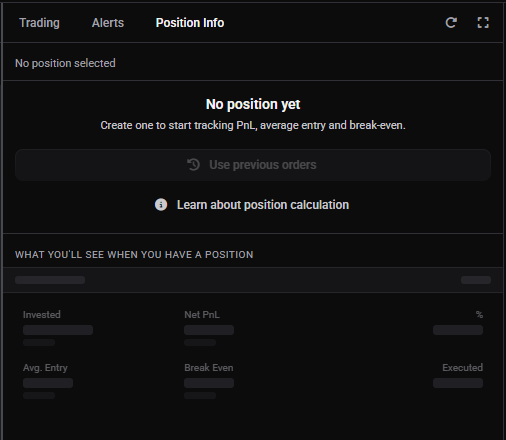 🔍 Click the image to see a larger version
Sync delays. Positions and orders are received from the exchange once the exchange sends the data; the lapse time depends on the exchange. If you just placed or closed something on the exchange, give it a moment before assuming anything is wrong. If you think your fill notification has been delayed, click the Resync arrow. Do not click the arrow too often, to avoid Rate Limit errors (no more than every 20 seconds).
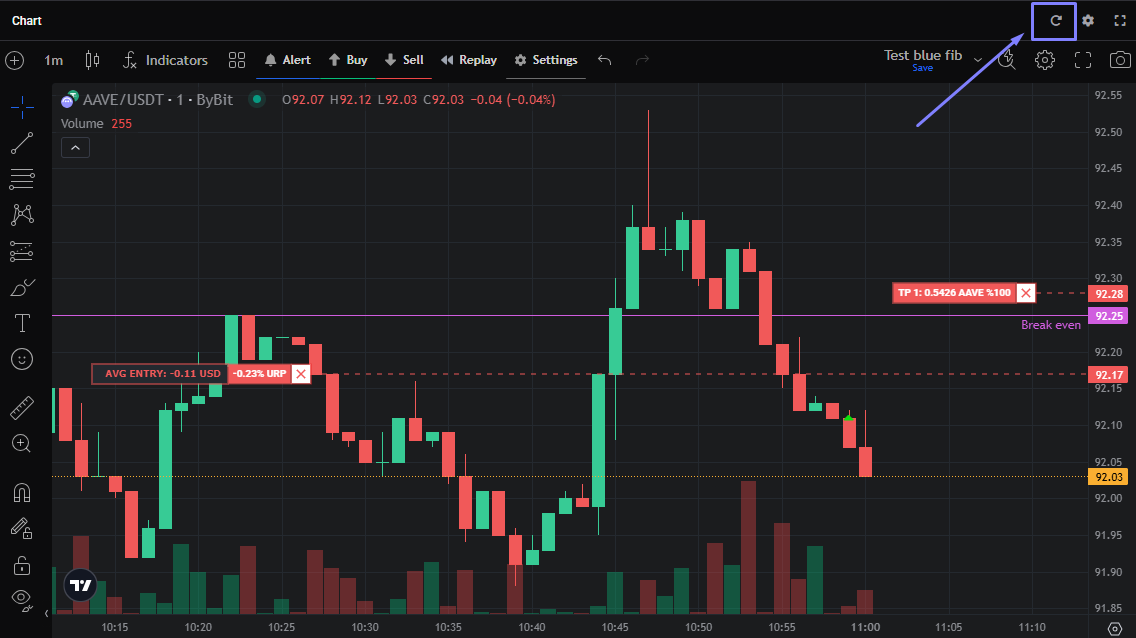 🔍 Click the image to see a larger version
Still stuck?
If a position or order still isn’t showing the way you expect, reach out through support chat in the app with the market and the account, and we’ll take a look.