
How to Edit or Scale Into an Open Position (Increase Size / DCA)
If a smart position is moving in your favour, or you want to average down at a lower price, you don’t need to close it and open a new one. Altrady lets you add funds directly to an open smart position, and it handles the math for you.
Increase and edit apply to smart positions. A plain manual position, which is just a grouping of your trades with analytics, has to be converted to a smart position first: right-click it and choose Convert to smart position.
This article covers manually adding to a position (manual DCA). If you’d rather set the whole ladder up in advance, with an initial entry and its DCA entries defined from the start, create a DCA position instead: see how do I create a DCA position?.
Adding funds to an open position (buy more)
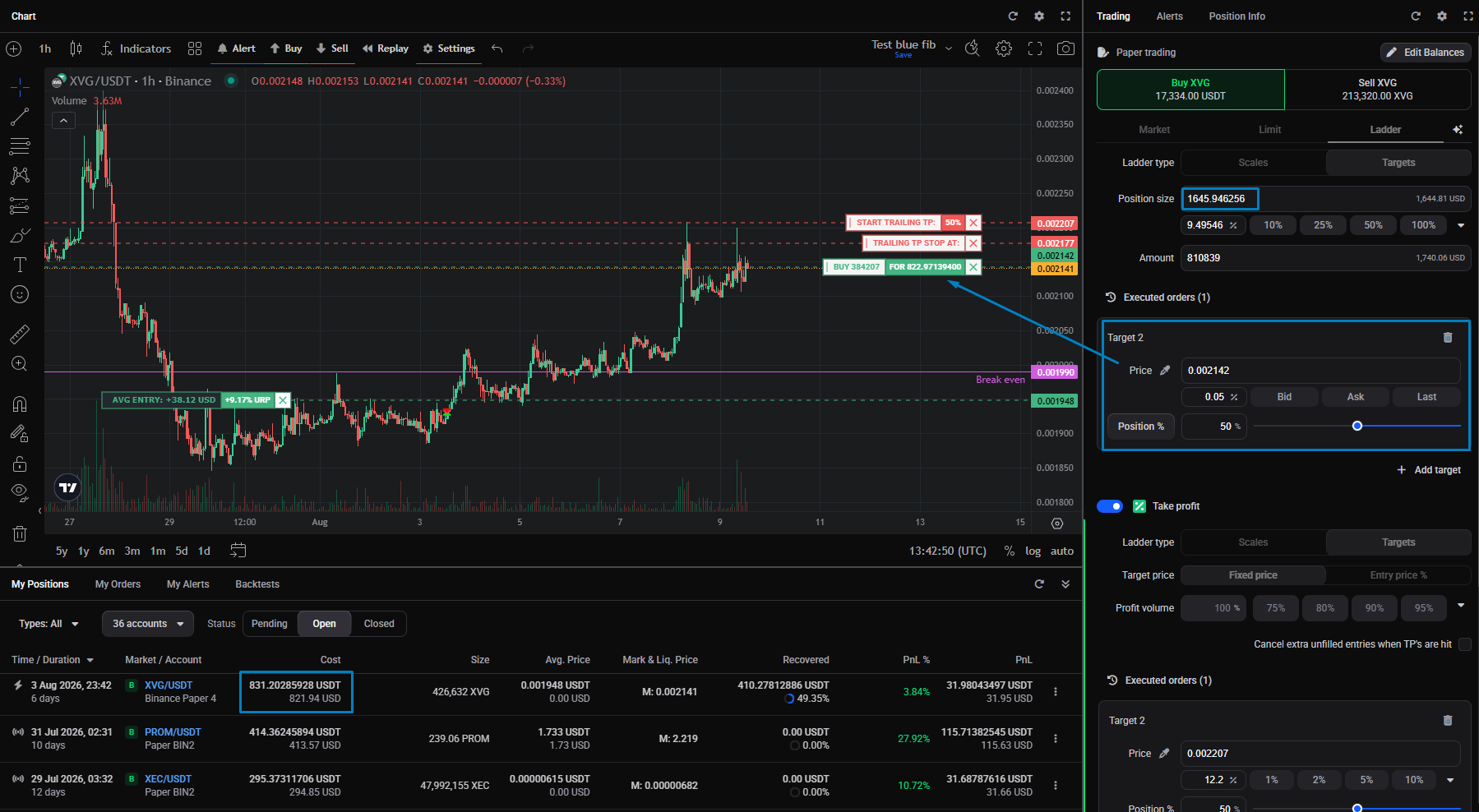 🔍 Click the image to see a larger version
1. Open My Positions and find the position you want to add to. 2. Click Increase on that position. This opens the Increase position modal, showing your current Position Size along with live previews of the New Position Size and New Break Even Price. 3. Choose an Order Type, Market or Limit (Limit adds a Price field). 4. Enter the amount you want to add in the Increasing size field. The preview values update as you type. 5. Confirm with the Increase position button.
🔍 Click the image to see a larger version
1. Open My Positions and find the position you want to add to. 2. Click Increase on that position. This opens the Increase position modal, showing your current Position Size along with live previews of the New Position Size and New Break Even Price. 3. Choose an Order Type, Market or Limit (Limit adds a Price field). 4. Enter the amount you want to add in the Increasing size field. The preview values update as you type. 5. Confirm with the Increase position button.
The extra funds are added to your existing position, so you don’t get a second, separate position. Image below is for the previous example, with the new order placed and filled, position size updated.
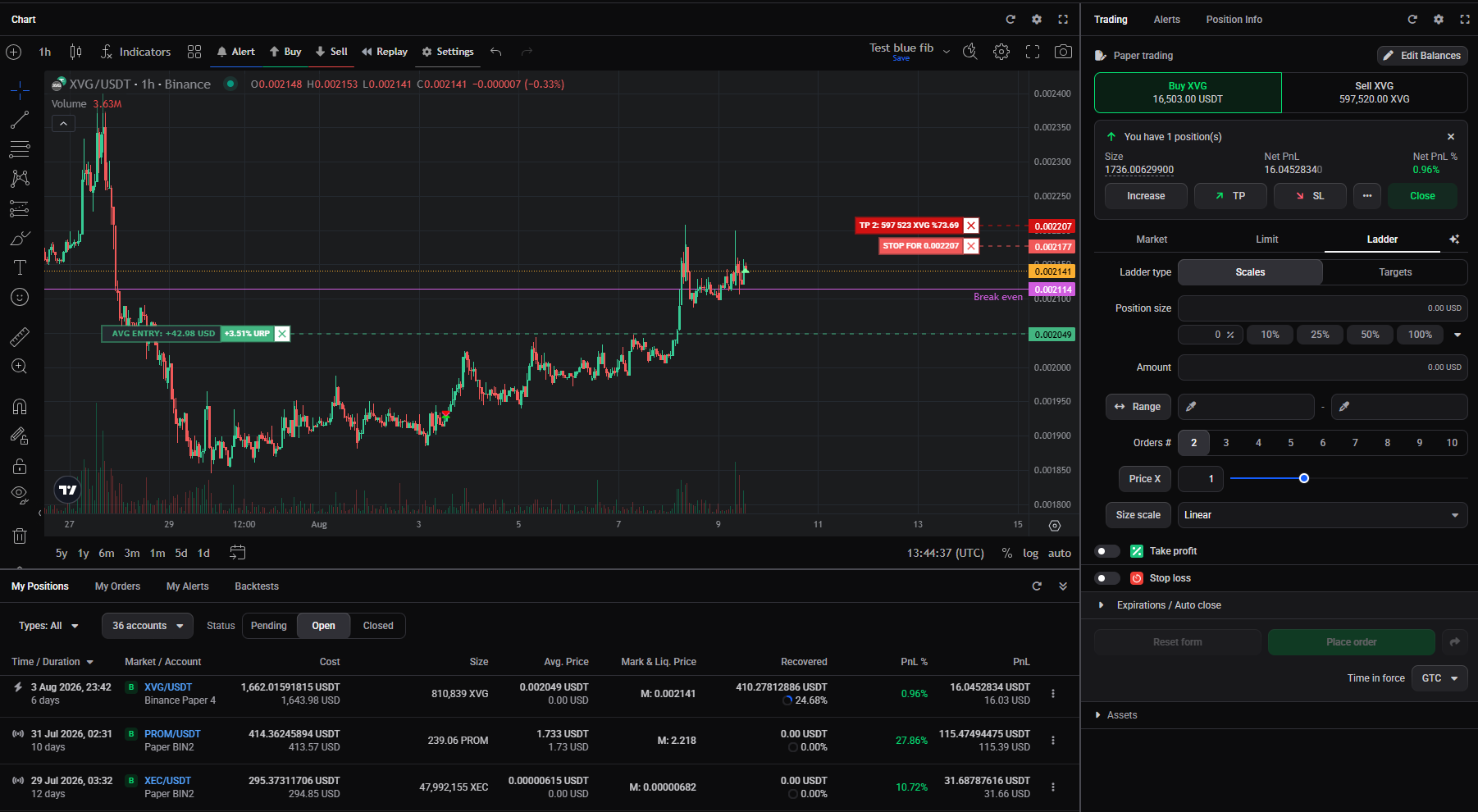 🔍 Click the image to see a larger version
## How average entry recalculates
🔍 Click the image to see a larger version
## How average entry recalculates
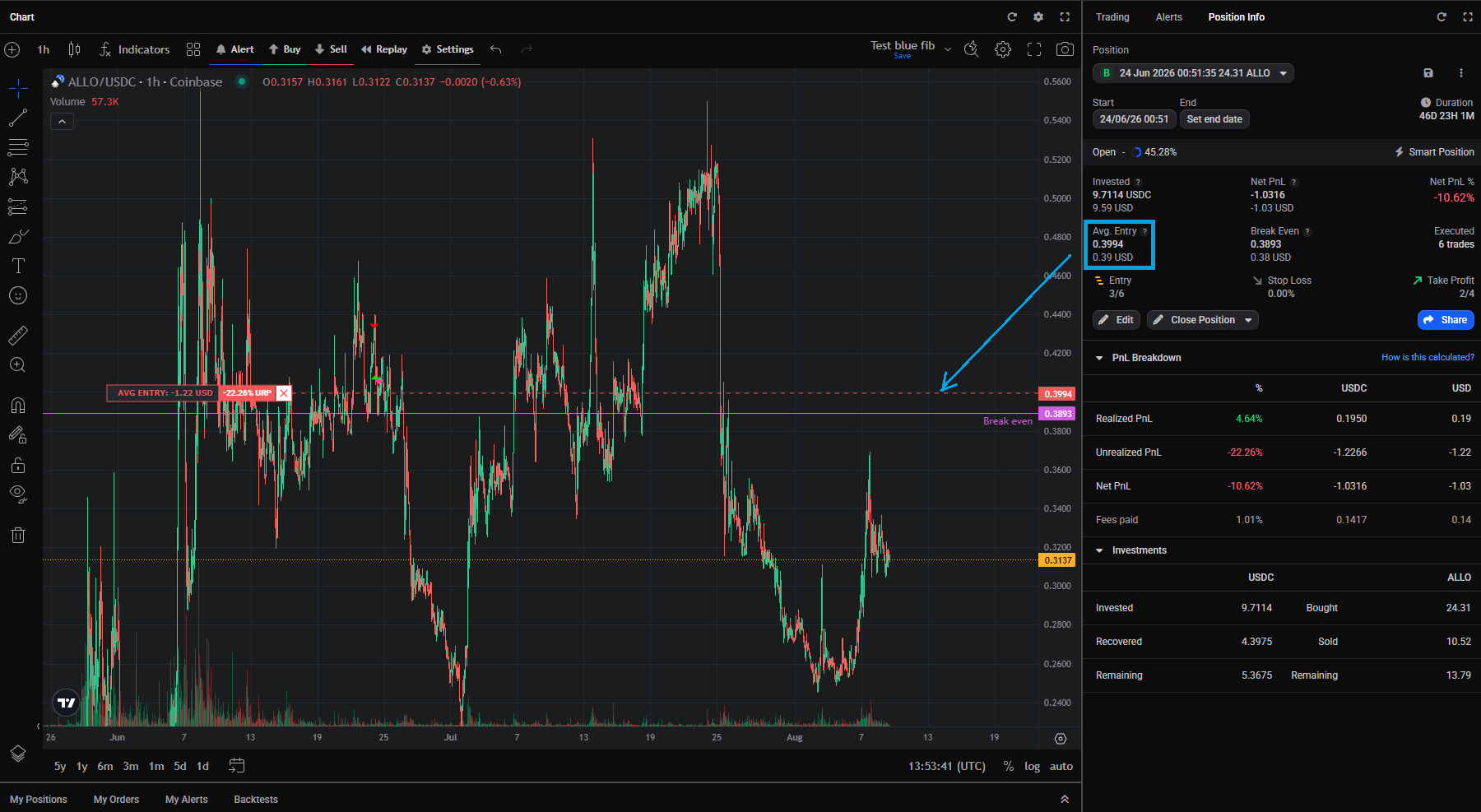 🔍 Click the image to see a larger version
Once the buy order fills, Altrady automatically recalculates:
🔍 Click the image to see a larger version
Once the buy order fills, Altrady automatically recalculates:
- Invested: your total amount in the position.
- Avg. Entry: the volume-weighted average of all your buy fills.
- Break Even: the price at which the position becomes profitable after fees.
You don’t need to calculate any of this yourself. It updates in the Position Info widget as soon as the add-on order fills.
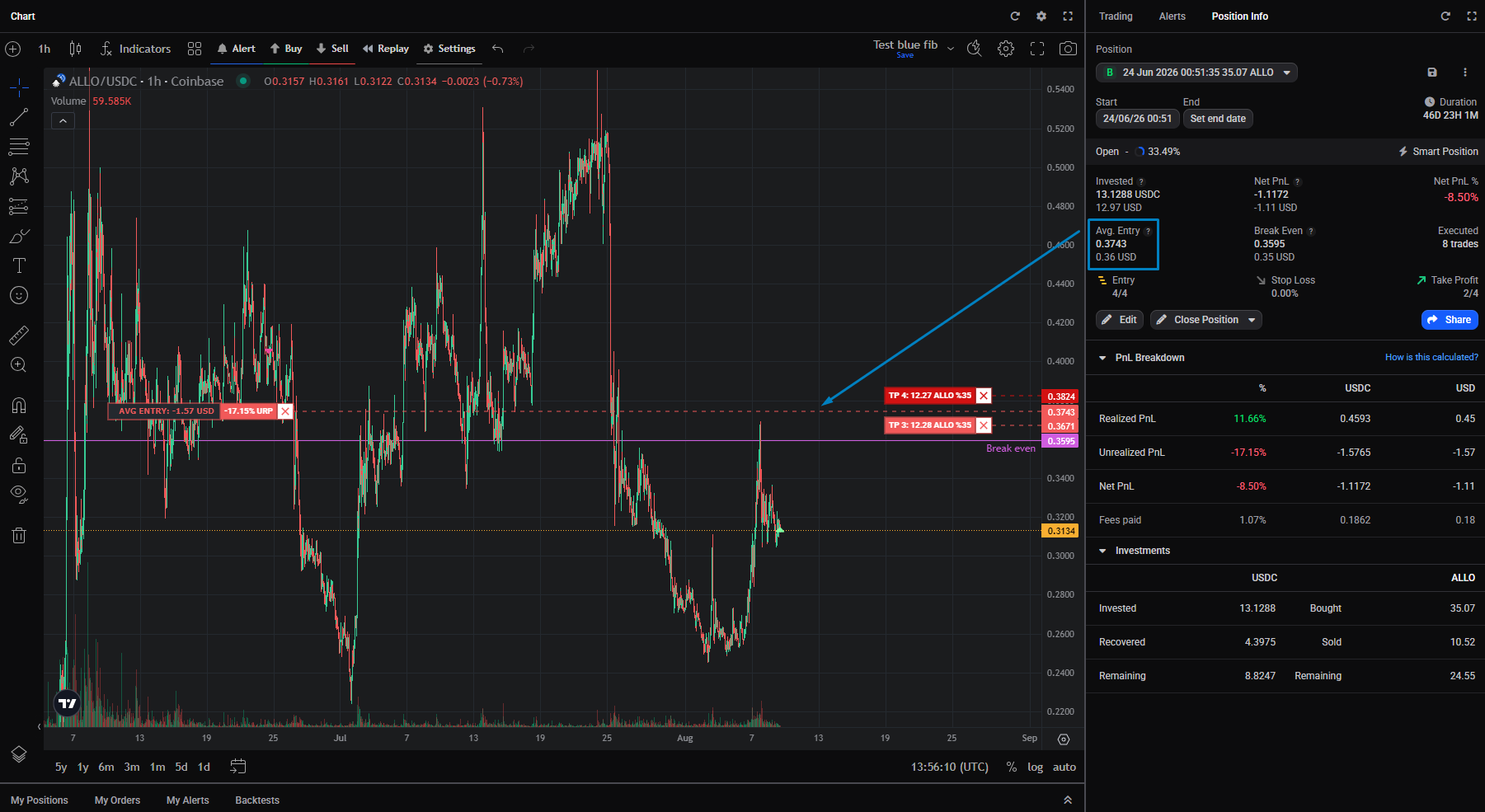 🔍 Click the image to see a larger version
## Scaling with ladder orders
🔍 Click the image to see a larger version
## Scaling with ladder orders
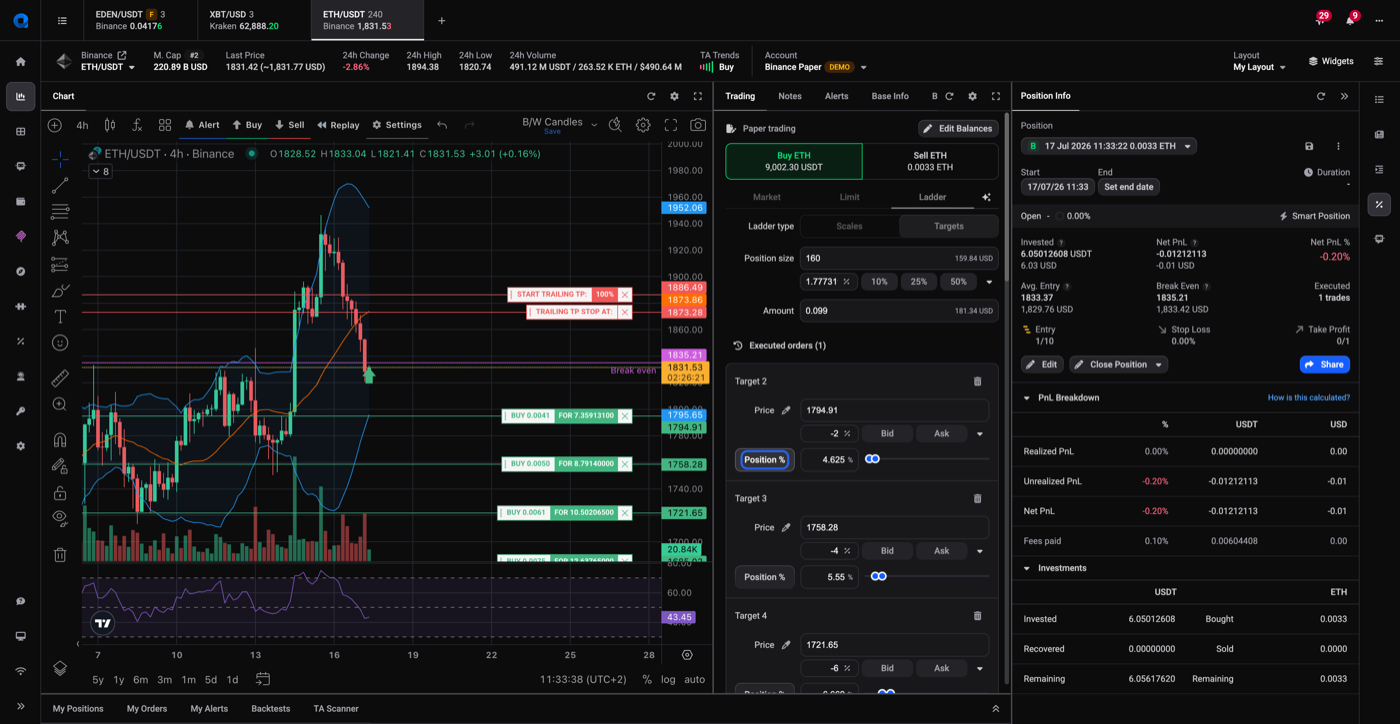
If you’d rather scale in gradually instead of adding funds manually each time, use a Ladder order when you open the position, or when placing an add-on order:
- Choose the Ladder order type.
- Set the number of scales or targets.
- Set the price levels and amount for each buy step.
- Confirm, and Altrady places each buy order at its level and fills them as price reaches them.
Each filled ladder step is treated the same as a manual add-on: it feeds into the same average entry and break-even recalculation described above. For the full detail on ladder settings, see how do I place ladder orders?.
 🔍 Click the image to see a larger version
## Effect on existing TP/SL
🔍 Click the image to see a larger version
## Effect on existing TP/SL
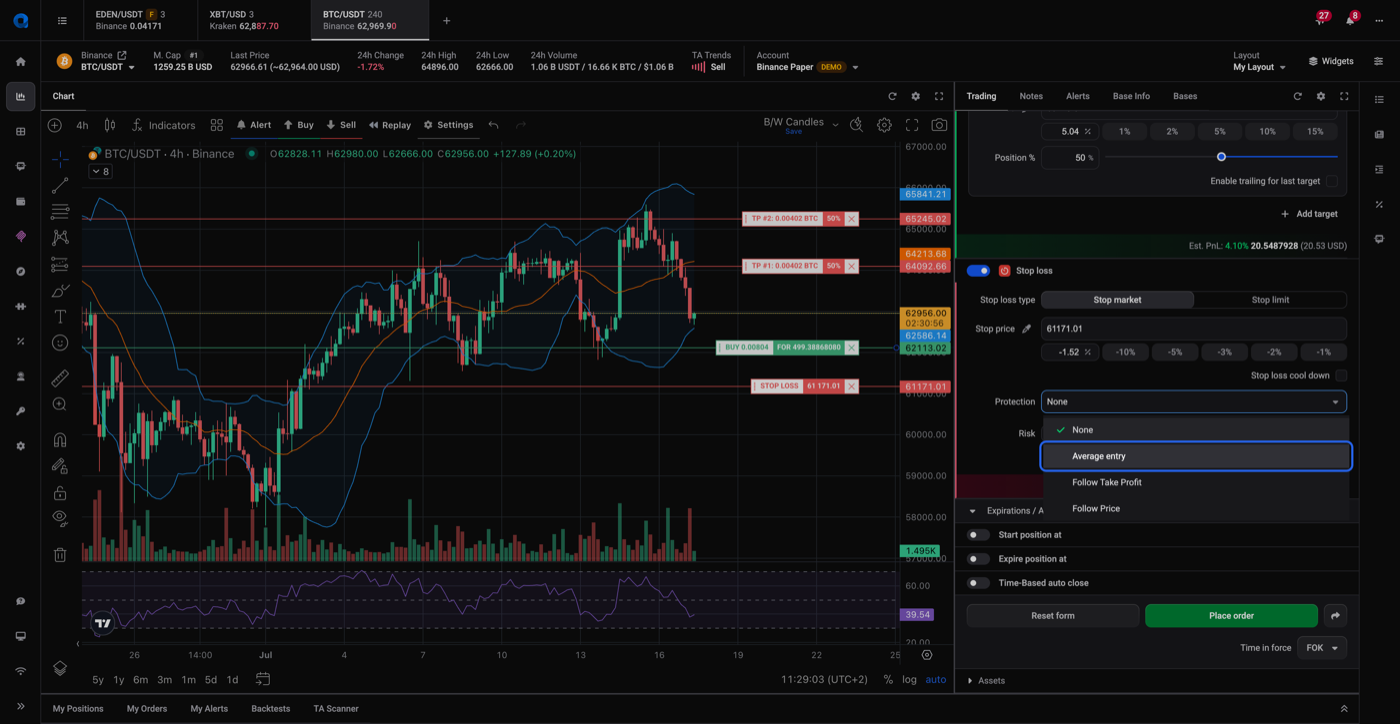
When your average entry changes, any TP or SL levels set as a percentage of entry recalculate against the new average automatically. Levels set as a fixed price stay put and don’t move with the average entry, so review them after adding to a position if you used fixed prices. If your Stop Loss Protection is set to Average entry, it follows the recalculated average the same way.
 🔍 Click the image to see a larger version
## Summary
🔍 Click the image to see a larger version
## Summary
- Use Increase on an open smart position to add funds, with no need to open a second position.
- Avg. Entry and Break Even recalculate automatically after each fill.
- Use a Ladder order to scale in across several price levels instead of adding manually each time.
- TP/SL levels set as a percentage of entry follow the new average entry; fixed-price levels stay put.
Closing or reducing a position
Ready to take profit, cut a loss, or scale out instead of in? See how do I close, exit, or cancel a position? for closing and partial closes.