
Connect Bitget
Connecting your Bitget account lets Altrady show your balances and place orders for you on both Bitget Spot and Bitget Futures. You create an API key on Bitget and paste it into Altrady; it takes about five minutes. Altrady never needs, or asks for, permission to withdraw your funds.
Before you start: check your Bitget account
A few settings on Bitget decide whether Altrady can trade for you, so check them first.
- Use a Unified account. Altrady supports Bitget’s Unified account only. You can tell you’re on one by the UTA label next to the Bitget logo at the top of the trading page. If Bitget shows a notice asking you to upgrade from a classic account, complete that upgrade first.
 🔍 Click the image to see a larger version
- Keep your funds in the Unified account. Altrady trades from the Unified account, not the Funding account. On Bitget, go to Assets overview > Accounts > Unified account to check your balance there. If your funds are in the Funding account, use Transfer to move them across.
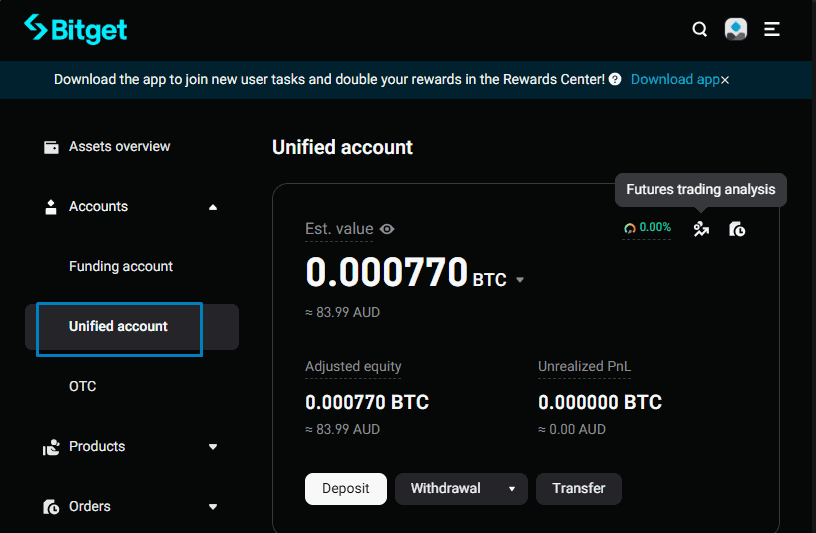 🔍 Click the image to see a larger version
- Turn spot margin off. Altrady doesn’t support margin (borrowing) on spot. On Bitget’s spot trading page, make sure the Margin toggle at the top of the order form is off.
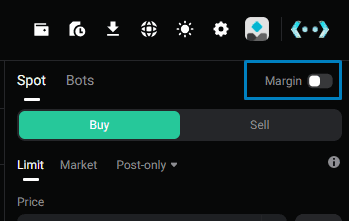 🔍 Click the image to see a larger version
## Step 1: Start the connection in Altrady
- In Altrady, click Accounts API in the left sidebar, then click + Connect Account at the top of My Accounts.
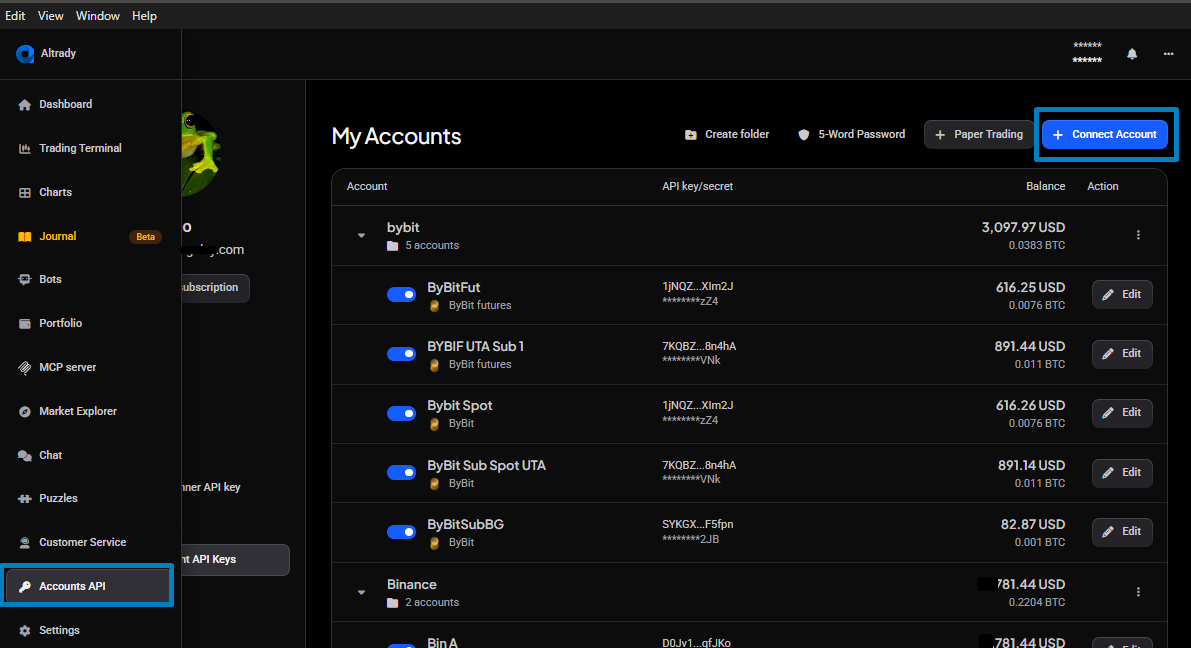 🔍 Click the image to see a larger version
2. Select Bitget from the exchange list.
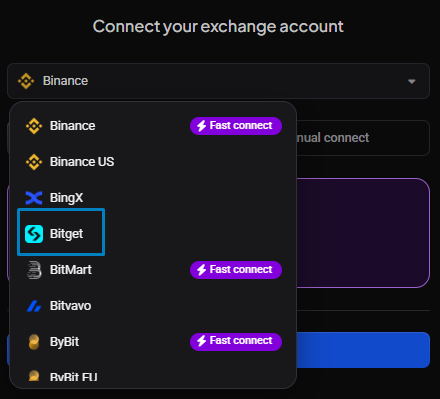 🔍 Click the image to see a larger version
3. Click the copy icon next to IP whitelist to copy Altrady’s IP addresses. You’ll paste them into Bitget in a moment, so your API key only works from Altrady’s servers. For more on how this works, see IP whitelisting explained.
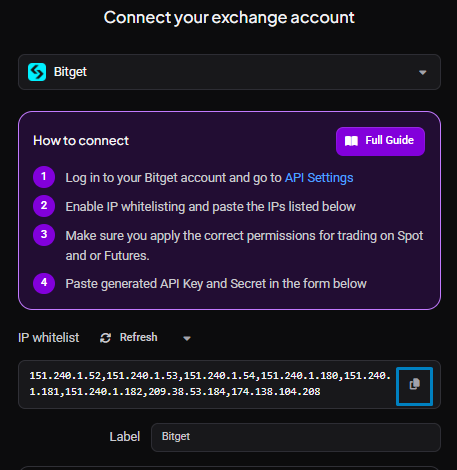 🔍 Click the image to see a larger version
Keep this tab open.
Step 2: Create the API key on Bitget
- In a new tab, log in to Bitget, click your profile icon at the top right and select API management.
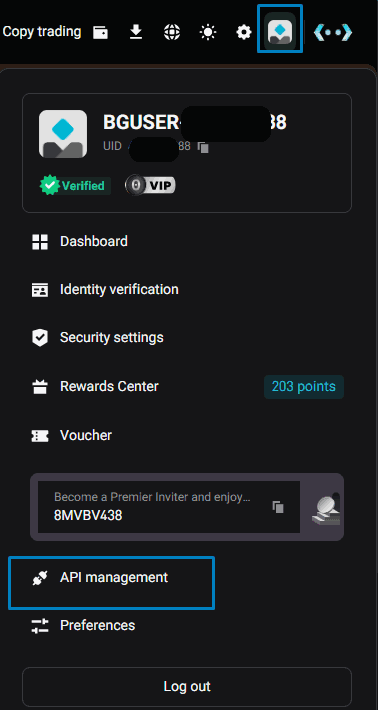 🔍 Click the image to see a larger version
2. Click Create API key.
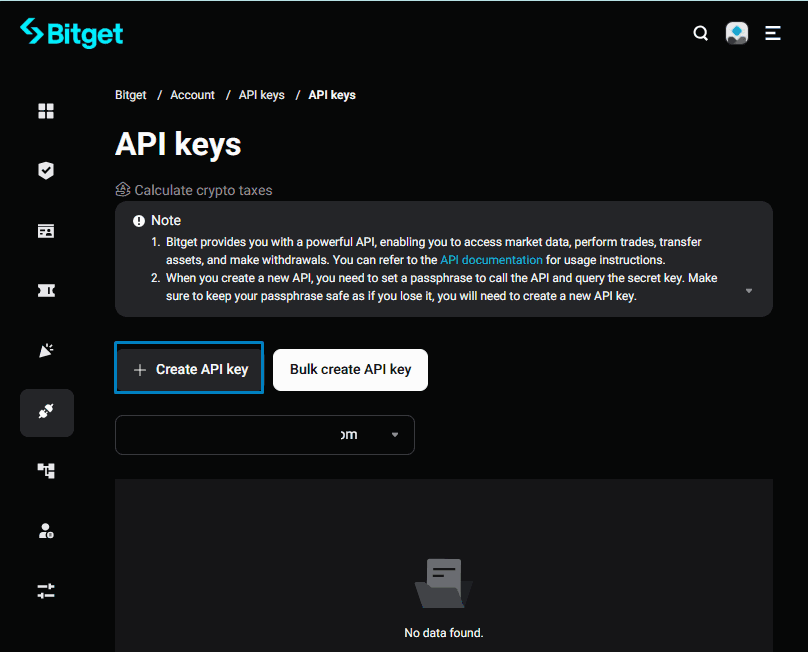 🔍 Click the image to see a larger version
3. Select System-generated API key.
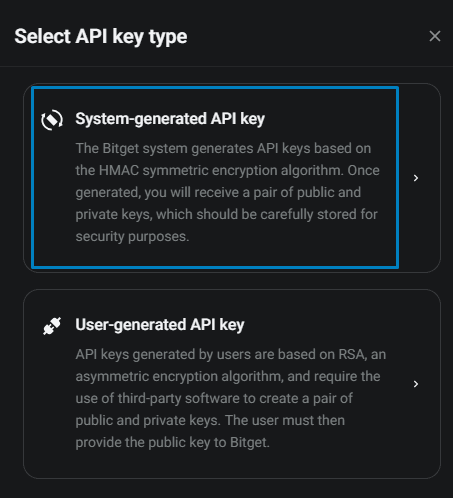 🔍 Click the image to see a larger version
4. Fill in the top of the form:
- Note: a name so you recognise the key, such as “Altrady”.
- Passphrase (API token): create one and write it down. You’ll paste it into Altrady in a moment, and Bitget can’t show it to you again. Click the ⓘ to see the allowed content for the passphrase.
- Permissions: select Read-write.
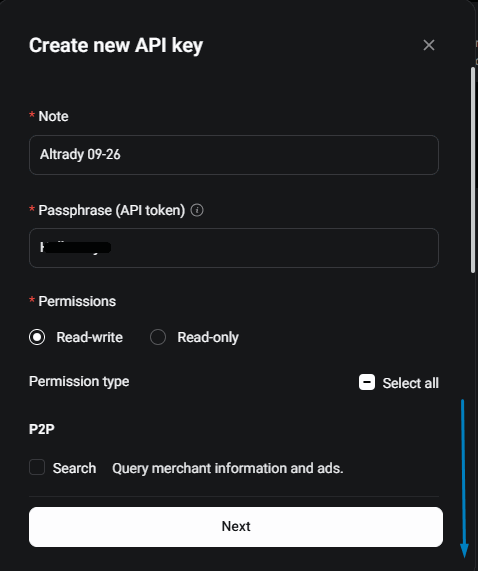 🔍 Click the image to see a larger version
5. The permissions list is long: keep scrolling down inside the form, past the other permission groups, until you reach Unified account. Tick Manage and Trade there. These two cover both spot and futures. Leave everything else unticked, including Withdraw just below: Altrady never needs it.
6. Paste Altrady’s IP addresses into Bind IP addresses at the bottom of the form, then click Next.
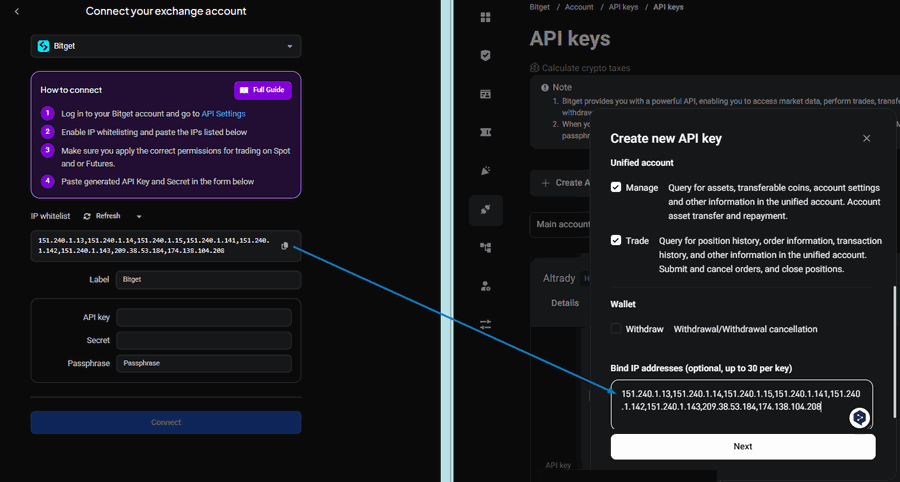 🔍 Click the image to see a larger version
7. Complete Bitget’s security check. Bitget then shows your new Access APIKey and SecretKey. Leave this window open.
Step 3: Finish connecting in Altrady
- Back in Altrady, enter a Label, then copy each value from Bitget into Altrady using the Copy buttons:
- Access APIKey goes into API key.
- SecretKey goes into Secret.
- The passphrase you created previously goes into Passphrase.
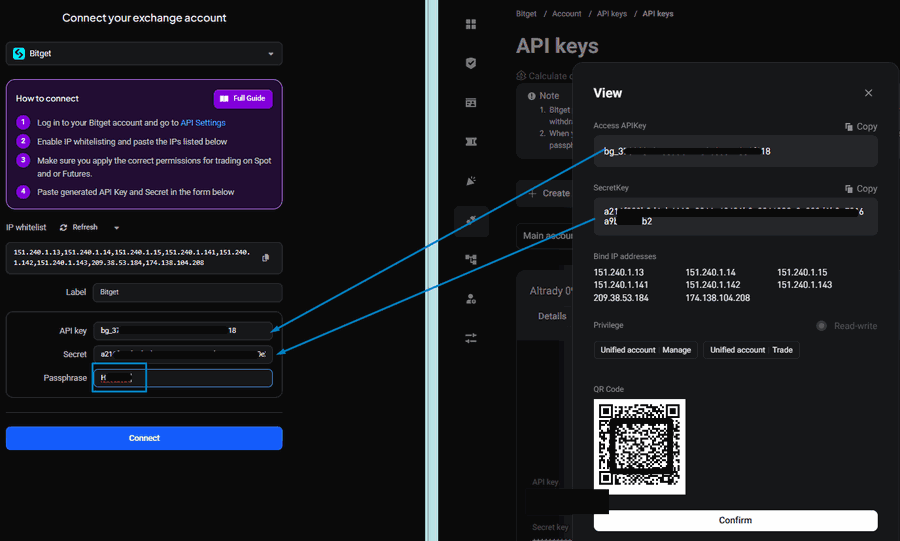 🔍 Click the image to see a larger version
2. Click Connect in Altrady, then Confirm on Bitget.
3. Altrady shows the spot and futures trading accounts it found, with their balances. Tick the ones you want to use in Altrady and click Connect.
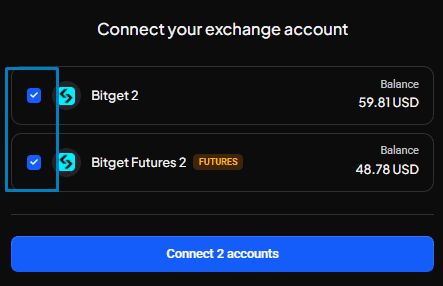 🔍 Click the image to see a larger version
4. Altrady offers to import up to 90 days of trade history for your new accounts. This allows Altrady to create positions and calculate analytics for your previous trades. Click Import trade history, or Skip if you don’t need it.
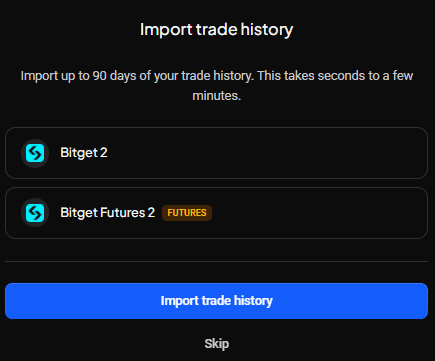 🔍 Click the image to see a larger version
Your Bitget accounts now appear on My Accounts. You can rename them any time with Edit.
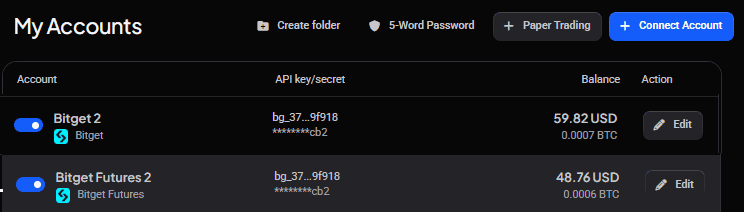 🔍 Click the image to see a larger version
If you ever need to replace this key, update the existing trading account in Altrady rather than adding a new one, so your history stays in place. See Replace an API key on an existing account.
Choose your account mode in Bitget
Bitget has three account modes. Pick the one that fits how you trade: Altrady works with all three. To change it, click the Settings (cog) icon at the top of any Bitget trading page, open Trading settings and select Account mode.
 🔍 Click the image to see a larger version
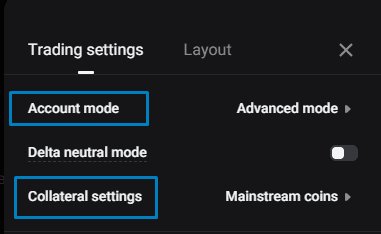 🔍 Click the image to see a larger version
| Mode | Futures margin mode | Coins used as futures margin |
| — | — | — |
| Isolated margin | Isolated only | Each position uses its own margin |
| Basic mode | Cross or isolated | USDT and USDC only |
| Advanced mode | Cross or isolated | Multiple coins, as set in Collateral settings |
Select the mode and click Switch. Bitget may ask you to close open positions or cancel open orders before it lets you switch.
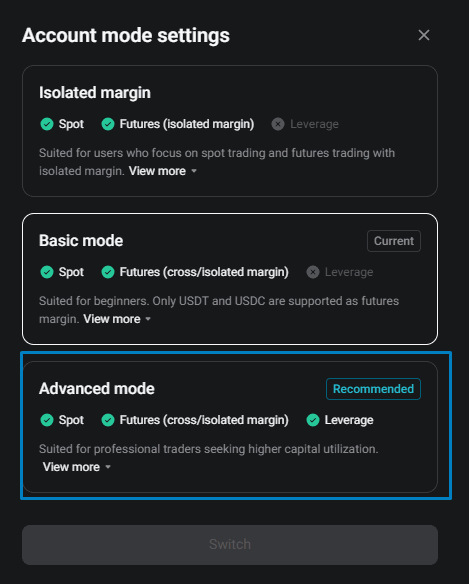 🔍 Click the image to see a larger version
Match your margin mode in Altrady. If your Bitget account is in Isolated margin mode and you select cross margin in Altrady’s Trading widget, the Available Balance at the top of the widget shows zero. Switch the margin mode in Altrady to isolated and your balance appears. For how the margin modes differ, see Margin mode, leverage, and liquidation price explained.
Choose your collateral coins
In Advanced mode, you choose which of your coins Bitget counts as margin for trading futures. Open the Settings (cog) icon > Trading settings > Collateral settings and pick one:
- Mainstream coins: only major coins, such as USDT, USDC, BTC and ETH, count as margin.
- All coins: every coin Bitget supports counts as margin, including ones Bitget adds later.
- Custom: you select the coins yourself.
Click Confirm to save.
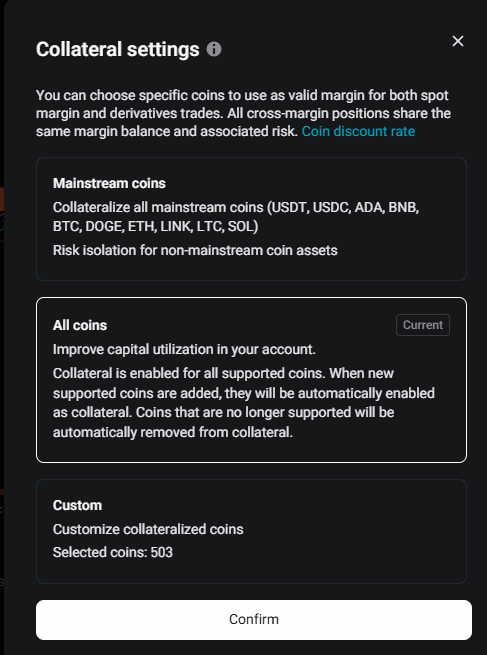 🔍 Click the image to see a larger version
This changes what you see in Altrady’s Trading widget on futures markets. The Assets link shows your actual wallet balances. The Available Balance at the top can be higher, because it includes the margin value of your other collateral coins. See Available Balance vs your Assets for more.
Pay spot fees with BGB
BGB is Bitget’s own exchange token. With BGB fees turned on, Bitget takes your spot trading fees in BGB instead of in the coins you’re trading, at a discount (currently 20%, set by Bitget). BGB only pays spot fees: futures fees are charged as usual.
Paying in BGB also keeps your coin amounts exact:
- No dust after closing a position. Without BGB, the fee on a buy comes out of the coin you receive, so you get slightly less than you ordered, and closing a small position can leave a tiny leftover balance. With BGB paying the fee, the amount you buy is the amount you can sell.
- Grid bots don’t run short of base currency. A grid bot pays a fee in the base currency on every buy, which slowly uses up the fee buffer it bought when it started. With fees paid in BGB, that buffer isn’t used up. See How do trading fees work? for more.
To set it up:
- On Bitget, click your profile icon and select Dashboard.
- In the Fees panel, switch on Use BGB for fee discount.
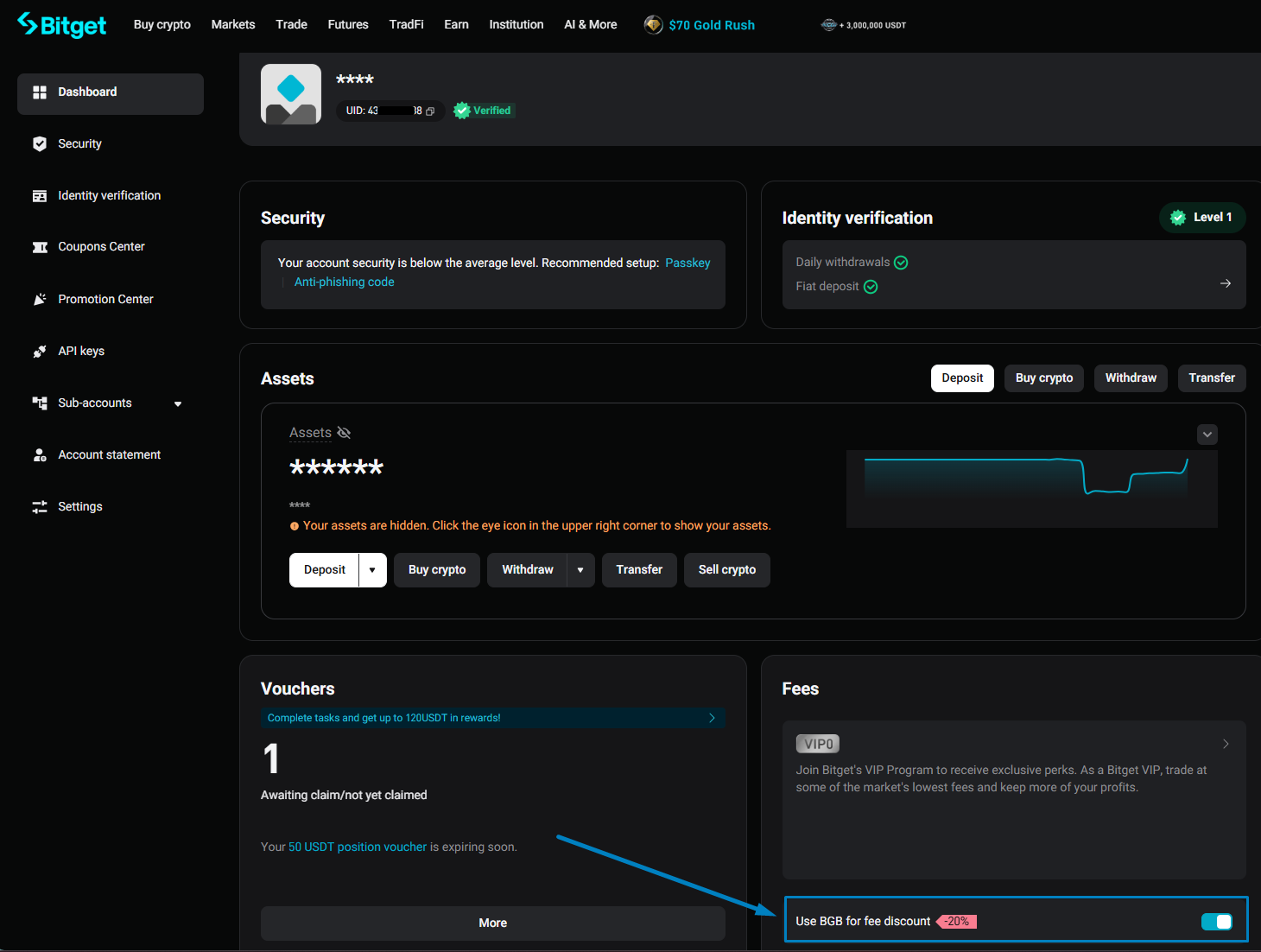 🔍 Click the image to see a larger version
3. Buy some BGB on Bitget spot, for example on the BGB/USDT market.
Keep enough BGB for your fees. If there isn’t enough BGB when an order fills, Bitget charges the whole fee in the coin you’re trading, without the discount. Bitget says the setting takes about five minutes to take effect.
Trading TradFi pairs
Bitget offers pairs that track traditional markets, such as stocks, on both spot and futures. To find them in Altrady’s Markets widget, select Spot or Futures at the top, then use the second row of filters:
- Spot: Crypto or Tradfi
- Futures: Perp or Tradfi
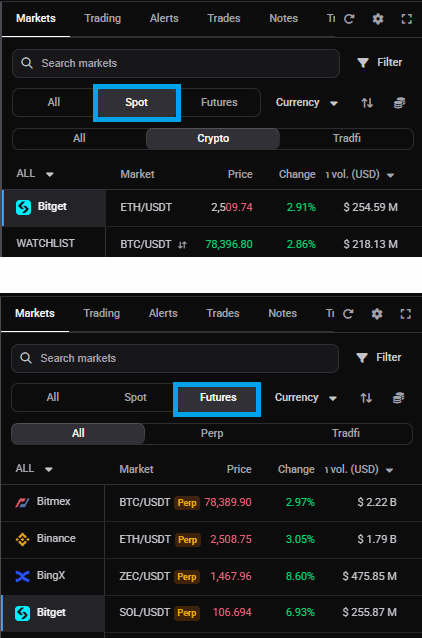 🔍 Click the image to see a larger version
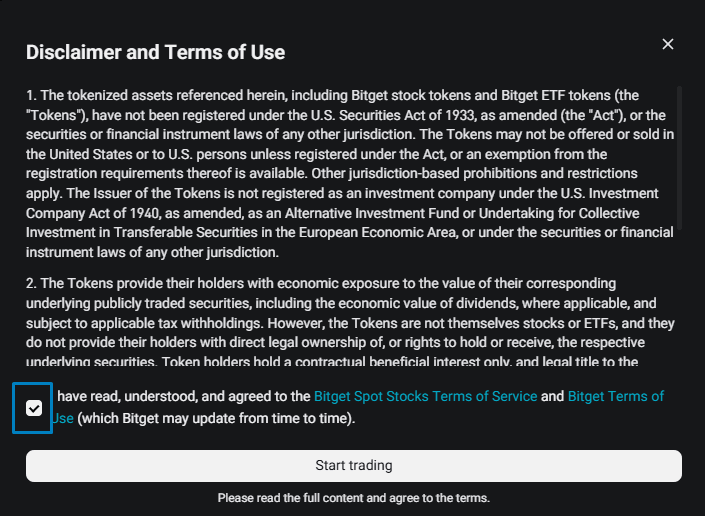
Important: Before you can trade TradFi pairs, you need to accept Bitget’s terms for them on the exchange. Until you do, Bitget rejects any order Altrady sends on those pairs. You only need to do this once for spot and once for futures:
- On Bitget, open the TradFi menu and select Spot stocks (spot) or stock perps (futures).
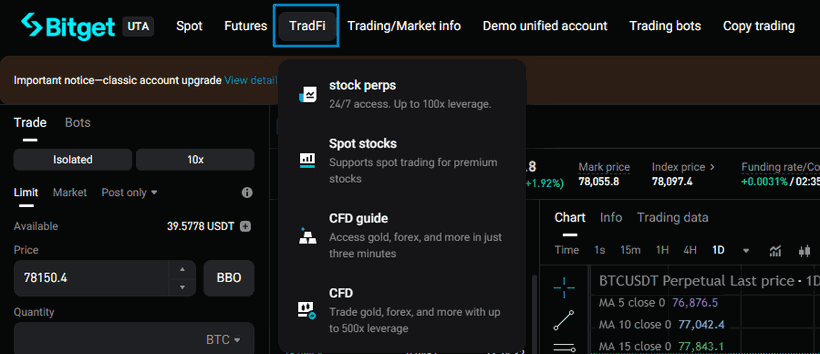 🔍 Click the image to see a larger version
2. Open any pair and start placing an order. Bitget shows its Disclaimer and Terms of Use.
3. Tick the box to agree and click Start trading.
 🔍 Click the image to see a larger version
You don’t need to complete the order on Bitget; accepting the terms is enough. Repeat for both Spot and Futures. You will now be able to trade TradFi pairs on Altrady.
Still stuck?
- Available Balance shows zero: check that your funds are in the Unified account and that your margin mode in Altrady matches your Bitget account mode (see above). For other causes, see Why is my Available Balance zero or lower than expected?
- Orders on a TradFi pair are rejected: accept Bitget’s TradFi terms as described in Trading TradFi pairs.
- Balances aren’t updating: see Balances or positions aren’t syncing.
- The account shows as invalid or expired: see Fix an invalid or expired exchange account.