
How do I place my first trade in Altrady?
Placing your first trade in Altrady takes just a few steps: open the Trading Terminal, pick a market, set your size, and place your order. If you like, you can add a take profit and a stop loss in the same ticket, so Altrady handles the exit for you. This guide uses the Trading widget’s Simple mode, the streamlined view new users start on. New to how orders and smart positions differ? See what’s the difference between an order and a smart position?.
Open the trading panel
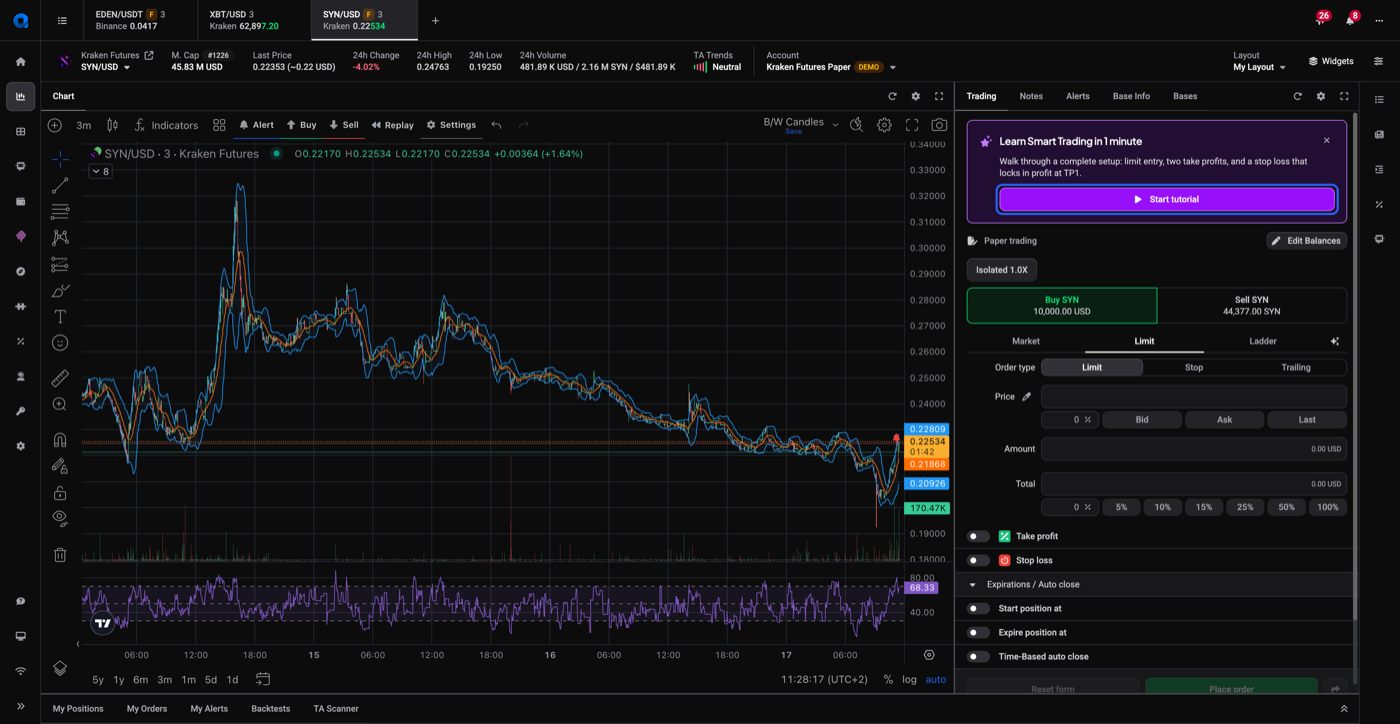
Pick a market on your connected exchange and open its chart in the Trading Terminal. To open a market in a new tab, click the + at the top of the trading terminal to open the Markets widget, select an exchange on the left, choose Spot or Futures, and select the market you want to trade. The order form sits on the right side of the chart.
If you have more than one account on the same exchange, check that the right one is active before you trade; see run multiple accounts on the same exchange.
If it’s your first time here, Altrady may offer a short Learn Smart Trading walkthrough; start it, or skip it and come back later from the panel’s settings menu.
 🔍 Click the image to see a larger version
If you chose beginner or intermediate during onboarding, the order form opens in Simple mode, which keeps it to the essentials. You can switch to Advanced at any time for the full set of order types; see how do I place a market, limit, or stop order in Altrady? for the modes and every order type. To practise without risking real funds first, set up a demo balance with paper trading.
🔍 Click the image to see a larger version
If you chose beginner or intermediate during onboarding, the order form opens in Simple mode, which keeps it to the essentials. You can switch to Advanced at any time for the full set of order types; see how do I place a market, limit, or stop order in Altrady? for the modes and every order type. To practise without risking real funds first, set up a demo balance with paper trading.
Choose an order type
 🔍 Click the image to see a larger version
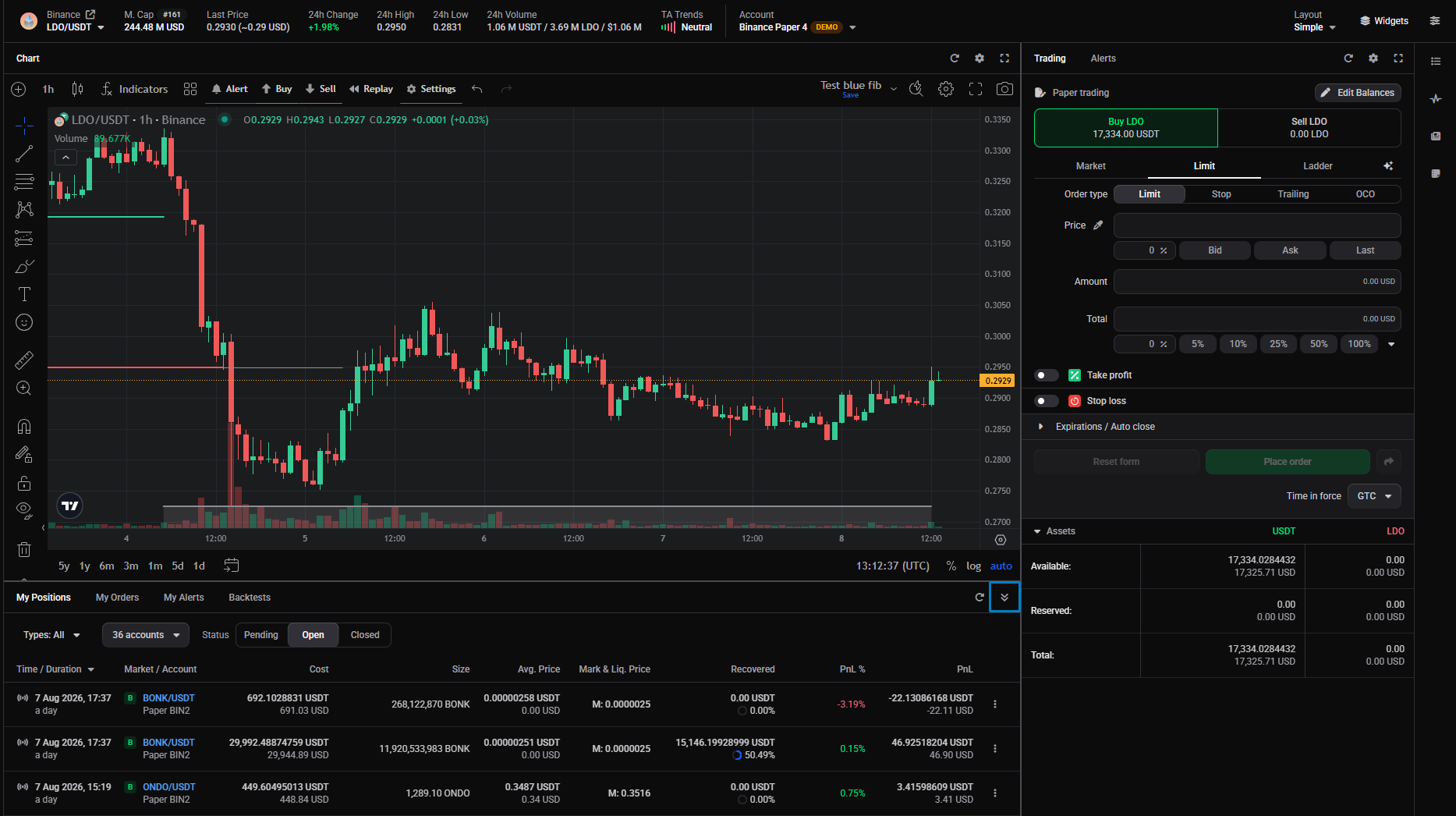
At the top of the form, pick how you want to place your order: Market or Limit.
🔍 Click the image to see a larger version
At the top of the form, pick how you want to place your order: Market or Limit.
- A Market order fills right away at the current price.
- A Limit order fills only once the market reaches the price you set.
For a first trade, a Limit order is the easiest to follow: you set the price, and the order form plots it on the chart so you can see exactly where it will fill. Altrady has more order types too, such as stop, trailing, OCO, and ladder orders; they live in Advanced mode, covered in order types.
Set your size and price
 🔍 Click the image to see a larger version
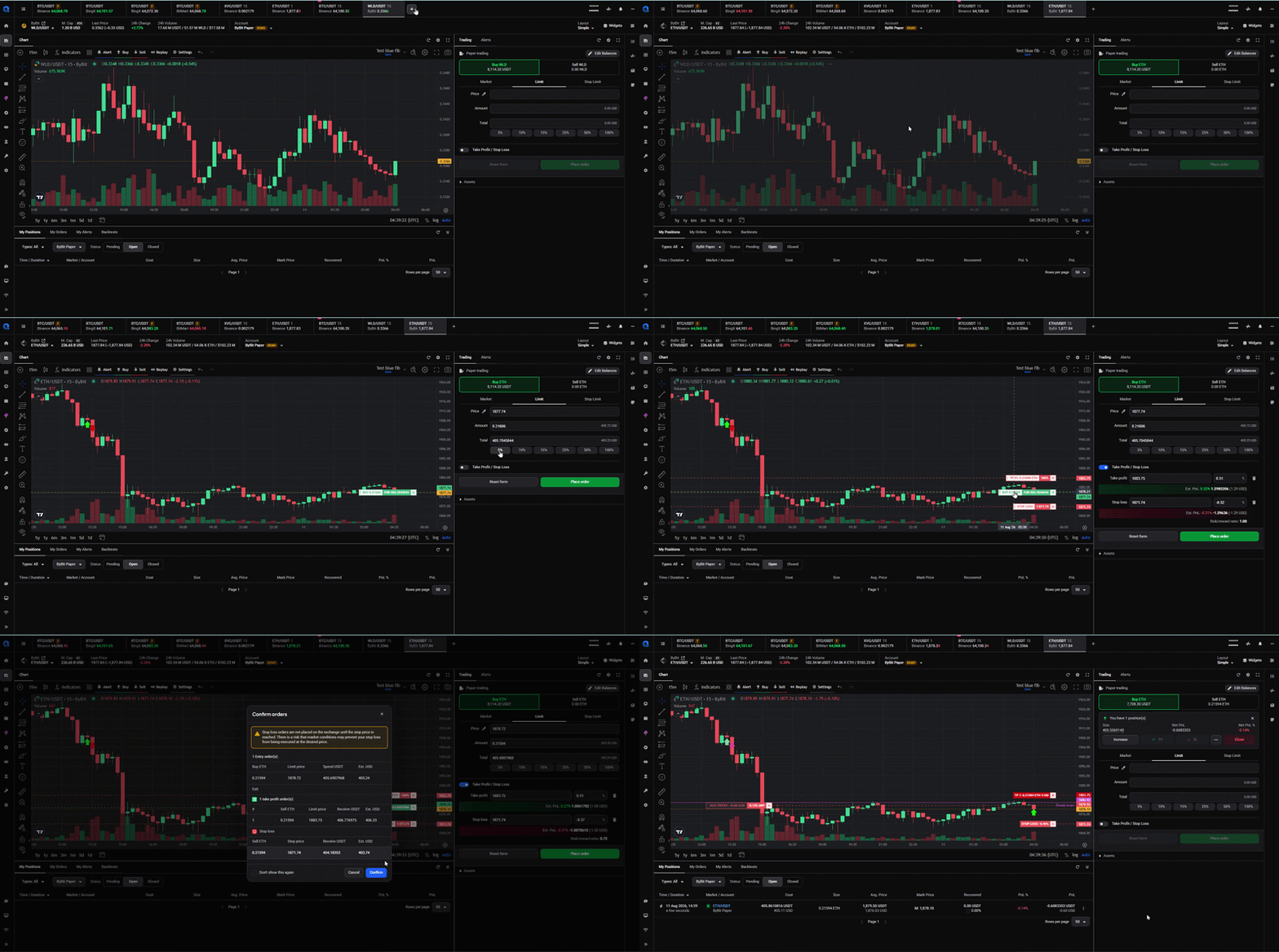
Enter the Price you want to buy at, then set Amount or Total. The Total field has quick percentage buttons (25%, 50%, 100% and so on) so you can size the order as a share of your available balance instead of typing an exact number. As you fill in the fields, Altrady draws the order line on the chart so you can confirm it lines up with where you meant to trade.
🔍 Click the image to see a larger version
Enter the Price you want to buy at, then set Amount or Total. The Total field has quick percentage buttons (25%, 50%, 100% and so on) so you can size the order as a share of your available balance instead of typing an exact number. As you fill in the fields, Altrady draws the order line on the chart so you can confirm it lines up with where you meant to trade.
The top of the widget shows your Available Balance for the selected pair and account: how much you can buy or sell right now. It can differ from the Assets shown at the bottom of the widget, which are your holdings on the account, because Available Balance also reflects things like leverage and how your exchange manages the account. See Available Balance vs your Assets.
 🔍 Click the image to see a larger version
## Add a take profit (optional)
🔍 Click the image to see a larger version
## Add a take profit (optional)
 🔍 Click the image to see a larger version
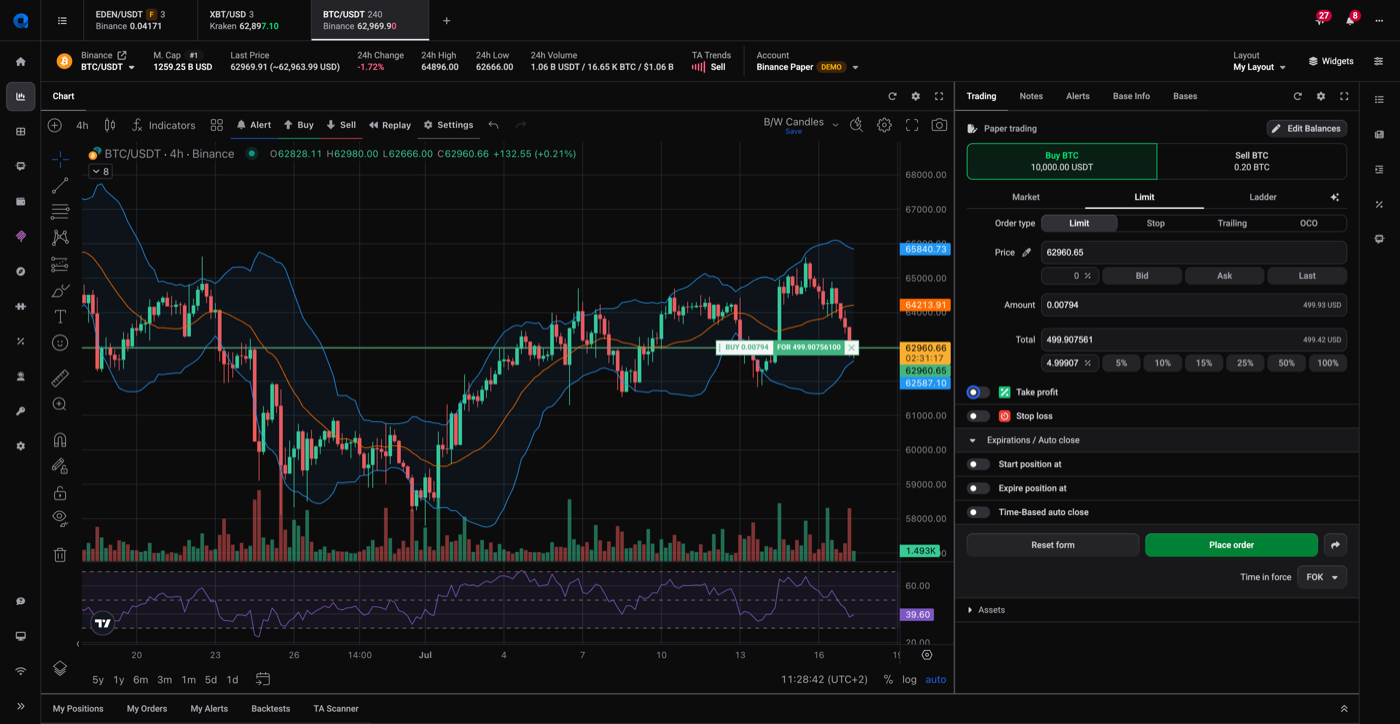
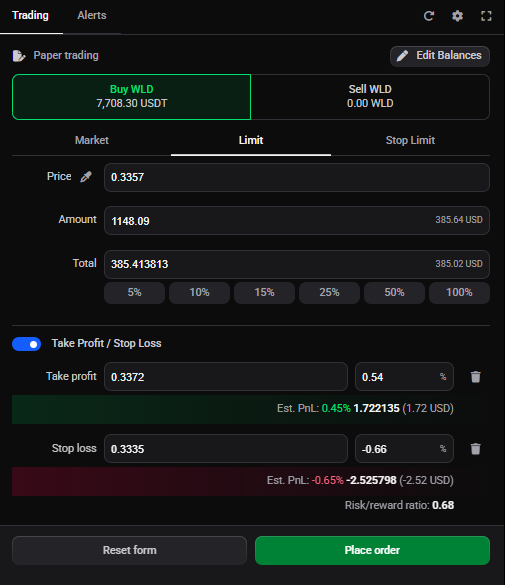
Here’s where Altrady does more than a plain exchange order. Turn on Take Profit to set a price where Altrady closes the position for you, in profit. You can add more than one target, each with its own price and the share of the position it closes, so you take some profit at one level and let the rest run. Simple mode keeps this to a few options, so it’s quick to set.
🔍 Click the image to see a larger version
Here’s where Altrady does more than a plain exchange order. Turn on Take Profit to set a price where Altrady closes the position for you, in profit. You can add more than one target, each with its own price and the share of the position it closes, so you take some profit at one level and let the rest run. Simple mode keeps this to a few options, so it’s quick to set.
Add a stop loss (optional)
Turn on Stop Loss to protect the position if the market moves against you. Set a stop price (the quick percentage buttons work here too) and choose Stop market or Stop limit. Altrady can also move your stop for you, to break even after your first take profit hits, or trailing behind price, but those fuller options live with the smart-position settings; see how do stop loss and trailing stop protections work on a smart position?.
Take profit and stop loss are optional: skip them and Altrady still opens the position, and you can add them later by editing it.
Review and place the order
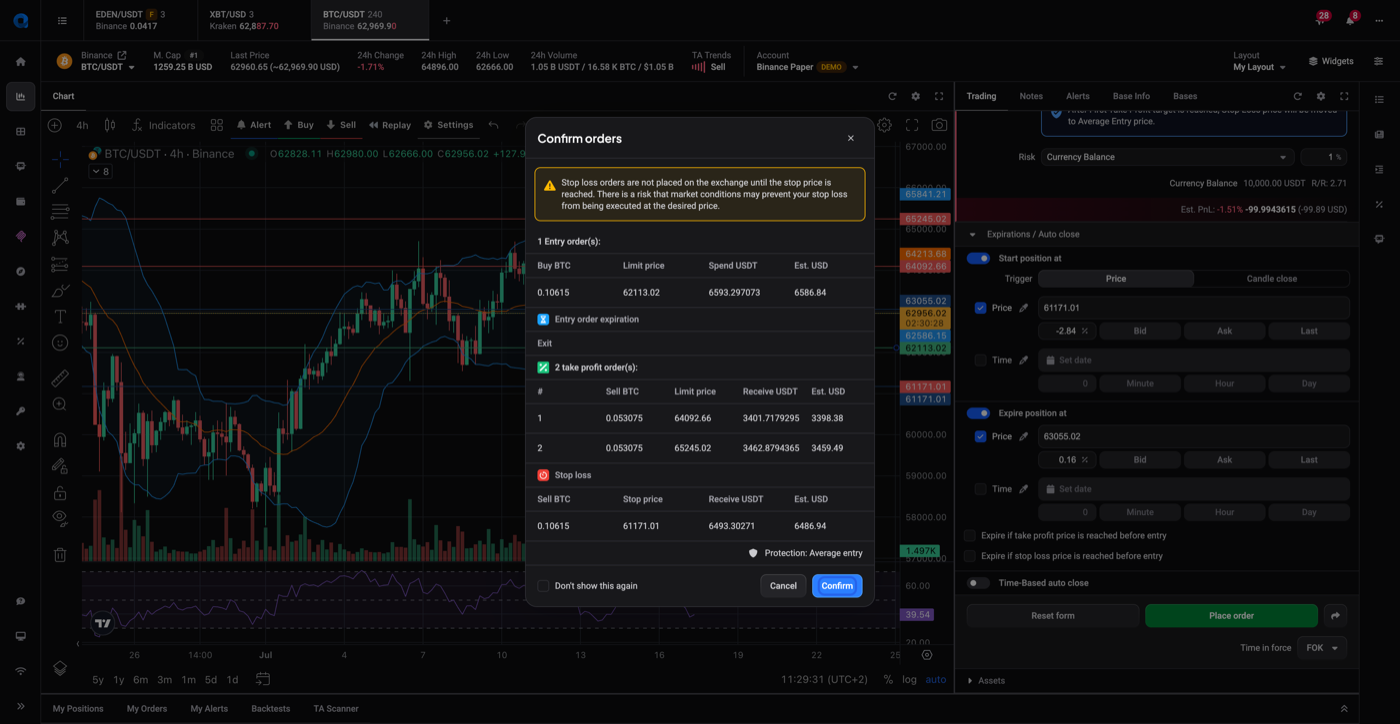
Before anything goes to your exchange, Altrady shows a Confirm orders summary listing your order plus any take-profit and stop-loss orders you set. Stop-loss orders carry a note that they aren’t placed on the exchange until the trigger price is hit: that’s normal, and it’s how Altrady keeps them working even if the exchange doesn’t support stop orders natively. Review the details, then place the order.
 🔍 Click the image to see a larger version
## What you’ll see after it opens
🔍 Click the image to see a larger version
## What you’ll see after it opens
Once the position is open, find it under My Positions. If you added a take profit or stop loss, Altrady tracks it as a smart position, with tiles for Entry, Stop Loss, and Take Profit that update live as your orders fill, so you can follow progress without digging into order history. For managing, adjusting, or scaling a position, see Viewing and managing open positions and orders.
Still stuck?
If your order isn’t behaving the way this guide describes, reach out through support chat in the app and the team can look at your specific order.