
Run multiple accounts on the same exchange
If you have more than one account on the same exchange, you can connect each one to Altrady. Once connected, you can view, trade, and analyze each account separately, or look at them all together.
Each connected account is called a Trading Account.
Paper trading accounts work the same way: they’re also added as Trading Accounts, and each one is tied to a specific exchange.
Adding another Trading Account
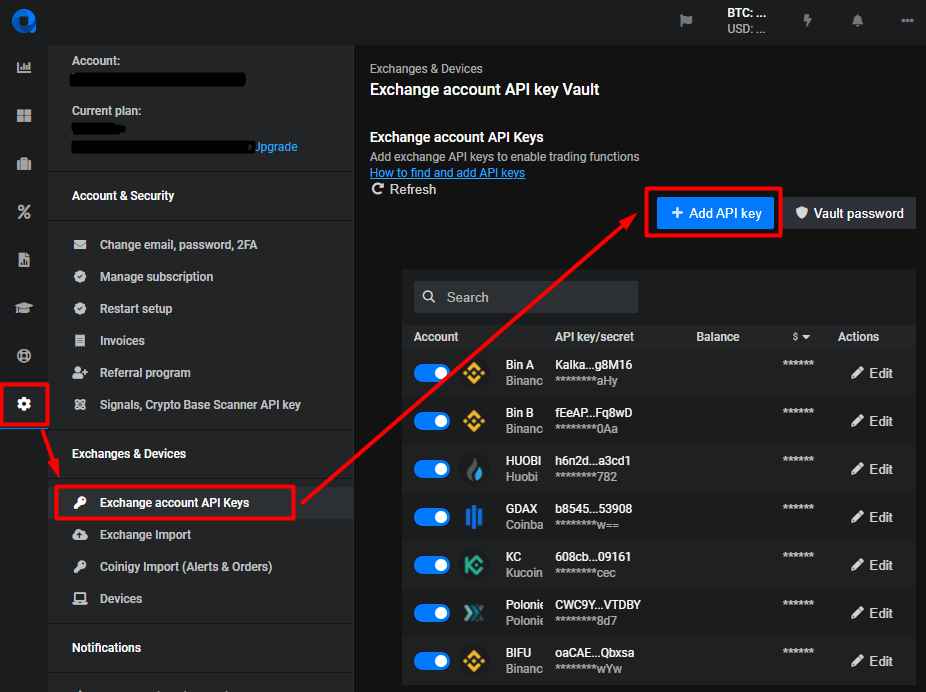
- Go to Settings > Exchange API Keys.
- Add the new account the same way you added your first connection on that exchange.
- Give it a clear, distinct label, for example “Binance A” and “Binance B.” Altrady uses this label everywhere to help you tell your accounts apart.
A quick word on security: Altrady only ever asks for read and trade permissions on your exchange API key. It can never withdraw funds; this is true no matter how many accounts you connect.
 🔍 Click the image to see a larger version
Where you can view accounts separately
Once you have more than one Trading Account, several places in Altrady let you switch between them or filter by them.
The Trading Terminal
- Pick a Market from the exchange you want, using the Markets widget.
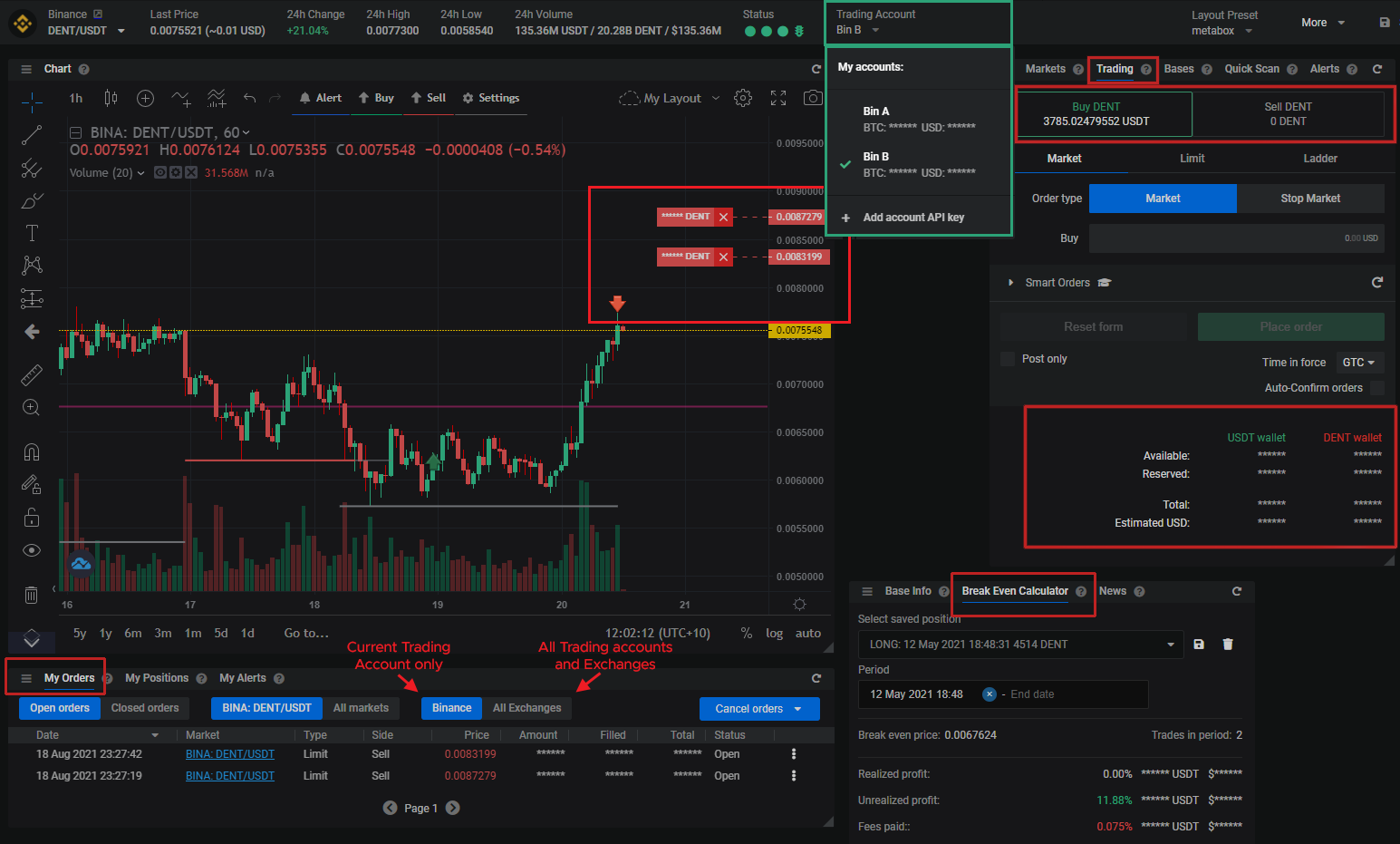
- Check the Trading Account field to see which account is currently active.
- Click the small triangle to open the dropdown, which lists every Trading Account connected to that exchange. Select the one you want to view and trade on.
Once selected, that account’s data shows up across the terminal:
- The Trading widget shows that account’s balances and wallet.
- The chart shows that account’s open orders and completed trades.
- My Orders shows only that account’s orders when a specific exchange is selected. To see orders from every account and exchange at once, choose All Exchanges instead.
- The Break Even calculator shows the current position (if there is one) for the selected market and account.
 🔍 Click the image to see a larger version
My Positions
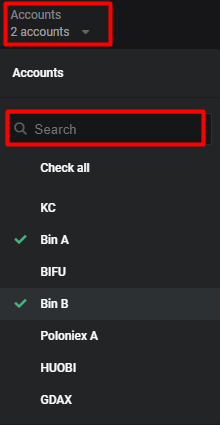
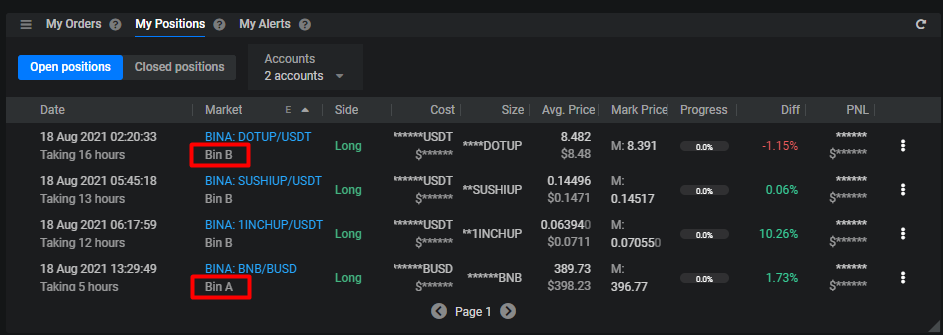
Use the Accounts dropdown on the Positions widget to filter which accounts you’re looking at:
- Select Check all to see positions from every exchange and Trading Account. Click it again to clear the selection.
- Click an individual account name to add or remove it from the filter.
- Use the search box to find an account by name.
- The number next to Accounts at the top shows how many accounts are currently selected.
 🔍 Click the image to see a larger version
 🔍 Click the image to see a larger version
Portfolio
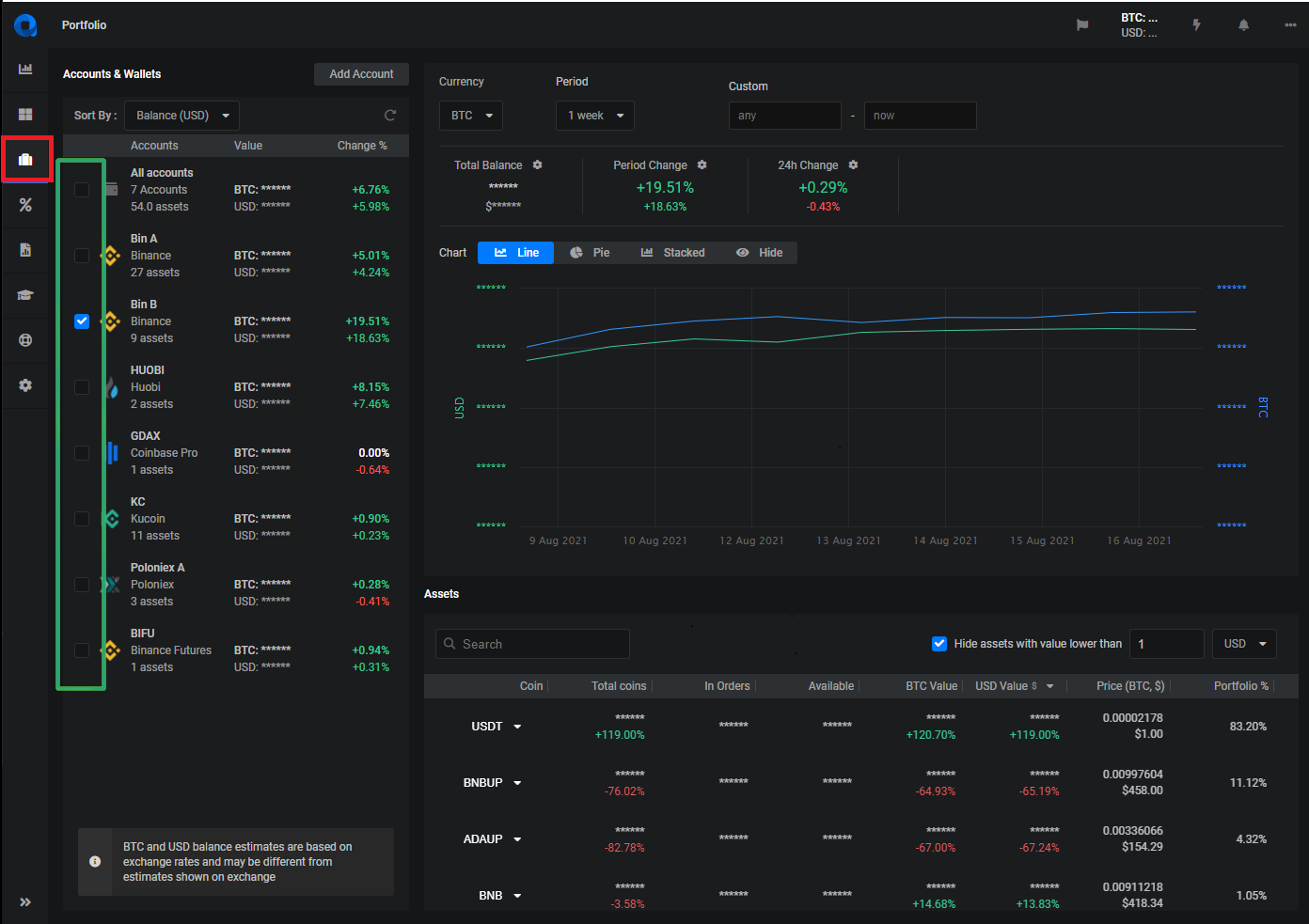
Under Accounts and Wallets, every Trading Account across every exchange is listed.
- Tick All Accounts to include every account’s values. Untick it to clear the selection.
- Tick individual accounts to include just those.
Everything on the Portfolio page (total balance, period change, 24h change, the chart, and the assets list) only reflects the accounts you’ve selected. If more than one selected account holds the same coin, the balances are added together.
 🔍 Click the image to see a larger version