
Why does my position look wrong?
A position can look wrong in a few ways: pointing the wrong way (a short you didn’t mean to open), the wrong size, holding trades you don’t recognise, numbers that don’t match your exchange, or a closed position where the buys and sells don’t add up. It usually comes down to one of a handful of causes, and most are straightforward to sort out.
The usual causes
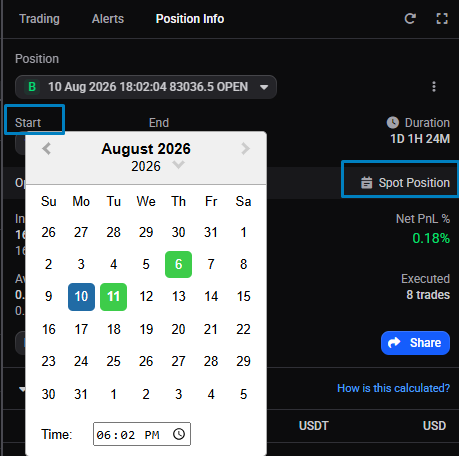
A wrong start date on a manual position. A manual position contains the trades that fall after its start date, so if that date is off it pulls in trades it shouldn’t, which can throw off the size, the analytics, and even the apparent direction. This is the most common reason for a spot short you didn’t set out to open. One thing to know: the start time is set to the minute, not the second, so if two trades happened in the same minute you can’t include one and exclude the other.
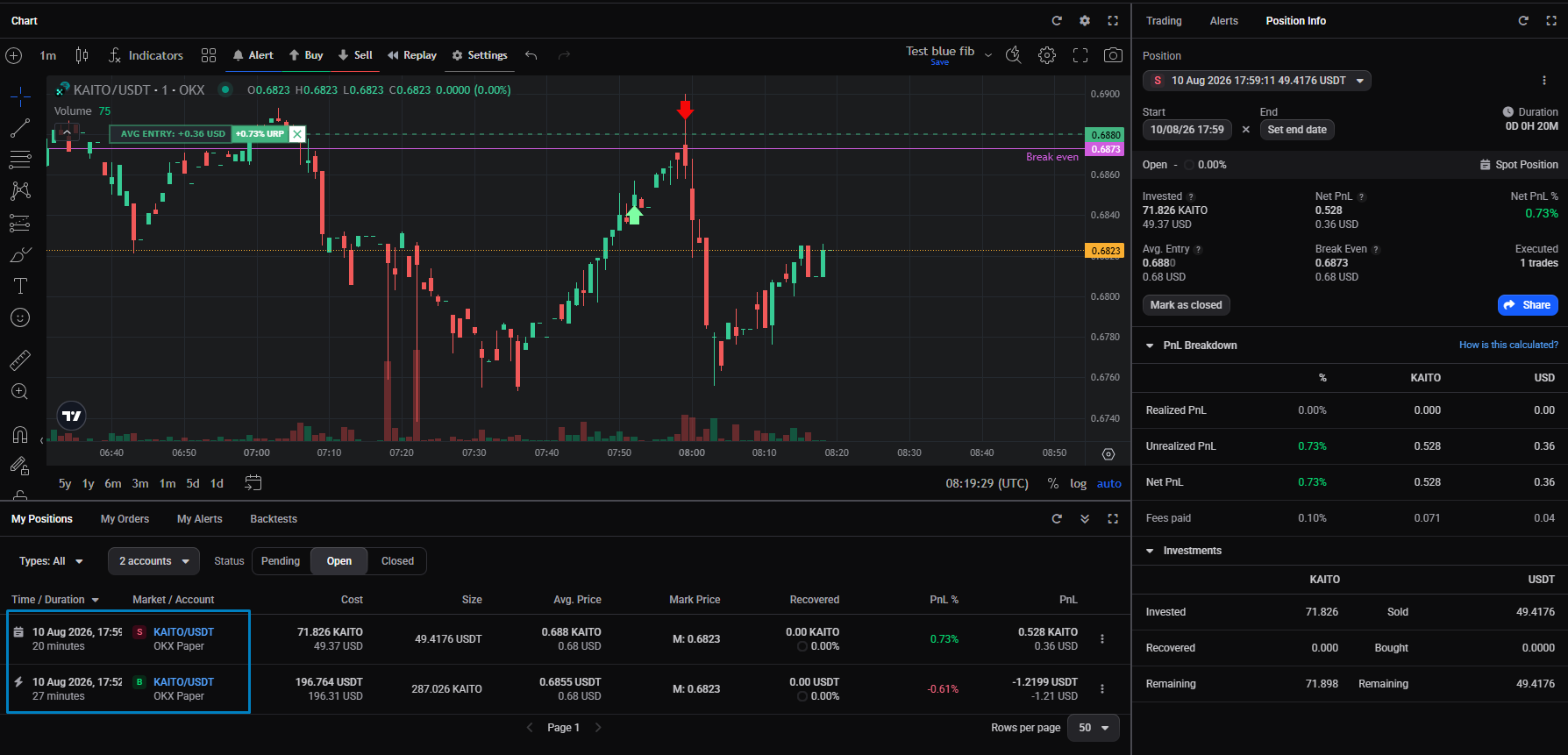 🔍 Click the image to see a larger version
A leftover exit from a smart position that closed unexpectedly. If a smart position closed when it shouldn’t have, an exit order it had already placed can be left behind. Whether it shows up straight away depends on the order type: a smart order creates a Pending position right away, whereas a regular order doesn’t become a position until it fills, since manual positions are built from trades, not orders. The stray position is always on the opposite side to the one you had, because the first filled order sets a position’s side: a buy makes it a long, a sell makes it a short (marked B or S in the Position Info widget), and a leftover exit sits on the opposite side to your original entries.
A new order placed instead of editing the position. This one is normal behaviour rather than a fault. Any order that isn’t an edit to an existing position starts a new one: a smart order shows straight away as a Pending position, while a regular order only becomes a position once it fills (again, manual positions are based on trades, not orders). So if you meant to add to or exit a position but placed a fresh order instead, you end up with a second position rather than a change to the first.
Missing trades. If Altrady doesn’t have all the trades behind a position, the position it builds won’t match reality. This can happen on both spot and futures, and is actually more likely on spot, because spot positions often run over a longer period, leaving more room for older trades to fall outside what was imported. Futures, for their part, hand over less trade history when you first connect them. On futures the Position Info widget flags this for you: it shows that the position’s remaining amount doesn’t match the exchange’s open amount. There’s no such flag on spot, so a spot mismatch shows up as numbers that look off rather than a warning.
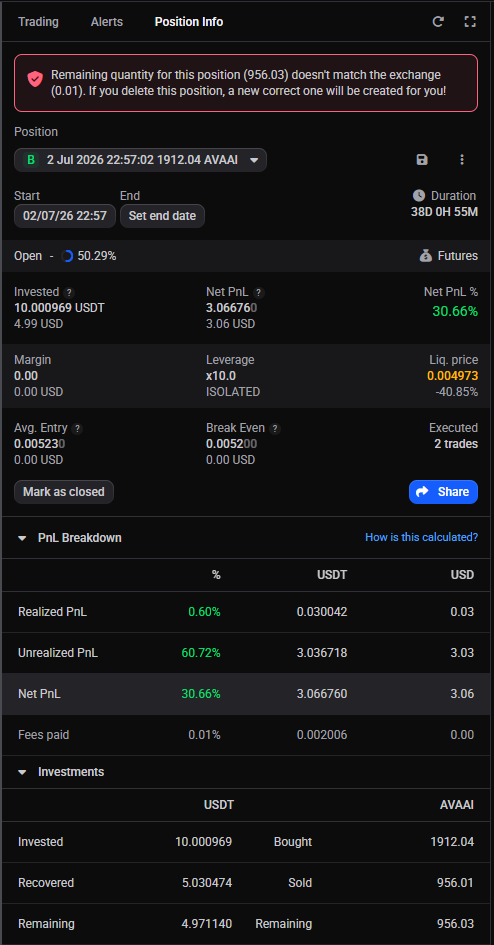 🔍 Click the image to see a larger version
A close that left a remainder. A market close has to estimate the size, so it can leave a small amount behind, and the position stays open with a little size still in it rather than fully closing. See market order price protection. It’s most common on spot shorts; clear it by adding a take-profit for the remaining amount.
My closed position doesn’t balance (missing buys or sells)
A closed position should have sold roughly what it bought (or, for a short, bought back what it sold). If the Investments section of the Position Info widget shows clearly more on one side than the other, or the PnL can’t be right for the trade you remember making, the position is holding the wrong set of trades. Either some trades never reached Altrady, or the position’s dates cut off trades that belong to it, or a trade that belongs to it was grouped into a separate position.
Start with Fix position. When a closed position’s buys and sells differ, the Position Info widget (and the position’s review page in the Journal) shows a This position does not balance notice with a Fix position button. In Journal > Positions, such a position also carries a red Needs fix badge, so you can find every affected position without opening each one.
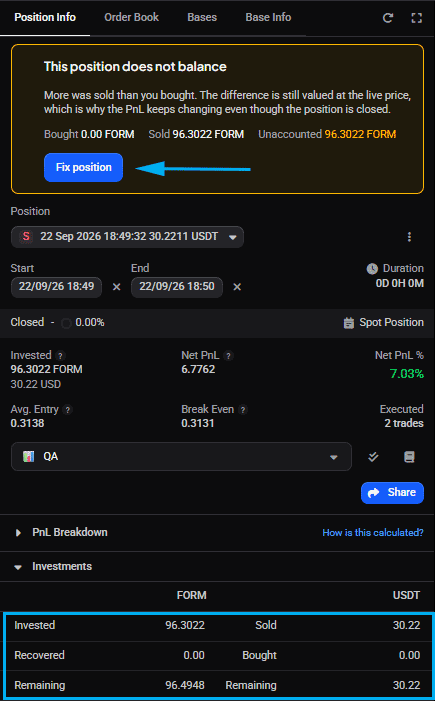 🔍 Click the image to see a larger version
It links the missing trade, splits off trades that belong elsewhere, merges the position with its mirror image, or removes a duplicate, and shows you the result before anything changes. See fixing a position that does not balance. If the wizard cannot find the trade it needs, fall back to rebuilding the position by hand:
- Check the trades on the chart. Enable the trade arrows (see below) and look at the buys and sells around the position. If a fill you know happened isn’t on the chart at all, Altrady is missing that trade: click the resync arrow, and if it still doesn’t appear, import your trade history for that period.
- Delete the closed position. Deleting removes only Altrady’s grouping, never the trades themselves. See Delete position.
- Create a new manual position from the Position Info widget. Open the Position dropdown, choose + Create position, and use the Time-based tab: set the Start to the first fill that belongs to the trade and the End to just after the last one. The calendar marks the days that have trades in green. The full flow is in creating a position from existing orders.
- Check the Investments section of the new position: the buy and sell totals should now match your exchange history.
If the missing trades genuinely aren’t available from the exchange any more, the position can’t be balanced from data. In that case leave the new position’s end date set so it is closed, and accept that its analytics are incomplete, or use Mark as Closed on an open manual position to draw a line under it.
How to check what a position is built from
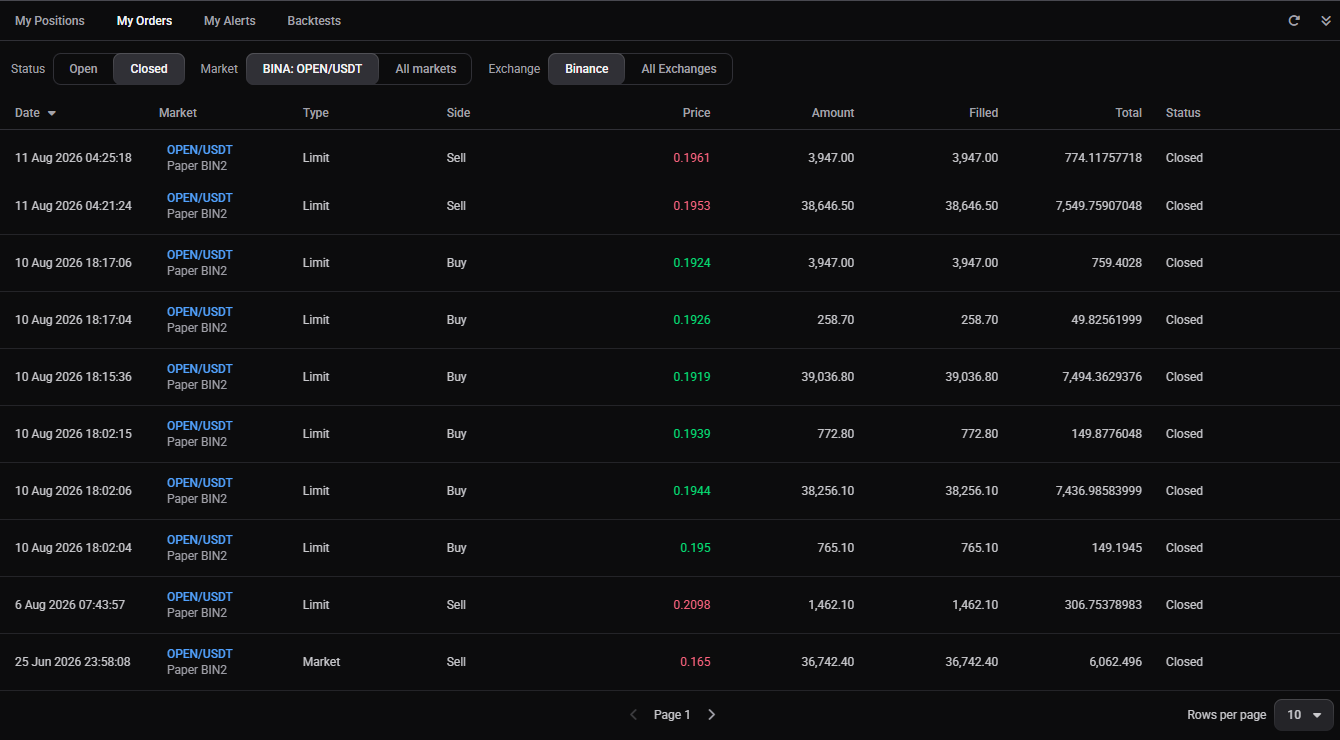
- Look at the Investments section of the Position Info widget, and at My Orders > Closed, to see what has filled and when.
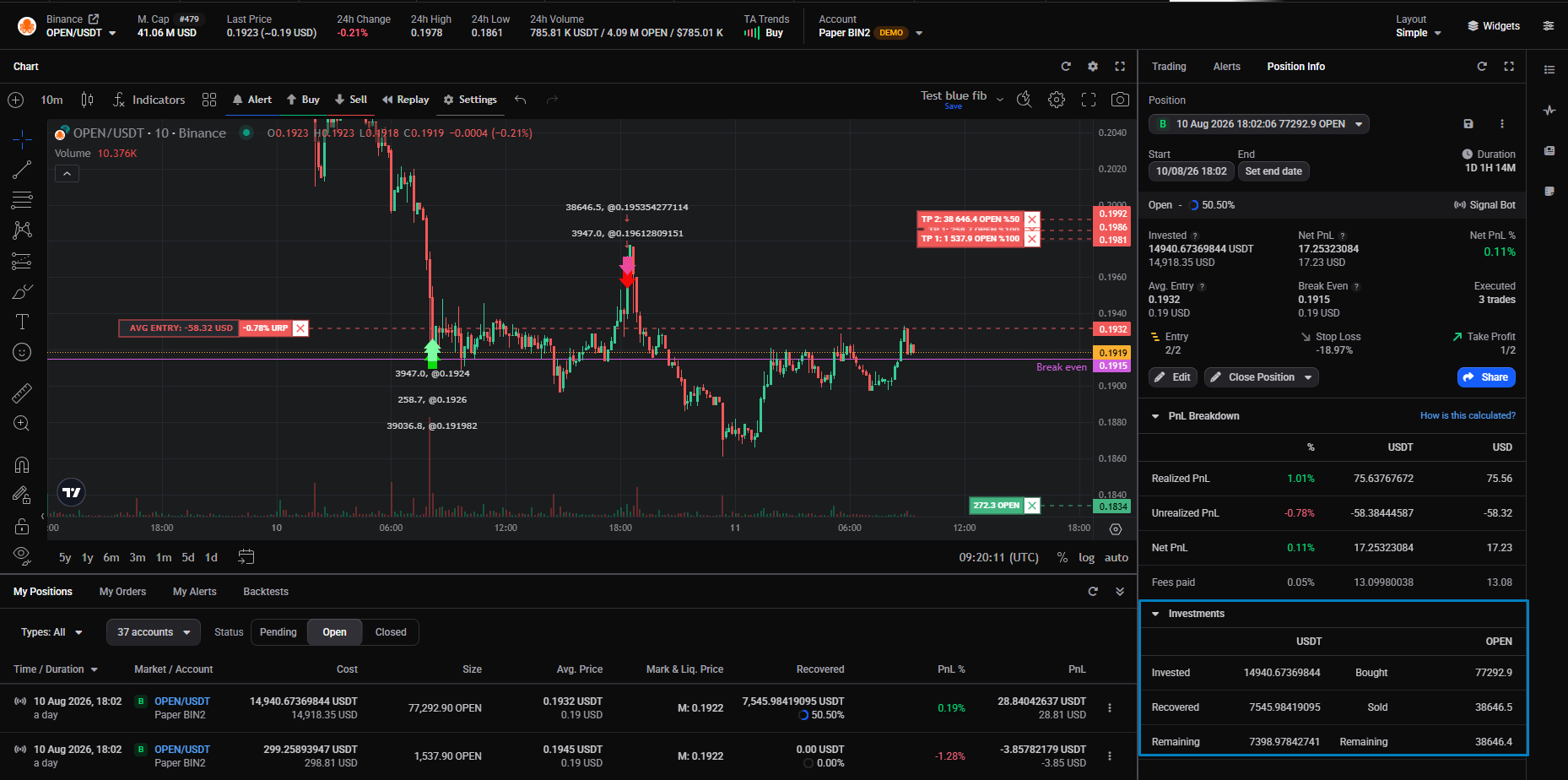 🔍 Click the image to see a larger version
 🔍 Click the image to see a larger version
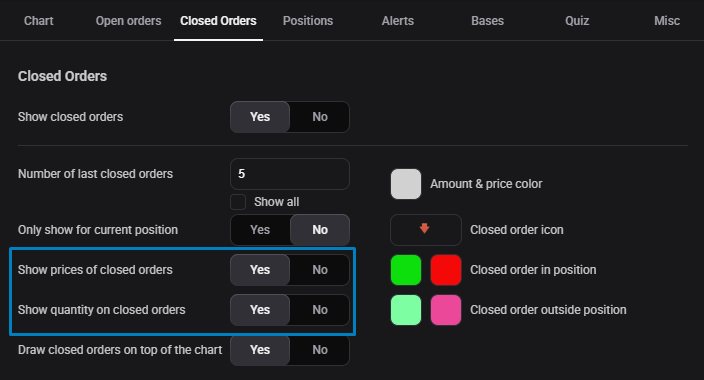
- To inspect the individual trades, use the trade arrows on the chart. The Position Info widget has no trade list, so the chart arrows are the only way to see individual trades. For the fill prices and sizes, enable Show Prices and Show quantity in the Closed Order tab of the Chart Settings; this shows the gross fill amounts at each price.
 🔍 Click the image to see a larger version
How to fix it
Wrong trades (wrong start date). Correct the position’s start date so it holds the right trades, remembering that the start time is set to the minute. Only a manual position’s start date can be edited, so convert it to manual first if it’s currently a smart position.
 🔍 Click the image to see a larger version
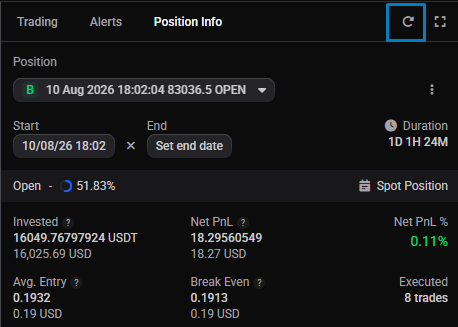
Missing trades. Click the resync arrow, then import the missing trades.
 🔍 Click the image to see a larger version
A stray or opposite-side position (a leftover exit, or a new order placed instead of an edit). Both come down to the same thing: a filled order that isn’t part of your smart position, so it started a position of its own. To fold it back in:
If the original position is still open:
- Convert the smart position to manual. A manual position is defined by its start date, so from that date onward it takes in the market’s trades, including the stray one.
- Delete the erroneous position. This removes only that grouping, not the underlying trade; with the original position now date-based, the filled order is counted inside it instead.
- To put automated management (take profits and stop loss) back on, convert the position back to smart.
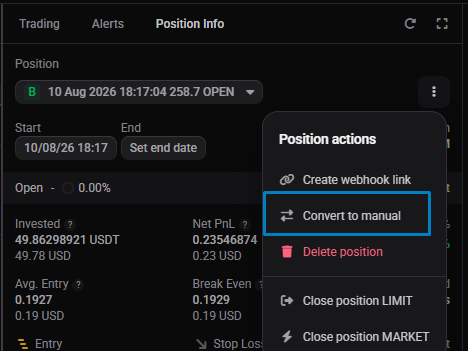 🔍 Click the image to see a larger version
If the original smart position has already closed:
- Delete the closed smart position.
- Create a new manual position with its start date set to the first filled order you want to include. Being date-based, it picks up the stray trade along with the rest.
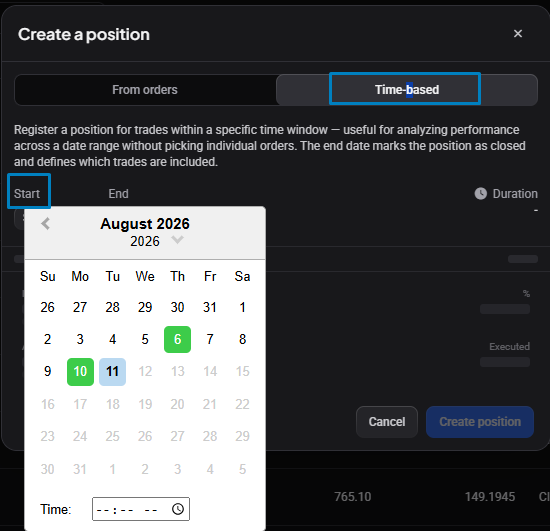 🔍 Click the image to see a larger version
To avoid it in future: to add to or exit a position, edit the position itself rather than placing a separate order.
Related articles
- An overview of positions: how Altrady builds positions from your trades.
- Creating a position from existing orders: the Create position flow in the Position Info widget.
- Understanding your position numbers.
- Why does my position show the wrong status (open vs closed)?.
- How do I close, exit, or cancel a position?: the start-date check when a close amount looks wrong.
Still stuck?
If the position still looks wrong after checking its trades and start date, share a screenshot of the Position Info widget along with the market and account so the team can check it against your trade history. You can reach our support team anytime through the chat bubble in the bottom-right corner of our Help Center at help.altrady.com.