
How do I import my trade history from an exchange?
If your exchange isn’t fully synced with Altrady, or your trade history goes back further than your API connection does, you can import it manually from a CSV, XLSX or XLS file. You no longer need a specific format or preset for your exchange: Altrady now reads whatever trade export you upload, works out the columns and timezone for you, and lets you correct them before anything is saved.
 🔍 Click the image to see a larger version
Before you start
Add the exchange account first. You can only import trades for an exchange account that is already connected in Altrady, so add its API key before you come here. Paper trading (demo) accounts are left out on purpose, since an import writes real trade history into your journal.
Where to find it
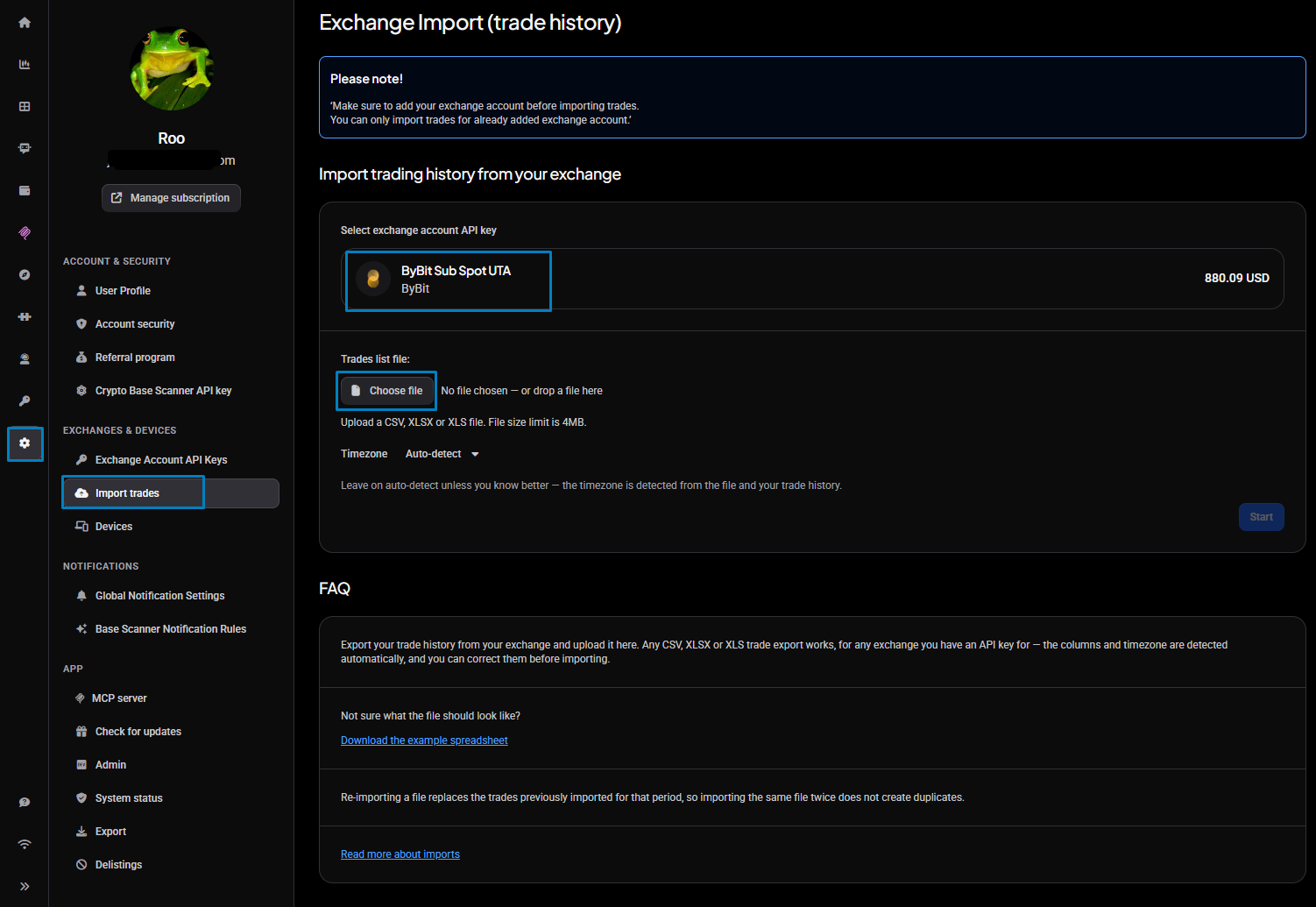
Open the Exchange Import (trade history) page from Settings → Import trades (under Exchanges & Devices).
Step 1: Pick the exchange account
Under Select exchange account API key, choose the account you are importing trades for. This tells Altrady which account, and which exchange’s markets, to match your file against, so pick the same account the trades actually happened on.
Step 2: Export your trades and upload the file
Export your trade history from your exchange as a CSV, XLSX or XLS file (up to 4MB), then choose it under Trades list file or drop it onto the page. Any exchange’s trade export works — Altrady detects the columns automatically, so there is no per-exchange format to match. Not sure your export will work? Use Download the example spreadsheet to see the shape of a file it understands.
Step 3: Leave the timezone on Auto-detect
Altrady reads the timezone from the file and your existing trade history, so Auto-detect is right for almost everyone. Only change it if you know your export uses a different zone. If your imported times end up off by a few hours, you can still correct the timezone before the import is saved.
Step 4: Start, then check before importing
 🔍 Click the image to see a larger version
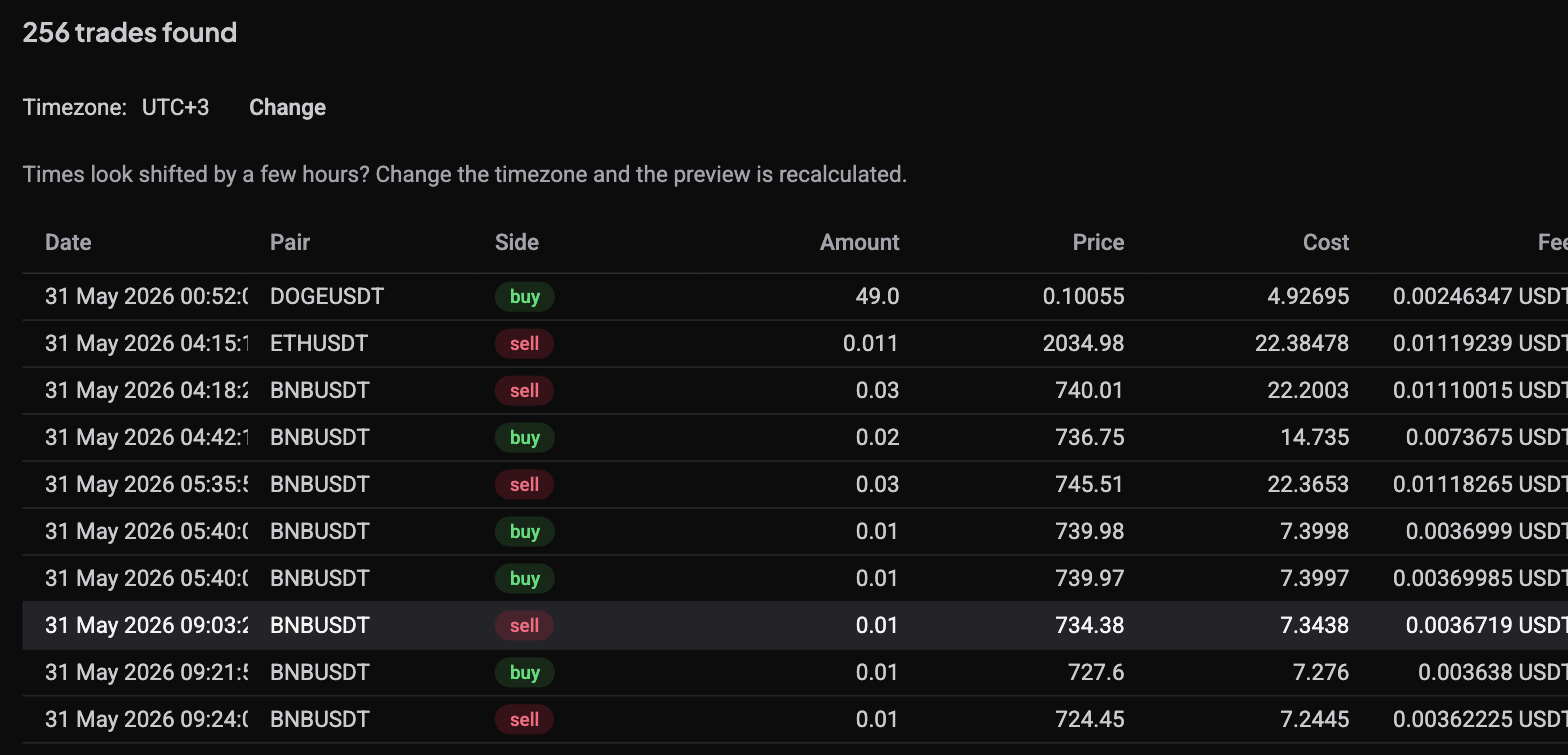
Select Start. Altrady processes the file and shows you what it found — the columns it detected and a preview of the trades — before anything is saved to your journal. Look it over, and if a column mapped wrongly or the timezone is off, correct it here; nothing is written until you confirm. If no trades matched your selected account, or a column won’t map, see Why did my trade history import fail or show the wrong data?.
Trade history only, not order history
An import brings in your executed trades, but not the orders behind them. Altrady can still build a position from imported trades, but because those trades have no linked orders, that position can only ever be manual — it can’t be converted to a smart position (a smart position needs its orders to manage take-profits, stops, and further entries). See converting between smart and manual positions.
Re-importing replaces a whole period — import only what’s missing
Re-importing will not create duplicate trades, but be careful about the date range you import. When you import a file, Altrady first deletes every trade already recorded for the period the file covers, then imports the trades in the file. Because of that:
- Import only the period that is actually missing, and no wider. If your file spans dates you already have, the trades you already had in that span are deleted and replaced by whatever is in the new file.
- This same replace-the-period behaviour is why importing the same file twice does not create duplicates — the second import just replaces the first.
So match the file’s date range to the gap you are filling, and keep the export you trust as your source.
Exporting instead
Looking to go the other way and pull trades, orders or balances out of Altrady? See How do I export my trades, orders and balances?.
Still stuck?
If your file won’t parse, keeps showing no matched trades, or the numbers after import don’t look right, see Why did my trade history import fail or show the wrong data?, or reach out through support chat and share the exchange and file you are using so the team can look at the specific mapping.