
Creating a position from existing orders
Most positions are created for you: by placing a smart order, by a bot, or automatically as trades occur on a market. Sometimes, though, you have trades or orders that aren’t part of a position yet, and you want Altrady to track them as one. You do this with Create Position.
For what positions are and how each type is created automatically, see an overview of positions.
Opening Create Position
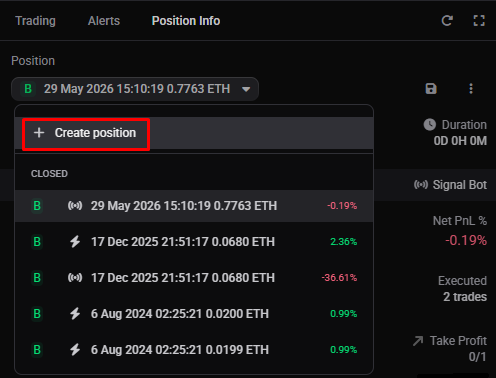
In the Position Info widget, open the Position dropdown at the top and choose + Create position.
 🔍 Click the image to see a larger version
Altrady may also offer it for you: if you’ve traded a market before but have no position registered, the trading widget shows a message. Use Previous Orders opens the same dialog; Start New Position dismisses it (see below).
Create position opens a Create a position dialog with two tabs. The tab you use sets the position’s type:
| Tab | Builds a | Use it to |
|---|---|---|
| From orders | smart position | Manage the position: add take profit, stop loss, more entries, or automation AND track analytics |
| Time-based | manual position | Just track analytics for the trades in a date range |
From orders (smart position)
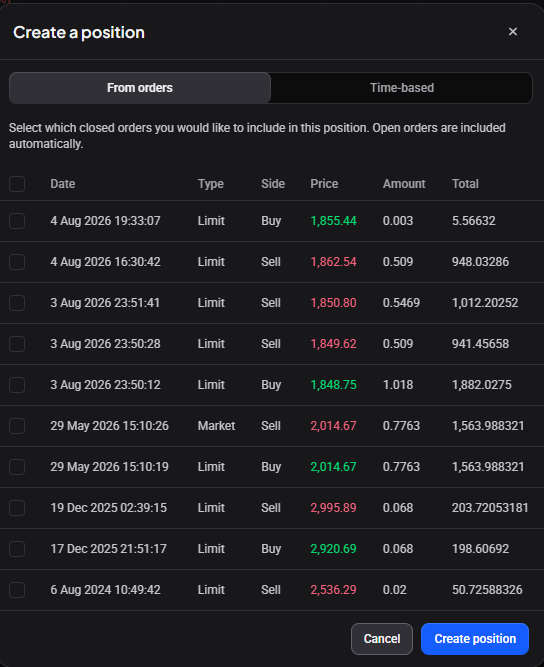
On the From orders tab, tick the closed orders to include, excluding filled orders that are already in a smart position. Open orders that are not already in a smart position are included automatically. Then click Create position.
 🔍 Click the image to see a larger version
The result is a smart position, so all of the position controls are available to it straight away.
Building from orders needs the orders themselves. If your trades were imported, Altrady doesn’t have their orders (and orders can’t be imported), so use Time-based instead.
Time-based (manual position)
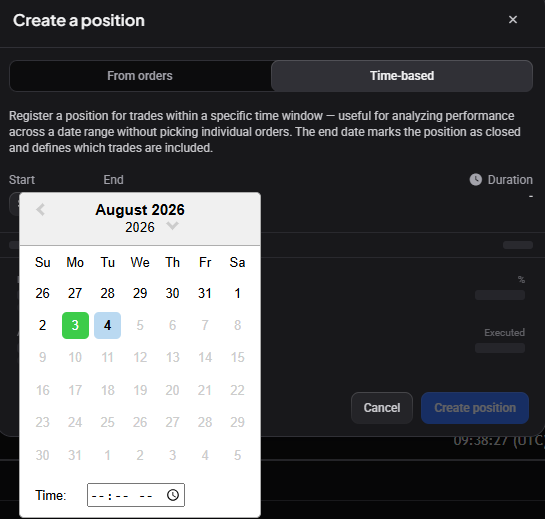
On the Time-based tab, set a Start date and time. In the calendar, the days that have trades are marked green, so you can land on the right one. This registers the trades from that point on as a manual position: analytics only. Optionally set an End date, which marks the position closed and fixes which trades are included. Then click Create position.
 🔍 Click the image to see a larger version
A manual position is defined by its dates, so the start date decides which trades it contains, its open amount, and the amount used to close it. If the analytics look wrong later, check the start date first.
If a manual position overlaps a smart position in time, it will also include those orders in its analytics. It is much easier to manage orders using either smart or manual positions, with no overlaps.
To add take profit, stop loss, or automation to a manual position later, convert it to smart. If it cannot be converted (because Altrady does not have the orders; or because you have overlapping positions), then you will need to use regular orders for the exits. [It is possible to use an OCO order on Binance. Or to use Start Position At (Entry condition) combined with a limit order both for SL and TP.]
You can also set these dates from the chart: right-click the candle just before your first trade and choose Set Break Even Start, and, to close the position, right-click the candle after your last trade and choose Set Break Even End. Save with the save icon.
Whichever tab you use, the new position appears in the My Positions widget and is selected automatically in the position controls.
Start New Position
If previous orders exist but you don’t want them included, click Start New Position on the trading-widget message to begin fresh from your next order. Placing a smart order creates a new smart position; a regular order won’t start one on its own.
All values read 0 until an entry on the position fills.
Watch it
Related articles
- An overview of positions: what positions are, and how each type is created.
- Converting between smart and manual positions.
- How do I close, exit, or cancel a position?.
- Managing an open position: all the guides.
Still stuck?
If the new position doesn’t contain the trades you expected, check its start date first. If it still looks wrong, reach out through support chat in the app with the market and the account.