
Why does my closed position's PnL keep changing? Fixing a position that does not balance
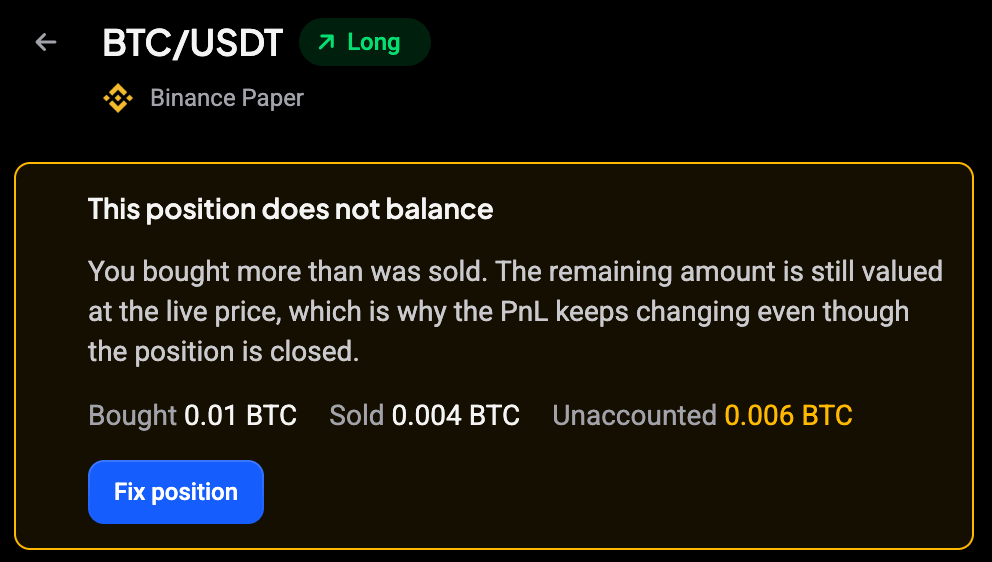
A closed position should have sold what it bought (or, for a short, bought back what it sold). When the two amounts differ, Altrady still values the leftover at the live price, so the profit or loss keeps moving even though the trade is over. Altrady flags this with a This position does not balance banner and a Fix position button that repairs it in a couple of clicks, without touching anything on your exchange.
Where the banner shows
 🔍 Click the image to see a larger version
 🔍 Click the image to see a larger version
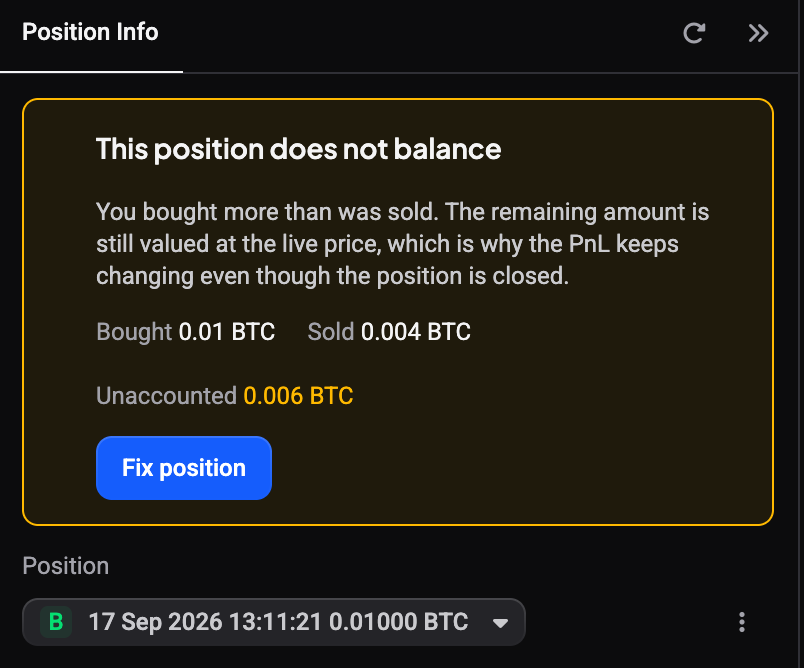
The banner lists the Bought, Sold and Unaccounted amounts so you can see the gap at a glance. It appears in two places:
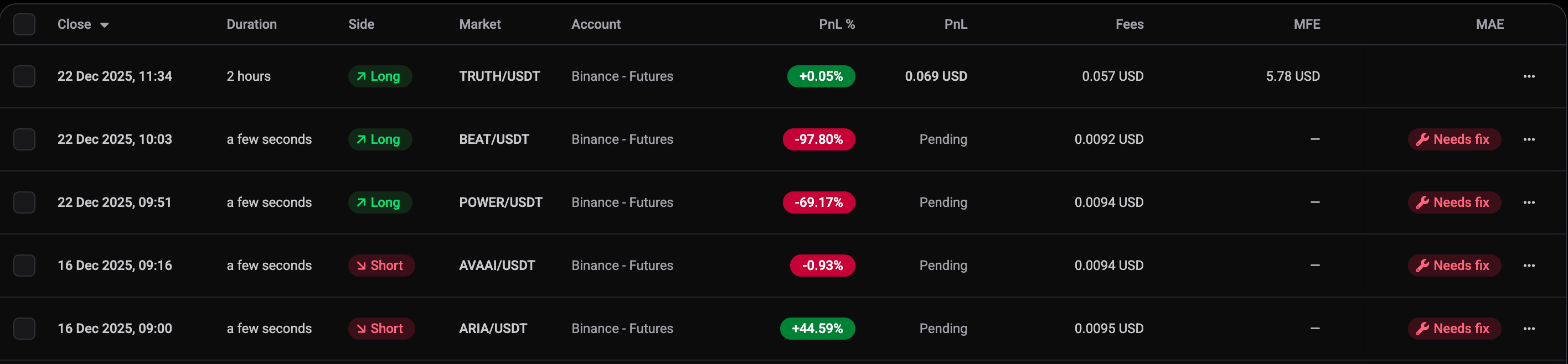
- In the Journal, on the position’s review page. You do not have to open every position to find the affected ones: in Journal > Positions, a closed position whose buys and sells do not add up, or that has no closing trades at all, carries a red Needs fix badge. Click the badge to go straight to its review page. (A position with no entry cost recorded at all shows a Data issue badge instead.)
- In the trading terminal, in the Position Info widget, when you select the closed position in the widget’s position picker. If the widget is not on your screen, enable it from the Widgets menu in the top right.
Both show the same banner and the same Fix position button, so use whichever is open.
 🔍 Click the image to see a larger version
Why a position stops balancing
Nothing went wrong on the exchange. Altrady simply grouped the trades differently from how they happened. The usual reasons:
- A trade did not sync, or a history file was imported without its counterpart.
- A later trade was attached to this position even though it started a new one.
- The trades of a single trade were split across two positions.
- The position was imported twice.
Each of these has its own repair in the wizard.
Step 1: Pick what happened
 🔍 Click the image to see a larger version
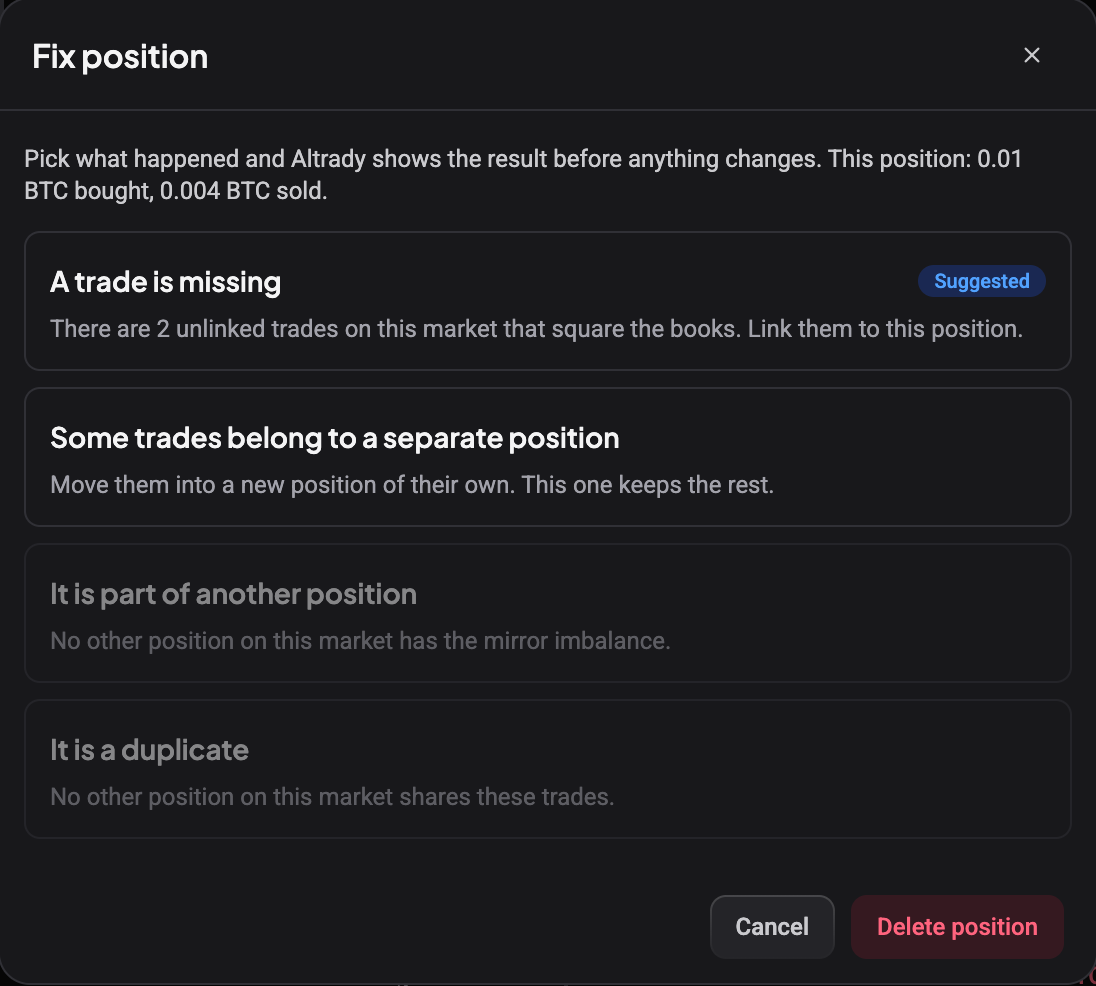
Click Fix position. The first screen shows what the position bought and sold, then asks you to pick one of four causes. Altrady checks your trades and marks the one it can detect with a Suggested badge, so in most cases you only confirm.
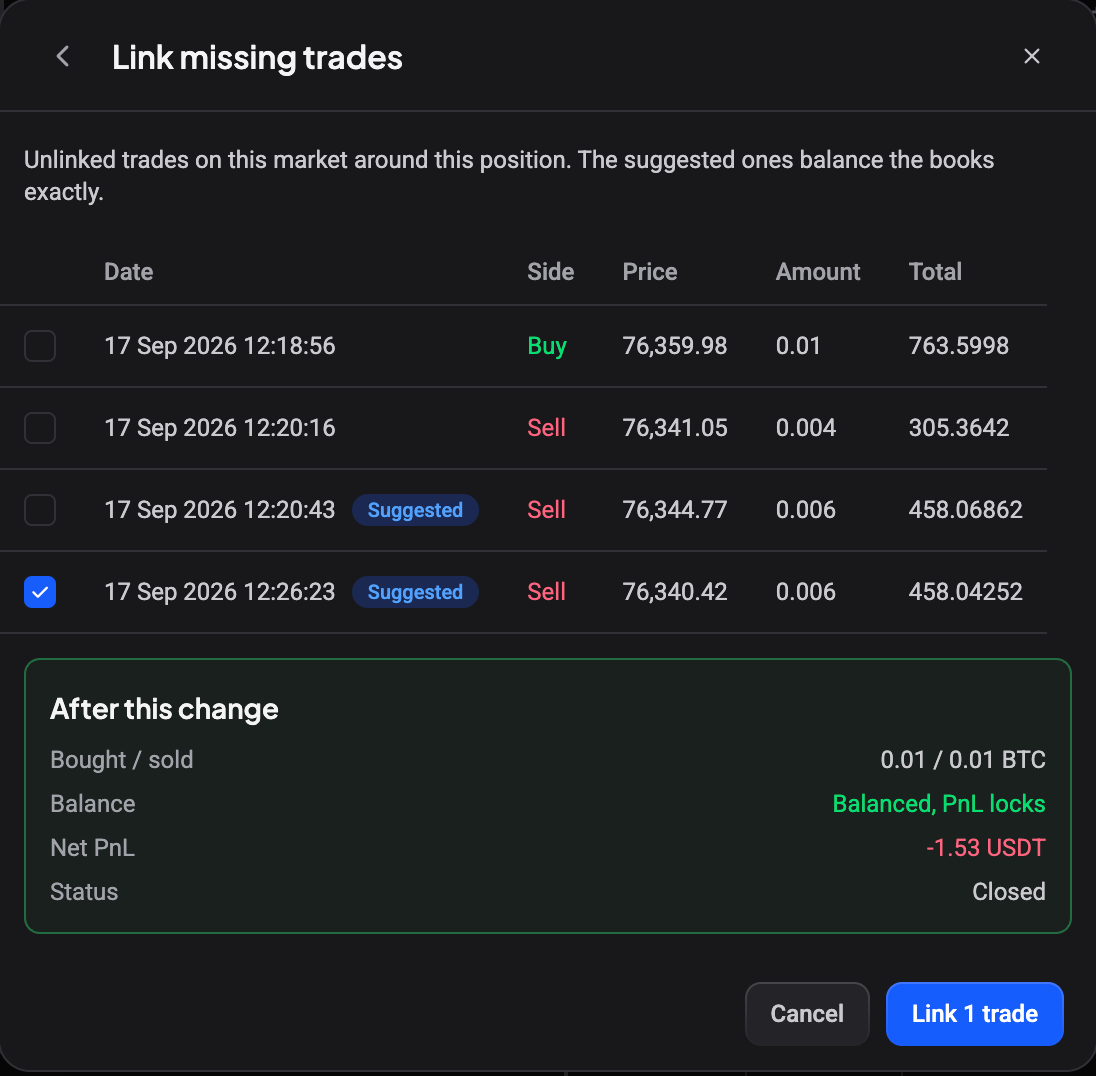
- A trade is missing: Altrady lists unlinked trades on the same market and account from around the position’s time window. The one that squares the books exactly is preselected; tick any others that belong here and they are linked to this position.
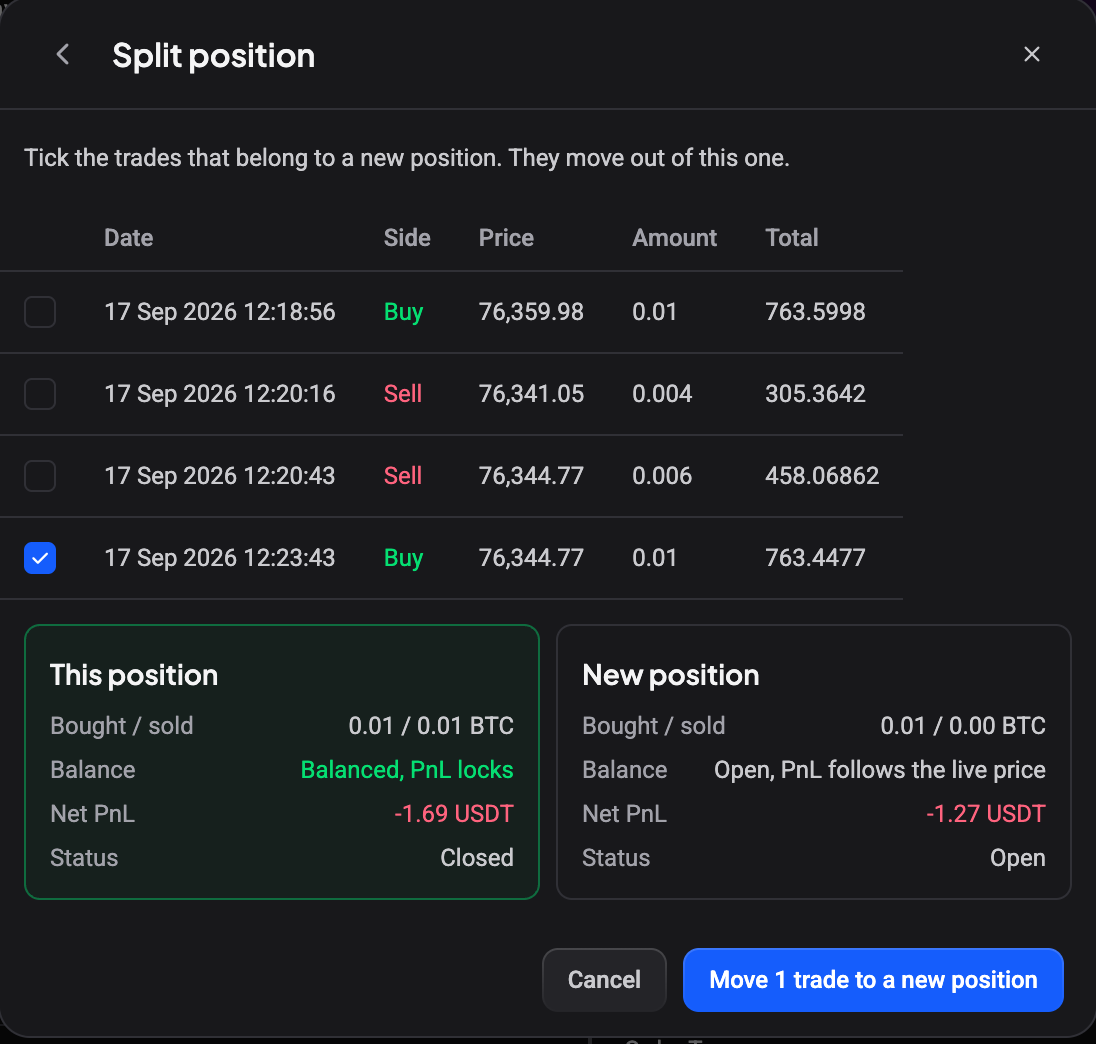
- Some trades belong to a separate position: tick the trades to move out. They go into a new position of their own, which may still be open. This position keeps the rest.
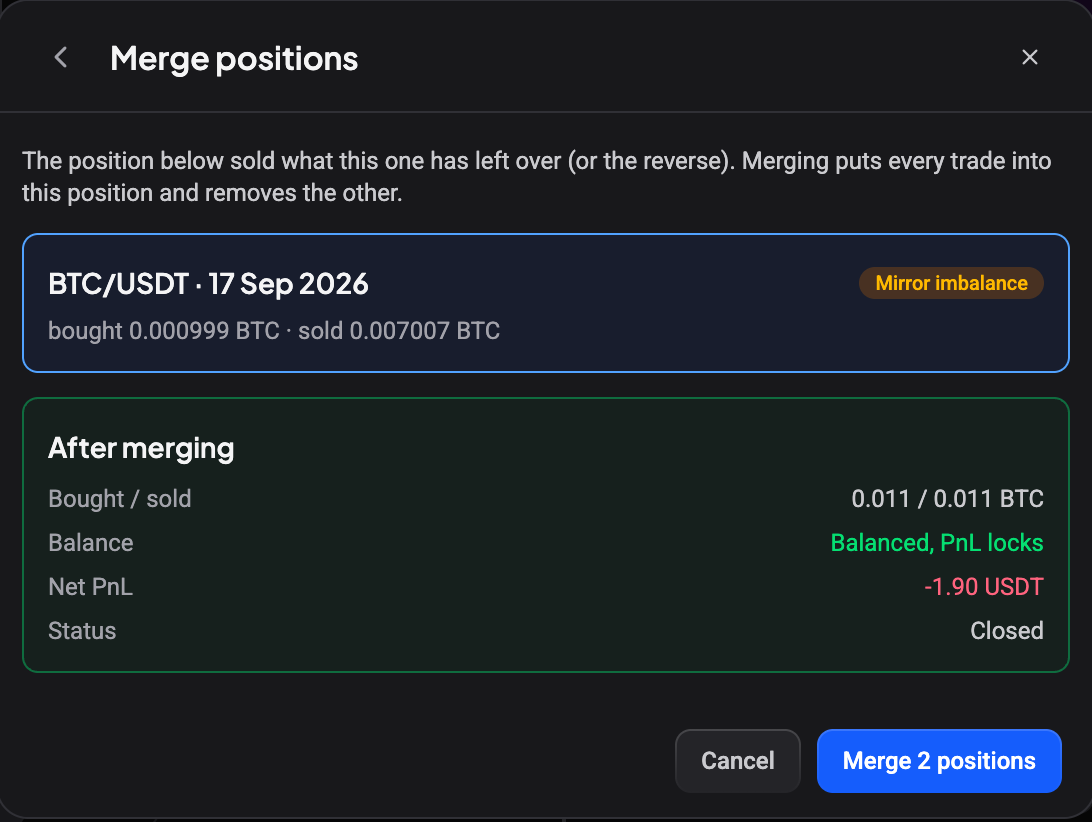
- It is part of another position: Altrady finds a position on the same market whose imbalance is the mirror image (it sold what this one has left over, or the reverse). Every trade moves into this position and the other one is removed.
- It is a duplicate: another position already contains the same trades. This copy is removed and the other one is kept.
If the position is simply wrong (test trades, a botched import), use Delete position in the footer instead. That removes it from your journal; your trade history is kept.
Step 2: Check the preview
 🔍 Click the image to see a larger version
 🔍 Click the image to see a larger version
Before anything changes, the wizard shows the position as it would look After this change:
- Bought / sold: the two amounts side by side.
- Balance: Balanced, PnL locks in green when the books close, or Still unbalanced in amber when they do not.
- Net PnL and Status as they would be afterwards.
The confirm button stays disabled until the preview is ready, so you cannot apply a change you have not seen. If the preview still says unbalanced, go back and try another cause; a split, for instance, may need one more trade ticked.
The trade lists in Link missing trades and Split position are sorted by close time, newest first; click the Date column header to flip the order. A small link icon marks a trade that a smart position already uses: hover it to see Already part of another position.
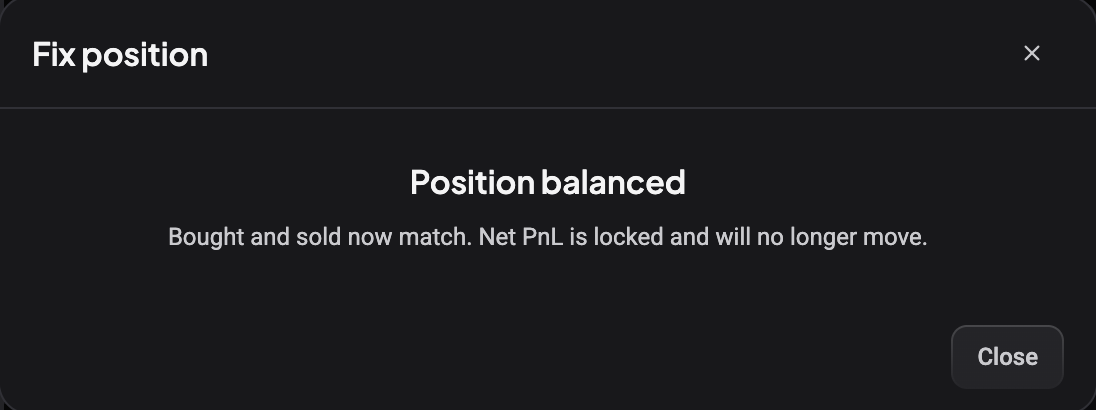
If the trades you link do not close the whole gap, the confirmation reads Trades linked instead of Position balanced. If the position is still closed, it keeps its banner and you can open Fix position again to link the rest. If it is now missing a closing trade, it reopens instead: its PnL follows the live price until you link the remaining trades or close it.
Splitting, merging, or removing a duplicate
 🔍 Click the image to see a larger version
 🔍 Click the image to see a larger version
 🔍 Click the image to see a larger version
The other three paths work the same way, with a preview before you confirm.
Split position lists every trade in the position. Tick the ones that belong elsewhere and the preview shows two cards: This position with what stays, and New position with what moves out. Confirm with Move N trades to a new position. The new position appears in your positions list and may still be open if it has no closing trade yet.
Merge positions shows the other position with a Mirror imbalance tag and what it bought and sold, then the combined result under After merging. Confirm with Merge 2 positions: every trade ends up in the position you started from, and the other one disappears from your list.
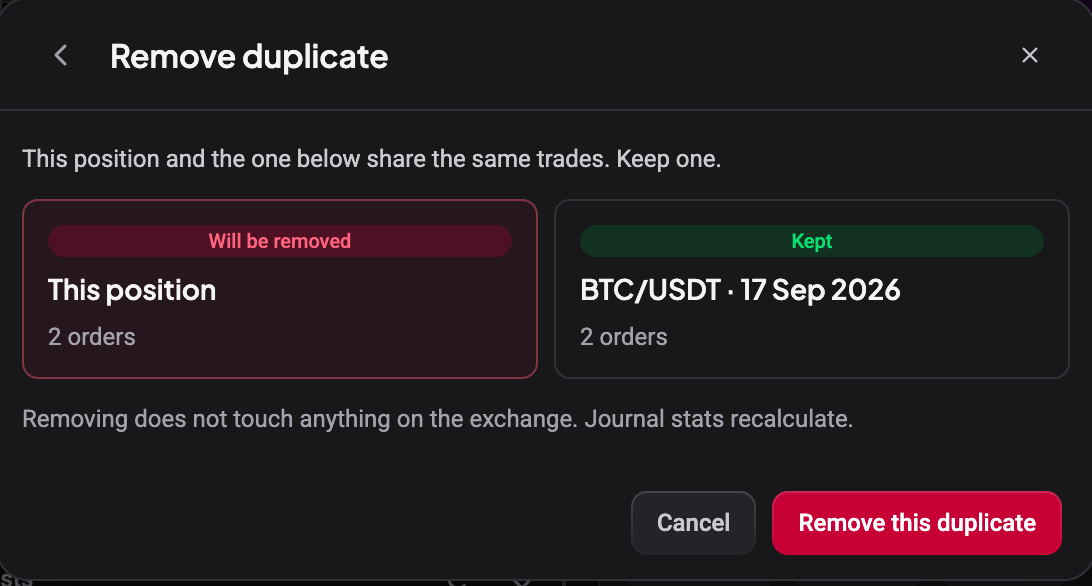
Remove duplicate shows the two copies side by side, marked Will be removed (the one you opened) and Kept. Confirm with Remove this duplicate. Only Altrady’s grouping is removed; the trades themselves stay, inside the position that is kept.
A duplicate that does balance never shows the banner, yet it still counts the same trade twice in your stats. The Position Info widget in the terminal catches those too: when another closed position on the same market has the same open and close times and the same amounts, it shows This position looks like a duplicate with a Remove this copy button. Altrady asks you to confirm before it removes the copy.
What changes, and what does not
- Only Altrady’s books change. No order is placed, cancelled or edited on the exchange.
- Journal stats recalculate after the fix, so your Overview and reports pick up the corrected PnL.
- Once the position balances, its Net PnL is locked and no longer follows the live price.
- Bot positions (grid bots, signal bots) can have missing trades linked, but cannot be split or merged.
- Any fix on a smart position turns it into a plain manual position, so automated take-profits and stop-loss no longer apply to it.
The other notice: Position data looks incorrect
 🔍 Click the image to see a larger version
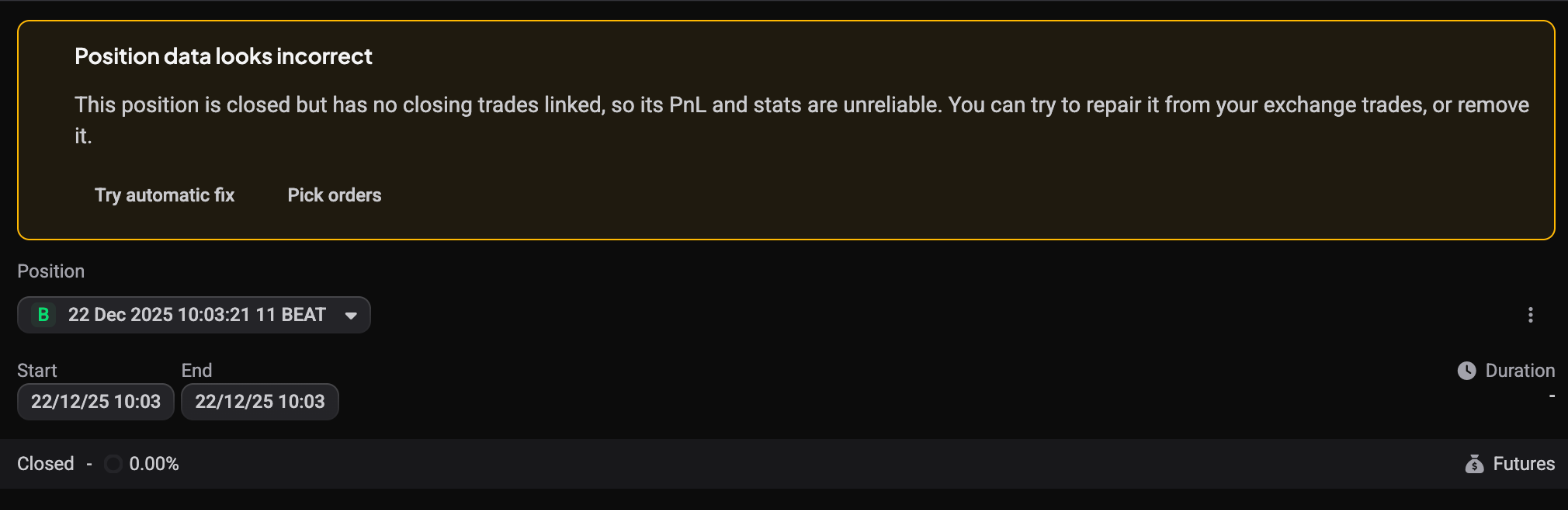
A different banner, Position data looks incorrect, covers a position that is closed but has no closing trades linked at all. It shows on the Journal review page and in the terminal’s Position Info widget, and the position gets the Needs fix badge too. When a position has both problems, you only see this one: once it is repaired, the This position does not balance banner appears if the books are still off.
It offers:
- Try automatic fix, which rebuilds the position from your exchange trades. If Altrady needs to know how much of the coin you hold now, it asks for the amount; enter it, choose Check again, then Apply fix once the repair looks right.
- Pick orders, to choose the orders that belong to this position by hand. The list is sorted by close time, and orders a smart position already uses are marked. The orders the position holds now are already ticked; saving replaces the whole set with your selection.
- Mark as conversion (spot positions only), for a coin-to-coin swap that was never really a trade. The position stays in your positions list, greyed out with a Conversion tag, but is left out of every number the Journal calculates: PnL, win rate, reports, the calendar and strategy stats. To undo it, open the … menu at the end of the position’s row and choose Include in journal, or Change exclusion reason to relabel it.
- Delete position (on the Journal review page), which removes it entirely.
Both notices can be handled from the Journal; see fixing your position data for the automatic repair and the account-wide Position data screen.
Still stuck?
If none of the four causes balances the position, or the trade you need is not in the list, the exchange may not have handed the trade to Altrady yet. Click the position’s resync arrow, or import your trade history for that period, then open Fix position again. Still off? Reach out through the chat bubble in the bottom-right corner of help.altrady.com with the market and account, and we will check it against your trade data.