
How do I set a price alert in Altrady?
A price alert tells you the moment a market reaches the level you pick, so you do not have to watch the chart yourself. The quickest way is to right-click the chart and choose Create New Alert, which creates one instantly at the price you clicked. If you would rather set the details yourself, use the Alerts tab in the trading terminal.
To be told when you are away from the app, turn on push or email delivery in your notification settings.
Open the Alerts tab
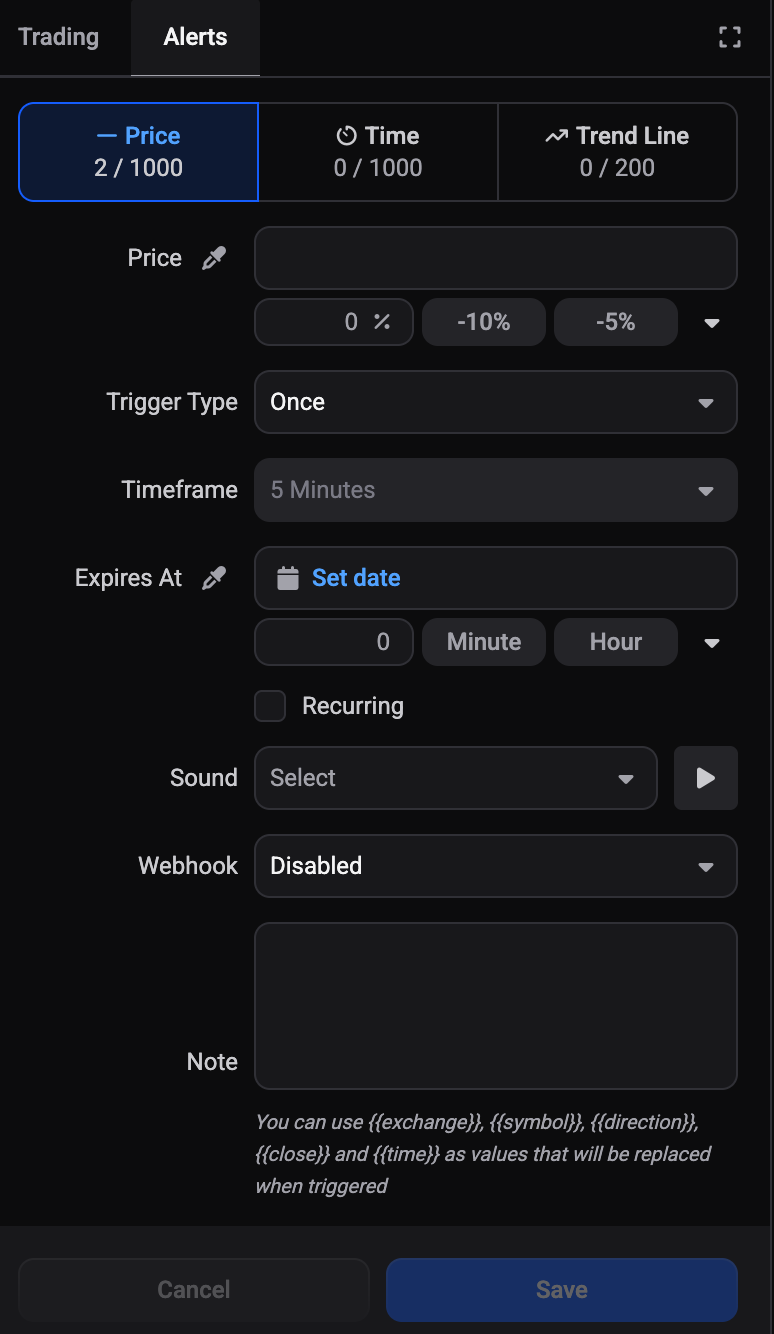
In the trading terminal, look at the panel on the right. It has two tabs: Trading and Alerts. Click Alerts. It is there by default, so you do not need to add anything to your layout.
 🔍 Click the image to see a larger version
Inside, three tabs across the top set the alert type: Price, Time and Trend Line. Price is selected for you. The other two are covered in Create a time alert and Set a trendline alert.
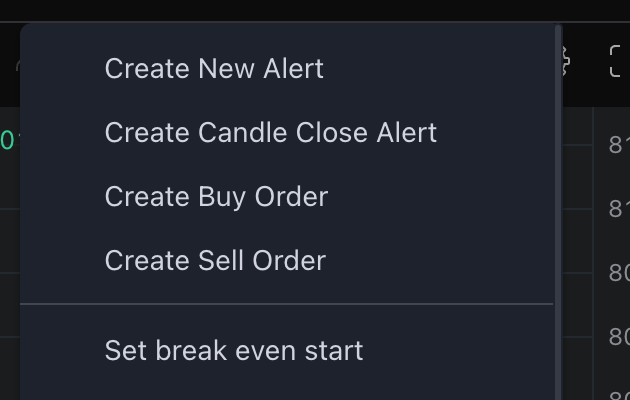
You can also skip the form. Right-click the chart and choose Create New Alert to create one instantly at the price you clicked, with no form to fill in. Create Candle Close Alert just below it does the same but waits for the candle to close. The order book has its own right-click menu where the item is called Create Alert, and alerts made that way are created without a sound.
 🔍 Click the image to see a larger version
Set the trigger price
Type the price you want Altrady to watch into the Price field.
Underneath sit some shortcuts: a percentage box and buttons for -10%, -5%, 0%, 5% and 10%. If the panel is narrow, the last few hide behind a small arrow at the end of the row. Once you type a price, the percentage box shows how far it is from the current price, which is a quick sanity check that you have not slipped a digit.
You do not choose a direction. When you save, Altrady compares your price to the market price and works it out: a price above the market becomes Rises above, a price below becomes Drops below.
Choose a Trigger Type
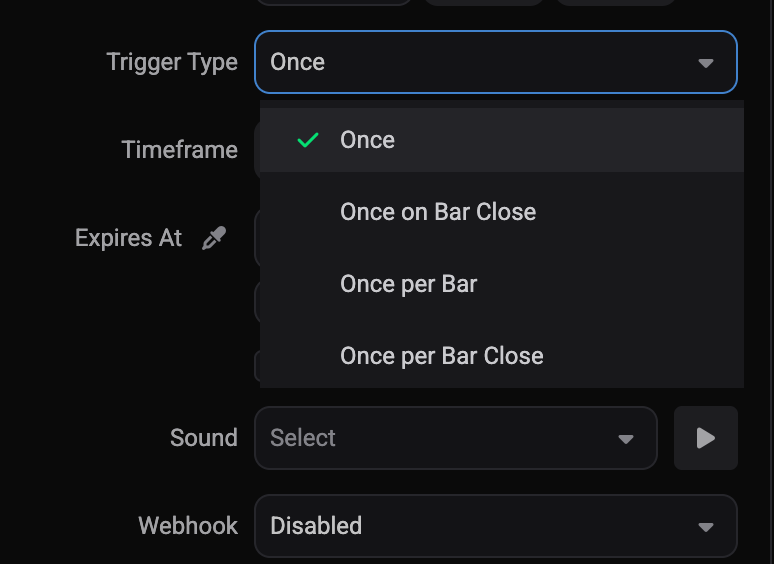
Trigger Type starts on Once and controls what happens when your price is hit:
 🔍 Click the image to see a larger version
- Once: fires the first time the price is touched, then the alert is finished.
- Once on Bar Close: the condition is checked when the candle closes rather than the moment price touches your level, so a brief wick does not set it off.
- Once per Bar: can fire again on each new candle while the condition still holds.
- Once per Bar Close: can fire again at the close of each candle while the condition still holds.
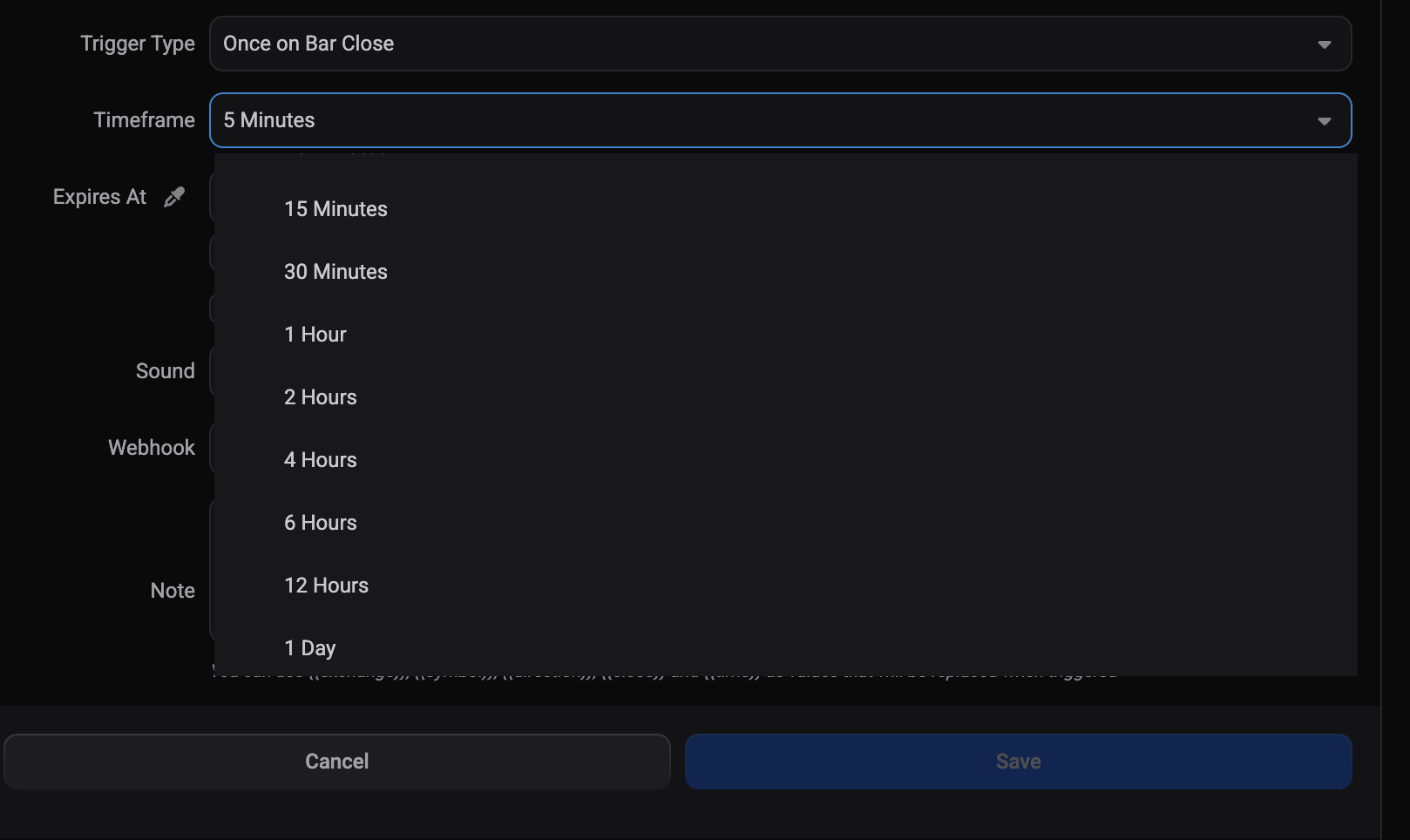
The last three also use the Timeframe field, which stays greyed out while Once is selected. It is the candle size the alert is measured against, and it starts on whatever timeframe your chart is showing. The list runs from 1 Minute up to 1 Day.
 🔍 Click the image to see a larger version
Fill in the optional fields
These sit below and apply to every alert type:
- Recurring: leave this unticked and the alert finishes after it fires once. Tick it and the alert keeps going: after it triggers it turns around and watches for the opposite move, so a “rises above” alert starts watching for a drop back below the same price. You can pause and restart a recurring alert later from the My Alerts tab.
- Expires At: an optional cut-off. Use Set date to pick one, or the number box with the Minute, Hour and Day buttons for a quick offset. Leave it blank and the alert waits indefinitely.
- Sound: this follows the Custom alert sound from your notification settings. If you have not set one, no tone is selected and the alert arrives silently: pick one here for this alert, or set a default in your notification settings.
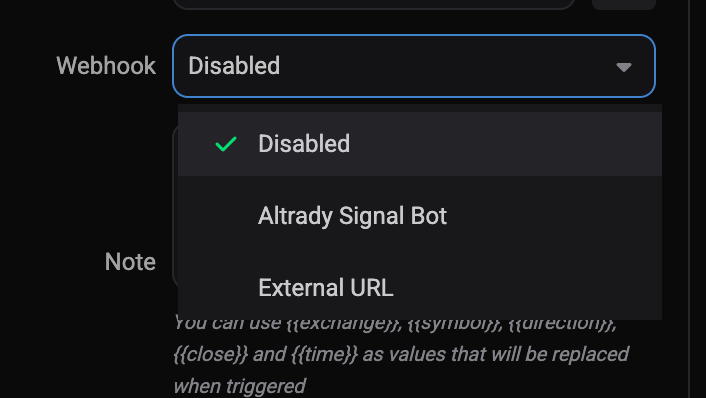
- Webhook: leave it Disabled for an in-app notification only, choose Altrady Signal Bot to feed the trigger into one of your signal bots, or External URL to post it to your own address. Altrady checks the address is safe before saving it, though it does not test whether anything is listening. See Send alerts to Discord or Telegram.
-
Note: your own reminder. It accepts placeholders that are filled in when the alert fires:
{{exchange}},{{symbol}},{{direction}},{{close}}and{{time}}. Writing{{symbol}} reached {{close}} on {{exchange}}gives you something like “BTCUSDT reached 78796.68 on Binance”: note that{{symbol}}uses the exchange’s own spelling, without the slash.
 🔍 Click the image to see a larger version
Watch your alert counts
Under each of the three type labels is a count, such as 2 / 1000, showing how many of that type you have used against your maximum. Price, Time and Trend Line are counted separately, so filling up one does not affect the others.
Each market also has its own ceiling of 50 alerts per type. Once a single coin is that well covered, delete an old alert there before adding a new one. If you keep running out, Choose your plan shows what a higher tier includes.
Save it
Click Save. The alert appears in the My Alerts tab at the bottom of the terminal, showing its type, the market, your note and the trigger it is waiting for, such as Rises above 90,000.00. Use the Status toggle there to move between Active for alerts still waiting, Alert History for alerts that have already fired, and Expired for alerts whose cut-off date passed first. See Manage and troubleshoot alerts.
Still stuck?
If Save stays greyed out, or an alert is not behaving the way you expect, reach out through support chat and the team will take a look with you.