
How do I turn on push and email notifications for trade and custom alerts?
Trade and custom alerts each have their own push and email switches, and they live in one place: Settings > Global Notification Settings. Turn on the ones you want, pick which connected accounts should fire trade alerts, and you’re done in under a minute.
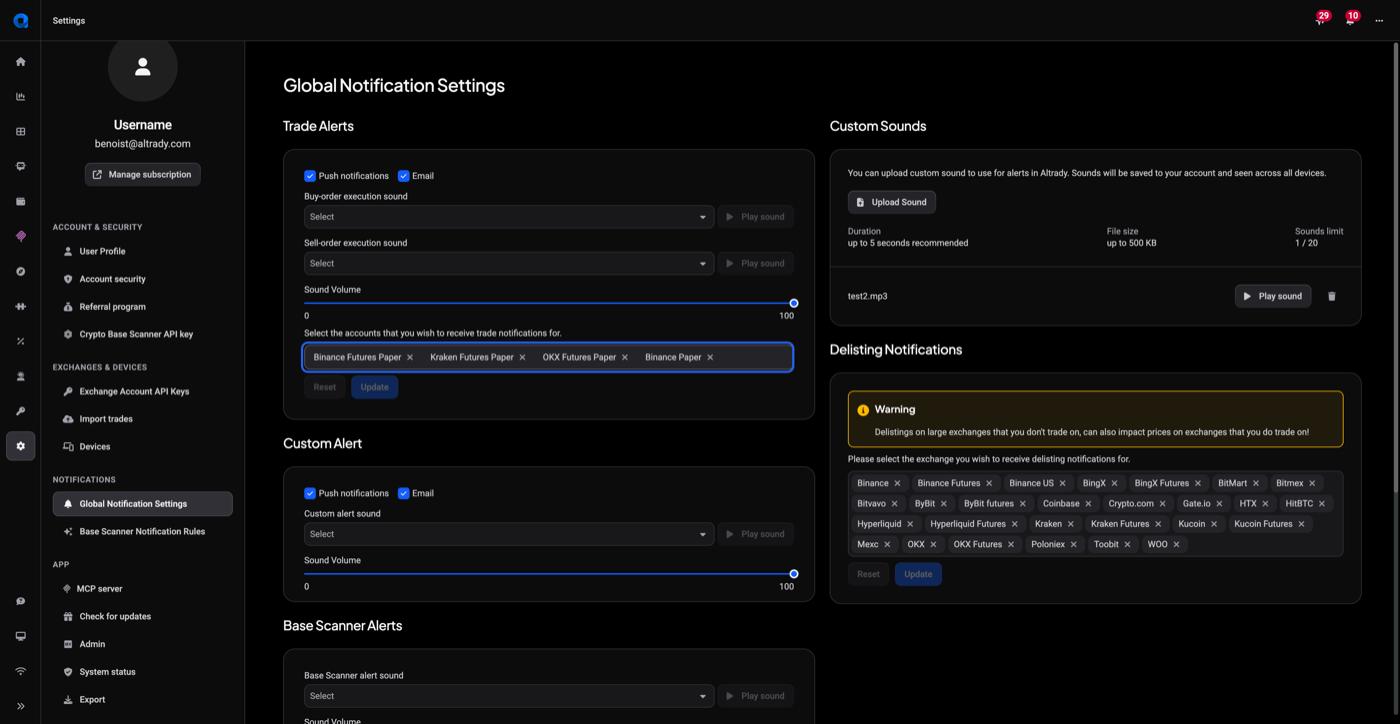
Find the Global Notification Settings screen
Open Settings from the sidebar and go to Global Notification Settings. This one screen controls whether Altrady notifies you by push, by email, or both, for two separate kinds of alert: Trade Alerts and Custom Alerts. It also controls delisting warnings and alert sounds, but let’s start with the toggles.
 🔍 Click the image to see a larger version
Turn on Trade Alerts (push and email)
 🔍 Click the image to see a larger version
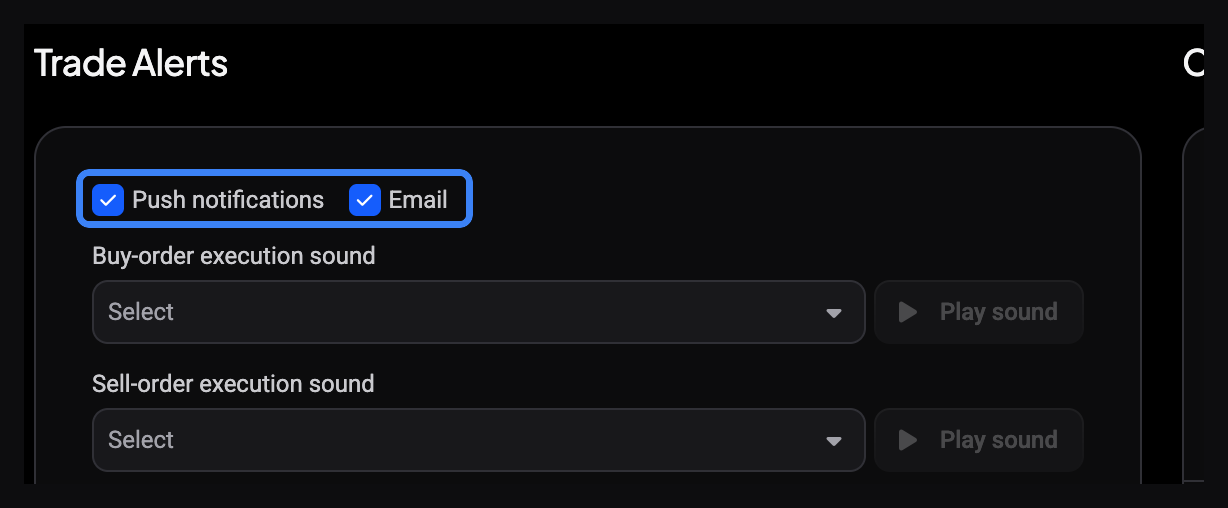
Trade Alerts fire whenever one of your buy or sell orders gets filled on an exchange. In the Trade Alerts panel, tick the Push notifications checkbox to get a device or browser push the moment an order fills, and tick the Email checkbox to get the same news by email. The two work independently: you can leave push off and keep email on, or turn both on, whatever suits how closely you watch the app.
Choose which accounts trigger Trade Alerts
 🔍 Click the image to see a larger version
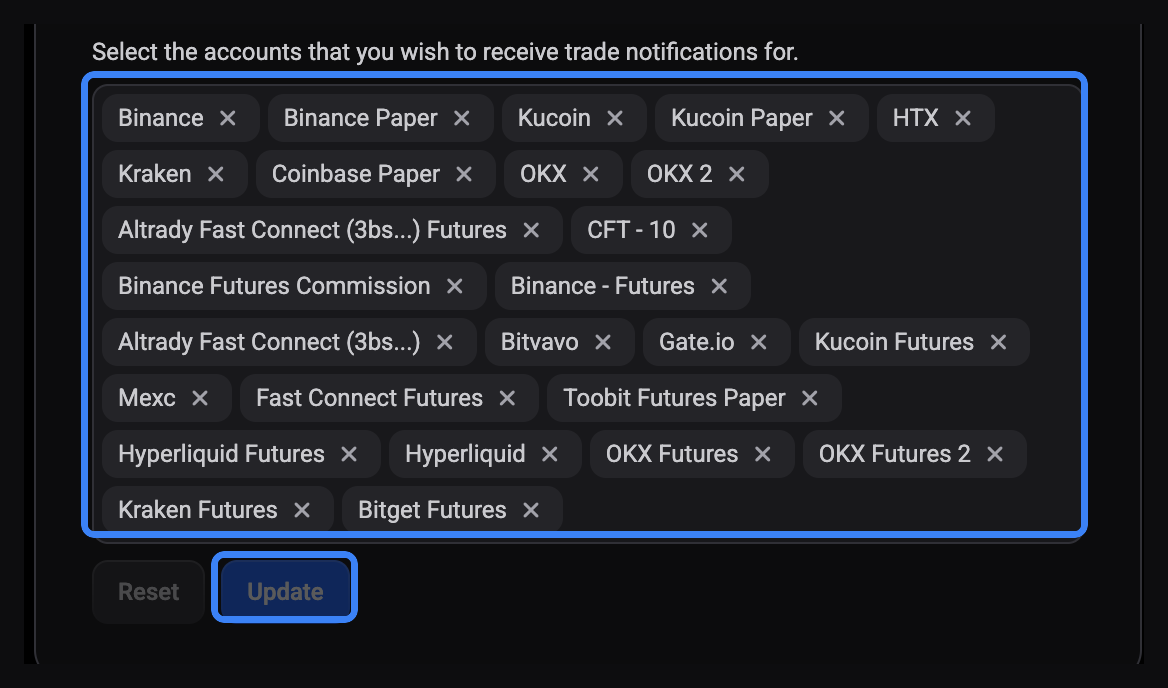
Trade Alerts don’t automatically cover every exchange account you’ve connected. Underneath the toggles, Select the accounts that you wish to receive trade notifications for lists your active exchange accounts as a searchable multi-select. Add or remove accounts there, then press Update to save the selection (or Reset to undo an unsaved change). If you trade on three accounts but only want fills from one of them buzzing your phone, this is where you narrow it down.
Turn on Custom Alerts (push and email)
 🔍 Click the image to see a larger version
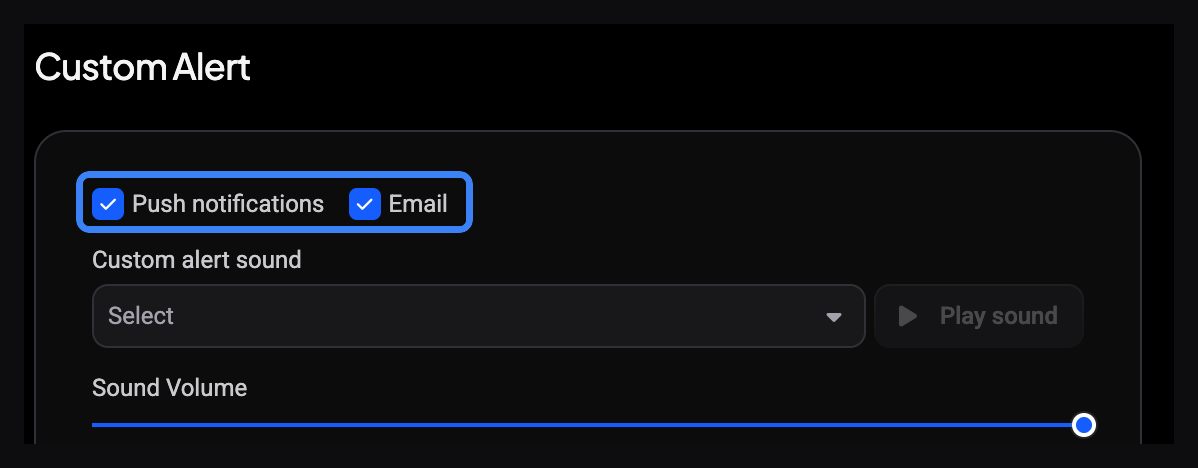
Custom Alerts fire when a price, time, or trend-line alert you’ve set on a chart triggers. This has its own Push notifications and Email checkboxes in the Custom Alert panel, completely separate from the Trade Alerts toggles above. It’s common to want both on for custom alerts (so you never miss a price level) while keeping Trade Alerts push-only, or the reverse. Set each pair to match how you actually want to be interrupted.
Turn on Delisting Notifications
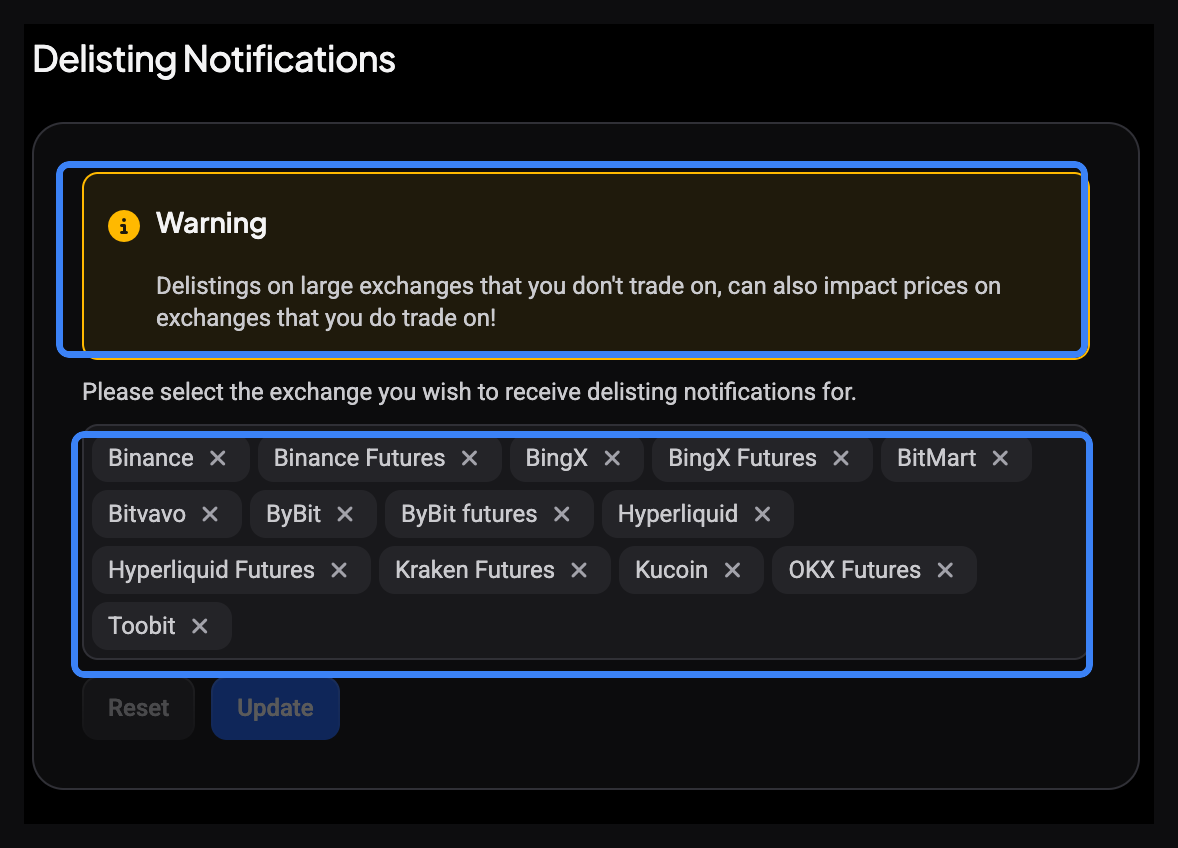 🔍 Click the image to see a larger version
In the right-hand column, below Custom Sounds, the Delisting Notifications panel has its own multi-select: pick the exchanges you want delisting warnings from, then press Update. Altrady shows a warning here worth taking seriously: a delisting on an exchange you don’t personally trade on can still move prices on exchanges you do trade on, since it’s the same coin. It’s worth including a couple of major exchanges in this list even if you never place an order there.
Push notifications need the right browser (or the desktop app)
Push notifications don’t work everywhere. If your browser doesn’t support them, Altrady tells you directly: “This browser does not support push notifications. Download the desktop app or use Chrome or Firefox.” If you’re not seeing push alerts and email is working fine, that message is the first thing to check. Switching to Chrome, Firefox, or the Altrady desktop app resolves it.
A quick note on alert sounds
Each alert type (trade buy, trade sell, custom alert) also has its own sound and volume slider on this same screen, so push and email aren’t your only options for staying aware. That’s covered separately in Customize alert and trade sounds.
Still stuck?
If you’ve turned everything on here and still aren’t getting notified, reach out through the support chat in the app. It’s often faster for us to check your account settings directly than to troubleshoot blind.