
How do I manage, edit, or delete my alerts (and why didn't one trigger)?
Every alert you create lives in the My Alerts tab at the bottom of the trading terminal. From there you can review your alerts, edit them, delete them, or work out why one has not fired yet. The usual answers are an expiry date that has already passed, or a bar-close trigger still waiting for its candle.
Find your alerts in My Alerts
Along the bottom of the terminal are the tabs My Positions, My Orders, My Alerts and Backtests. Click My Alerts. It is part of the default layout, so there is nothing to add.
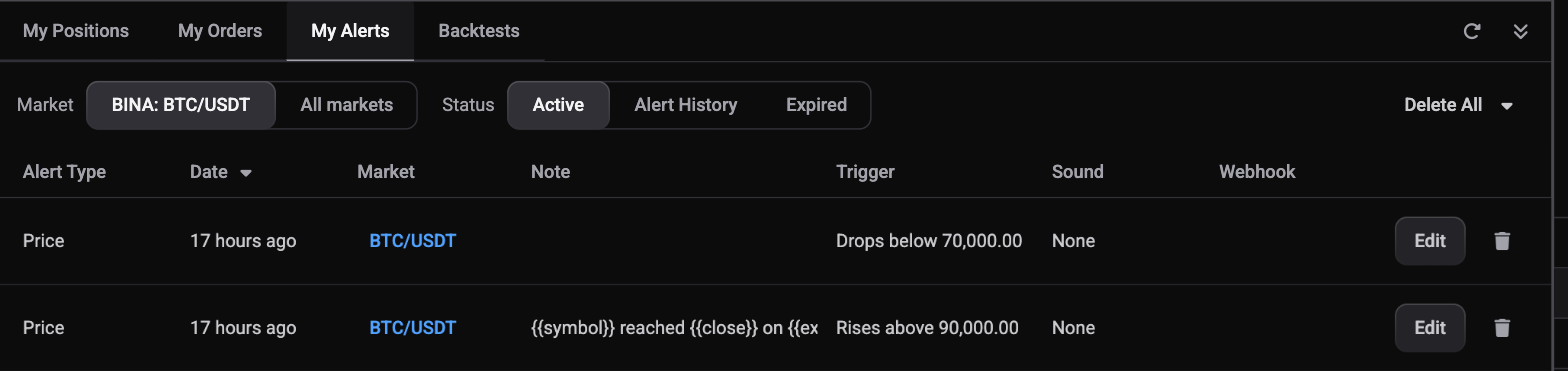
The table has these columns: Alert Type, Date, Market, Note, Trigger, Sound and Webhook, followed by the buttons for each row. Trigger is the useful one at a glance: it spells out what the alert is waiting for, such as Rises above 90,000.00 or Drops below 70,000.00. The Date column heading changes to Date triggered when you switch to alerts that have already fired.
 🔍 Click the image to see a larger version
Two toggles sit above the table. Market switches between the market you are looking at, shown with its exchange like BINA: BTC/USDT, and All markets. Status has three options: Active, Alert History and Expired.
The table shows 10 rows per page to start with. Change that with Rows per page, page through with the arrows, and sort by clicking a column heading.
Active, Alert History and Expired
The Status toggle splits your alerts three ways. Active lists alerts still waiting to fire. Alert History lists alerts that have already fired. Expired lists alerts that reached their Expires At date without ever firing.
There is no status column in the table. Which of the three views an alert appears in is how you tell where it stands.
Expired alerts can be viewed and deleted, but not edited. If you want that alert back, create a new one rather than trying to revive the old.
Editing an alert
Under Active, each row has an Edit button. Click it to reopen that alert in the Alerts tab with its fields ready to change: the price, the trigger type and timeframe, the expiry, the sound, the webhook and the note.
One thing you cannot change is the alert’s type. The Price, Time and Trend Line tabs are locked once an alert exists, so turning a price alert into a time alert means creating a new one.
The Edit button is greyed out on both Alert History and Expired, since neither of those alerts is still watching the market.
A recurring alert is easy to spot: its Note cell starts with a small repeat symbol, and its row has an extra pause button. Click that to stop it re-arming without deleting it, and click again to start it back up.
Deleting alerts
 🔍 Click the image to see a larger version
Each row has a trash icon that removes that single alert.
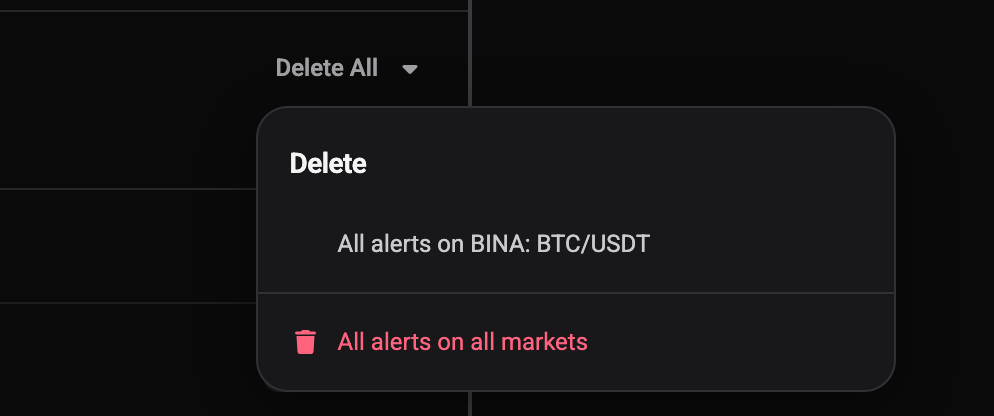
When you have alerts listed under Active, a Delete All button appears at the top right. It opens a short menu headed Delete with two choices: All alerts on your current market, or All alerts on all markets. Altrady then asks you to confirm under the heading Delete Alerts, showing how many alerts are about to go, with Delete and Cancel buttons.
On desktop, both choices act on the page of alerts you are currently looking at, not on your whole list. With alerts spread over several pages, All alerts on all markets clears the page in front of you and leaves the rest, and the confirmation counts only that page. So if you want to clear everything, either raise Rows per page until the whole list fits on one page first, or work through the pages one at a time.
On the mobile app this works differently: there, both choices really do cover every page at once.
Why an alert has not fired
A few common reasons an alert sits quietly instead of going off:
- Its Expires At date has passed. Price and trend line alerts can carry an expiry, and once that date is behind you the alert stops watching and moves to the Expired view. Time alerts have no expiry field, since they already fire at a fixed moment.
- It is waiting for a candle to close. If the Trigger Type is Once on Bar Close, Once per Bar or Once per Bar Close, the condition is checked against the Timeframe you picked rather than the instant price touches your level. On a 1 hour timeframe that can mean a long wait. It is not stuck.
- You have reached a limit. The count under each type label in the Alerts tab shows how many you have used. Each market also has its own ceiling of 50 alerts per type. Reaching either one blocks new alerts of that type until you delete some.
- You are in Replay mode. Alerts cannot be created while the chart is replaying.
If the alert did fire but you never noticed, the delivery side is the thing to check rather than the alert itself. See your notification settings.
Checking a webhook that did not arrive
The Webhook column shows the result of the last delivery, either Success or Failed, next to an information icon. Click that icon to see the full payload Altrady sent and what came back. That is the fastest way to tell an Altrady problem from a problem at the receiving end, and it is worth checking before contacting support. See Send alerts to Discord or Telegram.
These alerts are a separate system from Base Scanner alerts, TA Scanner alerts and TradingView webhook signals.
Still stuck?
If an alert still looks wrong after checking its trigger type, expiry and webhook result, reach out through support chat and share the market and alert type so the team can look at it directly.