
How do I send Altrady alerts to Discord or Telegram?
Altrady has no Discord button and no Telegram toggle. Instead, every price, time, or trend-line alert carries a Webhook option that can post straight into a Discord channel or to any public URL you control. Setting it up takes about five minutes, and the one detail that trips most people up is the format of the message, so start there.
Find the Webhook option on your alert
Open the trading terminal and look at the right-hand column. Next to the Trading tab there is a tab called Alerts, and that is where alerts are created. It is part of the default layout, so there is nothing to add or enable first.
 🔍 Click the image to see a larger version
Inside the Alerts tab, pick one of the three type tabs at the top (Price, Time, or Trend Line), then work down the form: Price, Trigger Type, Timeframe, Expires At, Sound, Webhook, and Note. The Webhook dropdown sits just below Sound, and it has exactly three options:
-
Disabled: the alert only shows inside Altrady, nothing is sent out. -
Altrady Signal Bot: routes the alert to Altrady’s own signal-bot endpoint so it can trigger a bot. This has nothing to do with Discord, so leave it unless you are wiring the alert into a signal bot. -
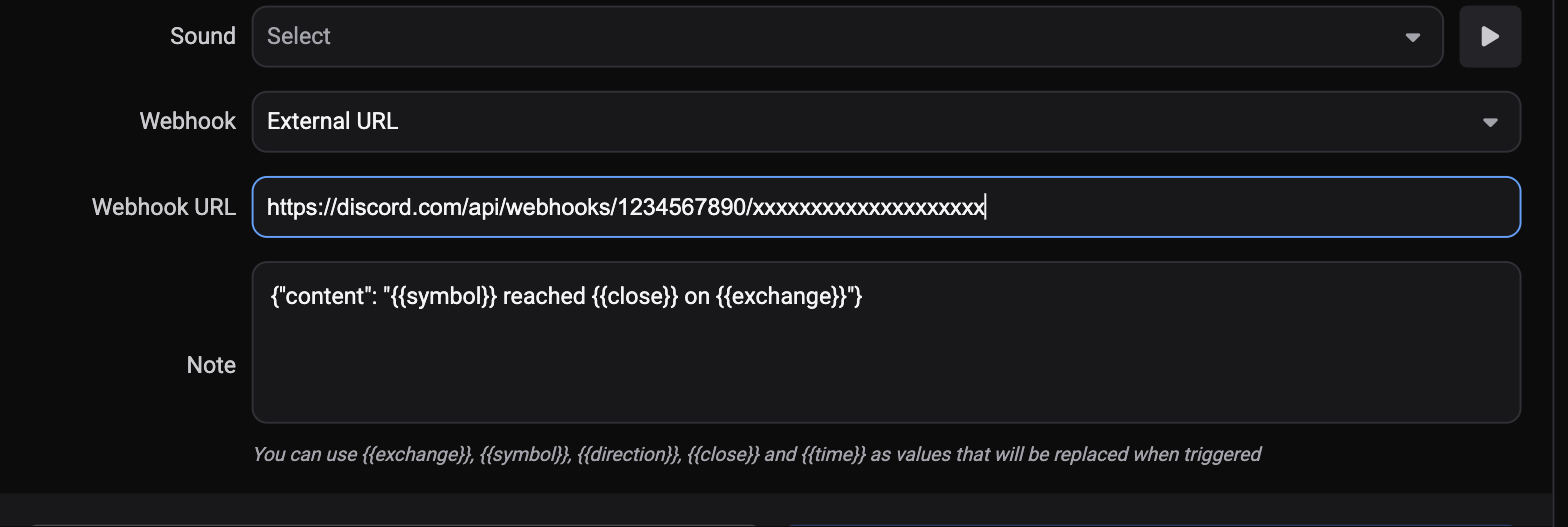
External URL: the one you want. Choosing it reveals a Webhook URL field where you paste the destination.
One thing to know up front: the Webhook dropdown is disabled while you are in replay mode.
Send alerts to Discord
Here is the part that matters. When an alert fires, Altrady posts the raw contents of the Note field as the request body. If your note is ordinary text, it goes out as plain text, and Discord rejects it. To make Discord accept the message, write the Note itself as JSON:
{"content": "{{symbol}} reached {{close}} on {{exchange}}"}
With that in place, the whole flow works:
- In Discord, open the server and channel where you want alerts to land.
- Go to the channel’s settings, then Integrations > Webhooks, and create an Incoming Webhook.
- Copy the webhook URL Discord gives you.
- In the Alerts tab, set Webhook to
External URLand paste that URL into Webhook URL. - In Note, write the JSON shown above, adjusting the text inside
"content"to taste.
Nothing is sent until the alert actually triggers, so an empty channel right after saving is normal.
Use placeholders in the message
Altrady replaces these placeholders with real values the moment the webhook fires. The form spells it out under the Note field: You can use {{exchange}}, {{symbol}}, {{direction}}, {{close}} and {{time}} as values that will be replaced when triggered. Two more work as well, so the full set is:
{{exchange}}, {{symbol}}, {{direction}}, {{close}}, {{time}}, {{low}}, {{high}}
For time alerts, {{direction}} and {{close}} have no meaning, since no price crossing happened; leave them out of those notes.
What about Telegram?
Altrady does not deliver personal alerts to Telegram. Altrady runs a Telegram bot you can message directly (it answers commands such as /start, /suggest and /backtest, with a daily limit on backtests), but it is not connected to your alerts and cannot be pointed at your account.
To reach a Telegram chat, use a service that accepts a webhook and forwards it, such as Zapier, Make, or IFTTT: create an automation that starts with a webhook trigger, paste its URL into Webhook URL, and add a Telegram action that posts to your chat. Otherwise, a Discord webhook or your own external URL is the direct route.
Check whether the webhook was delivered
 🔍 Click the image to see a larger version
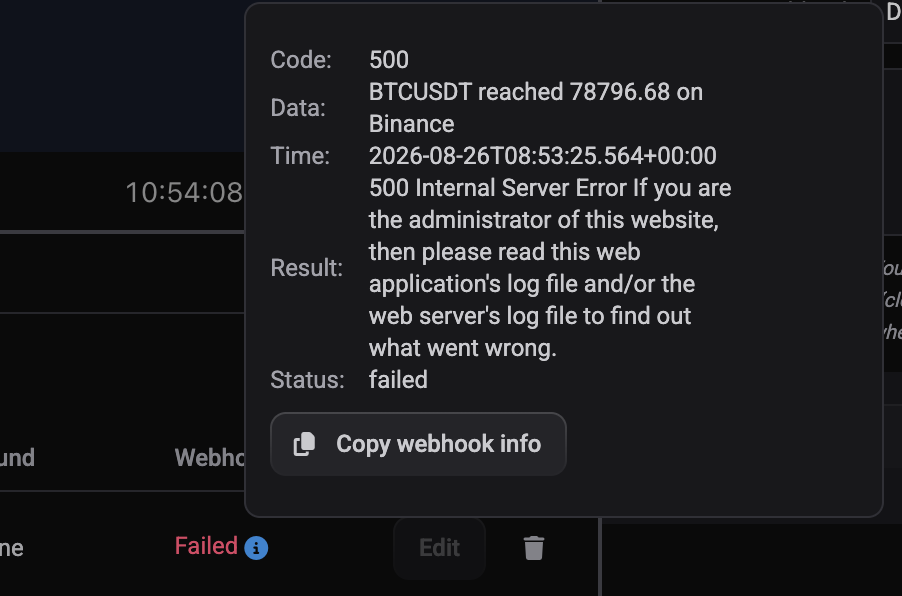
Every fired alert records its delivery result. In the My Alerts widget, the Webhook column shows Success or Failed, and the info icon next to it opens a popup showing the HTTP Code, the Data that was sent with placeholders already filled in, the Time, the Result returned by the destination, and the Status. A Copy webhook info button copies the lot. That popup is the fastest way to see whether your Note went out as JSON or as plain text.
Two more things worth knowing: delivery times out after 5 seconds, and Altrady validates the URL for safety when you save, rejecting private, internal, and loopback addresses. It does not check that the address is reachable, so a URL can save cleanly and still fail on delivery.
Still stuck?
If the Webhook column keeps showing Failed, open the payload popup first and check the format of what was sent. If it still does not add up, reach out through support chat in the app with the alert and the destination service, and the team can trace where the message is getting stuck.