
How do I create a time-based alert?
A time alert fires at a date and time you choose, whatever the market is doing. It is handy for a scheduled event: a token unlock, a funding window, an exchange maintenance slot, or simply a reminder to look at a chart again. Setting one takes a few seconds.
Open the Time tab
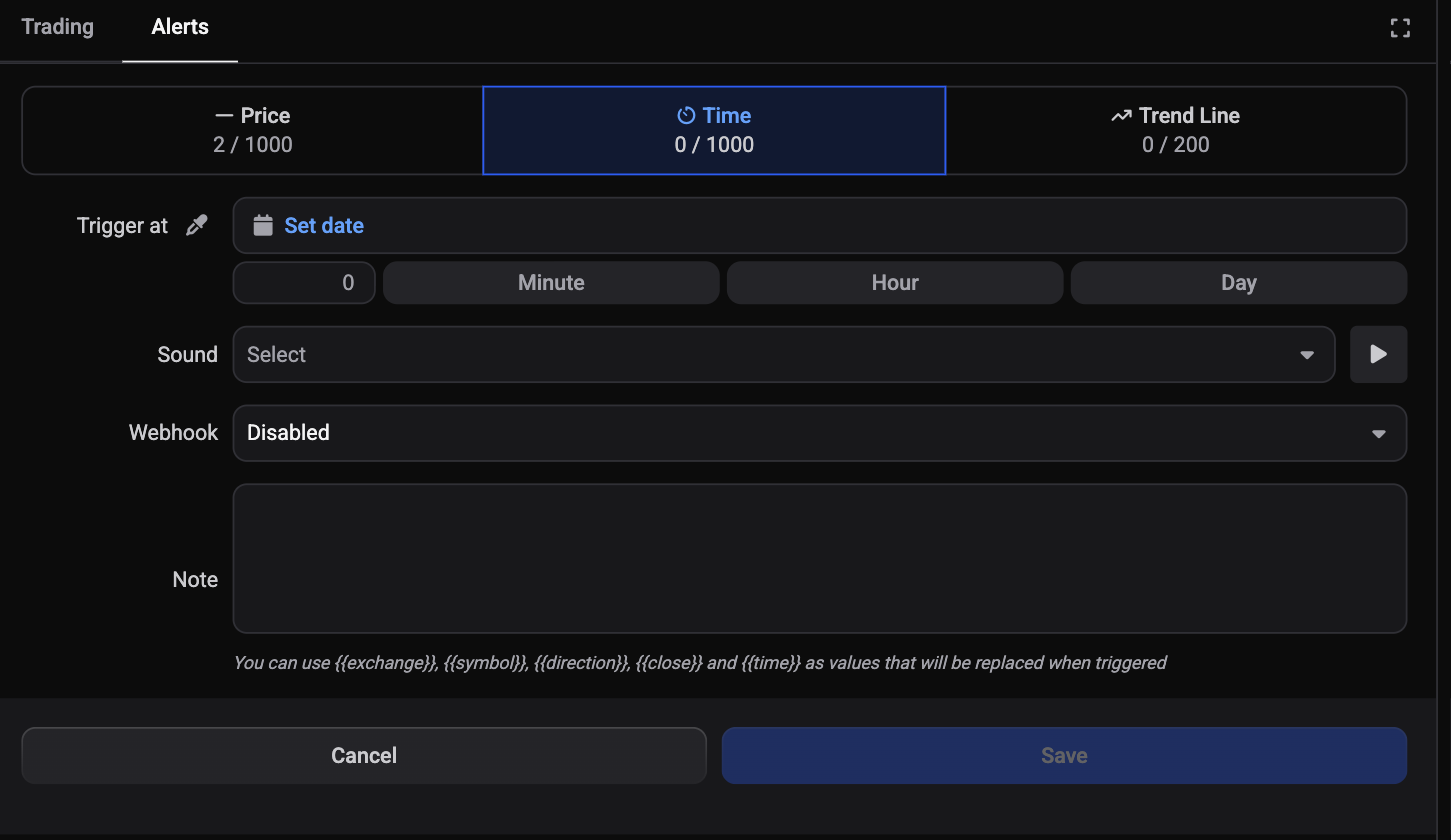
In the trading terminal, the panel on the right has two tabs: Trading and Alerts. Click Alerts, then choose the Time tab from the three across the top.
 🔍 Click the image to see a larger version
The Time tab is deliberately sparse. Where the Price tab has a price, a trigger type and a timeframe, this one has a single field, because the trigger is simply the moment you pick.
Set the date with Trigger at
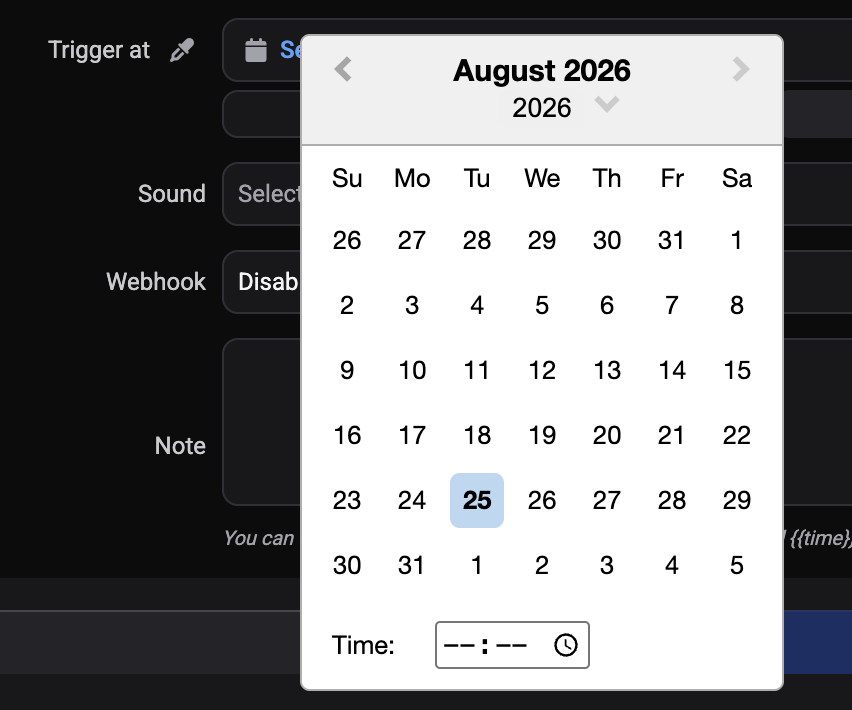
The field is labelled Trigger at and reads Set date until you choose something. Click it and pick your date and time from the picker. Underneath it, a number box with Minute, Hour and Day buttons lets you set a time relative to now instead, which is quicker for something a few hours out.
 🔍 Click the image to see a larger version
That is the only field the Time tab needs. There is no Expires At here, unlike price and trend line alerts: a time alert already has a fixed moment, so an expiry would have nothing to add.
Pick a moment in the future
The picker will let you choose a date and time that has already passed, but Altrady will not save it. You will see Trigger time must be in the future. in red under the field, and Save stays greyed out until you pick a later moment. If Save will not enable and you cannot see why, check the time as well as the date: an hour earlier today counts as the past just as much as last week does.
 🔍 Click the image to see a larger version
Add a sound, a note, and a webhook
Below the date sit the fields shared with every alert type:
- Sound: this follows the Custom alert sound from your notification settings. If you have not set one, no tone is selected, so the alert arrives silently unless you pick one here.
- Webhook: leave it Disabled for an in-app notification only, choose Altrady Signal Bot to feed the trigger into one of your signal bots, or External URL to post it to your own address. See Send alerts to Discord or Telegram.
- Note: your own reminder, and the text that travels with the alert.
The note accepts placeholders that are filled in when the alert fires. Two of them are worth skipping on a time alert: {{direction}} and {{close}} describe a price crossing, which a time alert does not have. {{exchange}}, {{symbol}} and {{time}} all make sense here, so something like {{symbol}} check-in on {{exchange}} reads well when it arrives.
When the date and the optional fields look right, click Save.
Check your plan and your limits
 🔍 Click the image to see a larger version
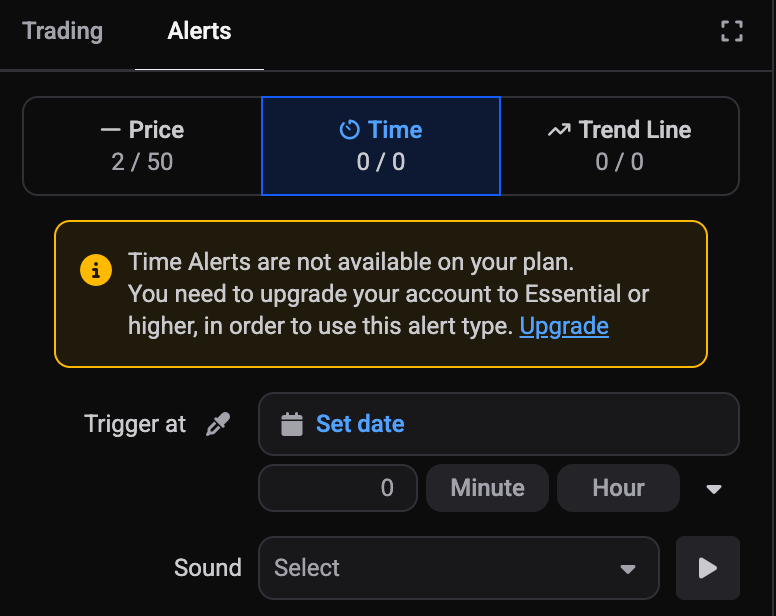
Underneath the Time tab label is a count showing how many time alerts you have used against your maximum. Price, Time and Trend Line alerts are counted separately, so a full price list does not stop you adding a time alert.
Each market also has its own ceiling of 50 time alerts, again counted separately from the other types.
Time alerts are part of the Essential plan and above. If your plan does not include them, the count under the Time label reads 0 / 0 and the tab shows Time Alerts are not available on your plan. followed by You need to upgrade your account to Essential or higher, in order to use this alert type., with an Upgrade link that opens your account page in your browser. Choose your plan sets out what each tier includes.
What happens when it fires
At the moment you picked, Altrady plays your chosen sound, shows the note with its placeholders filled in, and calls your webhook if you set one up. To be told when you are away from the app, turn on delivery in your notification settings.
In the My Alerts tab at the bottom of the terminal, the alert then moves from the Active view to Alert History. There is no status column to watch: that move between the two views is how you tell a time alert has done its job. Its Trigger column shows the moment it was set for.
One quirk worth knowing if you go looking for it afterwards: the Delete All button only appears while you are on Active, so switch back there if you want to clear alerts in bulk. See Manage and troubleshoot alerts.
Still stuck?
If Save will not enable even with a future date, or a time alert passed without you hearing anything, reach out through support chat and the team will take a look with you.