
How do I customize or upload alert and trade sounds?
Every sound Altrady plays, from a filled buy order to a Base Scanner ping, can be changed, muted, or replaced with your own file. It all lives on one settings page, and each sound has its own volume and a Play sound button so you can hear it before you commit.
One thing to keep straight from the start: which sound you pick and how loud it plays are stored per device. Sound files you upload are stored on your account, so they appear on every device, but the selections themselves do not follow you around. Set them once on each machine you trade from.
Open Global Notification Settings
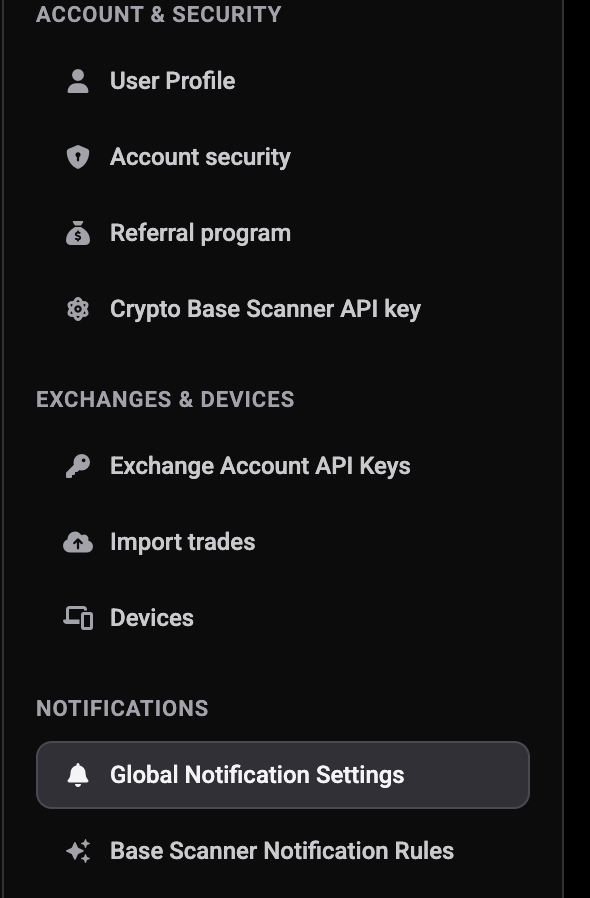
From the sidebar, open Settings, then under the Notifications group select Global Notification Settings. That is one click: Notifications is just the group header, Global Notification Settings is the page itself.
 🔍 Click the image to see a larger version
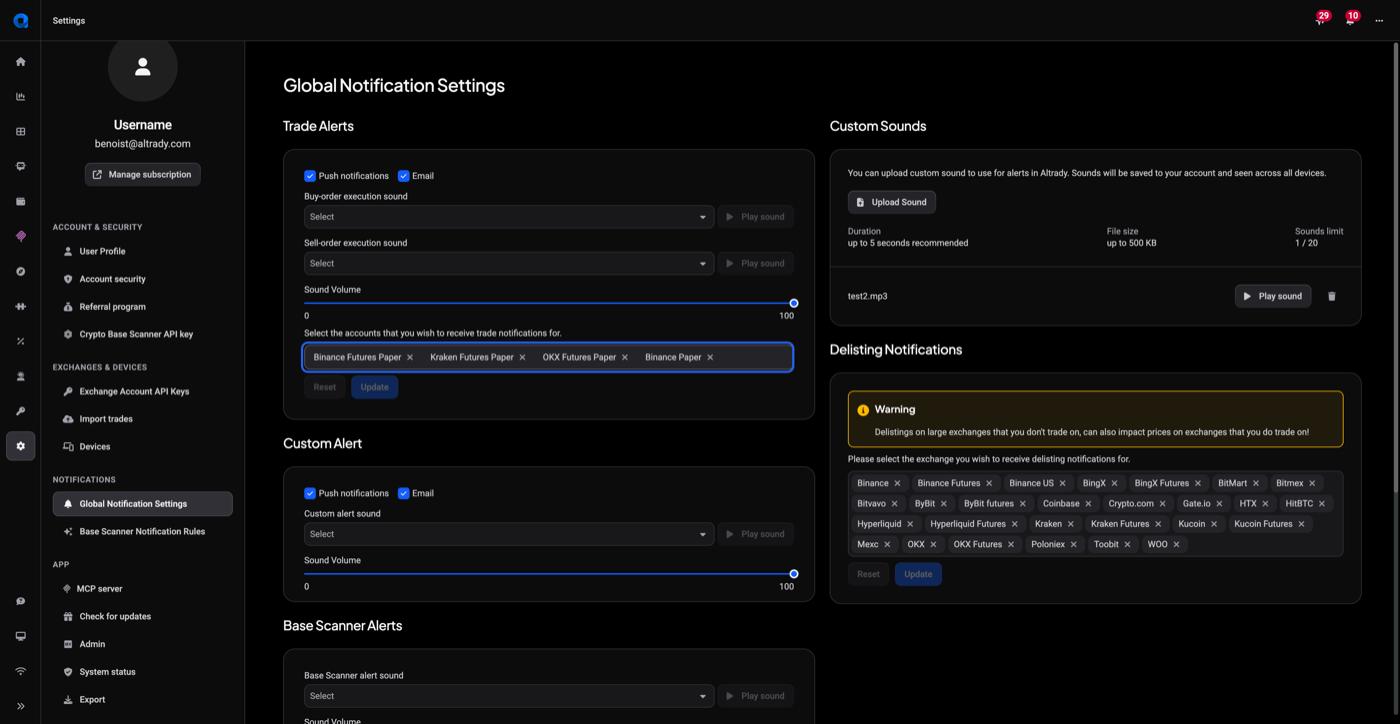
This page holds every sound Altrady plays, grouped by what triggered it: Trade Alerts, Custom Alert, Base Scanner Alerts, Default Alerts, and TA Scanner Alerts.
 🔍 Click the image to see a larger version
Change or mute the Trade Alerts sounds
The Trade Alerts section covers order execution:
- Under Buy-order execution sound, pick a sound from the dropdown, or choose None to mute it.
- Under Sell-order execution sound, do the same for sell fills.
- Use Play sound next to each dropdown to hear it first.
- Drag the Sound Volume slider (0 to 100%) to set how loud it plays.
Push and email toggles for trade alerts sit in this same section if you would rather switch off the notification entirely: see Turn on push and email notifications.
Set the Custom Alert sound
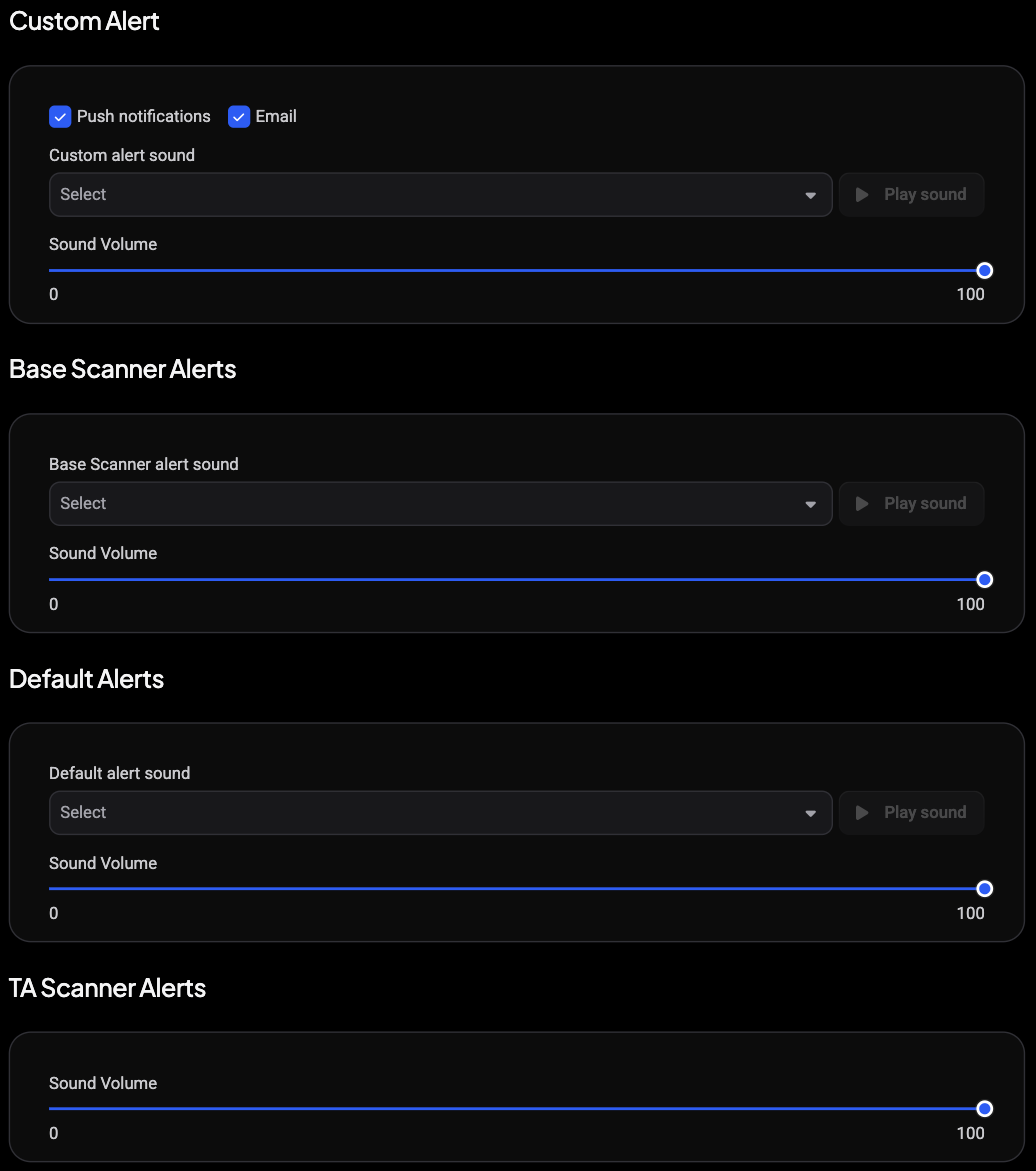
The Custom Alert section controls the sound for your own price, time, and trend-line alerts on this device:
 🔍 Click the image to see a larger version
- Pick a sound under Custom alert sound, or None to mute it.
- Press Play sound to preview it.
- Adjust its own Sound Volume slider.
This is the fallback for any alert you have not given a specific sound to, which is covered further down.
Set the Base Scanner and Default alert sounds
Further down the page:
- Base Scanner alert sound plays when a Base Scanner rule fires. It has its own dropdown, Play sound button, and volume slider.
- Default alert sound is the catch-all Altrady falls back to when nothing more specific applies, with the same three controls.
Adjust the TA Scanner Alerts volume
The TA Scanner Alerts section only exposes a volume slider (0 to 100%). Those alerts always use Altrady’s built-in tone, so there is no picker and no preview button here. The section shows on desktop only; it is hidden on mobile.
Upload your own sound
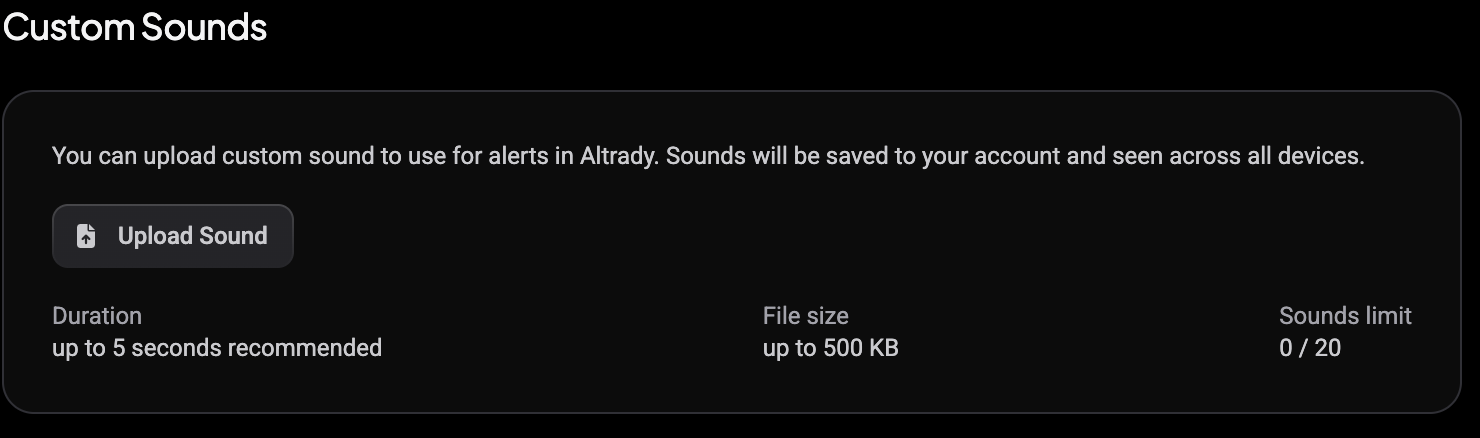
Rather use your own file? Uploaded sounds are stored on your account, so they appear in the dropdowns on every device you sign in on.
 🔍 Click the image to see a larger version
- In the Custom Sounds card next to the settings, select Upload Sound.
- Choose an audio file from your device.
- Review the name, size, and type shown, then select Upload file to confirm, or Cancel to pick a different one.
The limits: MP3 or WAV only, under 500 KB, and a maximum of 20 uploaded sounds. The file picker offers a wider range of audio formats than Altrady accepts, so if you choose, say, an M4A file it will only fail after you confirm. Pick an MP3 or WAV and that will not happen. The page also hints at up to 5 seconds, which is worth aiming for on a tone you will hear all day, though nothing trims or rejects a longer file. You can preview or delete any uploaded sound from the same card.
Use a different sound for one specific alert
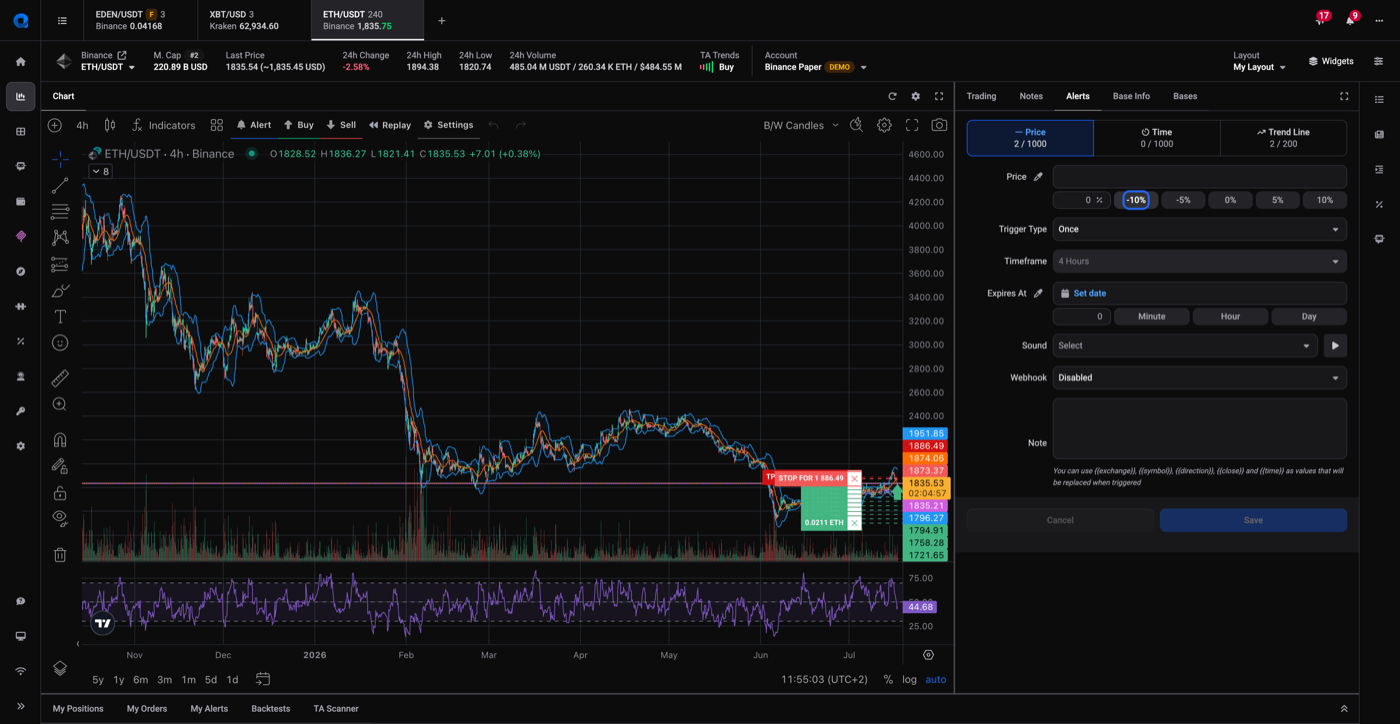
The settings above are your defaults. To make a single alert sound different, or stay silent, set it in the alert itself:
- Open the trading terminal and, in the right-hand column, select the Alerts tab next to Trading.
- Create or edit an alert and find the Sound dropdown, between Expires At and Webhook.
- Pick any built-in or uploaded sound, or None to keep that one alert silent.
 🔍 Click the image to see a larger version
This choice overrides the Custom alert sound default for that alert only; every other alert keeps using your global setting.
Still stuck?
If a sound will not play, an upload keeps failing, or you are not sure which setting controls which alert, reach out through support chat in the app and we will walk through your notification settings with you.