
How to edit or stop a grid bot
Editing a grid bot restarts it with your new settings. Stopping it cancels all of its orders and asks what to do with the coins it’s holding. This article covers both, plus what to do if orders are left behind on the exchange.
Edit a grid bot
You can change a grid bot’s settings from the Bots page. For a grid bot, editing is effectively a stop and a restart: the orders it has on the exchange are cancelled and replaced with new ones based on your changed settings, rather than being adjusted where they sit.
Nothing is lost in the process:
- Your history stays. Analytics, the Levels list and cumulative PnL carry on from where they were rather than resetting, so a bot you’ve edited several times still shows its full record.
- Your unrealized profit stays. Floating PnL carries into the restarted bot too, measured against what the bot actually paid, so the headline Net PnL doesn’t jump at the moment you save.
- All of the coins come along. Everything the bot is holding moves into the restarted bot, including coins that fall outside a narrower range you’ve just set, so nothing drops out of its accounting when you tighten the grid.
For how those figures fit together afterwards, see Understanding your grid bot’s reports and performance.
Editing is how you move a grid to a new range once price has drifted away from the old one, instead of leaving a grid alive at levels the market has left behind. If you’d rather the bot followed price by itself, that’s what trailing is for: see How does grid bot trailing work?.
Stop a grid bot
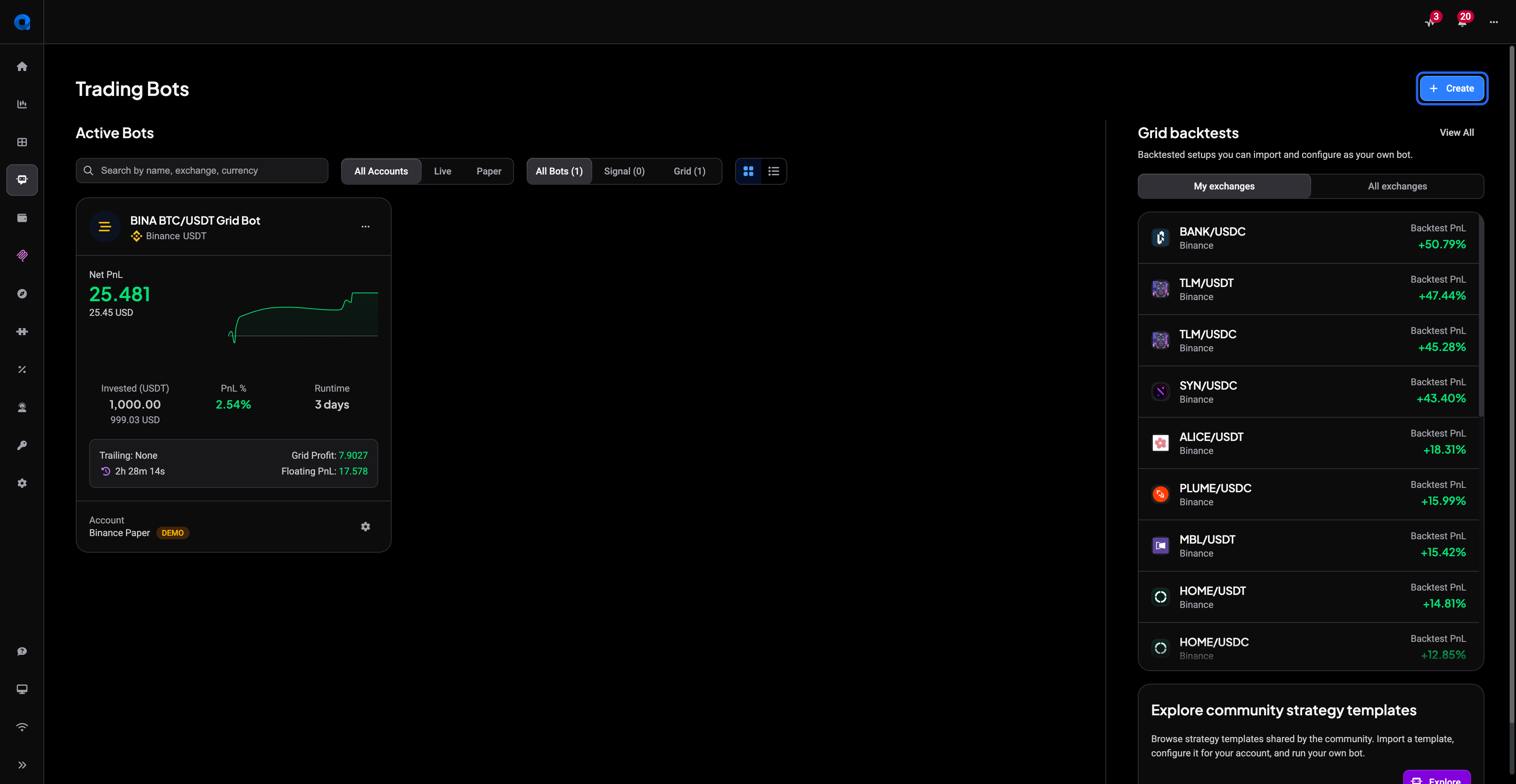
- Open the Bots tab from the sidebar and find the grid bot you want to stop.
- Click Stop on the bot.
- In the Stop grid bot dialog, pick one of the two options:
- Stop and sell the base currency: Altrady cancels all of the bot’s orders and sells the coins the bot bought at market price.
- Stop without selling the base currency: Altrady cancels all of the bot’s orders but leaves the coins in your exchange balance, for example if you’d rather hold them or sell them yourself later.
 🔍 Click the image to see a larger version
If you keep the base currency, a new grid bot can put those coins straight back to work: fund it with both currencies through the Fund with setting, for example USDT + BTC. Grid bots run on spot markets only, so set the new one up on a spot pair. See How to Set Up a Grid Bot in Altrady.
Deleting a running bot works the same way: the bot is stopped first with the same sell-or-keep choice, its orders are cancelled, and then the bot is permanently deleted.
Moving a demo bot to a live account
If the bot you’re editing is a demo bot and you’re ready to trade real funds, you don’t have to rebuild it. Convert to Live copies its settings into a new live bot, and stops the demo bot as part of the process. For a grid bot you can pick any live account whose exchange lists the same pair, so you’re not tied to the exchange you tested on. See How do I convert a demo bot to a live bot?.
Always stop from the Bots page, not from the chart
If you cancel or edit one of the bot’s grid orders directly on the chart, the bot stops. And if you delete the bot’s position from the positions list, all PnL data for that position is lost. The app warns you in both cases, and the fix it points to is the same one: stop the grid bot from the Bots page instead, so the bot winds down cleanly and your history stays intact.
The stop button returns an error (“something wrong, try again later”)
Some users see this error when pressing Stop instead of the bot actually stopping.
- Wait a moment and try the Stop action again.
- Check that your exchange API key still has trade permission enabled. Cancelling open orders on the exchange requires trade permission; if that permission was revoked or the key expired, the stop action can fail.
- If the error keeps happening, contact support with the bot’s label so we can look into it directly.
Bot stopped but orders are still open on the exchange
There’s a known scenario where a bot disappears from the trading-bots list, so Altrady reports it as stopped, but its limit orders are still sitting open on the exchange. If this happens to you:
- Log in to the exchange directly and check the open orders for that pair.
- Cancel any leftover orders manually on the exchange.
- Back in Altrady, verify the exchange API connection is still active and healthy, since a broken or delayed sync can be part of why the orders weren’t cleaned up.
- Contact support with the bot’s label so the case can be investigated.
Still stuck?
If the bot won’t stop, or orders keep reappearing after cleanup, reach out through support chat and include:
- The bot’s label (this is how support identifies and looks up your bot)
- The exchange and trading pair
- What you clicked and what message or error you saw
- A screenshot of any orders still open on the exchange, if that’s the issue
With those details the team can trace the exact bot and orders without back-and-forth.