
How to Set Up a Grid Bot in Altrady
A grid bot places buy orders below the current price and sell orders above it, inside a price range you set, and keeps cycling them as the market moves. Open the Bots tab, create a grid bot on a spot pair, set your range and grid quantity, and start it. Setup takes about five minutes.
Before you start
You’ll need a connected exchange account, or a paper/demo account with funds. If you haven’t done that yet, see Connecting your exchange for your exchange’s own setup guide.
Grid bots run on spot markets only.
Creating your first grid bot
-
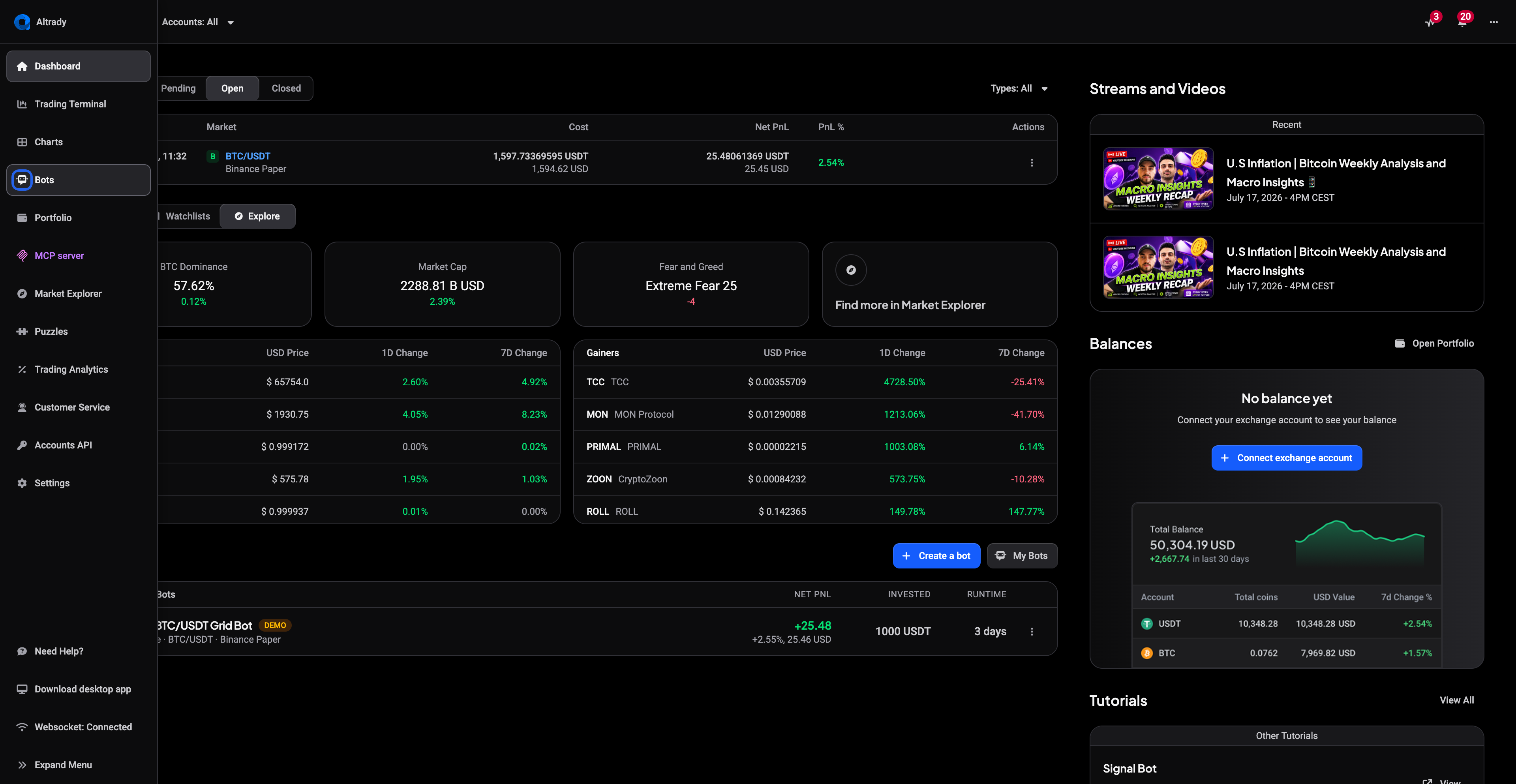
Open the Bots tab in the left-side menu. If you’re already looking at the market you want, Tools > Grid Bot on the trading terminal is a quicker way in; the Bots page carries more setup options, including Grid Backtests and assistance with choosing a market.
 🔍 Click the image to see a larger version
-
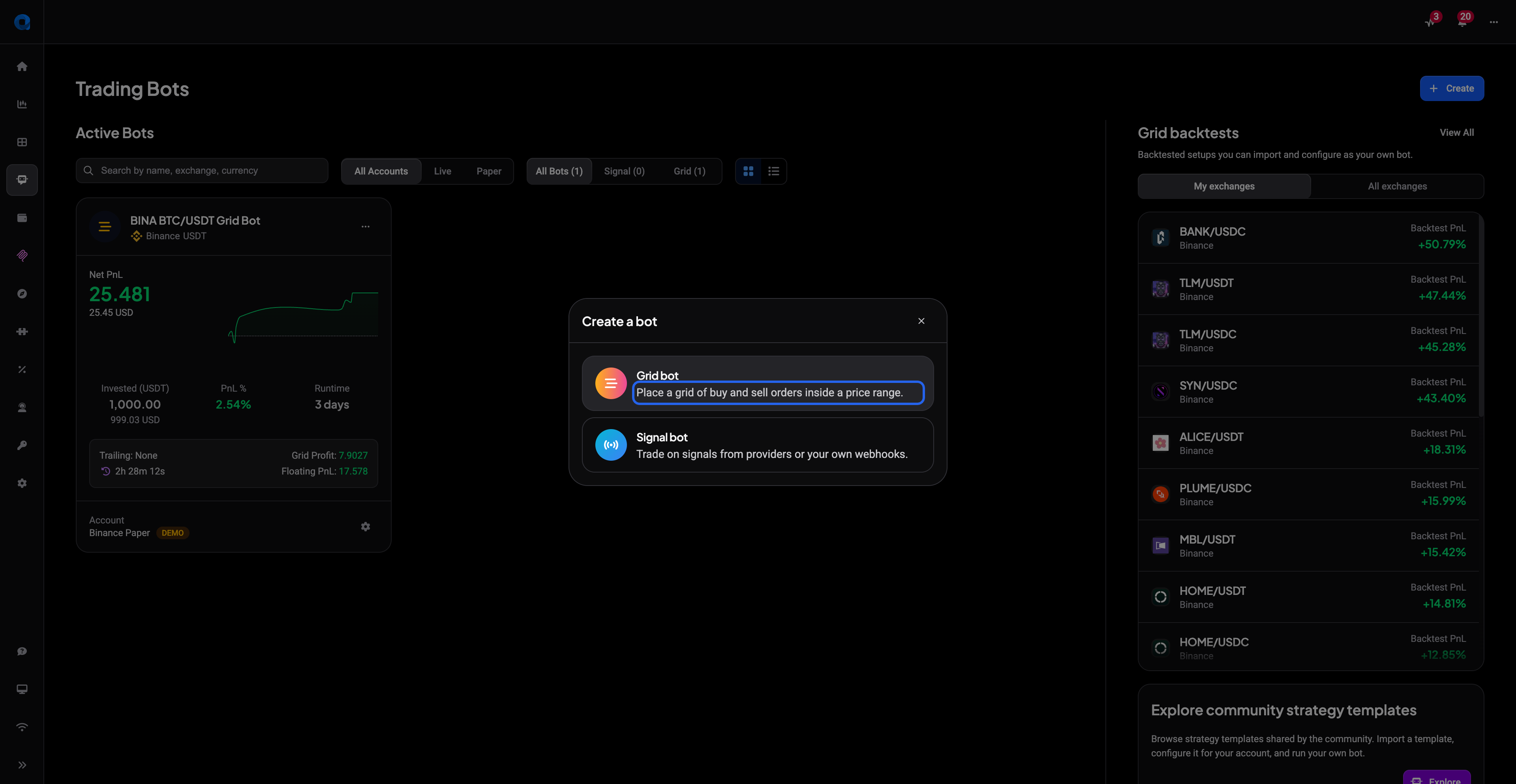
Click Create on the Trading Bots page and choose Grid bot.
 🔍 Click the image to see a larger version
-
Pick the exchange account and the market you want to trade.
-
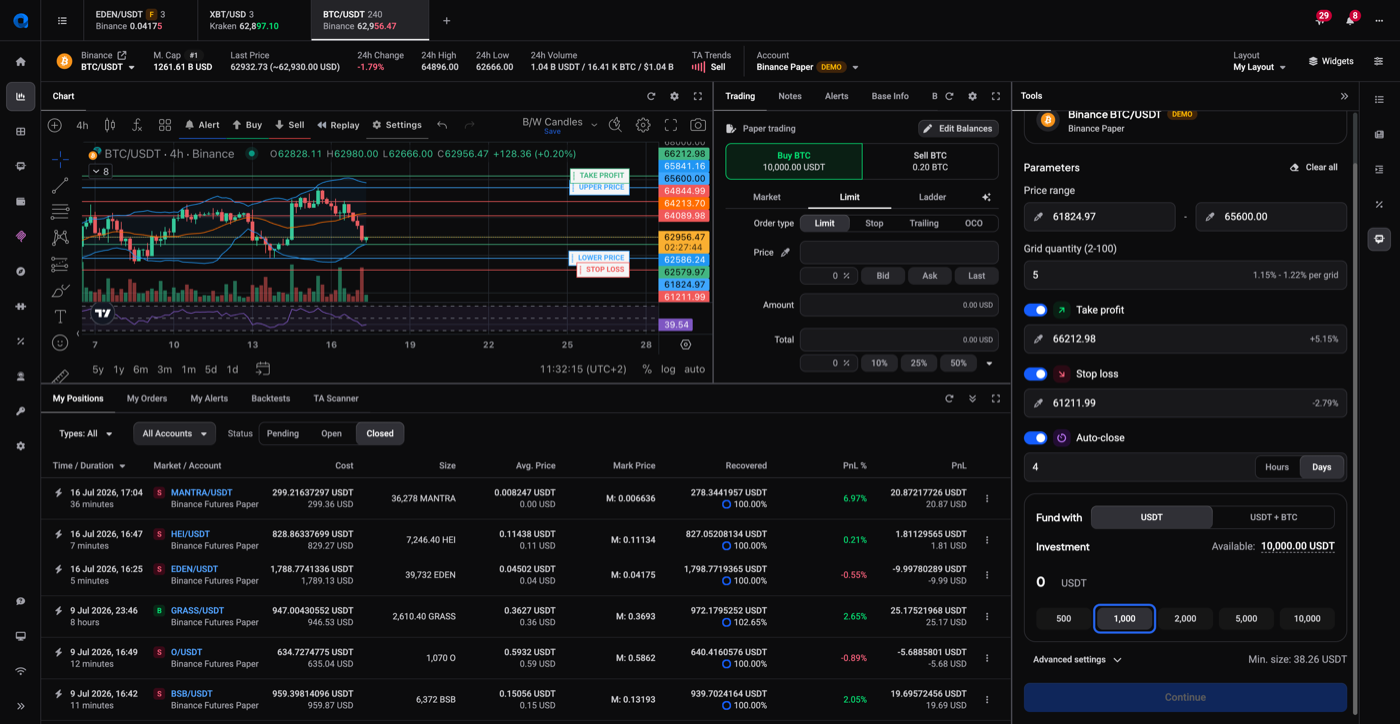
Set up the bot’s core parameters:
-
Price range has a Lower limit and an Upper limit: together they set the band the bot trades inside. If price moves outside this range, the bot pauses until price comes back into it.
-
Grid quantity (2-100) is how many levels that price range is split into (grid quantity and grid levels are the same thing, just two names for it). More levels mean smaller, more frequent trades, and each order needs to stay above the exchange’s minimum order size.
-
Investment is the total amount the bot may use.
-
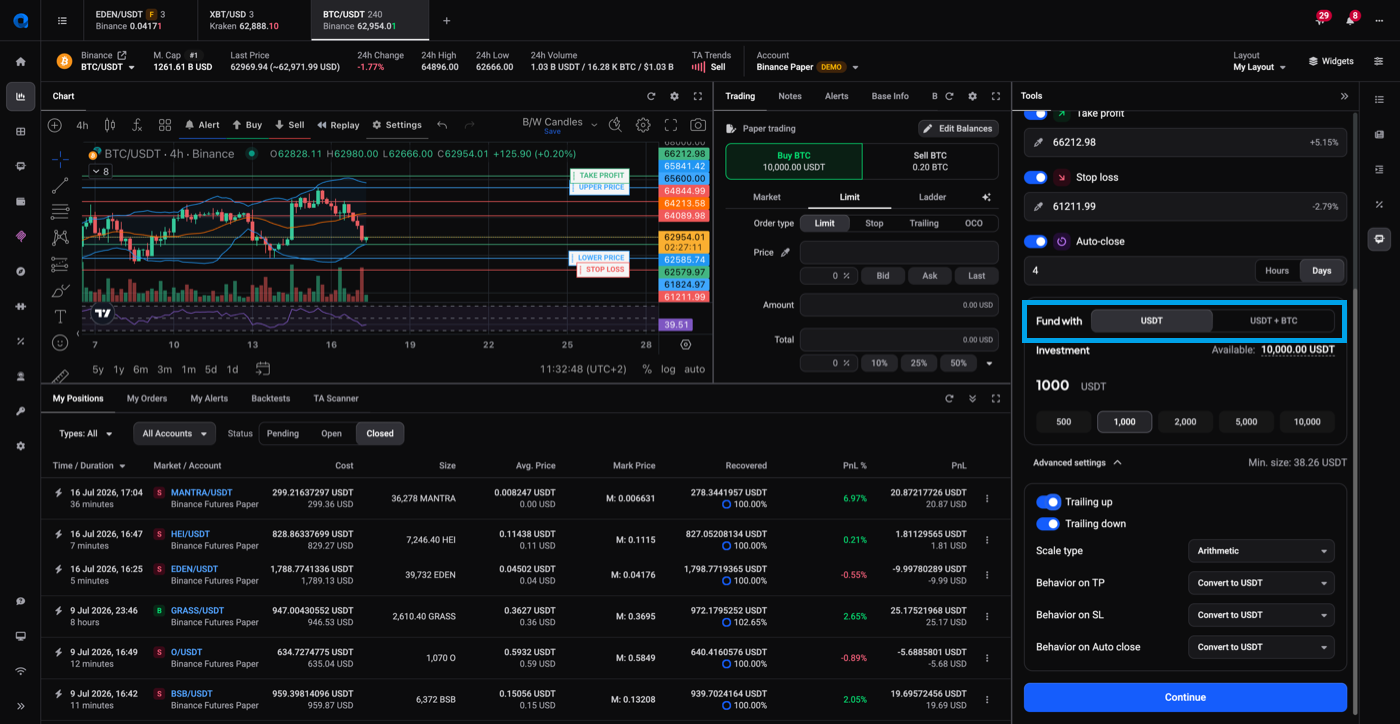
Fund with is a two-tab choice showing the actual currencies available to you, for example USDT alone or USDT + BTC. Fund with just the quote currency (the second currency in a trading pair, e.g. USDT in BTC/USDT), or with both currencies if you already hold them.
 🔍 Click the image to see a larger version
-
-
Optionally open Advanced settings, below the investment field. It holds Trailing up and Trailing down, which let the bot move its range to follow price (see How does grid bot trailing work?), Scale type, which sets whether the grid levels are spaced arithmetically or geometrically, and Behavior on TP/SL/Auto-close, which decides what happens to the coins the bot holds when it exits. Leave these alone if you’re not sure: the defaults are fine for a first bot.
-
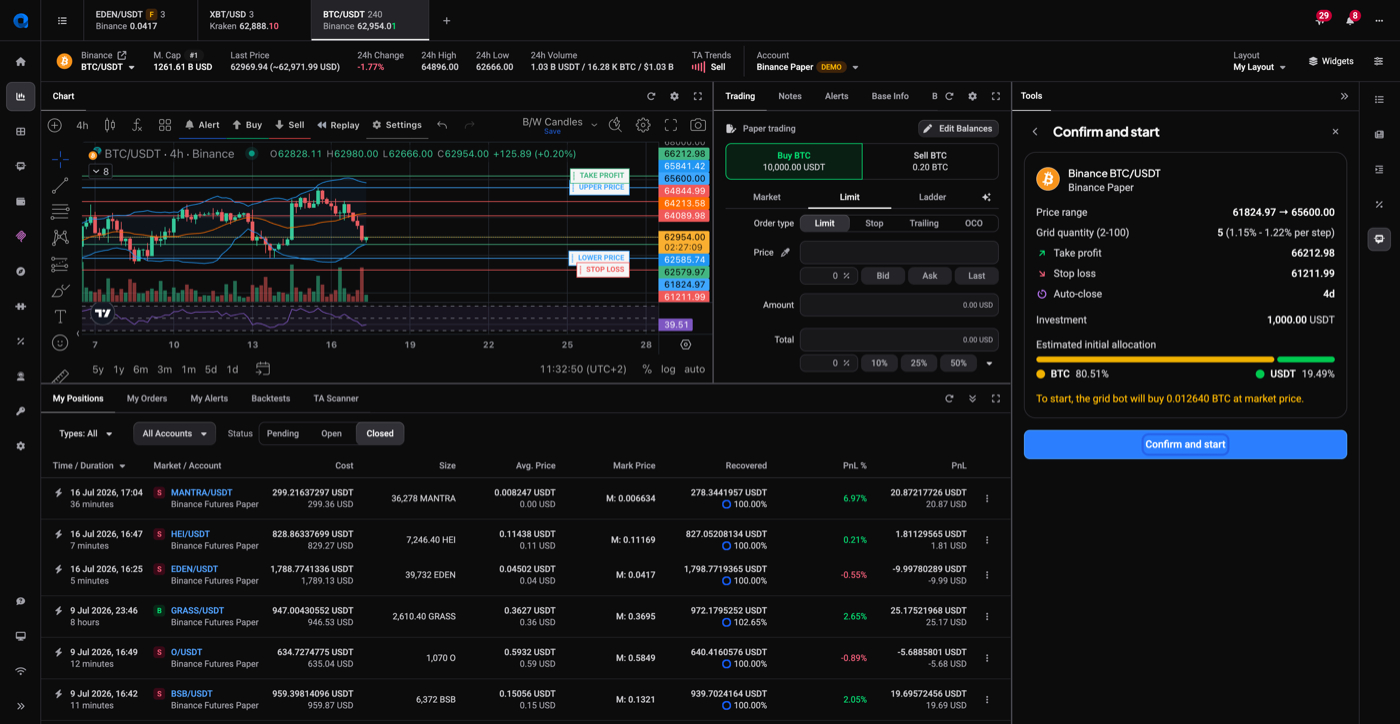
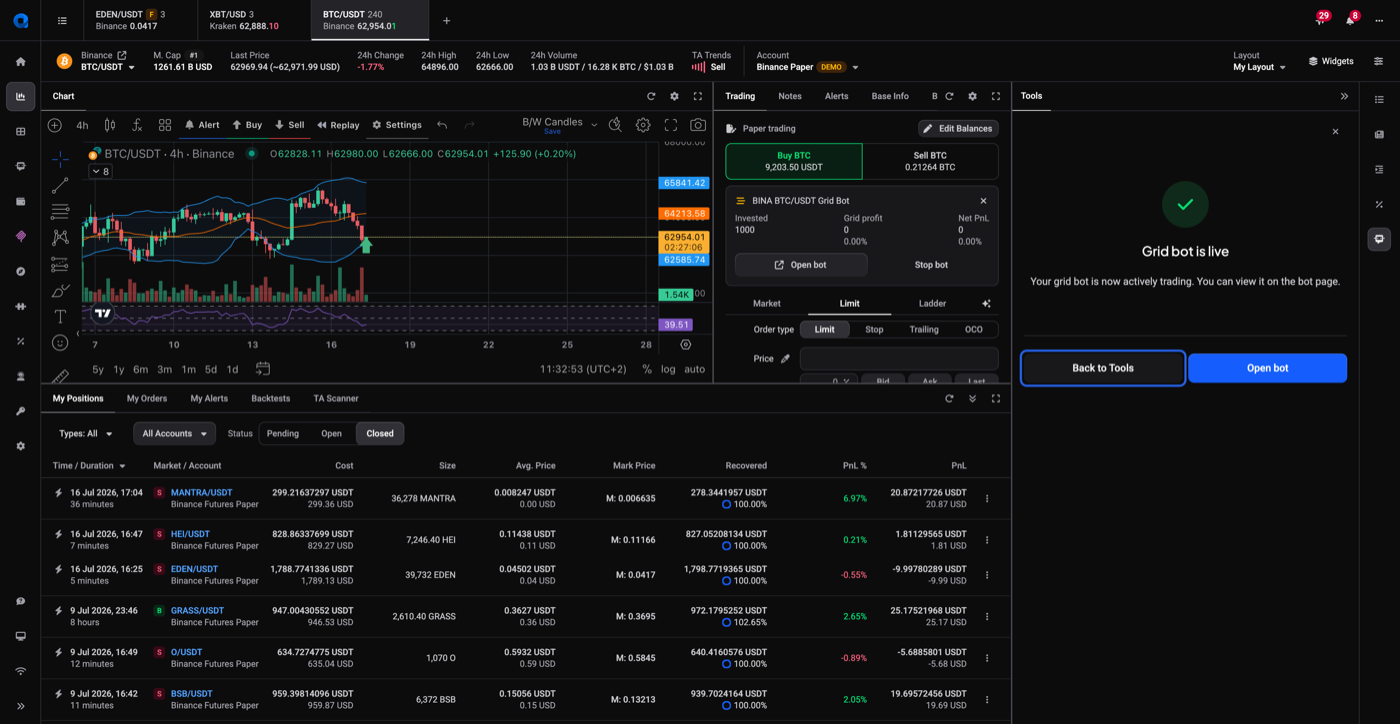
Review the summary, then click Confirm and start. The button shows Starting… while your bot is being created.
 🔍 Click the image to see a larger version
-
The bot starts placing orders right away.
 🔍 Click the image to see a larger version
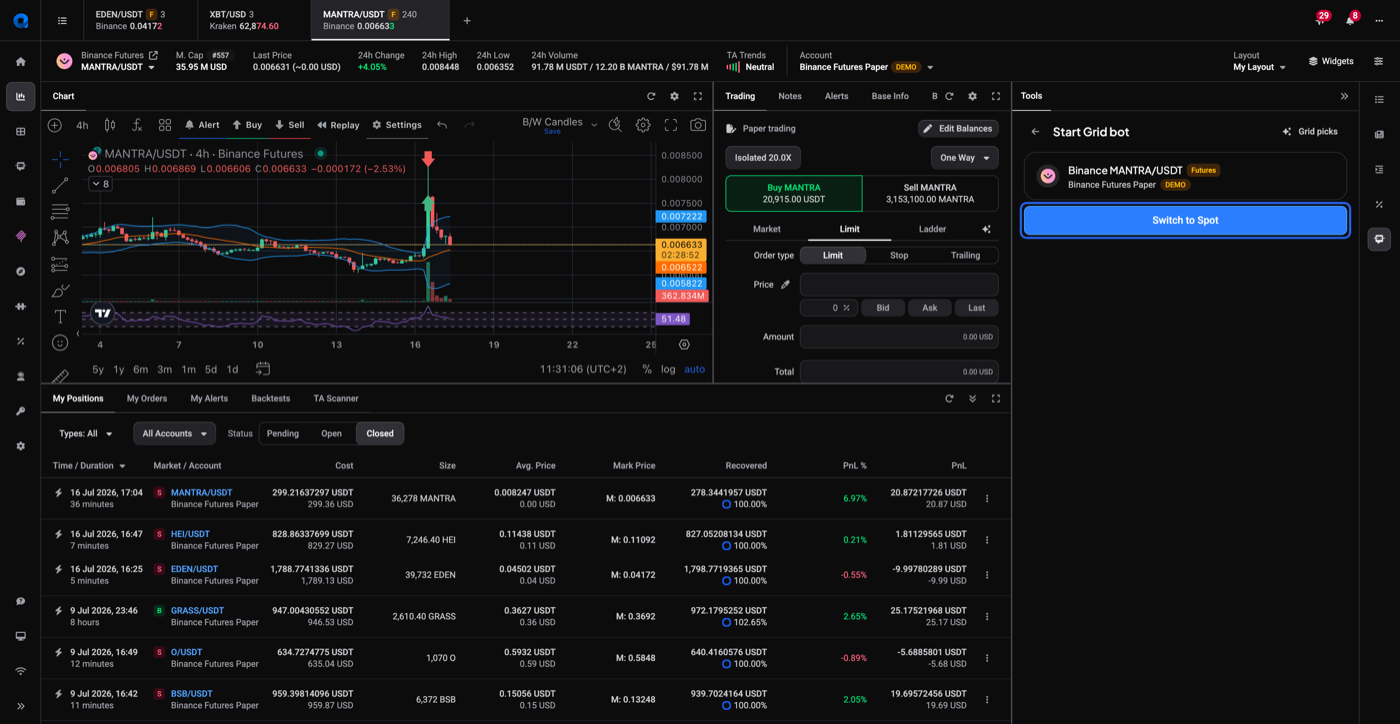
Grid bots run on spot markets only, and that applies to live, paper, and backtest accounts alike. If you open the grid bot form on a futures market, don’t worry: Altrady shows a Switch to Spot button that takes you to the matching spot market.
 🔍 Click the image to see a larger version
## Choosing a market and profit currency
🔍 Click the image to see a larger version
## Choosing a market and profit currency
When you create a grid bot, you pick a trading pair like BTC/USDT or ETH/USDT. Any profit the bot realizes is paid out in the quote currency of that pair: a BTC/USDT grid bot pays out in USDT, an ETH/BTC grid bot pays out in BTC.
There is no separate profit currency setting in the bot form. The pair you choose decides it, so pick your market with that in mind.
Funding the bot: quote currency or both coins
 🔍 Click the image to see a larger version
The Fund with setting decides how the bot gets going:
🔍 Click the image to see a larger version
The Fund with setting decides how the bot gets going:
- Fund with the quote currency (the default): the bot first buys the base currency it needs at market price, then starts working the grid. The form tells you exactly how much it will buy before you confirm.
- Fund with Both: you already hold the base currency too. It counts toward your investment, and the bot places sell orders from it right away instead of buying first.
Pick the option that matches what you actually hold in your exchange account. If you fund with both coins but the base currency isn’t really there, or your quote balance can’t cover the initial buy, grid orders can later fail with an insufficient balance error. The troubleshooting article below walks through that diagnosis.
How the opening buy is sized
That first purchase isn’t arbitrary. The bot works out how much base currency it needs to cover every sell order in the grid, adds a buffer for trading fees, and subtracts whatever base currency you supplied yourself.
On exchanges that take buy fees out of the base currency, that buffer covers the fees on roughly 200 buy orders, so the bot can keep placing sells for a long stretch before it runs short. The buffer is calculated for a bot using arithmetic scaling, where every order uses the same amount of base currency.
The confirm screen shows the result before you commit, as an estimated initial allocation split between the two currencies. For which exchanges charge fees this way, and what happens once the buffer is used up, see How do trading fees work?.
How many positions and orders a grid bot manages
A grid bot manages exactly one position. Inside that position, the bot places and cycles buy and sell limit orders across your grid levels: buying as price drops into a level, selling as price rises out of it.
Right after you start a bot, it’s normal to see only one or two orders rather than a full grid. Which levels get orders depends on where the current price sits inside your range: levels below price get buy orders, and levels above price get sell orders only where you hold the base currency. As price moves and orders fill, more of the grid fills in.
Running multiple grid bots
One grid bot trades one pair. To trade several pairs at once, create a separate grid bot for each.
You can create as many grid bots as you like; your plan’s bot limit only counts bots that are active at the same time, not the total you’ve ever created. Grid bots and signal bots share that same allowance, so see How many bots can I run? for how the total works.
If price has moved out of your original range and you want to keep trading the same token, edit the bot to a new range, or stop it and start a fresh one. See How to edit or stop a grid bot for the full procedure, including what happens to open orders and any base currency left over.
Verifying the bot is live
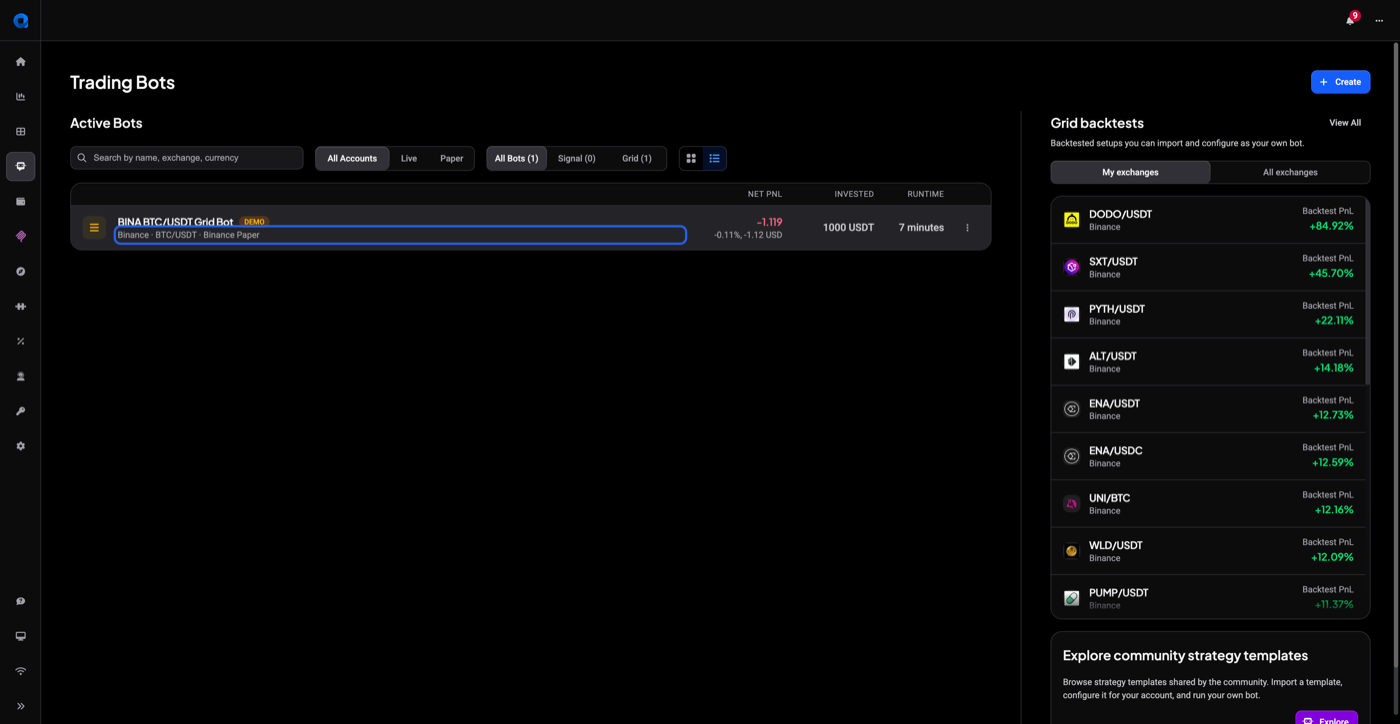
Check the Bots tab for the real status of your bot: whether it’s running, its open orders, and which grid levels are filled.
 🔍 Click the image to see a larger version
## Next steps
🔍 Click the image to see a larger version
## Next steps
- Grid Bot Not Trading or Placing Orders? for insufficient balance errors and orders that aren’t filling.
- How does grid bot trailing work? for letting the bot follow price beyond its range.
- How to edit or stop a grid bot for moving a grid to a new range or shutting one down cleanly.
Still stuck?
Reach out through support chat in the app and our team can look at your specific bot and orders with you.