
How do I convert a demo bot to a live bot?
A bot you’ve been running on a demo account doesn’t have to be rebuilt by hand when you’re ready to trade real funds. Convert to Live copies its settings into a new live bot. It works the same way for grid bots and signal bots, with one difference in which account you can pick.
Start the conversion
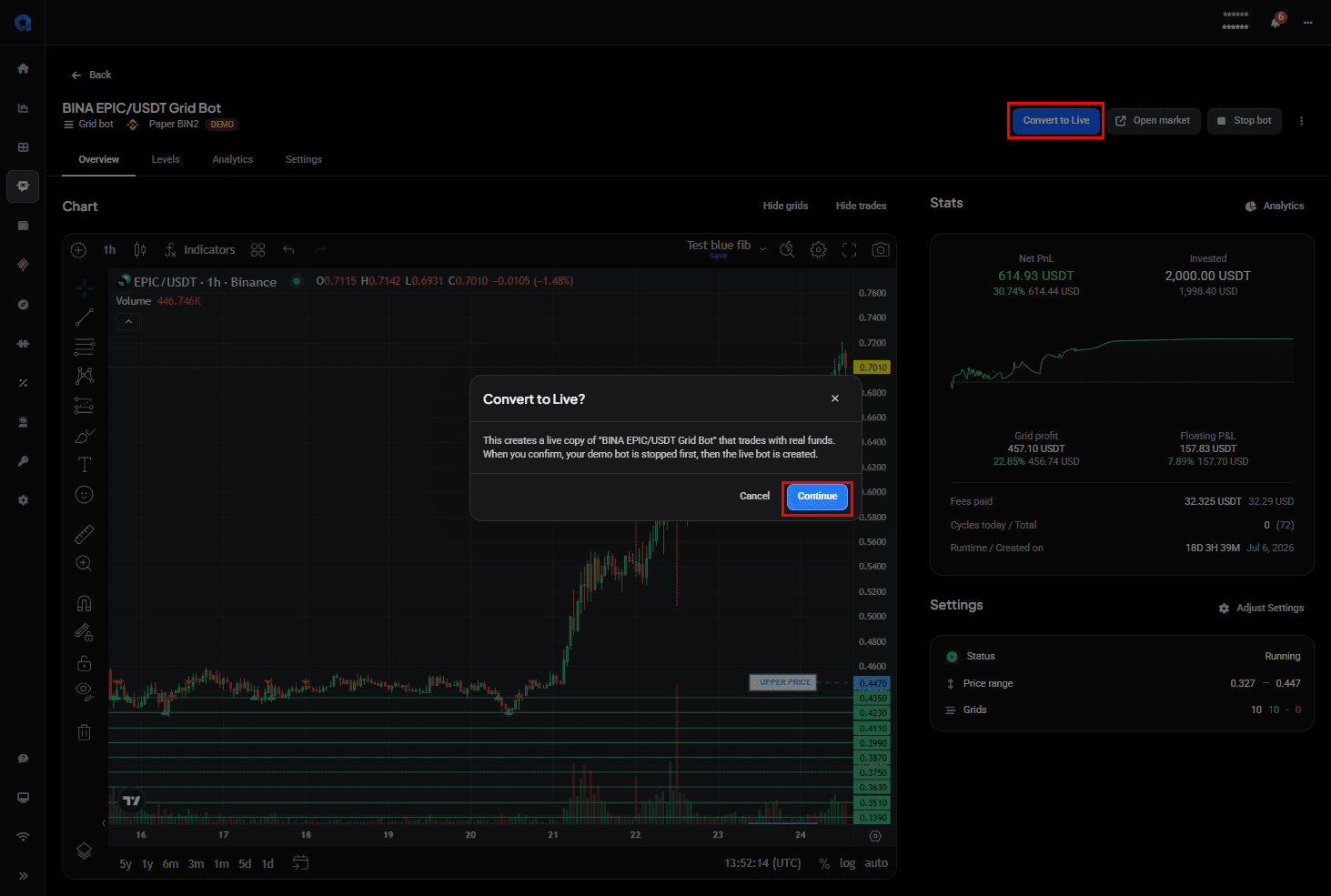
Open the demo bot from the Bots page and click Convert to Live at the top right.
 🔍 Click the image to see a larger version
Read the dialog before you continue, because this isn’t a migration:
This creates a live copy of “[your bot]” that trades with real funds. When you confirm, your demo bot is stopped first, then the live bot is created.
Two things follow from that. Your demo bot stops, so it won’t keep running alongside the live one for comparison. And what you get is a copy of its settings, not the same bot moved across, so the demo bot’s history stays with the demo bot.
Click Continue to go on, or Cancel to leave the demo bot running.
Grid bots: pick any exchange that lists the pair
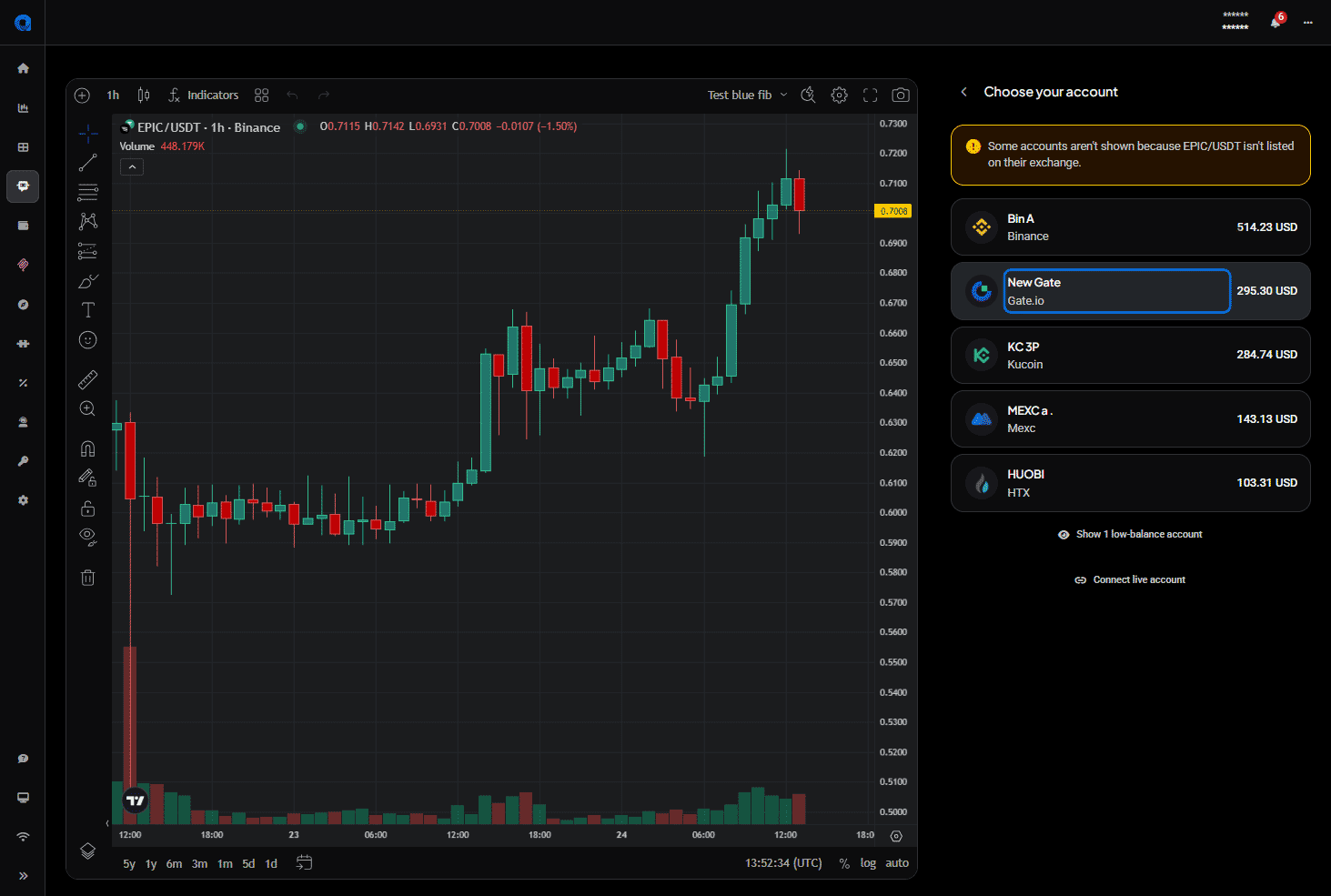
For a grid bot, the market decides what you can choose. Altrady offers every live account whose exchange lists that same pair, so you can move to a different exchange as well as a different account.
 🔍 Click the image to see a larger version
If an account you expected is missing, the notice at the top of the list usually explains it: accounts are hidden when the pair isn’t listed on their exchange. Accounts with a small balance are tucked away too, behind a Show low-balance account link, and there’s a Connect live account link if you don’t have a live account yet.
Signal bots: same exchange, your choice of account
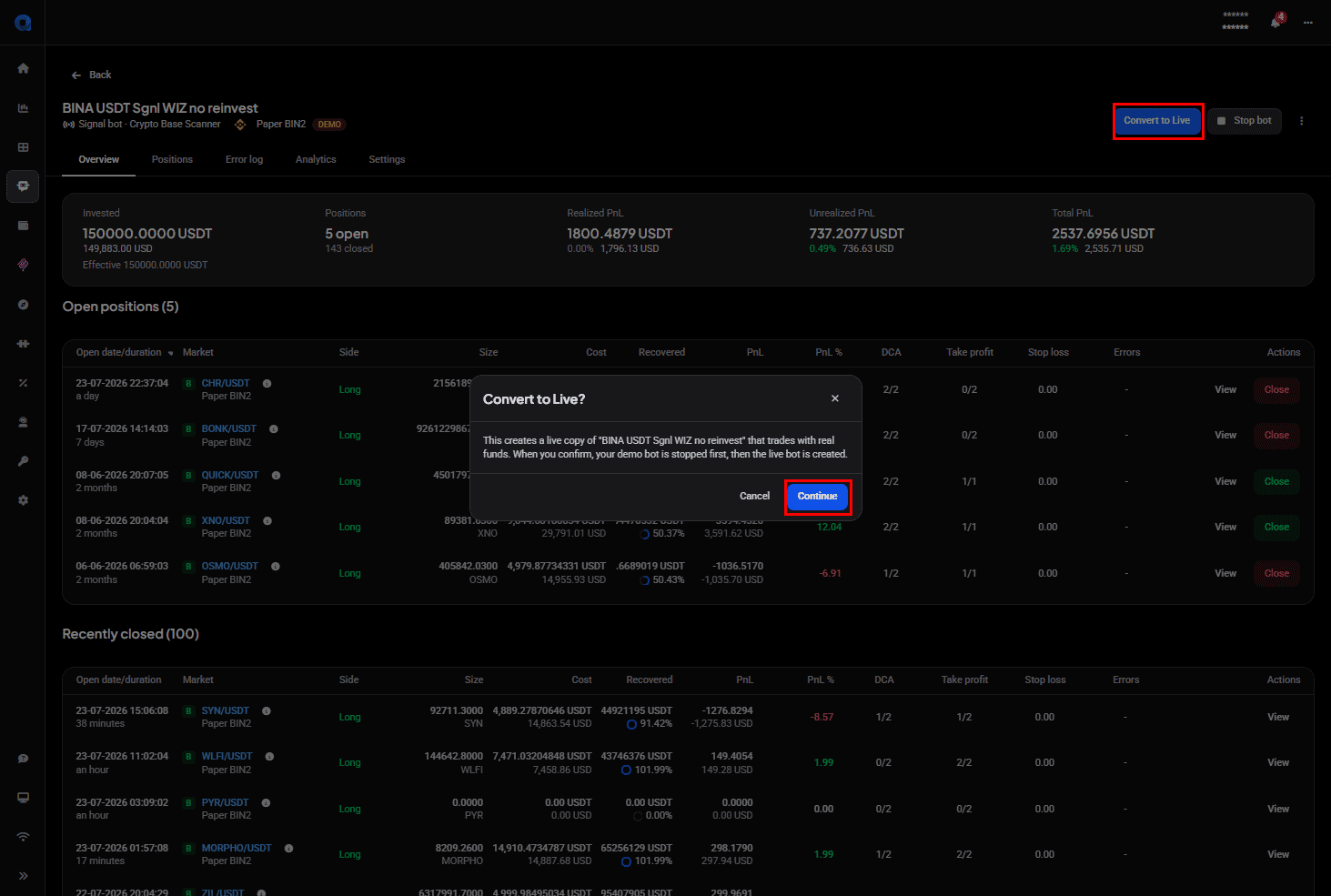
A signal bot converts onto the same exchange it was demoing on. You can’t move it elsewhere in the process.
 🔍 Click the image to see a larger version
What you do choose:
- The account, if you hold more than one live account on that exchange.
- The quote currency the live bot will trade in.
- The position size, which you have to enter rather than accept: this is the one field the conversion won’t fill in for you.
Your settings come across, and you can change them
Everything else carries over from the demo bot as it was configured, and none of it is locked. The conversion is a chance to adjust anything before the live bot starts, so if a parameter looked wrong while you were testing, change it here rather than editing after it’s running.
That’s also worth a moment’s thought on sizing. A demo account often holds a round, generous balance, and a position size that was fine against imaginary funds may be a much larger share of a real account.
What happens to the demo bot
It’s stopped, not deleted. Its history, analytics and closed positions stay where they are, so you can still look back at how the strategy behaved while you were testing. Starting it again is possible, though remember it counts against your plan’s bot allowance alongside the new live bot: see How many bots can I run?.
Still stuck?
If the conversion doesn’t offer the account you expected, or the live bot doesn’t behave the way the demo one did, reach out through support chat with both bot names and the exchange, and the team can compare the two configurations with you.