
Create your account
Getting started with Altrady takes just a couple of minutes. You can create your account with an email address and password, or sign up with a social login like Google, Apple, or Discord. A short onboarding then sets you up with a practice account so you can explore right away.
Create an account with your email
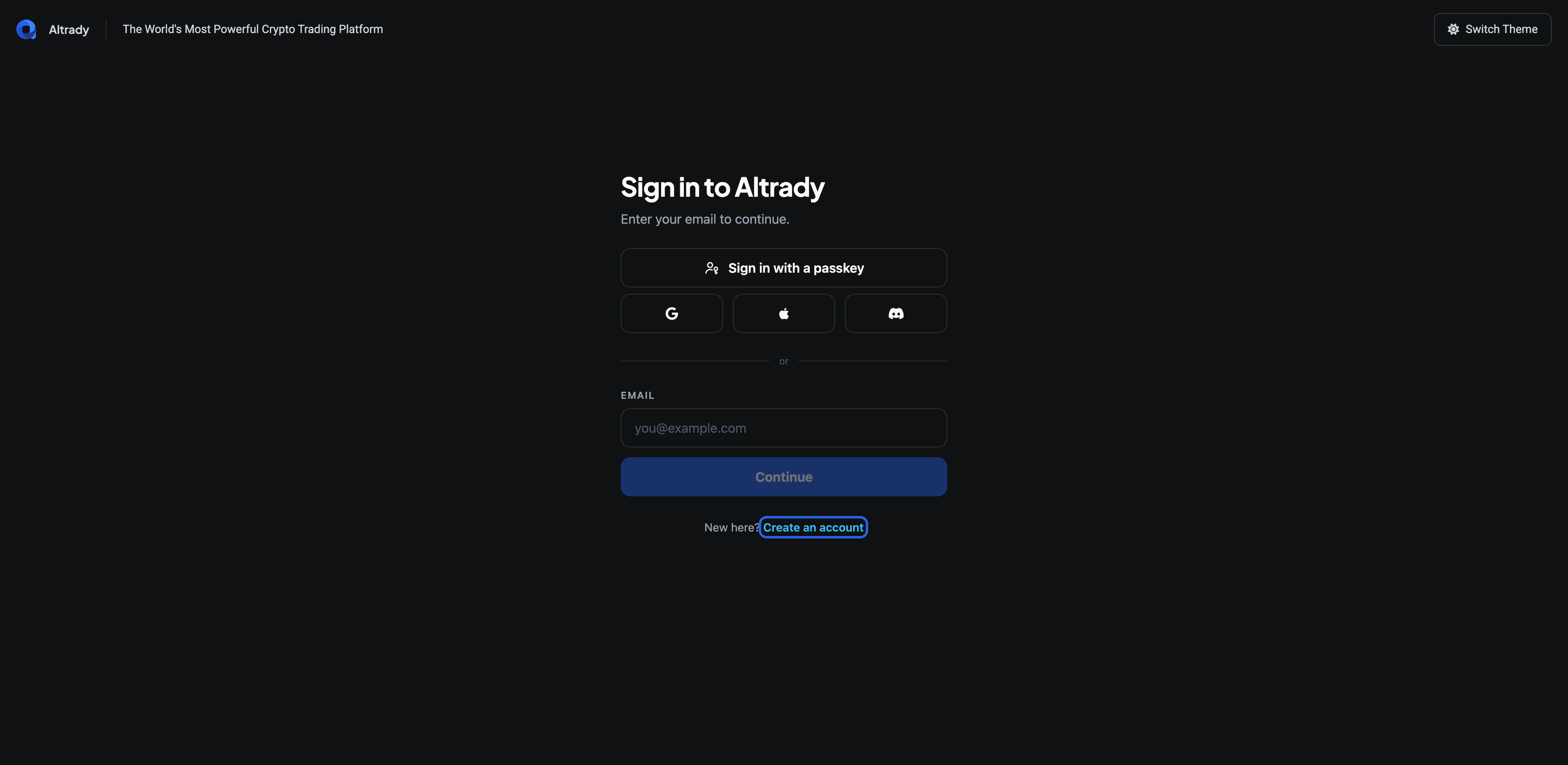
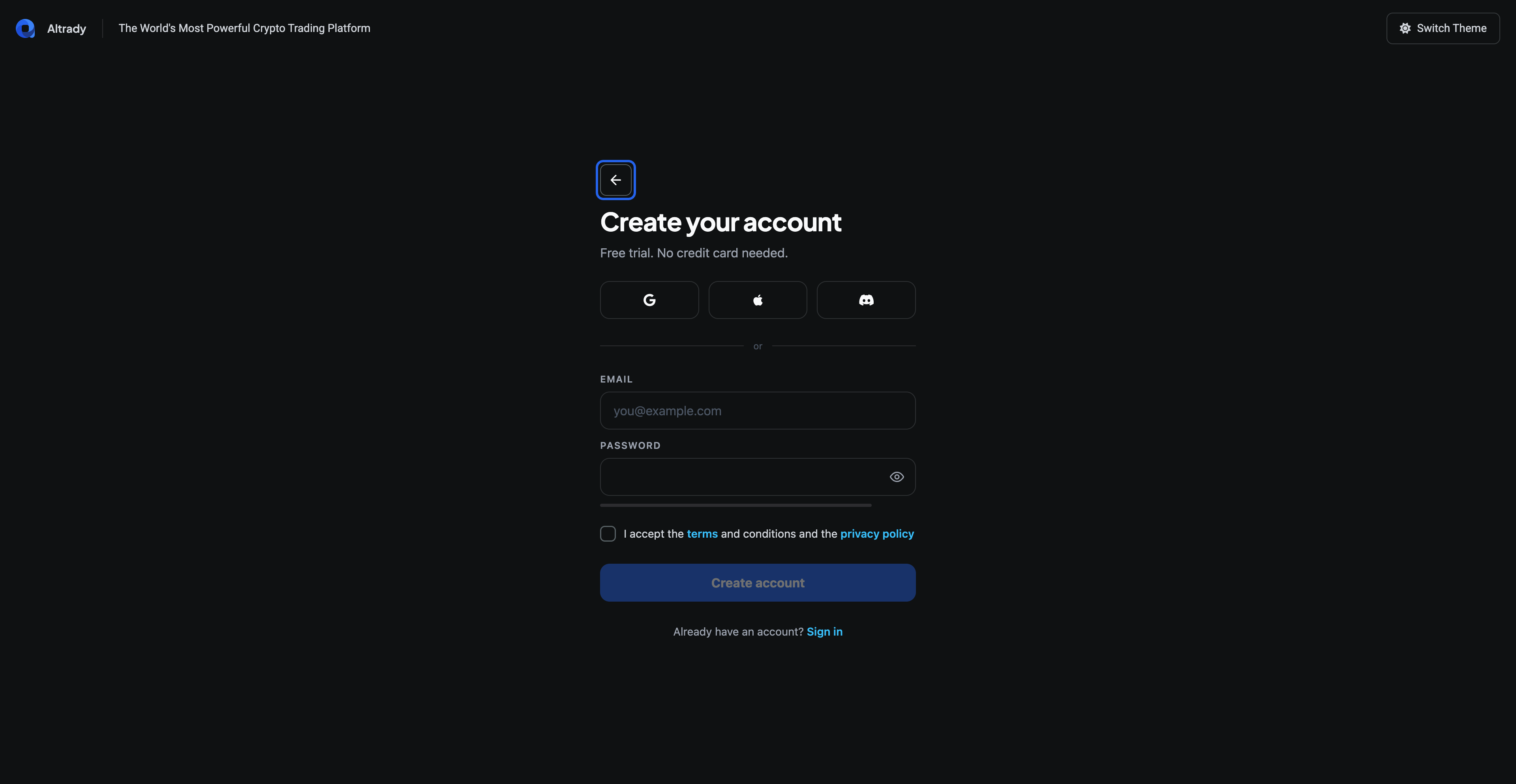
- Go to app.altrady.com/sign_up in your web browser or click Create an account at the bottom of the sign-in screen.
- Enter your email address and choose a strong, unique password. A password manager is the safest place to store it.
- Tick the box to accept the terms and privacy policy, then click Create account.
- Follow the on-screen steps to confirm your email address.
 🔍 Click the image to see a larger version
 🔍 Click the image to see a larger version
No credit card is needed, and your new account includes a free trial of the paid features. See Choose your plan for what happens after the trial.
🔍 Click the image to see a larger version
No credit card is needed, and your new account includes a free trial of the paid features. See Choose your plan for what happens after the trial.
Sign up with Google, Apple, or Discord
Prefer not to remember another password? On the sign-in or create-account screen, choose the Google, Apple, or Discord button instead. Altrady asks that provider to confirm who you are, and your account is created in one step.
A few things to know about social logins:
- You’ll use the same button to sign in next time, just pick the provider you signed up with.
- Make sure the social account itself is well protected, since anyone with access to it could access your Altrady account.
- On an eligible device and browser, Altrady may offer to register a passkey after you sign up. This lets you sign in with your fingerprint, face, or device PIN later.
Your first sign-in: a quick onboarding
The first time you sign in, Altrady asks a few quick questions so it can point you at the right features:
-
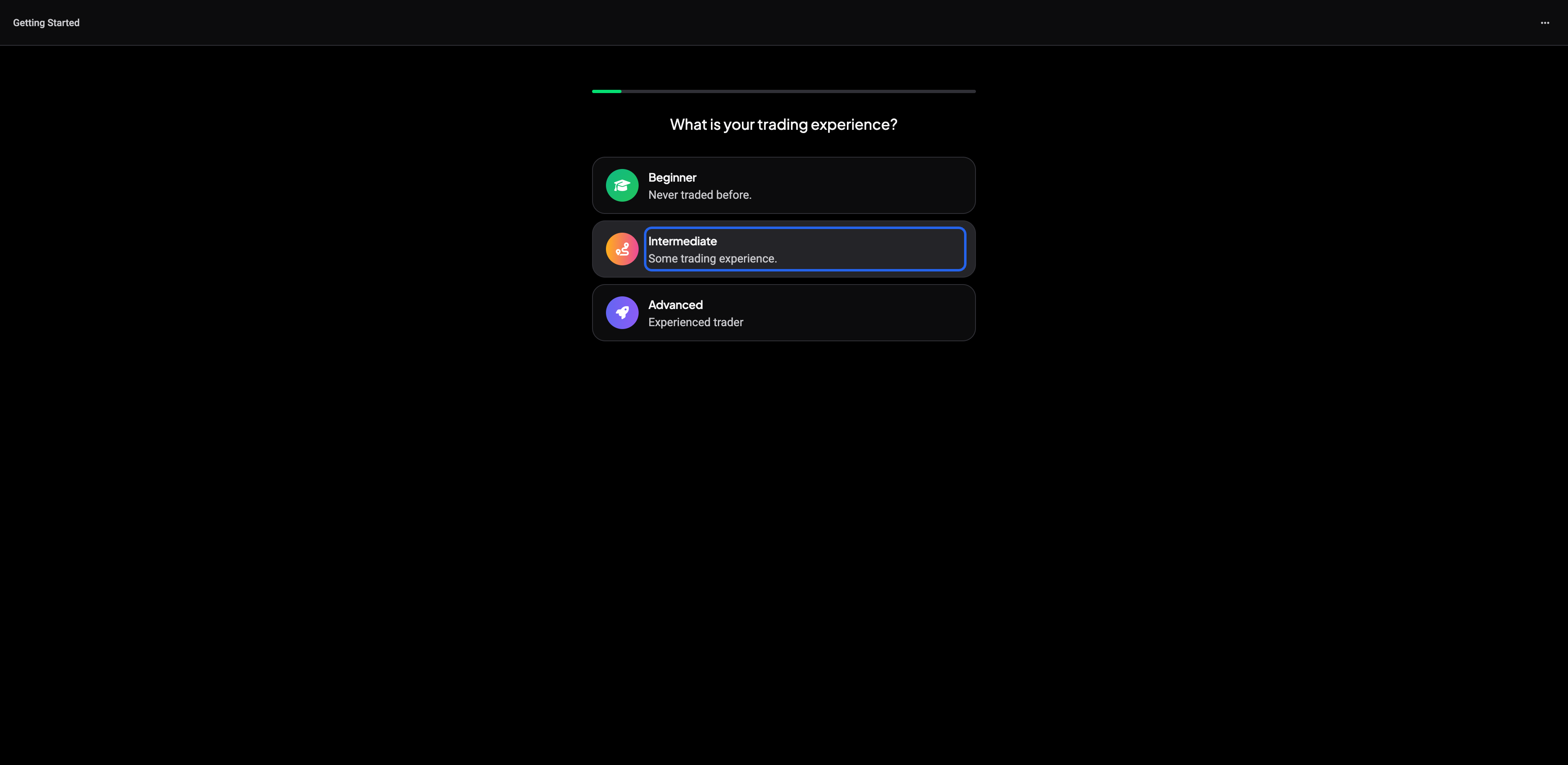
Your trading experience - beginner, intermediate, or advanced.
 🔍 Click the image to see a larger version
-
How you found Altrady and your biggest trading challenge - both help us improve; the challenge step can be skipped.
-
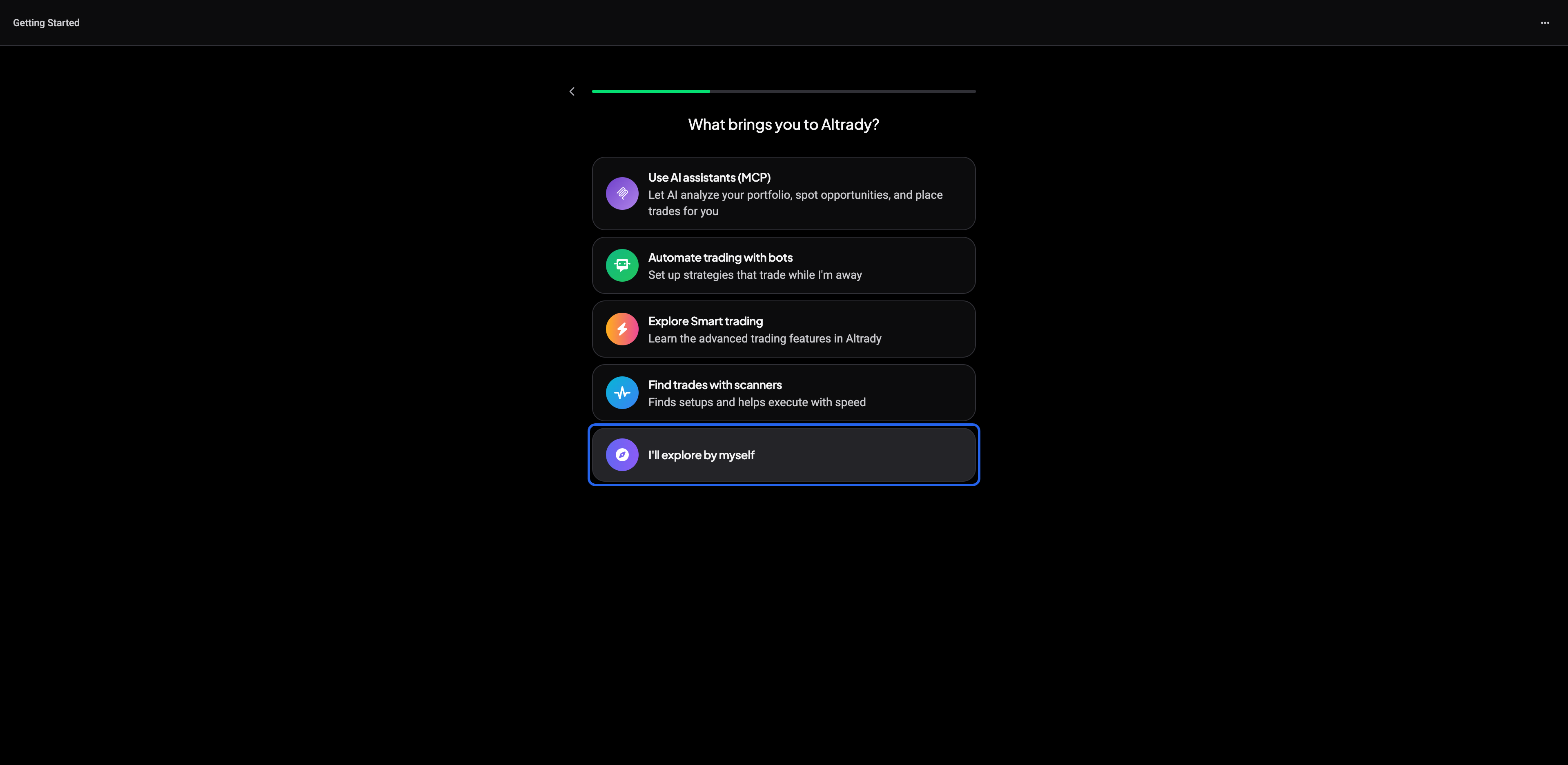
What brings you to Altrady - pick the flow you’re most interested in: AI assistants (MCP), trading bots, smart trading, scanners, or just exploring on your own. Your choice tailors what Altrady shows you first.
 🔍 Click the image to see a larger version
-
Pick an exchange to practice on. Altrady creates a demo account (paper trading) on that exchange for you, so you can try everything with simulated funds before connecting a live account.
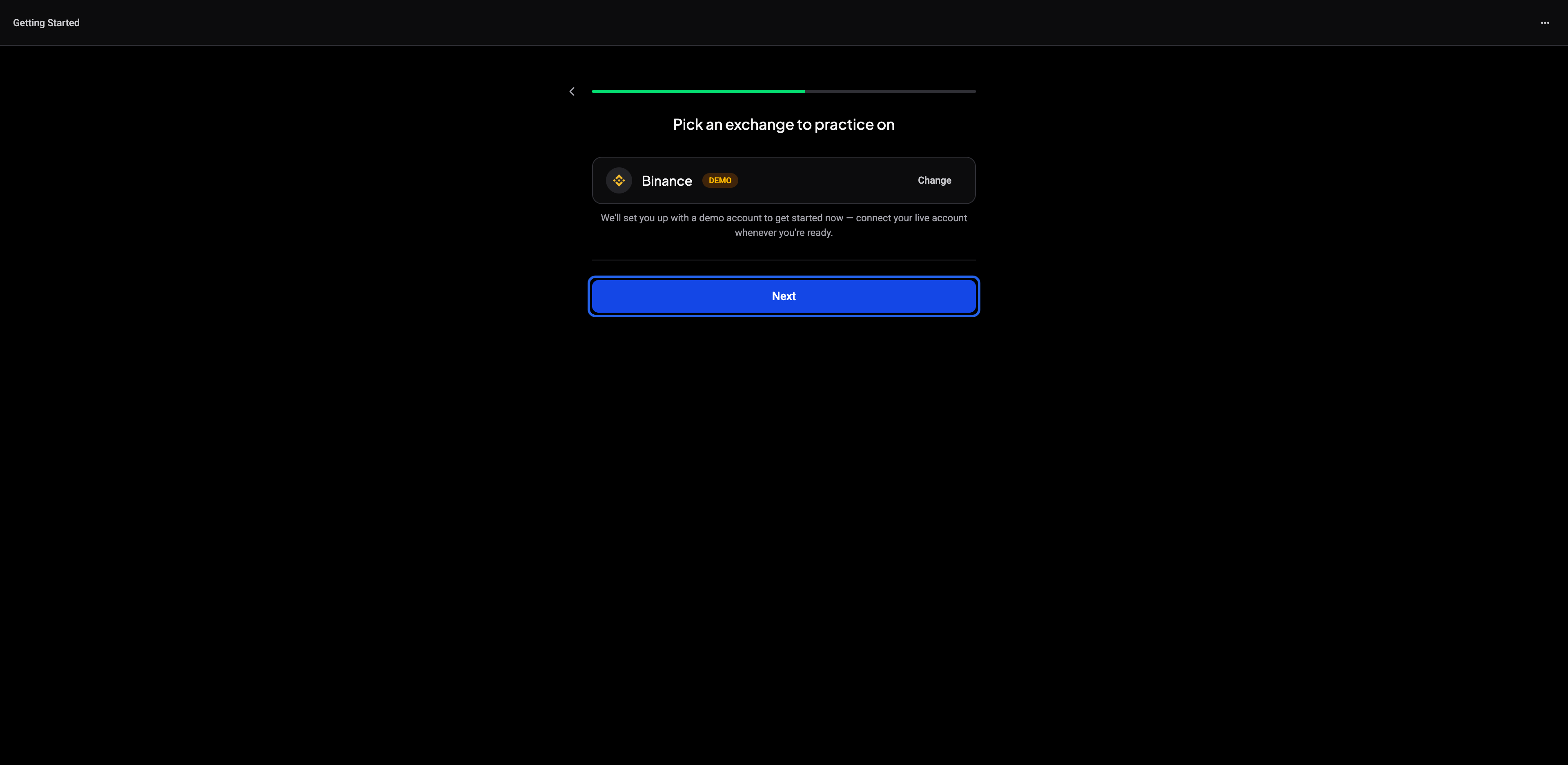 🔍 Click the image to see a larger version
When the onboarding finishes you land on the Dashboard, ready to explore, see Take a tour of the dashboard. Your demo account works exactly like a real one, just without real money; read more in Practice with paper trading.
Want to run through it again, or try a different flow? Go to Settings > User Profile and click Restart Onboarding.
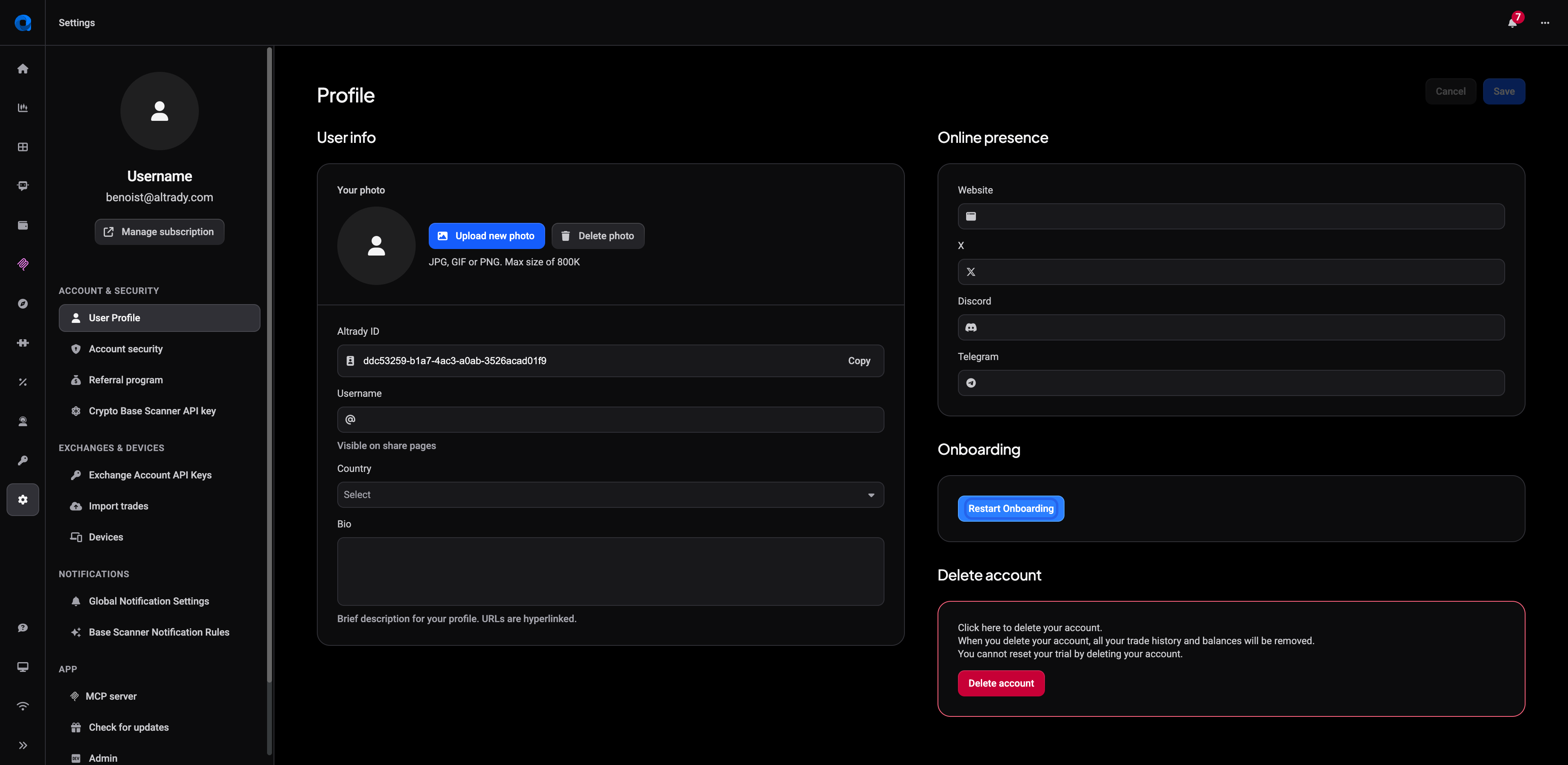 🔍 Click the image to see a larger version
Signing in
- Go to app.altrady.com.
- Enter your email and click Continue, then enter your password or use your passkey or social login provider.
- Altrady asks Stay signed in?, choose Yes, for 30 days to skip signing in on this browser for a month, or No, not now to be signed out when you close it. Only choose yes on your own device, never on a shared or public computer.
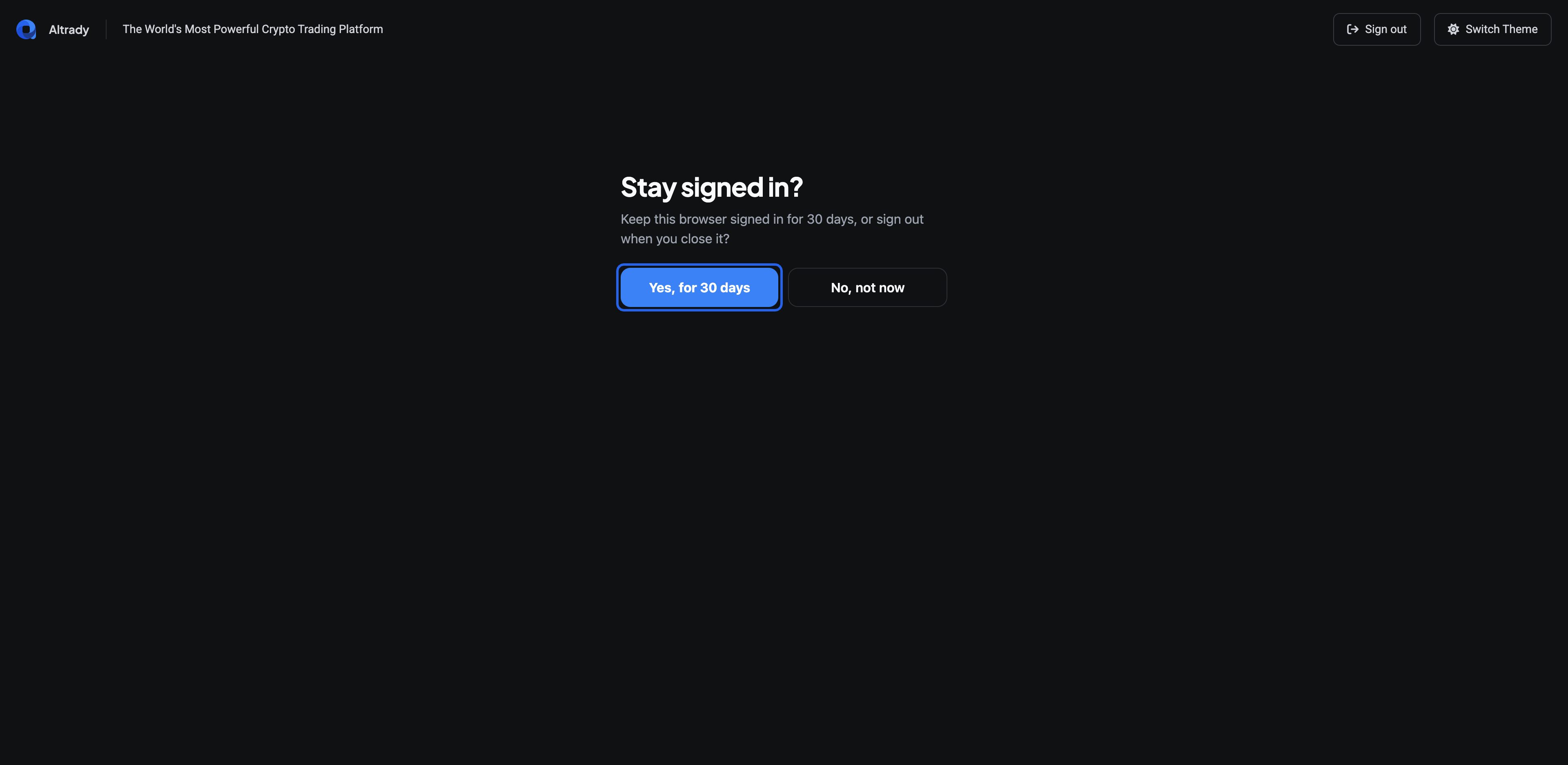 🔍 Click the image to see a larger version
Tips:
🔍 Click the image to see a larger version
Tips:
- Forgot your password? Click Forgot password? on the sign-in screen and follow the email instructions.
- Altrady emails you whenever there’s a sign-in from a new location. If you get one you don’t recognize (keep in mind a VPN can change your location), reset your password right away under Settings > Account Security.
Keep your account extra safe
Altrady supports two more layers of protection:
- Two-factor authentication (2FA): a code from your phone is required at sign-in, so a stolen password alone isn’t enough.
- Passkeys: sign in with your fingerprint, face, or device PIN instead of a password.
Both are set up under Settings > Account Security. We strongly recommend enabling 2FA as soon as your account is created. Learn more in Account & Billing.
Next steps
You can explore everything with your demo account first and when you’re ready to trade with real funds, connect your exchange: see Connecting your exchange.