
Take a tour of the dashboard
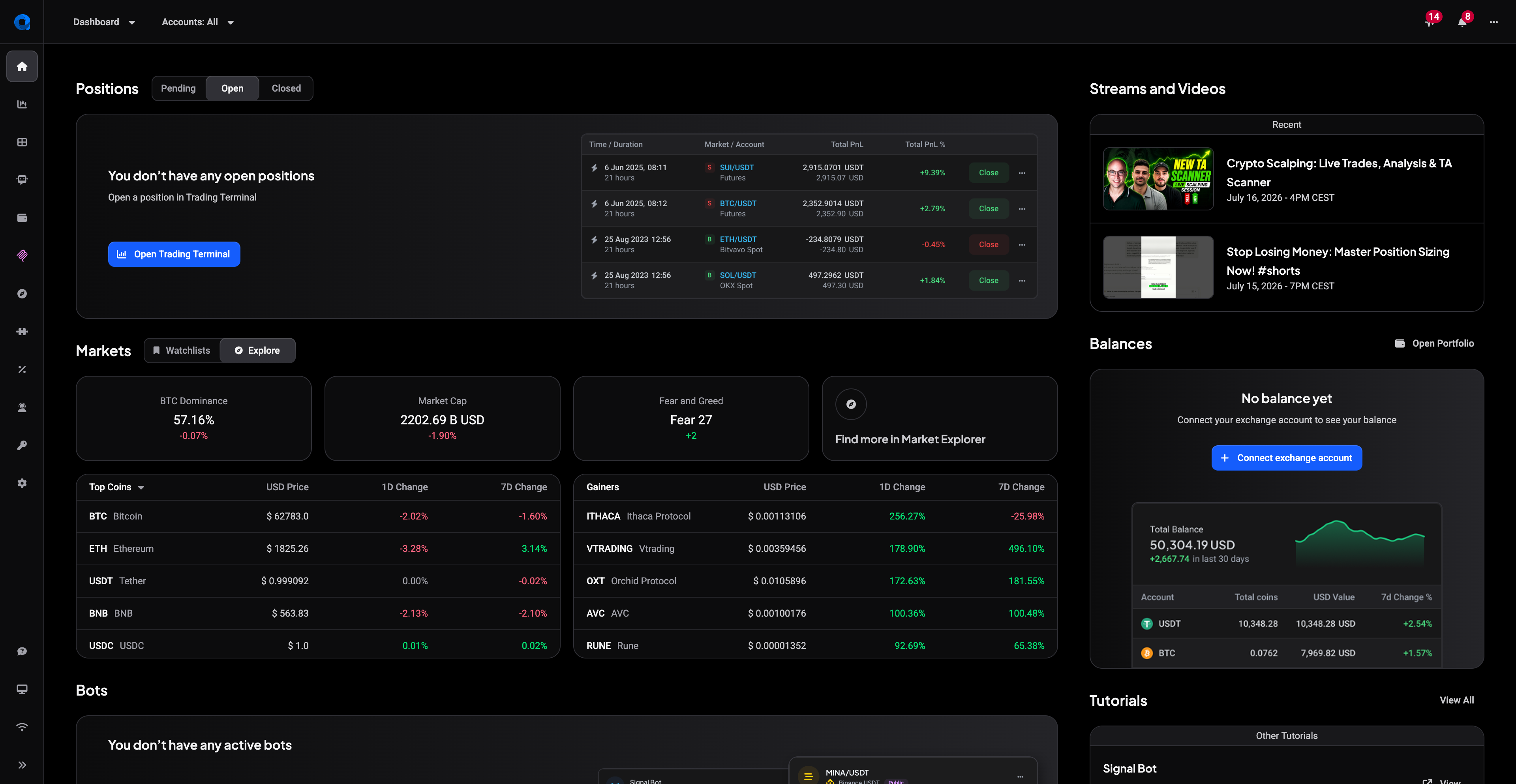
When you open Altrady, the first thing you see is the Dashboard. It gives you a quick snapshot of everything that matters: your positions, the market, your bots, and your balances.
This article walks you through each part of the Dashboard and the main menu on the left, so you know exactly where to find things.
 🔍 Click the image to see a larger version
## Opening the Dashboard
🔍 Click the image to see a larger version
## Opening the Dashboard
The Dashboard is your landing page which opens automatically when you start Altrady. You can return to it at any time by clicking the house icon at the top of the menu on the left side of the screen.
 🔍 Click the image to see a larger version
## The main menu
🔍 Click the image to see a larger version
## The main menu
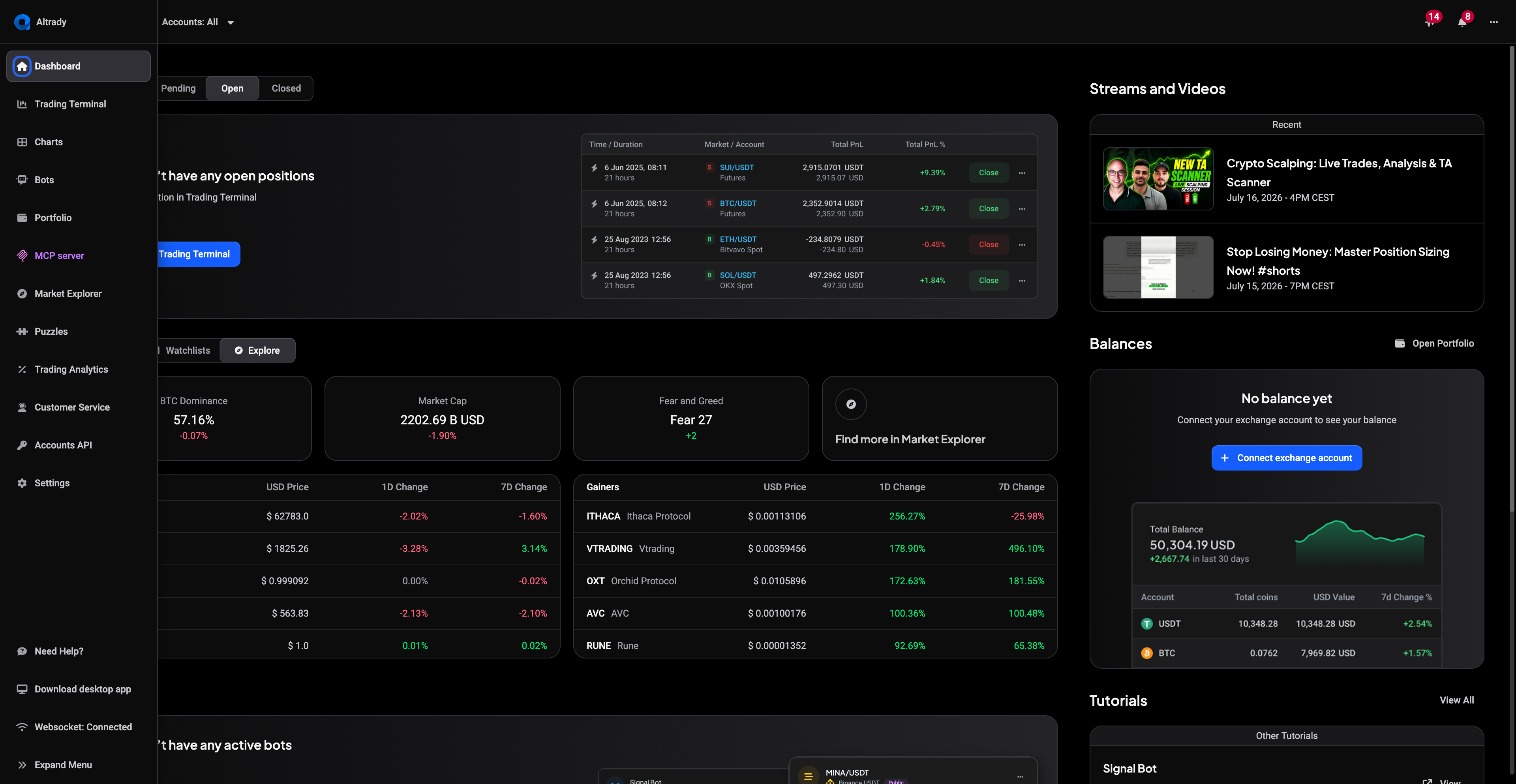
The icons down the left side of the screen take you to Altrady’s main areas:
- Trading: your trading terminal, where you place and manage orders. Learn more in Your Trading Screen.
- Charts: full-screen charts for analyzing markets.
- Bots: create and manage your signal bots and grid bots. See Automated Trading & Bots.
- Portfolio: a detailed view of your holdings and performance. See Tracking Your Results.
- Market Explorer: browse and compare all available markets. See Finding Trade Ideas.
Positions
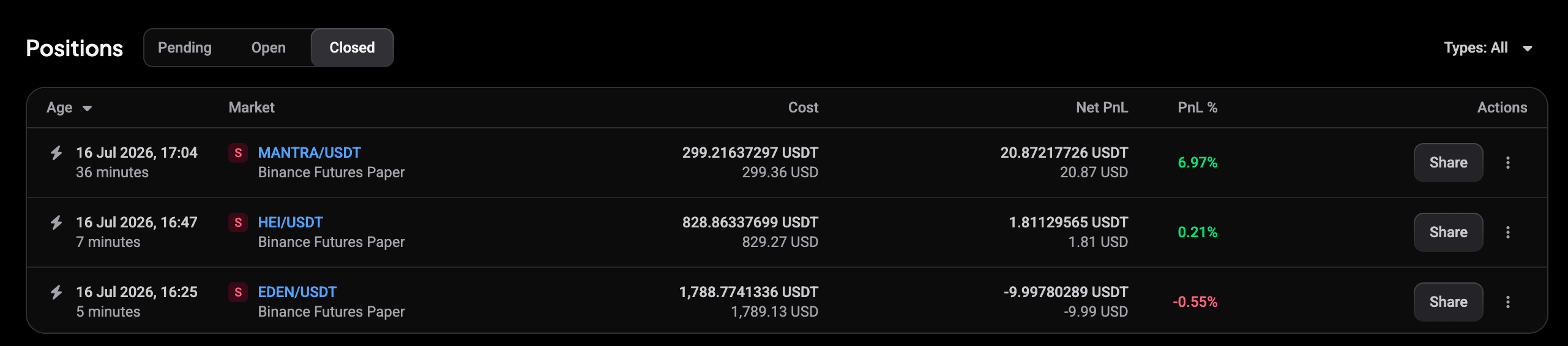
The Positions section shows your trades, with tabs for Pending, Open, and Closed positions. For each position you can see its age, market, cost, and profit or loss, and you can sort by any column by clicking its header.
 🔍 Click the image to see a larger version
Click a market name to open that position in the trading terminal, where you’ll see full details on the chart. Each open position also has a Close button, and the 3-dot menu offers more options. Use the Types dropdown on the right to filter by position type.
🔍 Click the image to see a larger version
Click a market name to open that position in the trading terminal, where you’ll see full details on the chart. Each open position also has a Close button, and the 3-dot menu offers more options. Use the Types dropdown on the right to filter by position type.
Markets
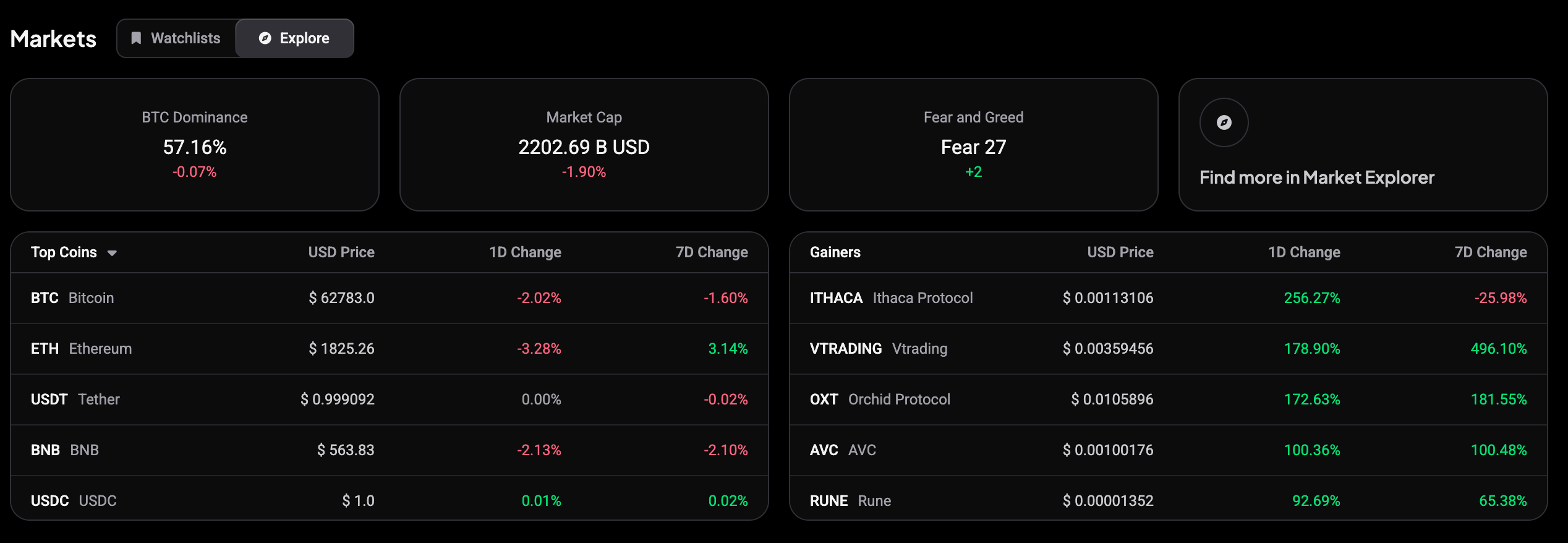
The Markets section keeps an eye on the market for you, with two tabs:
- Watchlists: the markets you’ve saved to your own lists.
- Explore: a market overview: BTC dominance, total market cap, the Fear & Greed index, plus the top coins and today’s biggest gainers.
 🔍 Click the image to see a larger version
Click Find more in Market Explorer for the full market browser or read more in Finding Trade Ideas.
🔍 Click the image to see a larger version
Click Find more in Market Explorer for the full market browser or read more in Finding Trade Ideas.
Bots
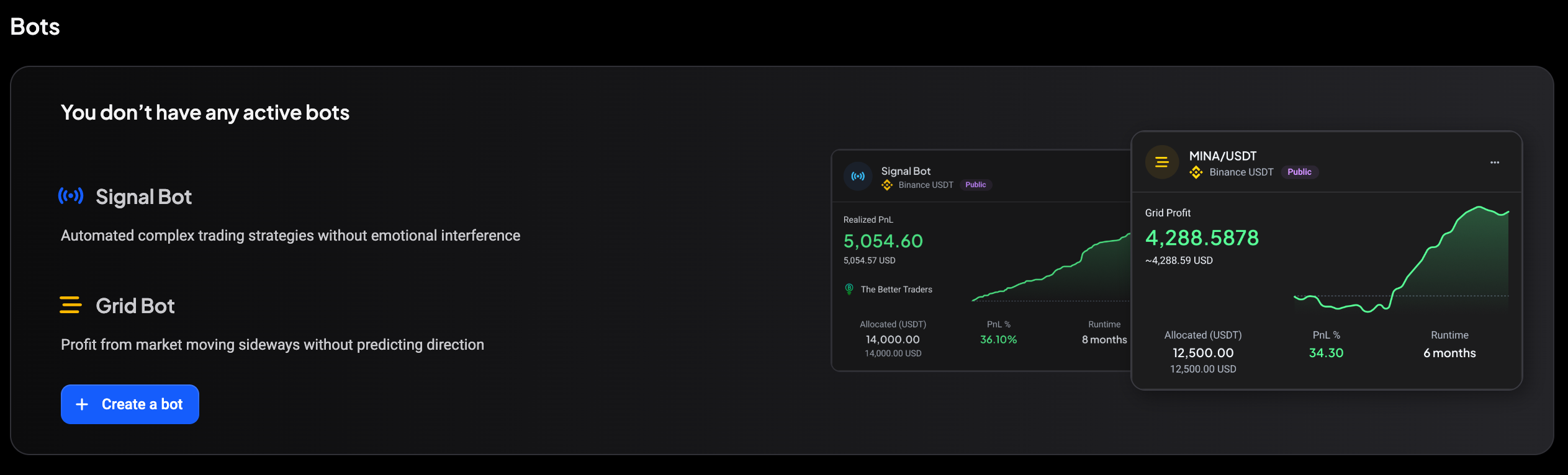
The Bots section lists your active bots with their net profit, invested amount, and runtime.
 🔍 Click the image to see a larger version
Click a bot to see its details, use the 3-dot menu for more actions, or hit Create a bot to build a new one. My Bots takes you to the full bots page. New to bots? Start with Automated Trading & Bots.
🔍 Click the image to see a larger version
Click a bot to see its details, use the 3-dot menu for more actions, or hit Create a bot to build a new one. My Bots takes you to the full bots page. New to bots? Start with Automated Trading & Bots.
Balances
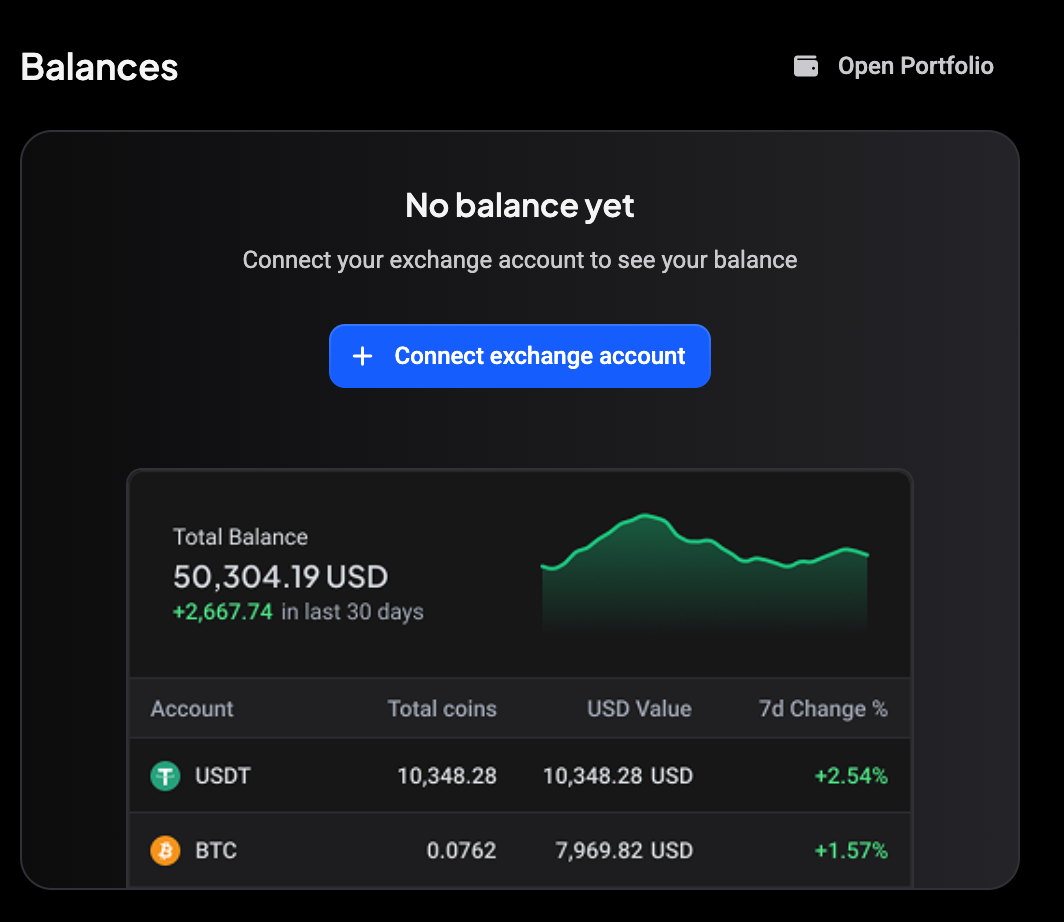
The Balances section shows your total balance across connected accounts and how it changed over the last 30 days. Click Open Portfolio for the full breakdown per exchange and per coin, see Tracking Your Results.
 🔍 Click the image to see a larger version
## Streams and Videos
🔍 Click the image to see a larger version
## Streams and Videos
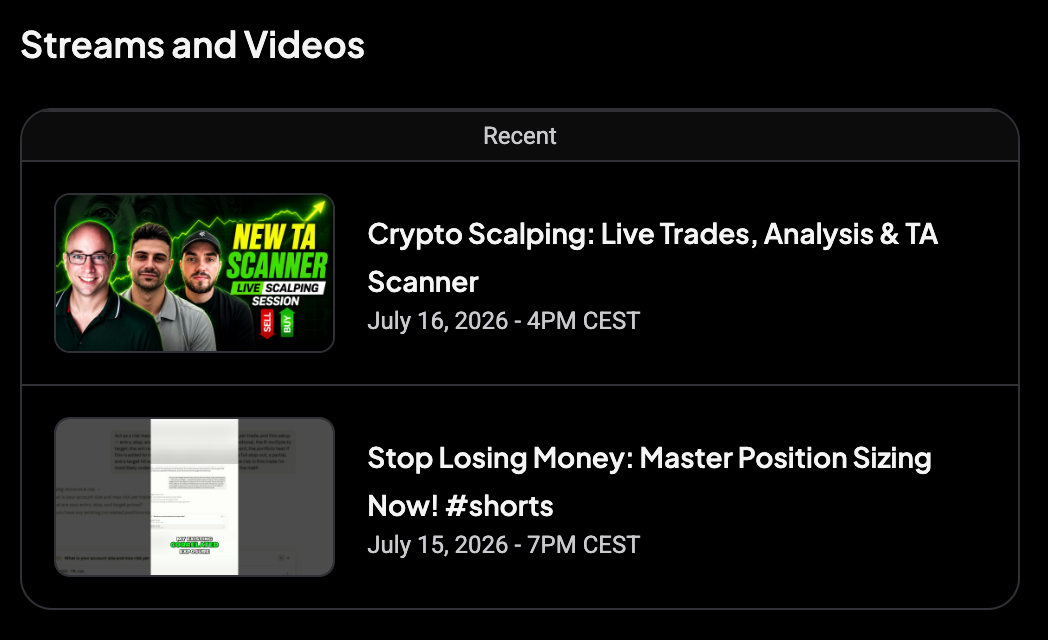
Altrady runs regular livestreams and publishes trading videos and the most recent ones show up here, so you never miss an episode.
 🔍 Click the image to see a larger version
## Tutorials
🔍 Click the image to see a larger version
## Tutorials
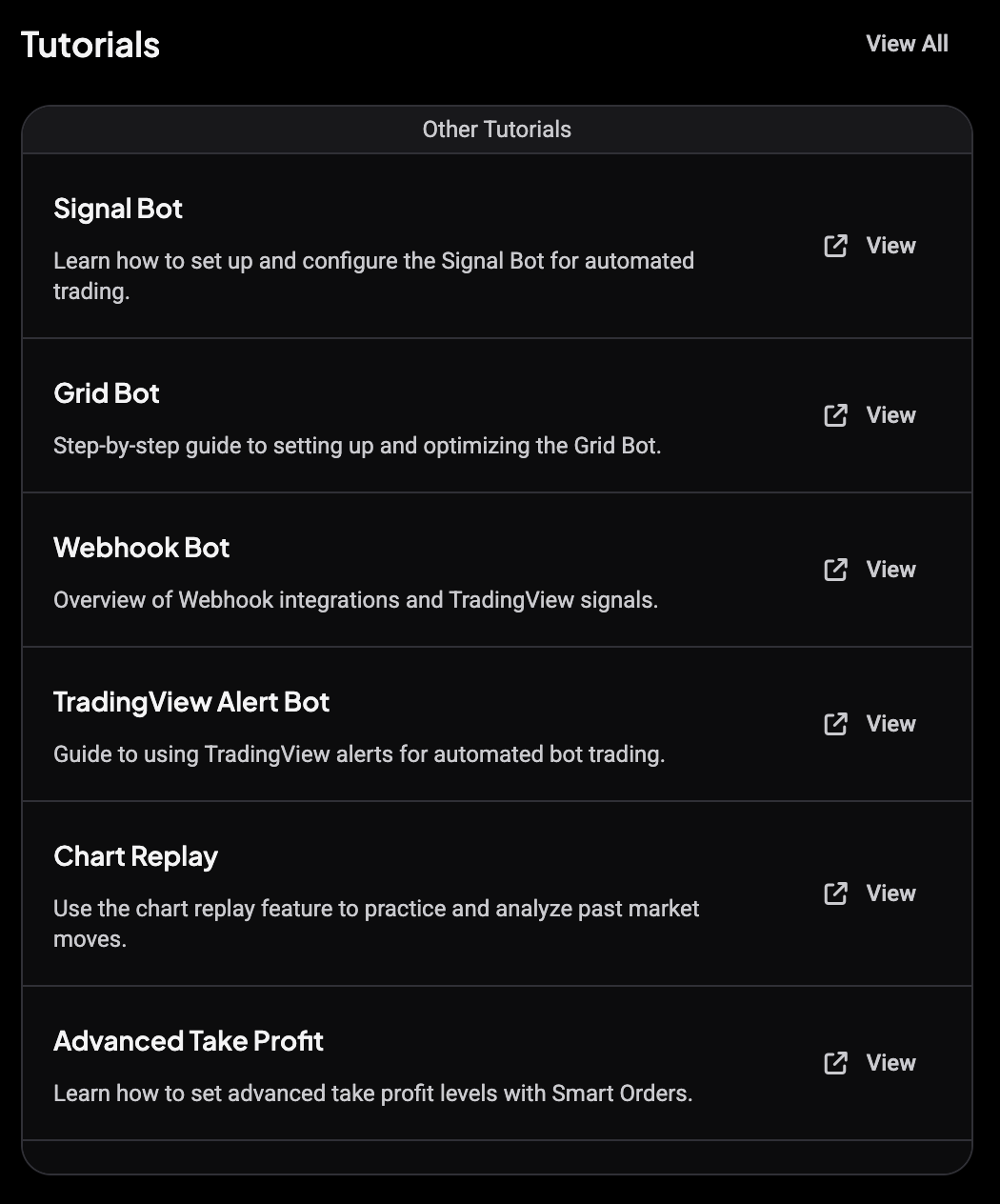
At the bottom right you’ll find short tutorials for Altrady’s key features: signal bots, grid bots, webhooks, chart replay, and more. Each View button opens the full guide.
 🔍 Click the image to see a larger version
## What’s next?
🔍 Click the image to see a larger version
## What’s next?
Now that you know your way around, head to Start Here for the rest of the setup basics, or jump straight into Your Trading Screen to learn the trading terminal.