
How do I sign in with Google, Apple, or Discord?
You can link your Altrady account to Google, Apple, or Discord so you sign in with one click instead of typing a password. Go to Settings > Account security, find the Social logins section, and select Add Social Login to connect a provider.
Where to find social logins
 🔍 Click the image to see a larger version
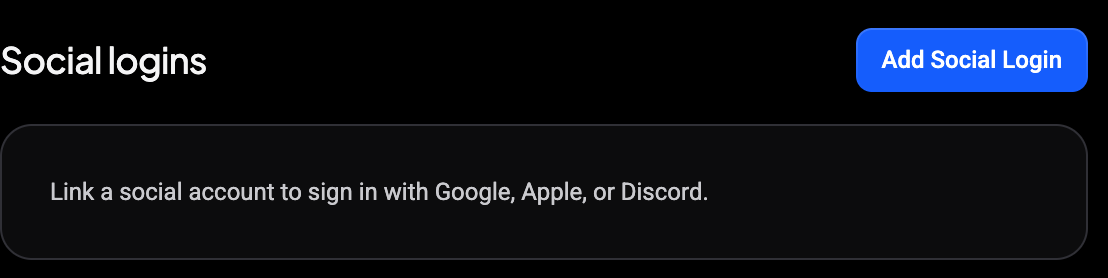
Open Settings, then select Account security under Account & Security in the sidebar. On the Account Security page, the Social logins section sits in the left column below 2nd factor authentication and Passkeys. Any providers you’ve already linked are listed there. If none are linked yet, Altrady shows a short note: “Link a social account to sign in with Google, Apple, or Discord.” Those three are the only providers Altrady supports for social sign-in.
Linking a provider
 🔍 Click the image to see a larger version
- In Account Security > Social logins, select Add Social Login.
- Complete the provider’s own sign-in screen (this is where you may be asked for your Google, Apple, or Discord password, never your Altrady one).
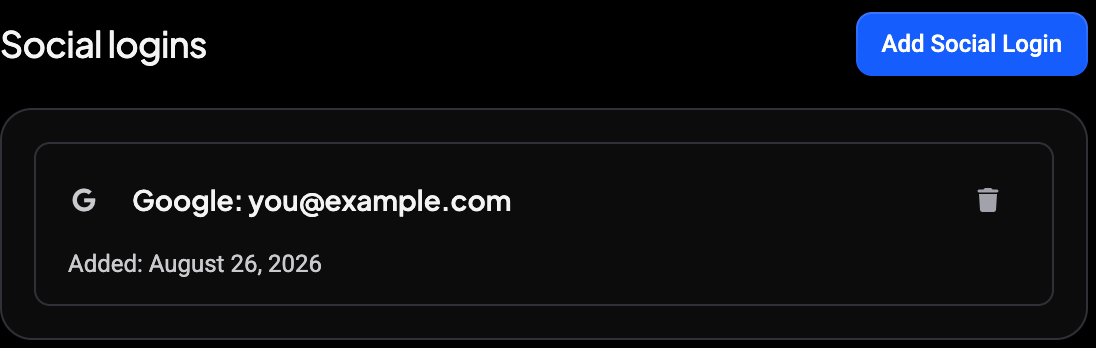
- Once linked, the provider appears as a card showing its icon, a line with the provider name and the connected email address, and an Added date.
You can link more than one provider. Each shows up as its own card, so you always know exactly which accounts are connected.
Signing in with a linked provider
 🔍 Click the image to see a larger version
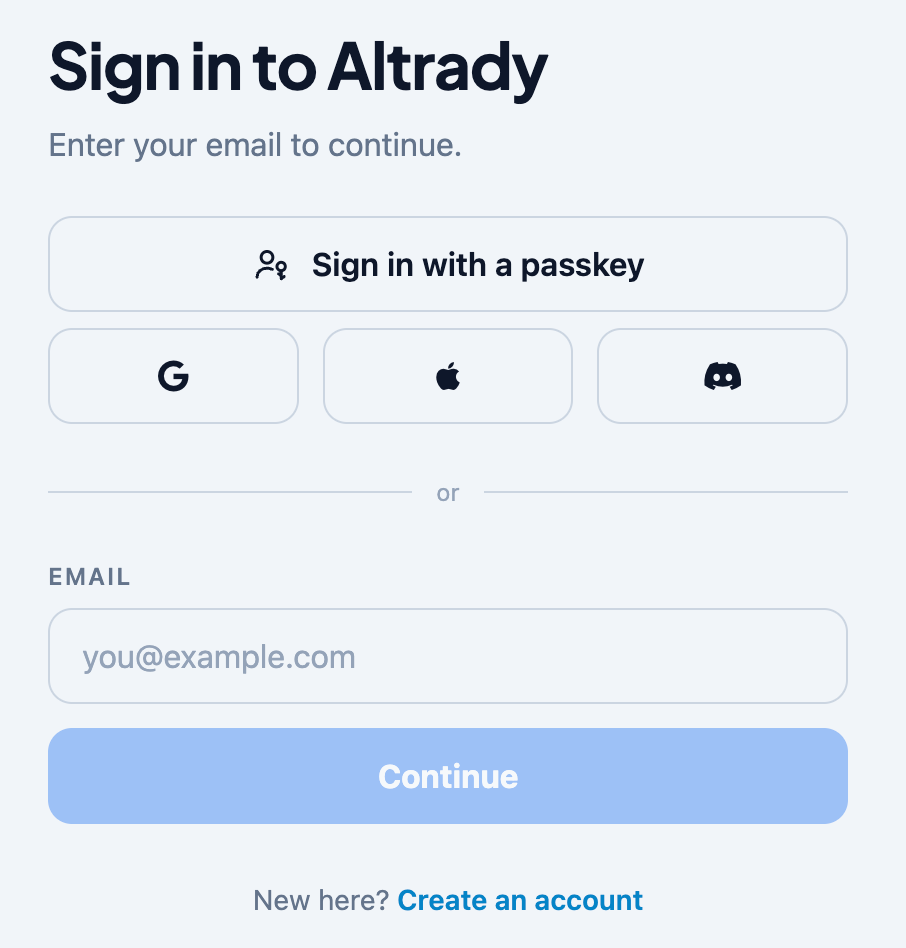
Once a provider is linked, you don’t need to type your email at all. The Sign in to Altrady screen shows the Google, Apple and Discord buttons right at the top, below Sign in with a passkey and above the or divider. Click the one you linked, complete that provider’s screen, and you’re taken straight into Altrady.
The email field below is the other route: enter your address and click Continue if you’d rather sign in with your password.
Why Altrady sends you to a provider instead of asking for a password
 🔍 Click the image to see a larger version
If you signed up through Google, Apple, or Discord rather than with an email and password, Altrady never set a password for that account. There’s simply nothing to type in.
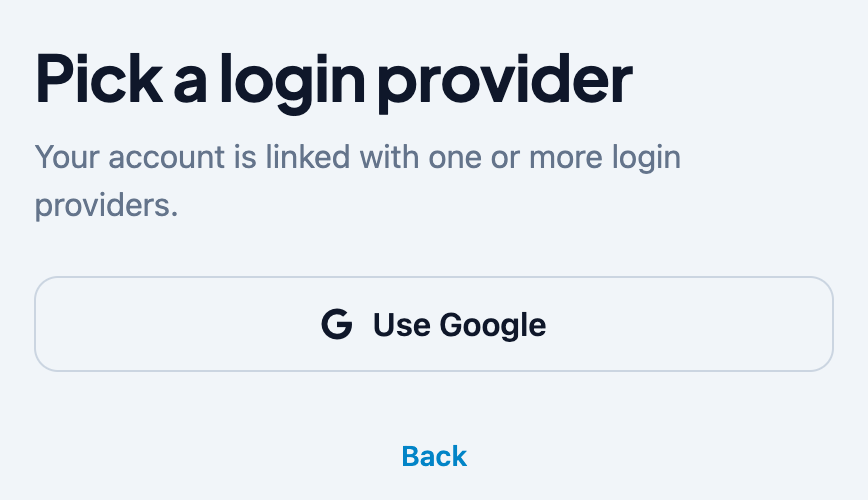
Because of that, when you enter your email on the sign-in screen and click Continue, Altrady checks how your account was created. If it only has social logins and no password, you’re taken straight to a screen titled Pick a login provider, with the note “Your account is linked with one or more login providers.”
Only the providers actually linked to your account appear here, so you may well see a single button rather than three: Use Google, Use Apple, or Use Discord. Select the one you used before and you’re in. If you landed here by typing the wrong email address, the Back link below the buttons returns you to the sign-in screen.
This is normal and not a bug: it just means Altrady is skipping a password prompt that wouldn’t work anyway.
Adding a password to a social account
 🔍 Click the image to see a larger version
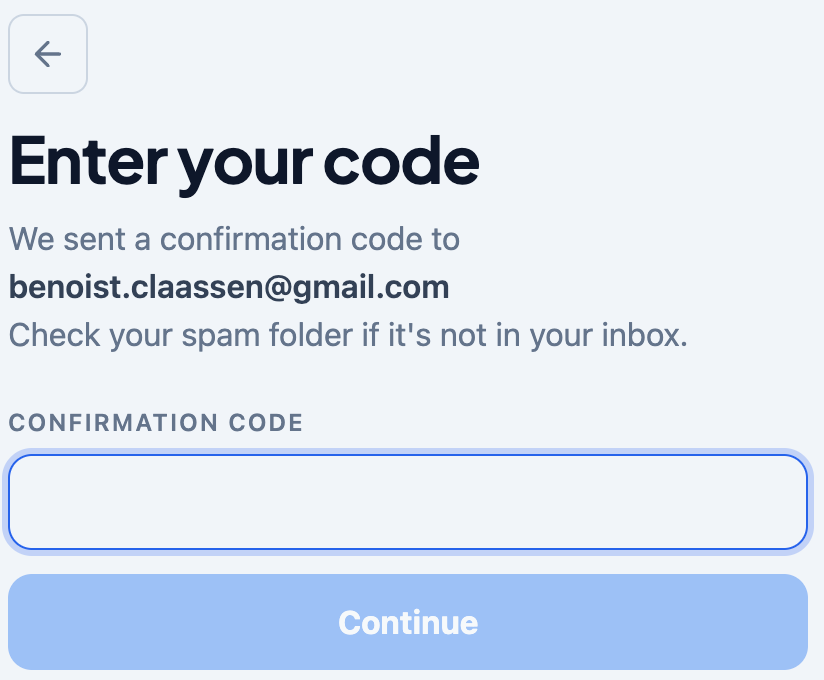
Using social sign-in doesn’t stop you from having a password as well. If you’d like one, use Reset your password from the sign-in screen: enter your email address, click Send confirmation code, and Altrady emails you a code.
Enter the code, click Continue, and you can set a password. From then on both routes work: the provider buttons, or your email address and the new password.
On some accounts you’ll instead see a message saying the account is registered via Social login and that you should use your social login provider. That applies to accounts created through a provider, and in that case signing in with the provider is the way in.
If you connected the wrong provider account
 🔍 Click the image to see a larger version
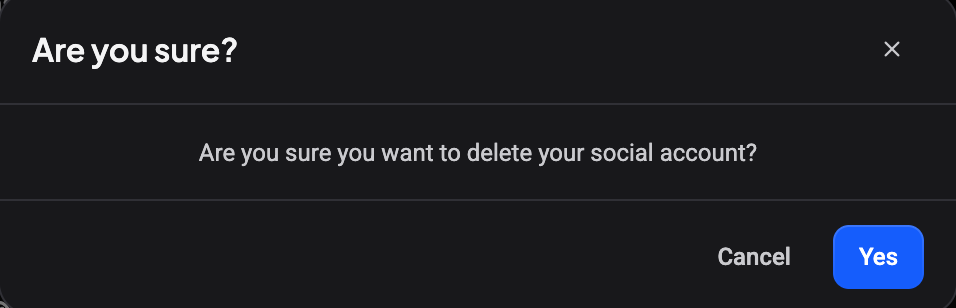
Unlink it from Account Security > Social logins, then select Add Social Login again and sign in with the correct Google, Apple, or Discord account. Each linked provider’s card has a small trash icon: select it and a confirmation dialog appears, titled “Are you sure?”, asking “Are you sure you want to delete your social account?” Confirm to remove it, or select Cancel to back out. Nothing is removed until you confirm, so there’s no risk of unlinking by accident.
Still stuck?
If a provider won’t link, a card is missing after you connected it, or you’re locked out entirely, reach out through Altrady’s support chat and the team will help sort it out. You can also suggest improvements to this flow at roadmap.altrady.com.
Related articles: