
How do I turn on two-factor authentication (2FA) on my Altrady account?
Two-factor authentication (2FA) adds a second check, a 6-digit code from an authenticator app on your phone, on top of your password. You’re offered the chance to set it up the moment you register, and you can turn it on or off at any time afterward from Settings > Account Security > Enable 2FA. The whole setup takes about two minutes.
Where to find it
If you skipped 2FA when you first signed up, Altrady will remind you about it at login until you set it up. To set it up anytime after that, open Settings from the menu, then go to Account Security. This is the same screen where you manage your password and email, and it’s where 2FA lives. Look for the Enable 2FA button to start setup.
Setting up 2FA
 🔍 Click the image to see a larger version
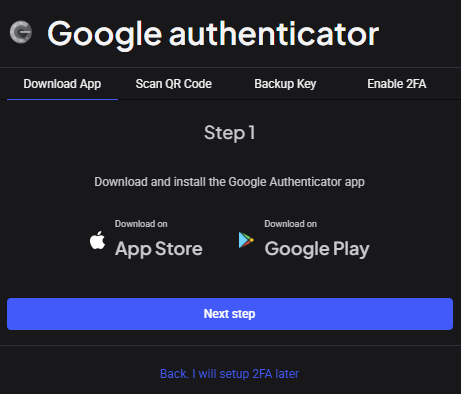
Altrady’s 2FA works with Google Authenticator, the most common choice, but other authenticator apps that generate standard time-based codes, like Authy, work too. Setup walks you through four tabs, in order:
🔍 Click the image to see a larger version
Altrady’s 2FA works with Google Authenticator, the most common choice, but other authenticator apps that generate standard time-based codes, like Authy, work too. Setup walks you through four tabs, in order:
- Download App: install Google Authenticator (or another authenticator app) from your phone’s app store if you don’t already have one.
- Scan QR Code: open the authenticator app on your phone and scan the QR code shown on screen. If your camera can’t scan it, use If you are unable to scan the QR code, please enter this code manually into the app, and type the code shown into the app instead.
- Backup Key: Altrady shows you a backup key. More on this below, don’t skip it.
- Enable 2FA: your authenticator app now shows a new 6-digit code that refreshes every 30 seconds. Enter that code into Altrady to confirm setup is working.
Once the code is accepted, 2FA is active. From now on, every time you sign in, Altrady asks for a fresh 6-digit code alongside your password.
Save the backup key
The Backup Key tab exists for one reason: phones get lost, broken, or replaced. Write the backup key down on paper (not a screenshot, not a note on the same phone) and keep it somewhere safe, like with other important documents. If you ever set up a new phone, this key lets you restore your authenticator app yourself in minutes, no support ticket needed.
Turning 2FA off
If you need to disable 2FA, for example before switching to a new phone, go back to Settings > Account Security and choose Disable 2FA. Altrady asks for two things together:
- Your account Password.
- The current 6-digit code from your authenticator app (Input the 6-digit code in your Google Authenticator app).
Both have to be correct at the same time. If you type the wrong code a few times in a row, Altrady briefly rate-limits further attempts and tells you how long to wait before trying again. This isn’t a bug, it’s there to stop anyone else from guessing their way in. Just wait out the cooldown and try again with a fresh code.
A quick word on timing
Authenticator codes are time-based, so if your phone’s clock has drifted, codes may be rejected even though they look right. Most phones keep their clock synced automatically, so this is rare, but it’s worth checking your phone’s date and time settings if codes keep failing.
Lost your 2FA device? Here’s how recovery works
If you lose the phone your authenticator app was on and don’t have your backup key, you’re not locked out for good, but Altrady can’t just switch 2FA off on request. Because 2FA exists specifically to keep your account secure, restoring access means proving you’re the account owner first.
Altrady doesn’t require KYC (Know Your Customer) documents to use the platform, so support doesn’t hold a government ID or proof of address to check against. Instead, verification is based on details about how you’ve actually used your account, information someone who only broke into your email wouldn’t know. This protects you: even a compromised inbox wouldn’t be enough to hand over your Altrady account.
Here’s what that looks like:
- Contact support through the chat bubble in the bottom-right corner of our Help Center at help.altrady.com and explain that you’ve lost access to your 2FA device.
- Answer a few account-specific questions, such as which exchanges you’ve connected, a few altcoin pairs you’ve traded recently, the label of one of your API keys, or your current subscription plan and its expiration date.
- Support compares your answers against Altrady’s records. You don’t need every detail exact, but your answers should show real familiarity with the account.
- Once verified, support disables 2FA on your account so you can log back in and set it up again, ideally with your new phone and a freshly saved backup key.
The best way to avoid this altogether is the backup key from setup: save it somewhere safe when you first enable 2FA, and keep your account email secure and up to date, since all recovery communication goes through it.
Still stuck?
If setup won’t complete or the QR code won’t scan, have your account email ready so support can look up your account quickly. If you’ve lost your 2FA device, see the recovery steps above. You can reach our support team anytime through the chat bubble in the bottom-right corner of our Help Center at help.altrady.com.