
I can't sign in — how do I recover access to my account?
Locked out of Altrady? Most lockouts fall into three cases: a forgotten password (fixed in minutes), a lost Google Authenticator phone with no backup key (needs a support ticket and takes time), or a temporary block after too many failed attempts (just wait it out). Find your situation below.
I forgot my password
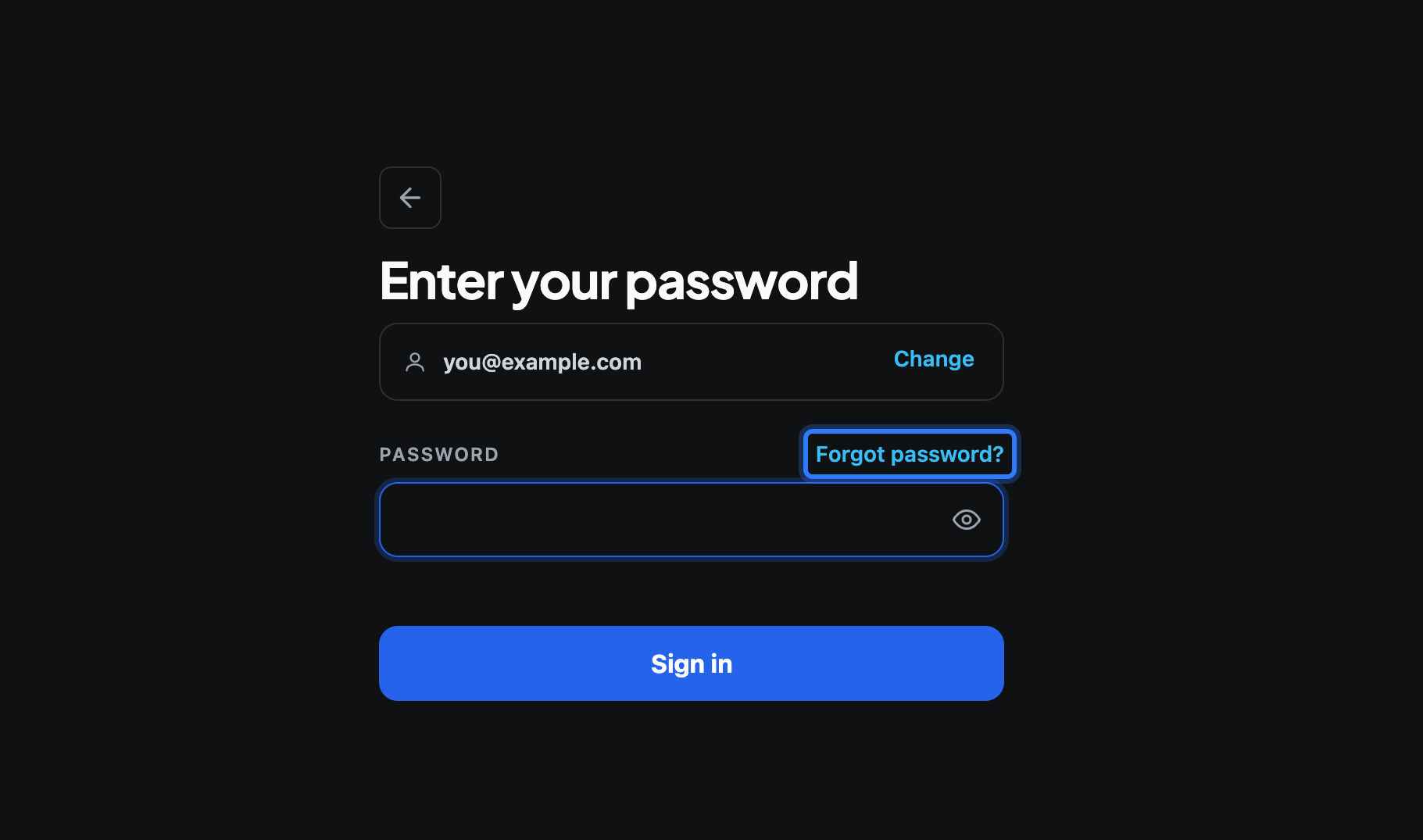
- On the sign-in screen, type your email address and click Continue. Altrady asks for the password on the next step, and that is where the Forgot password? link sits.
 🔍 Click the image to see a larger version
- Click Forgot password?. On Reset your password, confirm the email address on your Altrady account and click Send confirmation code.
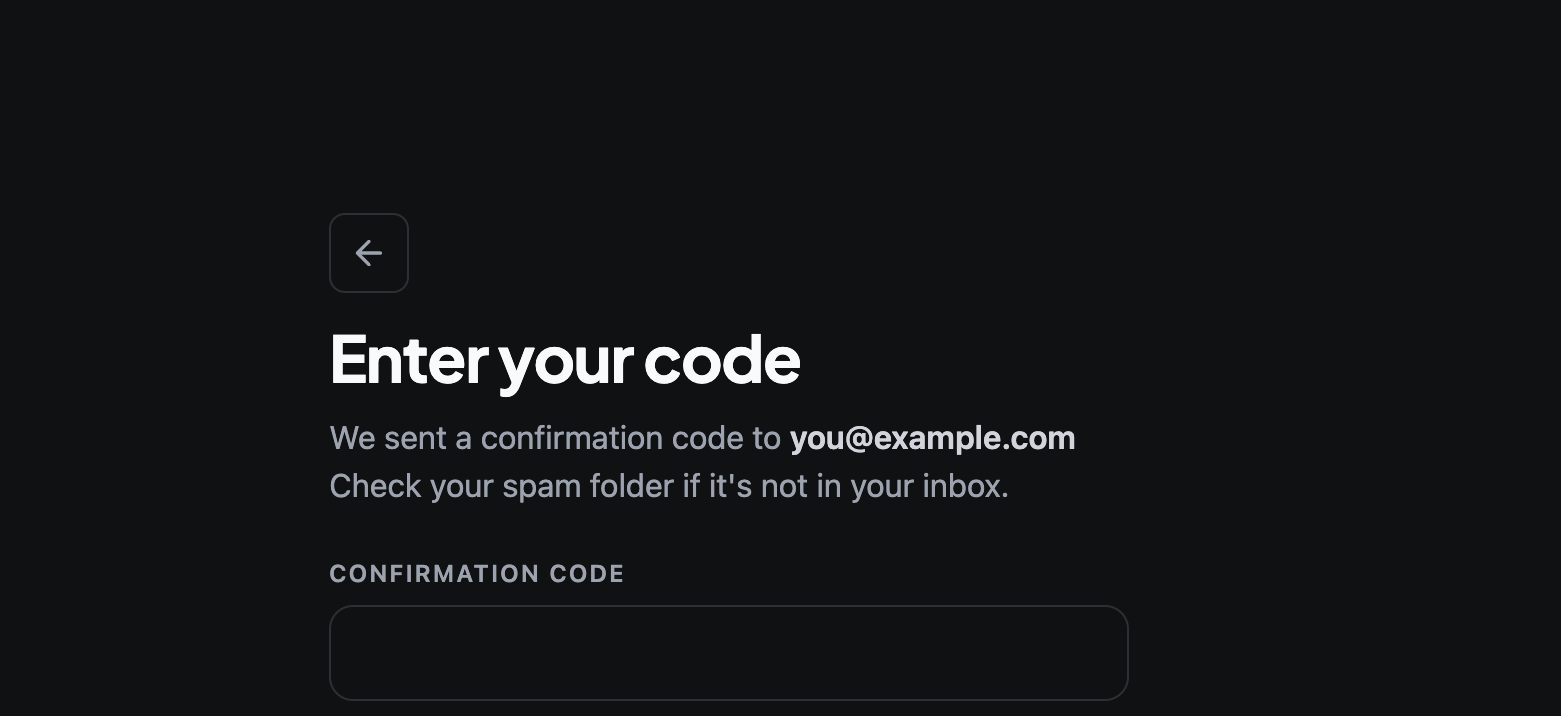
- Open the email, copy the confirmation code, and paste it into Enter your code, then click Continue.
 🔍 Click the image to see a larger version
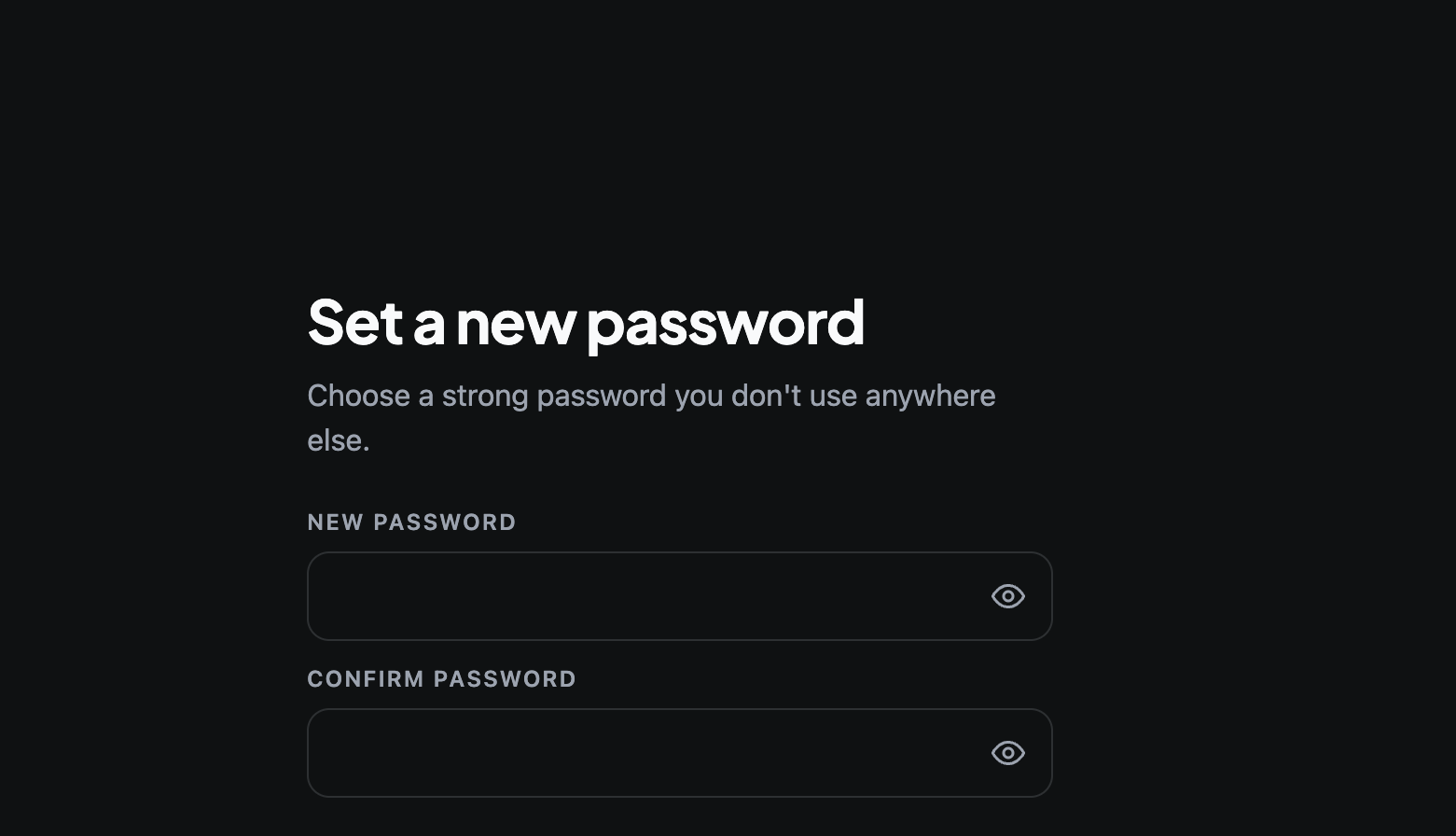
- On Set a new password, type the new password twice and click Save new password, then sign in with it.
 🔍 Click the image to see a larger version
If you don’t see the email right away, check spam before requesting another one (the screen says so too). If you ask for a new code too soon, Altrady shows “Email already sent, please wait N seconds to resend”: that’s normal, just wait out the countdown and try again.
If your account was created through Google, Apple, or Discord instead of a password, the Forgot password flow won’t send a reset email, because there’s no Altrady password to reset. Sign in with the same provider you originally used. See /en/login-security/sign-in-with-google-apple-discord.
I lost the phone with my Google Authenticator
If you use two-factor authentication (2FA) and lose the phone that had Google Authenticator on it, Altrady can’t verify a new code from you automatically, and there is no self-service reset. You’ll need to contact support and open a ticket, and resetting 2FA this way takes at least 7 days to process. There’s no faster path around this, so plan for the wait.
This is exactly why Altrady shows a backup key when you first set up 2FA (Settings > Account Security, under the Backup Key tab). If you saved that key on paper, you can use it to recover your Google Authenticator yourself instead of waiting on a ticket. Going forward, once you’re back in your account, consider two things to avoid this happening again:
- Save the backup key somewhere safe outside your phone (paper, a password manager, anything that survives a lost or wiped device).
- Add a passkey as a second way in. See /en/login-security/add-a-passkey.
My account is temporarily blocked or rate-limited
After several failed password or 2FA attempts in a row, Altrady blocks the account for a short period to protect it. You’ll see a message like “Your account is blocked until [time]” or a wait-N-seconds message on the sign-in screen.
There’s no way to lift this early, including through support: it clears on its own once the time passes. Just wait, then try signing in again with the correct password and code. If you keep hitting the same block, double check you’re entering the right password and the current 6-digit code from Google Authenticator (codes refresh every 30 seconds, so a stale one won’t work).
Once you’re back in: check your devices
 🔍 Click the image to see a larger version
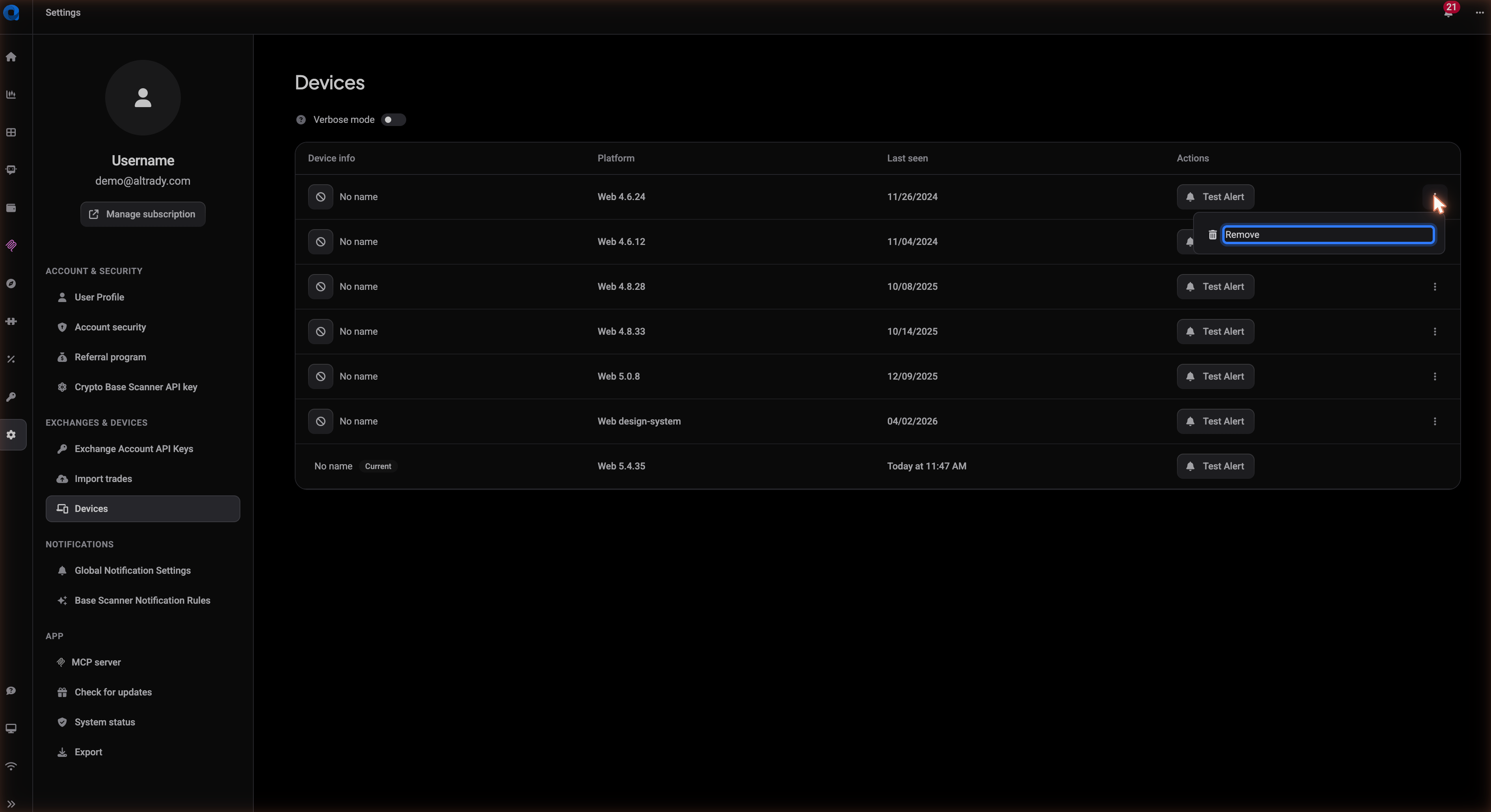
After recovering access, it’s worth a quick look at Settings > Devices. This list shows every device that has signed in to your account, with its platform and when it was last seen. If you do not recognize one, open its actions menu (the three dots on the right of that row) and choose Remove to sign that device out. Devices are removed one at a time, and the device you are using right now is labelled Current.
This is a login and device-list housekeeping step only. If you’re instead seeing an error about a device not being registered to place trades on a specific exchange, that’s a different, exchange-connection issue: see /en/connection-problems/device-not-registered.
Still stuck?
If none of the above matches what you’re seeing, or a recovery step isn’t working as described, reach out through support chat in the app or at help.altrady.com and describe exactly what message you’re getting. Someone can take it from there.