
How do I add and sign in with a passkey?
A passkey lets you sign in to Altrady with your fingerprint, face, device PIN, or a hardware security key, instead of typing a password. Once a passkey is on your account it also covers two-factor authentication automatically, so a single tap or scan is enough to sign in. This article covers what a passkey is, how to add one, how to sign in with it (including from a nearby device), and how to manage or remove one later.
What a passkey is
A passkey is a pair of cryptographic keys, a public key and a private key, created by an authenticator you control, such as your phone, laptop, Windows Hello, a FIDO2 security key, or a password manager. When you sign in, your authenticator proves your identity to Altrady using that key pair. Altrady never sees or stores your fingerprint, face data, or PIN, and the passkey itself is never sent over the network.
Passkeys are tied to Altrady’s domain, so a browser will refuse to use one on a lookalike phishing site. Combined with never transmitting the key itself, this makes passkeys significantly harder to compromise than a password or an SMS/TOTP 2FA code. You can also use a passkey to confirm sensitive account actions or to reset your password.
Most passkeys are “synced”: if you use a provider like iCloud Keychain, Google Password Manager, or a password manager, a passkey you create on one device automatically becomes available on your other devices signed into that same provider account. Hardware security keys (FIDO2) instead create “device-bound” passkeys tied to that one physical key; they can’t be backed up or transferred to another device, but they are portable and connect over USB, NFC, or Bluetooth. On some platform and browser combinations, a hardware key may be the only passkey option available.
Not sure whether your device or browser supports passkeys? Check the device support section on passkeys.dev.
Add a passkey to your account
- Open the sidebar and click the Settings icon.
- Go to Account security.
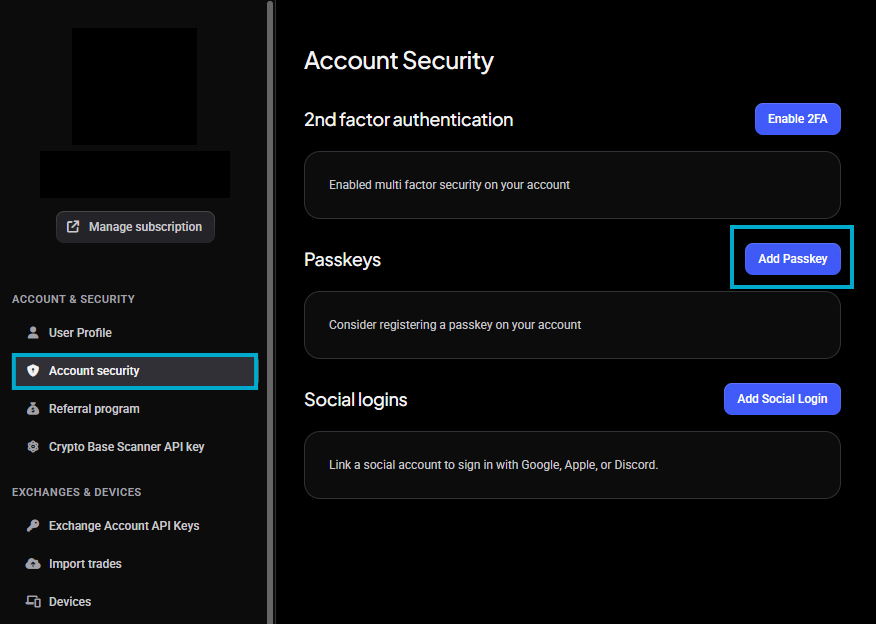 🔍 Click the image to see a larger version
-
In the Passkeys section, click Add Passkey.
-
Give the passkey a name that will help you tell devices apart later, such as “Work laptop” or “iPhone”, then click Create Passkey.
-
Your device or browser opens its own prompt: Face ID, Touch ID, Windows Hello, or a security key, depending on what it supports. Follow that prompt to finish.
You don’t need to re-enter your email or password: you’re already signed in, and the device prompt is the confirmation. (Entering your email and password is only required when you change your email address or password.)
Once that’s done, the passkey is saved to your account and appears in your Passkeys list. It’s normal for that prompt to look different from Altrady’s own screens; it comes from your operating system or browser, not from Altrady.
If you signed up for Altrady using Google, Apple, or Discord, you may already have been prompted to register your device as a passkey automatically during that signup, on devices and browsers that support it. You can still add more passkeys from Account security at any time.
Add passkeys for more devices
If you use a synced passkey provider, a passkey you add on one device is often already available on your other devices signed into that same provider (for example, the same iCloud account). Otherwise, repeat the Add Passkey steps above on each additional device or browser you sign in from. Every passkey you add shows up in the same Passkeys list with its own name.
Sign in with a passkey
From the device the passkey lives on
- Go to the Altrady sign-in page.
- Click Use Passkey login.
- Follow your browser or platform’s prompt to pick the passkey stored on this device, and confirm with your fingerprint, face, or PIN.
 🔍 Click the image to see a larger version
No password and no separate 2FA step is needed. This works the same whether the passkey is synced or device-bound.
From a nearby device
If the device you’re signing in on doesn’t have a passkey of its own, but your phone or tablet does, some authenticators let you use that nearby device to complete sign-in over Bluetooth. For example, you can sign in on a laptop that has no passkey configured by using a passkey registered on your phone.
- Go to the Altrady sign-in page.
- Click Use Passkey login.
- Choose the option to use a passkey from a nearby device.
- Follow the prompts, usually a QR code to scan or a push notification sent to that device.
- On the nearby device, finish the prompt, for example Face ID or your passcode on an iPhone.
Manage your passkeys
Back in Settings > Account security > Passkeys, each saved passkey shows:
- Its name
- Added: the date you registered it
- Last used: the date you last signed in with it, or “Never” if you haven’t yet
You can rename a passkey to help tell your devices apart later.
Delete a passkey
- In the Passkeys list, find the one you want to remove.
- Click the trash icon next to it.
- Confirm the removal.
Deleting a passkey only removes it from Altrady. It doesn’t touch Face ID, Touch ID, or Windows Hello on your device, those keep working for everything else. If that was your only passkey, the sign-in screen goes back to requiring your password (and 2FA, if enabled).
A quick note on losing a device
If you lose the device a passkey lived on, that passkey simply stops being usable. It doesn’t lock you out. Sign in another way (password and 2FA, or another passkey) and delete the old entry from the Passkeys list once you’re in.
Still stuck?
If a passkey prompt doesn’t appear, isn’t recognized, or you’re locked out with no other sign-in method available, reach out through support chat and we’ll help you get back into your account.