
How do I export my trade, order, and balance data?
You can pull your trades, orders, or balances out of Altrady as a CSV file from Settings > Export. Pick the data type, the account(s), and a date range, then download the file for your accounting, taxes, or personal records.
Open the export screen
In Settings, choose Export. This opens the Data export page, where you build a new export and see the status of past ones. Nothing here changes your account or your exchange connections. It only reads data Altrady already has and packages it into a file.
Choose what to export
 🔍 Click the image to see a larger version
Under New export, pick the data type first:
- Balances: your daily balance snapshots per currency (available, in orders, total).
- Orders: order-level data (pair, side, type, price, amount, filled, remaining).
- Trades: individual buy and sell fills (pair, side, price, quantity, fee, cost).
Each type has its own columns, so decide what you actually need before setting filters. If you want both trades and a balance history for your accountant, you’ll create two separate exports.
Pick accounts and a date range
Select one or more exchange accounts to pull from. Then set a Start date and End date. If you leave the start date blank, Altrady defaults to 30 days ago, so a quick export without touching the date fields still gives you the last month of activity. A single export can cover up to 90 days, so for a full year of records you’ll need to run a few exports back to back, one for each 90-day stretch.
Preview before you commit
 🔍 Click the image to see a larger version
Click Preview to see a sample of the results in a table, right on the page. Only the first 20 rows are shown here, so a small preview table doesn’t mean your export will be small too, it’s just a quick check that you’ve selected the right accounts and date range before generating the full file.
If the preview looks off (wrong accounts, empty table, dates that don’t match what you expected), adjust the filters and preview again. It costs nothing and doesn’t count toward your export limit.
Export and choose a file format
 🔍 Click the image to see a larger version
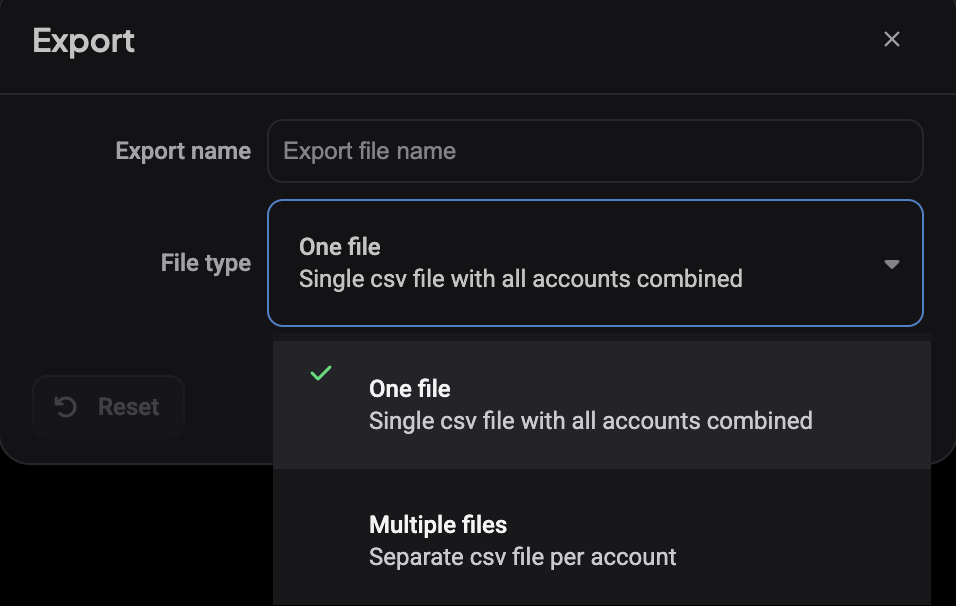
When the preview looks right, click Export. A window opens asking you to name the export and pick a File type:
- One file: a single CSV with all selected accounts combined.
- Multiple files: a separate CSV per account, delivered together in a zip.
Multiple files is worth it if you keep books per exchange account; one file is simpler if you just want everything in one spreadsheet. Confirm and Altrady starts building it in the background, so you can navigate away and come back later.
Track and download from Recent exports
The Recent exports list shows every export you’ve created, with its status:
- Pending: queued, not started yet.
- Processing: being generated now.
- Ready: done, with a download link.
Larger date ranges or many accounts take longer to process. Once an export shows Ready, download it from the list. You can also delete old exports you no longer need to keep the list tidy.
Keep in mind Altrady allows up to 10 exports per rolling 30 days. If you’re scripting regular exports or requesting many one-off files, plan around that ceiling. Deleting an export you’ve already downloaded removes it from the count, so tidying up old ones frees up room for new exports within the same 30-day window.
This is separate from importing trade history
Exporting reads data already in Altrady. If you’re instead trying to bring trade history from your exchange into Altrady, that’s a different flow: see How do I import my trade history from an exchange?. If an export or import is throwing errors around file format or column mapping, check Exchange import troubleshooting: file and mapping errors.
Still stuck?
If an export stays stuck on Pending or Processing for a long time, or a Ready file downloads empty, reach out through support chat in the app. Have the export name and the account(s) and date range you selected ready, it helps us find the exact export faster.