
Why did my trade history import fail or show the wrong data?
Most import failures come down to one of five things: the file itself, the wrong exchange account selected, a timezone mismatch, an incomplete column mapping, or a fee column that combines two values. Each has a quick fix without re-doing the whole import.
Check the file first
Altrady’s importer accepts CSV, XLSX or XLS files up to 4MB. If your file is bigger or in another format (like a plain text export or a PDF), the upload is rejected before it even reaches the preview.
If your exchange’s export is over the limit, open it in a spreadsheet app and split it by date range, then import each piece separately. Re-importing a file replaces the trades previously recorded for that period, so importing overlapping pieces will not create duplicate trades.
“No rows in this file matched a market”
This message means Altrady read the file fine but couldn’t match any row to a market on the account you selected. It almost always means the wrong exchange account (API key) was picked for that file, for example uploading a Kraken export while a Binance account was selected in Select exchange account API key.
Go back to the import screen, check which account is selected, and switch it to match the exchange the file actually came from. Re-run the preview and the trades should show up.
Trades imported, but the times look wrong
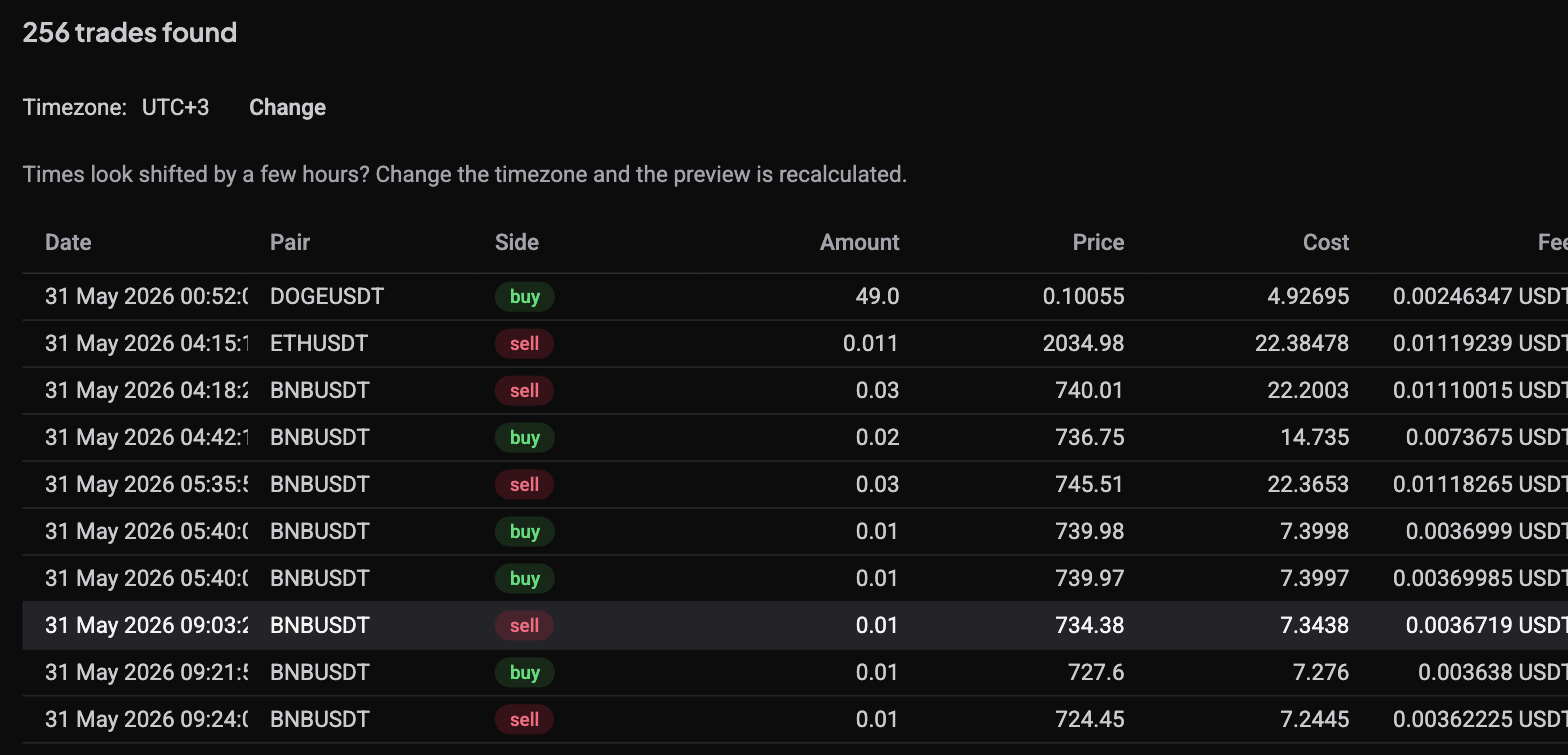 🔍 Click the image to see a larger version
If your trades appear shifted by a few hours, the file’s timezone was detected incorrectly. Altrady tries to detect the timezone from the file automatically, but you can correct it yourself.
Look for the Timezone line above the preview and select Change. Pick the correct zone and the preview recalculates immediately, no need to re-upload the file. Once the times in the preview line up with what you expect, continue with the import.
“0 trades found” or the preview looks empty
An empty preview usually points to one of the same two causes above (wrong account, or a file format the parser can’t read cleanly), or to a column mapping that Altrady couldn’t complete automatically. Check the row count message near the top of the preview; if it reads oddly low, open Adjust columns and confirm each column landed where you’d expect.
Fix the mapping manually
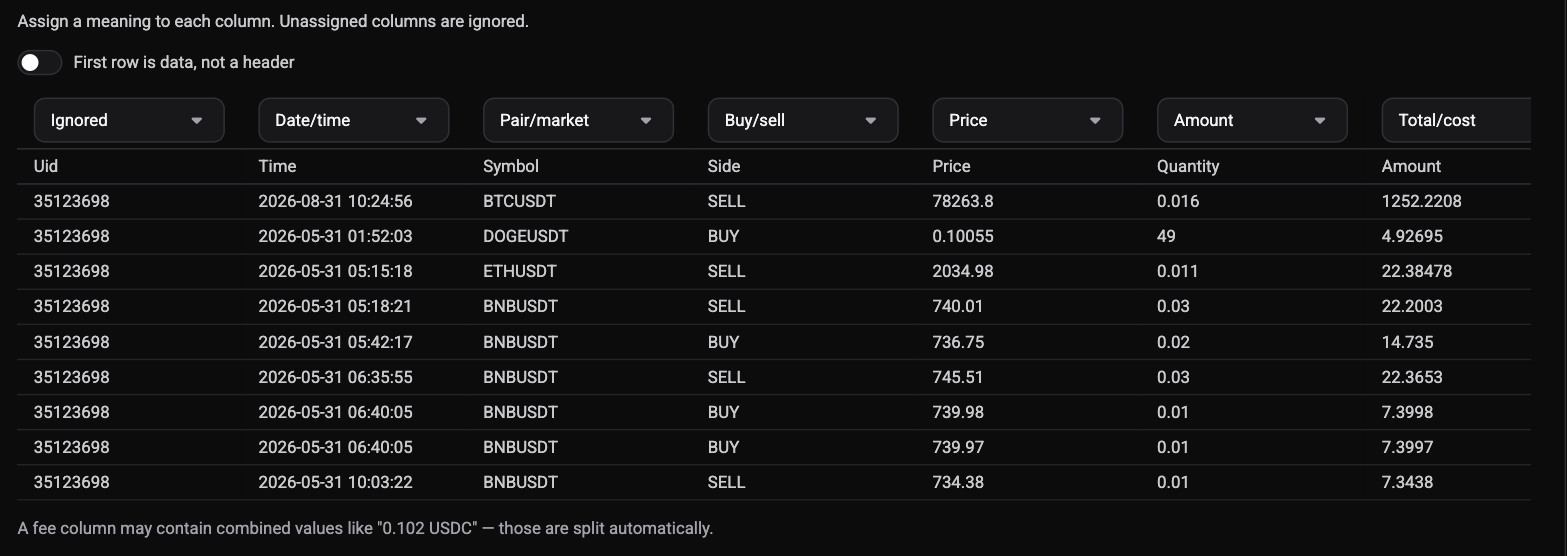 🔍 Click the image to see a larger version
Altrady tries to detect your file’s columns automatically, but exports vary a lot between exchanges. When it can’t map every required field, use Adjust columns to open the column picker and assign each column yourself:
- Open Adjust columns from the preview screen.
- For every column in your file, assign what it contains: Date/time, Buy/sell, Amount, and either Price or Total/cost are required before Altrady can import the file. Pair/market (or separate Base coin and Quote coin columns), Fee, Fee currency, Trade ID and Order ID are optional but help match trades more precisely.
- Leave any column you don’t recognize as Ignored.
- If the first row of your file is data rather than column headers, check First row is data, not a header.
Once Date/time, Buy/sell, Amount and a price-or-cost column are all assigned, the preview updates and the trade count should look right.
Combined fee values are split automatically
Some exchange exports write the fee as a single combined value, like “0.102 USDC”, mixing the amount and the currency in one cell. You don’t need to split this yourself: Altrady recognizes the pattern and separates the number from the currency code automatically when that column is mapped to Fee.
Starting over with a different file
If the file itself turns out to be the problem (wrong export, wrong date range, wrong account entirely), don’t try to patch a bad upload. Select Cancel to drop the current file and upload a clean one. Your progress on this attempt is discarded, but nothing already imported is affected.
Still stuck?
If you’ve matched the right exchange account, corrected the timezone, and mapped every required column but the numbers still look wrong, reach out to support chat with the file (or a few sample rows) so the team can see exactly what your exchange’s export looks like.