
How do I assign a hotkey to a trade preset for one-key order entry?
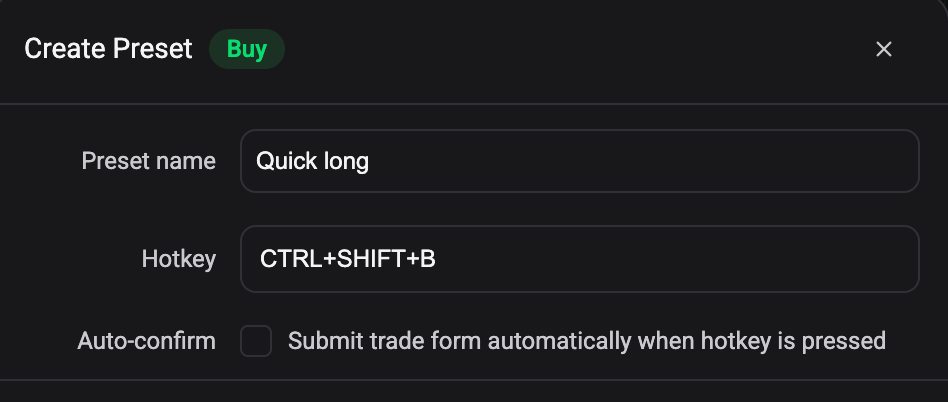
A trade preset saves a configured order so you can apply it again in one click. Give that preset a Hotkey and one keypress fills the trade form for you, or submits it outright if you also switch on Auto-confirm.
Where to find the Hotkey field
 🔍 Click the image to see a larger version
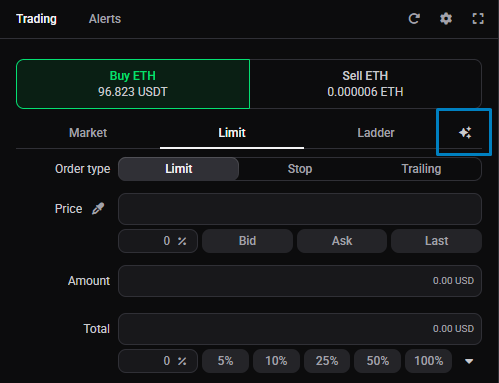
Presets live in the Trading widget in Advanced mode: look for the star icon to the right of the order sub-type selector.
 🔍 Click the image to see a larger version
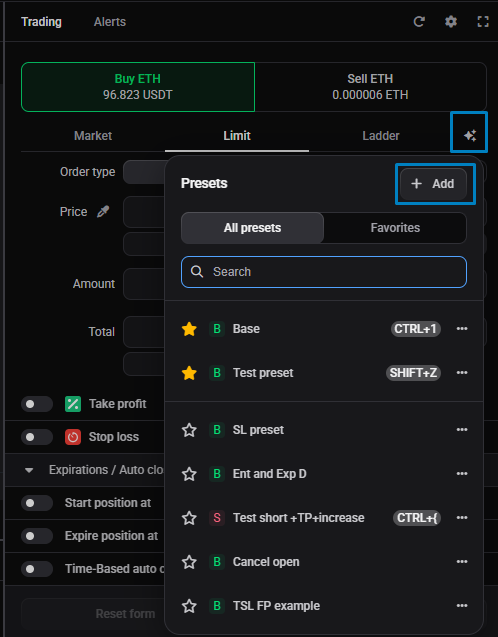
Click the star, then + Add for a new preset or Edit preset on one you already have. In the form that opens, Hotkey sits directly under Preset name.
 🔍 Click the image to see a larger version
A hotkey is optional. It earns its place on the one or two presets you reach for constantly, not on all ten. If you haven’t built a preset yet, start with How do I create and use order presets in Altrady? and come back for the hotkey.
Assigning the combination
- Open the preset for editing.
- Click the Hotkey field and press the combination you want.
- Check no warning appears underneath the field (see the next section).
- Click Save Preset.
The field records Ctrl, Shift, and the Cmd key together with one character key. On Windows and Linux the Cmd key shows as WIN. Alt and Option are not recorded. Press Backspace while the field is focused to clear it.
Keep combinations short and easy to repeat under pressure. Preset hotkeys work in the desktop app and in Altrady in a browser, not in the mobile app.
When Altrady warns about your combination
A message under the field tells you the combination is already spoken for. There are three:
- “This hotkey is already used by preset [name].” Another preset has it.
- “This hotkey conflicts with the Altrady shortcut [action].” It matches a built-in shortcut, for example Initiate new buy order on Shift+B.
- “This hotkey may be intercepted by your browser or operating system.” Common combinations like Cmd/Ctrl plus a letter or a digit often never reach Altrady.
These are warnings, not walls: you can still save. Pick a different combination anyway, because two things bound to one keypress is exactly the confusion you were trying to avoid.
Auto-confirm: instant submission, no second check
Once a hotkey is set, an Auto-confirm toggle appears below it, labeled “Submit trade form automatically when hotkey is pressed”. Left off, which is the default, the hotkey only loads the preset’s values into the trade form so you can read them over and submit yourself.
Switch it on and Altrady shows this warning: “Warning - pressing the hotkey will instantly submit the trade form without a confirmation step. An accidental press can result in an unwanted position.” Reserve it for a combination you are certain you won’t hit by accident, and be ready for it to fire the moment you press it. Clearing the Hotkey field switches Auto-confirm back off for you.
Reduce-position hotkeys have their own separate auto-confirm setting, which closes part of a position instead of opening one: see How do I set up reduce-position hotkeys?.
Removing or changing a hotkey
Open the preset, click the Hotkey field, press Backspace to clear it, and click Save Preset. The combination is free for another preset. To reassign it instead, press the new combination straight over the old one and save; the same warnings apply.
Where preset hotkeys work
Preset hotkeys fire wherever you are in the trading terminal, including inside the chart, so you can load or submit a preset without clicking away from it first. Altrady’s trading and reduce hotkeys behave the same way. The one place none of them fire is a text field: a stray keystroke while naming something will not trigger an order.
For the full list of built-in combinations, see What keyboard shortcuts does Altrady support?, and to change the built-in Trading ones, see How do I customize or reassign a hotkey in the Trading tab?.
Still stuck?
If a hotkey doesn’t fire, doesn’t load the values you expect, or a warning won’t clear, reach out through Altrady’s support chat and our team will take a look with you.