
How do I set up reduce-position hotkeys?
A reduce hotkey closes a set percentage of your open position with one keypress. Open the Hotkeys window with Ctrl+H (Ctrl+Cmd+H on Mac), go to the Trading tab, click Add reduce hotkey, then set a key combination, a percentage, and an order type. Setting one up takes about a minute.
Open the Hotkeys window and find the reduce hotkeys
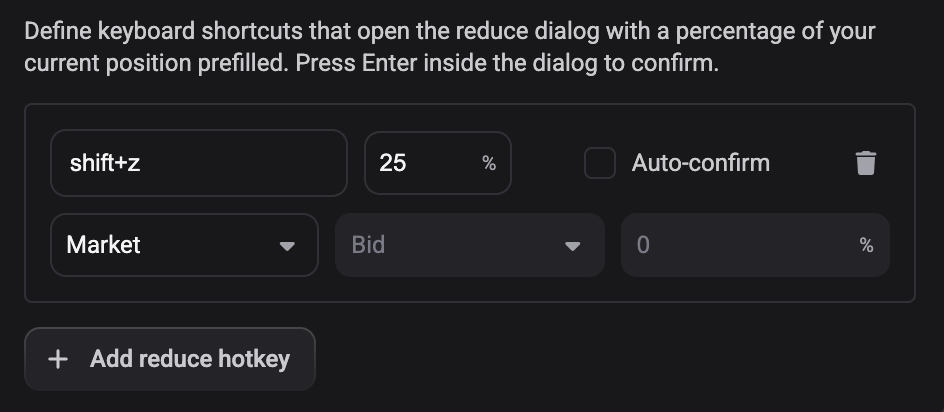
Press Ctrl+H (Ctrl+Cmd+H on Mac) and click the Trading tab. Scroll past the list of trading actions and their key fields. Underneath them is the reduce area, introduced with this line: “Define keyboard shortcuts that open the reduce dialog with a percentage of your current position prefilled. Press Enter inside the dialog to confirm.”
The Trading tab is the only tab in this window you can edit, so this is where all your own combinations live. For the other tabs’ fixed shortcuts, see What keyboard shortcuts does Altrady support?.
Add a reduce hotkey
 🔍 Click the image to see a larger version
- Click Add reduce hotkey. An empty row appears.
- Click the key field on the left of the row and press the combination you want. It records as you press.
- Set the percentage field next to it: how much of the position that combination closes. Anything from 1 to 100, so 25 trims a quarter and 100 exits fully.
- In the row below, pick the order type: Market or Limit.
Each row is independent, so you can keep several: one combination for a quick 25% scale-out, another for a full exit. The trash icon at the end of a row removes it. Everything you change is stored with your Altrady account straight away, so your rows come with you when you sign in elsewhere.
Limit orders: price reference and offset
Choosing Limit activates two fields that stay greyed out for a market order:
- Price reference: Bid, Ask, or Last. The price your limit order is calculated from.
- Offset: a percentage applied to that reference price. A positive value sets the limit above it, a negative value below it, so the order can sit away from the current price rather than exactly on it.
If those are more decisions than you want mid-trade, Market needs neither: it exits at the best available price right away.
What happens when you press it
The combination opens the close dialog with the percentage already filled in, so you can read the size and price before anything reaches the exchange. Press Enter while the dialog is open to confirm and send the order, or close it to back out.
A few conditions have to be met, and they explain most “nothing happened” cases:
- You need an open or pending position on the market tab you are on.
- Reduce hotkeys do not fire during a replay session.
- If the position is a manual one, Altrady asks “Convert to smart position?” first, because a reduce needs a smart position to manage the exit. Confirm, and the reduce continues.
- The combination is ignored while your cursor is in a text field. Inside the chart it does work.
Auto-confirm: understand the risk before turning it on
 🔍 Click the image to see a larger version
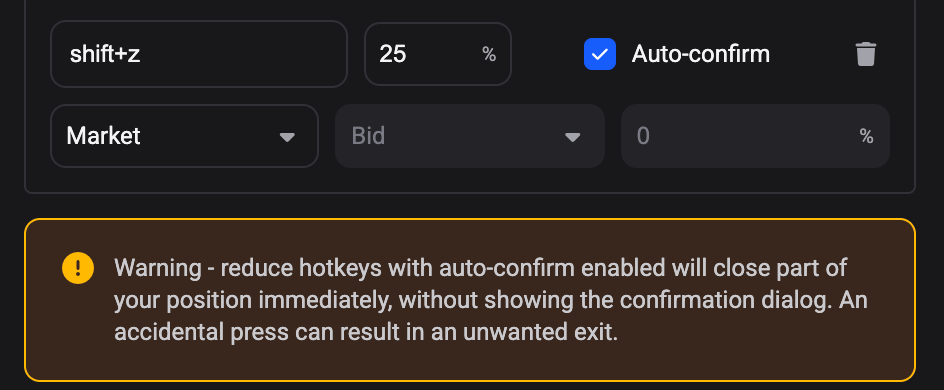
Each row has its own Auto-confirm toggle, off by default. Switch it on for any row and Altrady shows this warning in the window: “Warning - reduce hotkeys with auto-confirm enabled will close part of your position immediately, without showing the confirmation dialog. An accidental press can result in an unwanted exit.”
In plain terms: with auto-confirm on there is no dialog and no Enter to press. The moment you hit that combination, that percentage of your position is closed at the exchange. A stray keystroke or a muscle-memory press meant for something else sends a real order. Keep the confirmation dialog on while you settle on your key layout, and reserve auto-confirm for combinations you are confident you won’t hit by accident.
Related articles
For what reducing or closing does to your trade, see How do I close, exit, or cancel a position?. To change the built-in Trading combinations, see How do I customize or reassign a hotkey in the Trading tab?.
Still stuck?
If a reduce hotkey isn’t behaving the way you expect, or you are unsure whether auto-confirm suits your workflow, reach out through support chat in the app and the team can walk through your setup with you.