
How do I customize or reassign a hotkey in the Trading tab?
Yes, for the Trading tab of the Hotkeys window. Open Hotkeys with Ctrl+H (Ctrl+Cmd+H on Mac), switch to the Trading tab, click the key field next to any action, and press your new combination. It saves to your Altrady account the moment you press it.
Where to find the Trading hotkeys
 🔍 Click the image to see a larger version
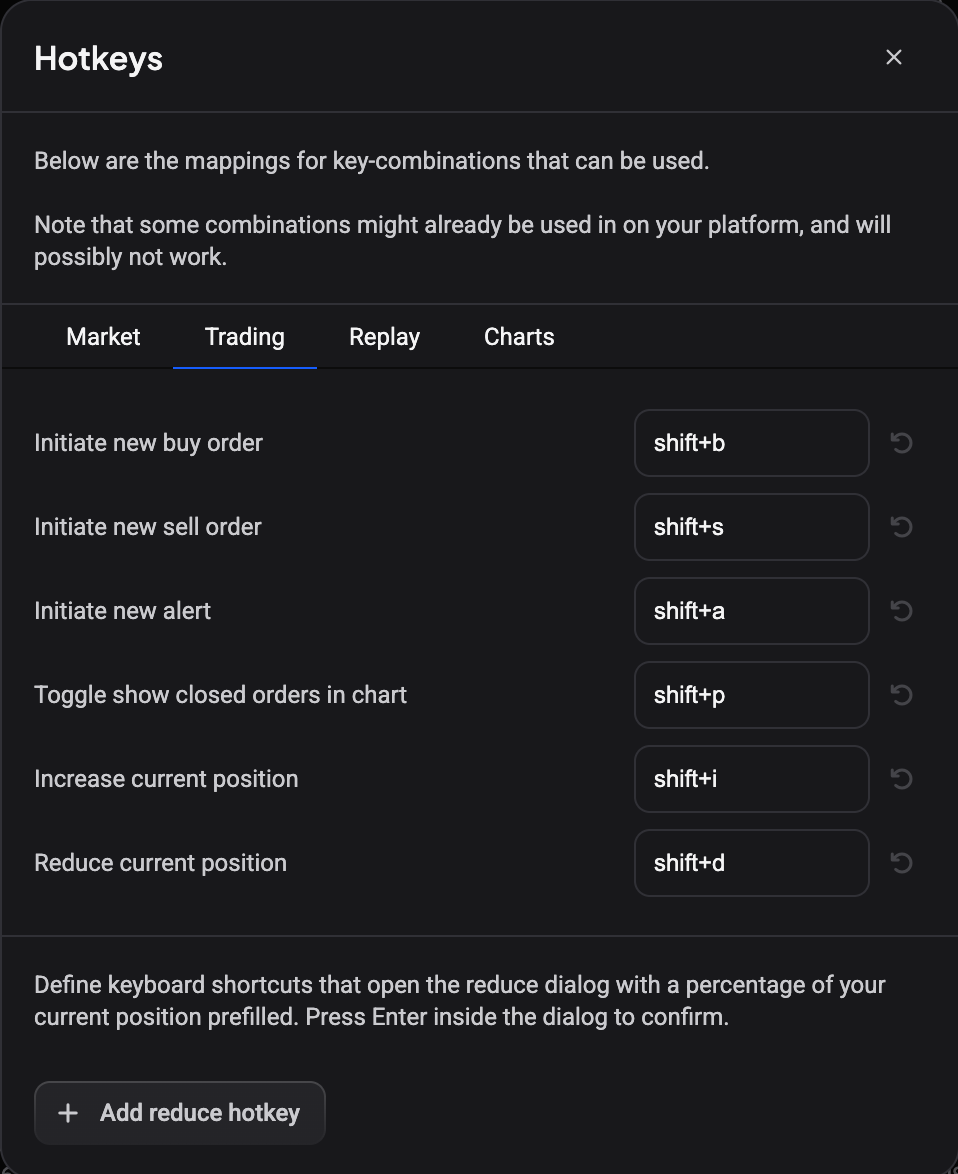
Open the Hotkeys window and click the Trading tab. Of the four tabs (Market, Trading, Replay, Charts), this is the only one whose combinations are editable. The other three list their combinations as plain text you can look up but not change.
On the Trading tab each action has an editable key field and a small undo arrow button next to it:
- Initiate new buy order (default Shift+B)
- Initiate new sell order (default Shift+S)
- Initiate new alert (default Shift+A)
- Toggle show closed orders in chart (default Shift+P)
- Increase current position (default Shift+I)
- Reduce current position (default Shift+D)
Below them sits the reduce-hotkey section, which is a different thing: it defines extra combinations that close a set percentage of your position. That one has its own article, How do I set up reduce-position hotkeys?.
Assign a new key combination
- Click the key field for the action you want to change.
- Press the combination you want. The field records it as you press, so there is no separate save button.
- Move on to another field, or close the window. It is already stored.
The field records Ctrl, Shift, and the Cmd key (shown as WIN on Windows and Linux) together with one character key. Alt and Option are not recorded, so build your combination from the other three modifiers.
While the field is focused, Altrady swallows the keypress so your browser or operating system doesn’t act on it. A few combinations are reserved so tightly by the browser that it never reaches the field at all; if nothing appears when you press one, pick a different combination.
If you’re not sure a change took, reopen the Hotkeys window and check the field still shows it.
Reset a hotkey back to default
 🔍 Click the image to see a larger version
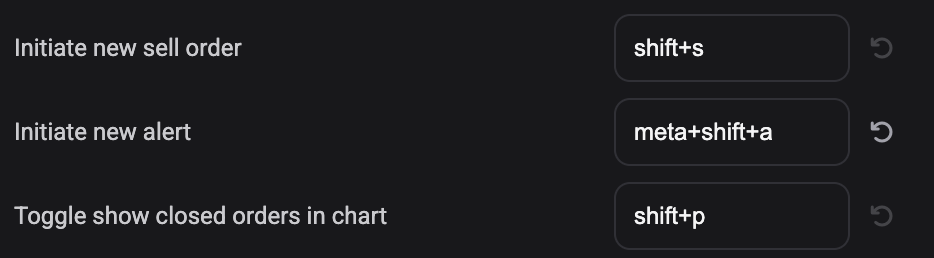
Click the small undo arrow next to a key field and that action goes back to its original combination. The button stays greyed out until you have actually changed that field, so you can see at a glance which ones you have customized.
Why you can’t reuse the same combination twice
Two actions on the Trading tab cannot share one combination. Assign a combination that another Trading action already uses, and that other action’s field is cleared immediately, so one keypress never triggers two things. If a field suddenly looks empty after a rebinding session, that is what happened: give it a fresh combination.
This check covers the Trading tab only. It does not compare against the Market, Replay, or Charts combinations, or against a hotkey you gave a trade preset.
Your hotkeys follow your account
Custom hotkeys are stored with your Altrady account, not on the machine you set them on. Sign in on another computer and your combinations come with you, and reinstalling the app doesn’t reset them. They are also independent of which exchange account is active.
When a customized hotkey doesn’t fire
Trading hotkeys act on the market you are currently trading, so an increase or reduce combination needs an open or pending position on the active market tab. If nothing happens, check there is one.
They also stay quiet while your cursor is in a text field, so typing a market name or a note never fires an order. Click outside the field and try again. Inside the chart they do work: buy, sell, alert, and closed-orders combinations fire there too.
For the full list of defaults across all four tabs, see What keyboard shortcuts does Altrady support?. To give a saved trade preset its own combination, see How do I assign a hotkey to a trade preset for one-key order entry?.
Still stuck?
If a Trading hotkey won’t record, or keeps reverting on its own, reach out through support chat in the app and we’ll take a look.