
How to create a TradingView bot
A TradingView Bot trades the alerts from your own TradingView strategy, such as a Pine Script strategy. Your alerts decide the entries, DCA orders, take profits and stop loss, and the bot places them on your exchange account. Setting one up takes a few minutes.
To trade signals from a provider such as Crypto Base Scanner (QFL) or The Better Traders instead, create a Signal bot: see How to set up and configure a signal bot.
Create the bot
- Open Bots, click + Create and pick TradingView Bot.
- The wizard opens on Create TradingView Bot. Choose:
- Account: the picker separates Live and Demo accounts, and your choice decides whether you get a live or a demo bot.
- Currency: USDT, USDC or Other.
- Margin type (Isolated or Crossed) and Leverage: these appear only on a futures account.
- Investment: type an amount or use a quick-select button. Reinvest profits adds profit from closed positions back into the investment.
- Click Next.
Review your bot
Review your TradingView Bot shows the max positions, how many of them may be on one market, and the position size. DCA, Take profit and Stop loss read Managed by signal: your alerts decide them.
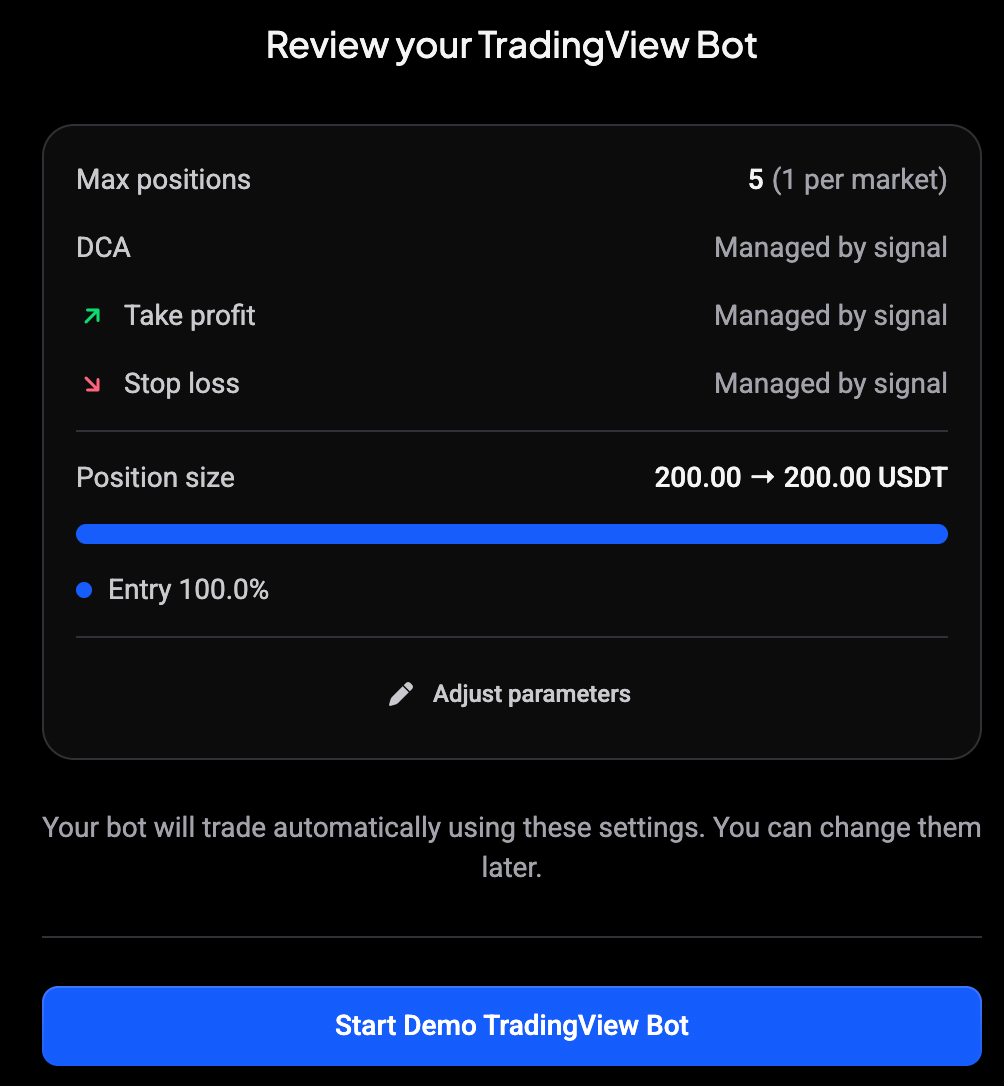 🔍 Click the image to see a larger version
- To change settings first, click Adjust parameters. The Entry, Take profit, Stop loss, Filters and Journal tabs open, with DCA set to Signal so the bot follows your alerts. What each tab does is explained in How to set up and configure a signal bot.
- To start, click Start Live TradingView Bot, or Start Demo TradingView Bot on a demo account.
Copy the alert payload
The success step shows what TradingView needs:
- API key and Secret: copy both now. The secret is only shown once; you can generate a new one later from the bot settings.
- Webhook payload template: the JSON to paste into your TradingView alert message. It already contains your key, secret and TradingView placeholders such as the exchange, ticker and close price.
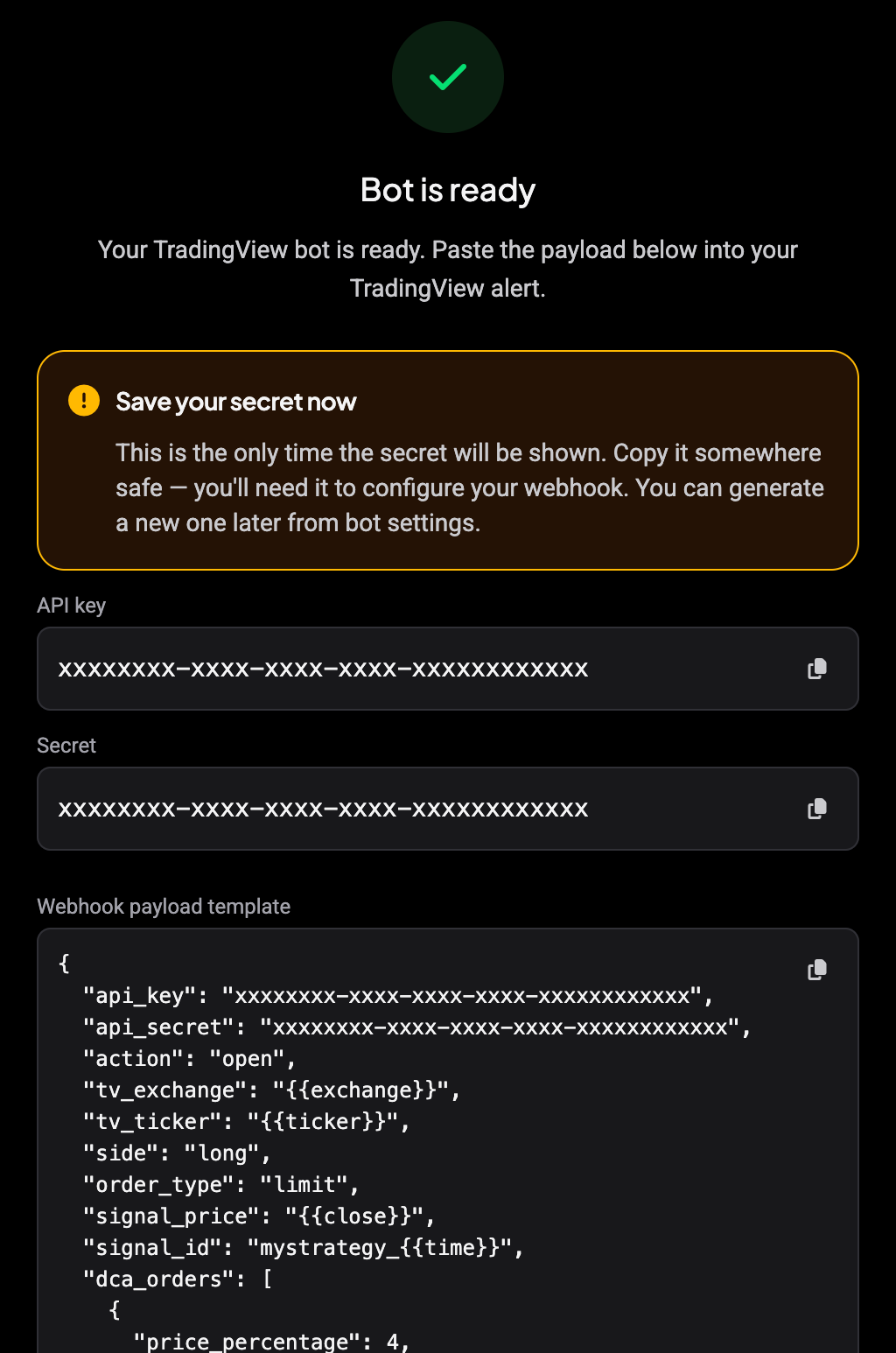 🔍 Click the image to see a larger version
Don’t worry if you lose the secret: generate a new one in the bot settings and update your alert.
For the webhook URL, creating the alert in TradingView and every payload field, see How to Connect TradingView Alerts to Altrady with Webhooks and the Webhook Signal Reference.
Still stuck?
If your TradingView alerts don’t reach your bot, work through Troubleshooting: TradingView Webhook Signals Not Triggering Orders in Altrady first. If that doesn’t solve it, reach out via support chat.