
How to create a DCA bot: Immediate, Indicator or Price move
A DCA bot opens a position, lines up safety orders below it and closes the position at your take profit or stop loss. You decide when it opens: straight away, when your indicator conditions turn true, or when price moves by a percentage you set. Creating one takes about five minutes.
Before you start: you need a connected exchange account or a demo account.
Choose a bot kind
- Open Bots in the left-side menu.
- Click + Create at the top right of the Trading Bots page.
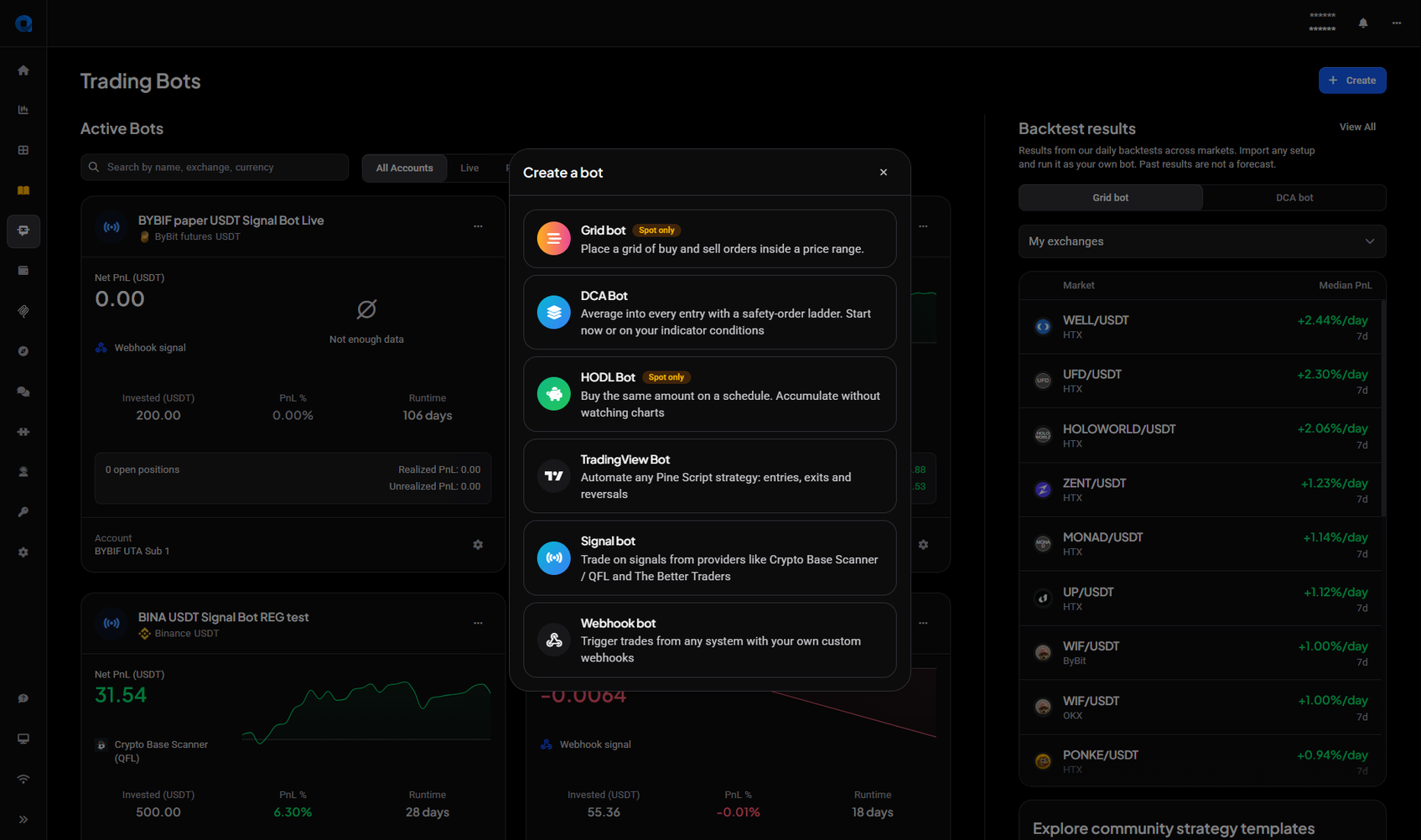
- The Create a bot dialog lists every kind of bot. Pick DCA Bot.
 🔍 Click the image to see a larger version
The other cards open their own flows: HODL Bot buys on a schedule, TradingView Bot follows your Pine Script alerts, Signal bot follows a signal provider such as Crypto Base Scanner (QFL), and Webhook bot takes signals from your own system. See How to set up and configure a signal bot for the signal bot.
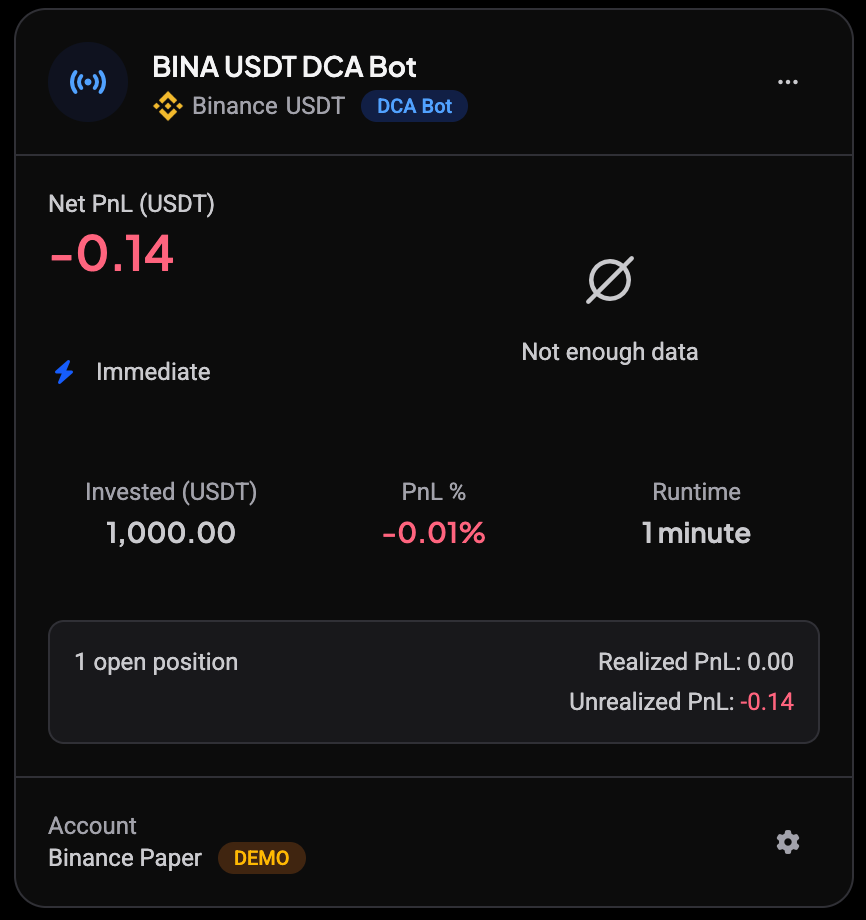
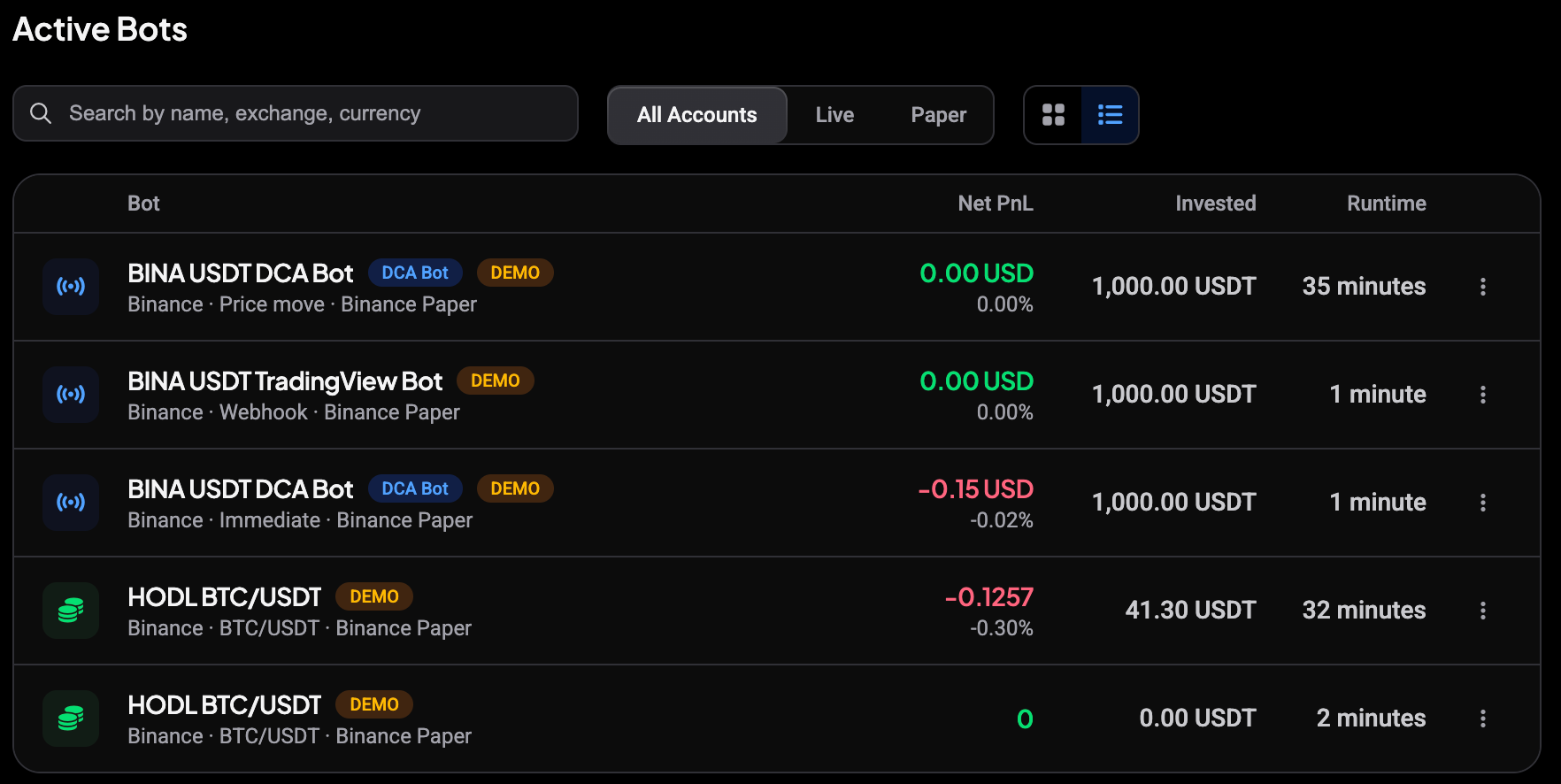
Your new bot is named after its kind and market, for example BINA USDT DCA Bot. On the Trading Bots page its card shows a DCA Bot badge and how it starts: Immediate, Indicator or Price move.
 🔍 Click the image to see a larger version
 🔍 Click the image to see a larger version
Pick how the bot starts
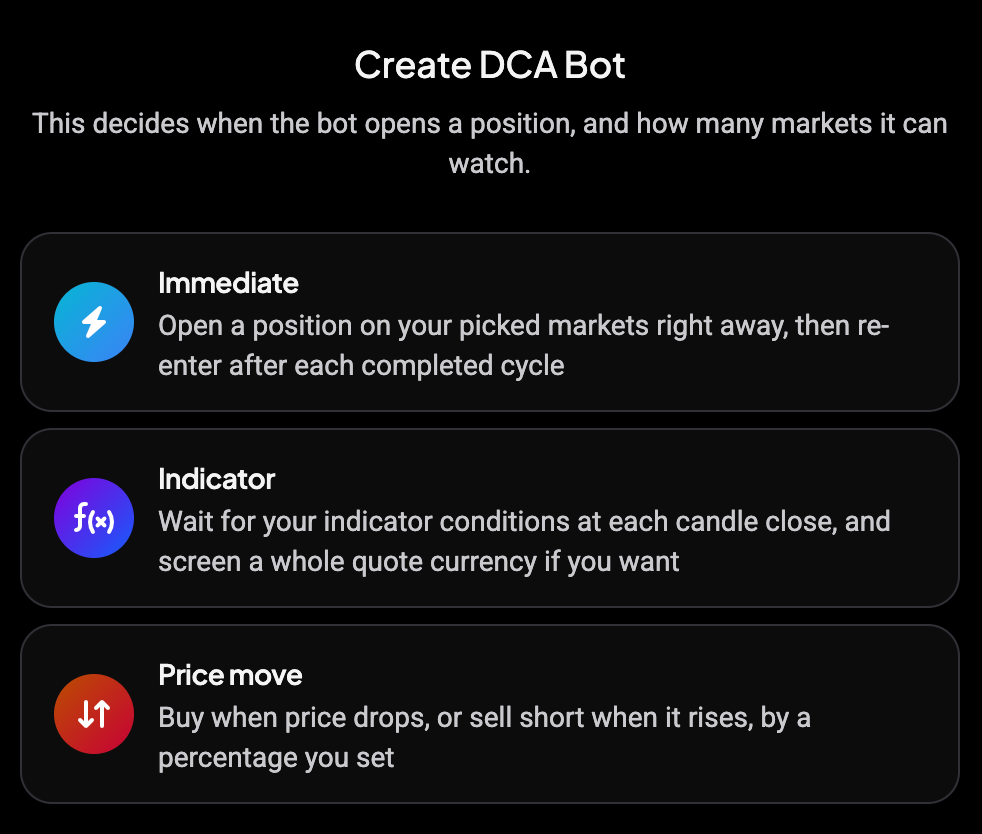
The first step asks How should this bot start? There are three choices:
- Immediate: opens a position on your picked markets right away, then opens a new one after each completed cycle.
- Indicator: waits until your indicator conditions turn true at a candle close. It can watch a whole quote currency at once.
- Price move: opens once price drops (or, on futures, rises) by the percentage you set.
 🔍 Click the image to see a larger version
Account, markets and investment
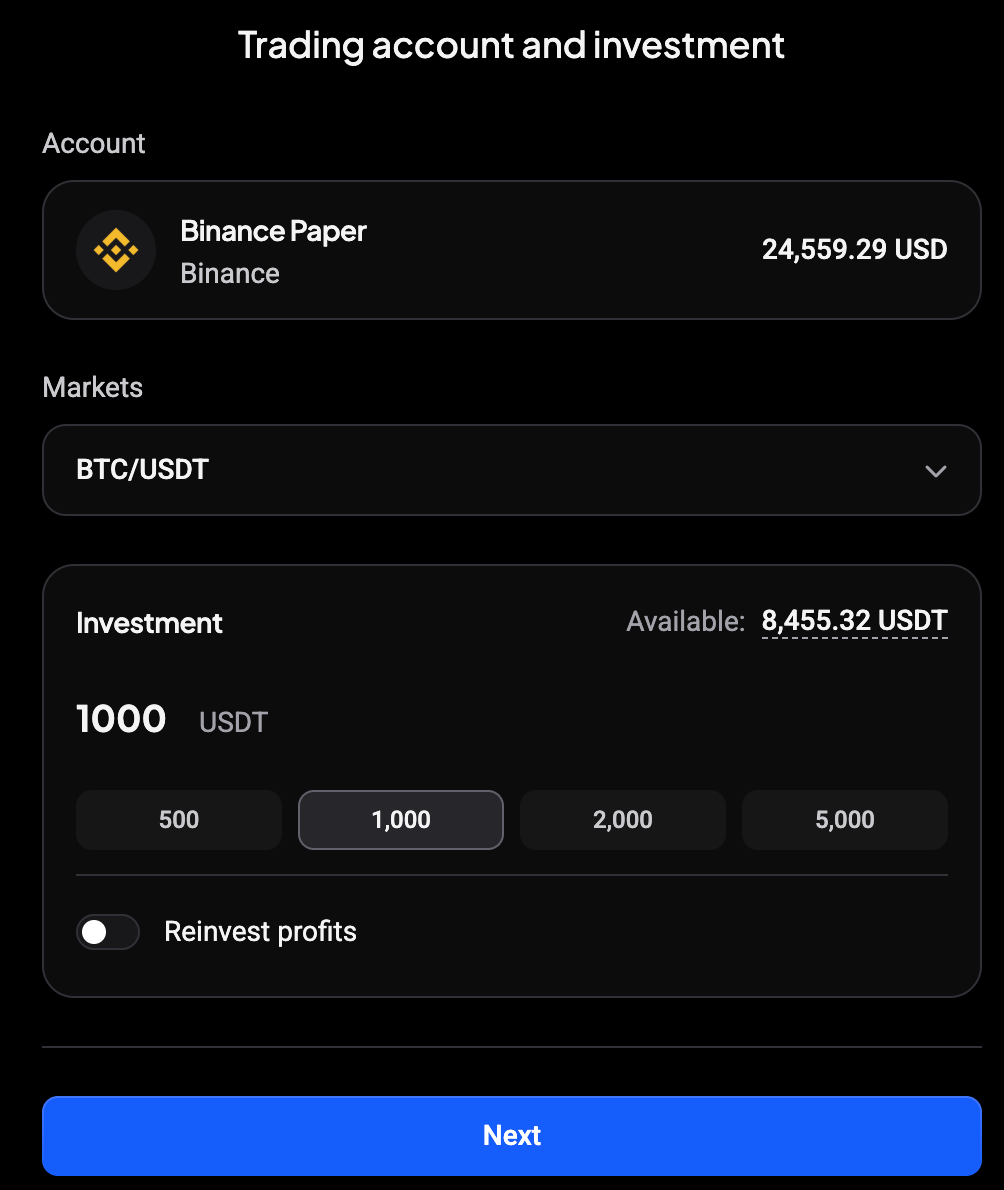
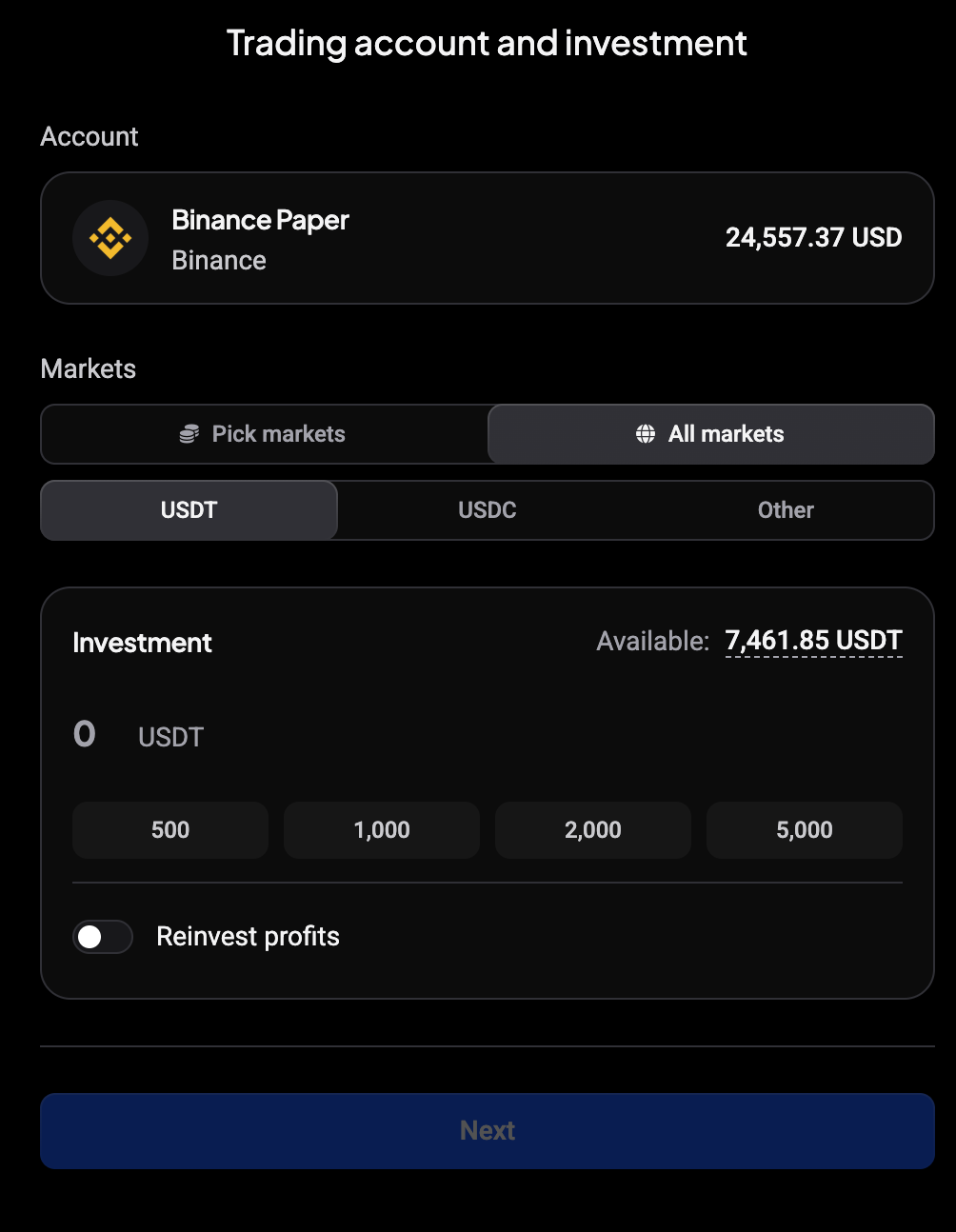
On Trading account and investment:
- Account: pick a Live or Demo account. The balance shows next to each one.
- Markets: pick one or more markets. For an Indicator bot you can switch to All markets and choose a quote currency (USDT, USDC or Other): the bot then screens every pair on that quote currency with your conditions.
- Investment: the total the bot may use. The buttons are amounts based on your balance.
- Reinvest profits: adds profit from closed positions back into the investment.
 🔍 Click the image to see a larger version
 🔍 Click the image to see a larger version
Click Next. Immediate bots go straight to the review. Indicator and Price move bots first ask for their start settings.
Indicator start: set your conditions
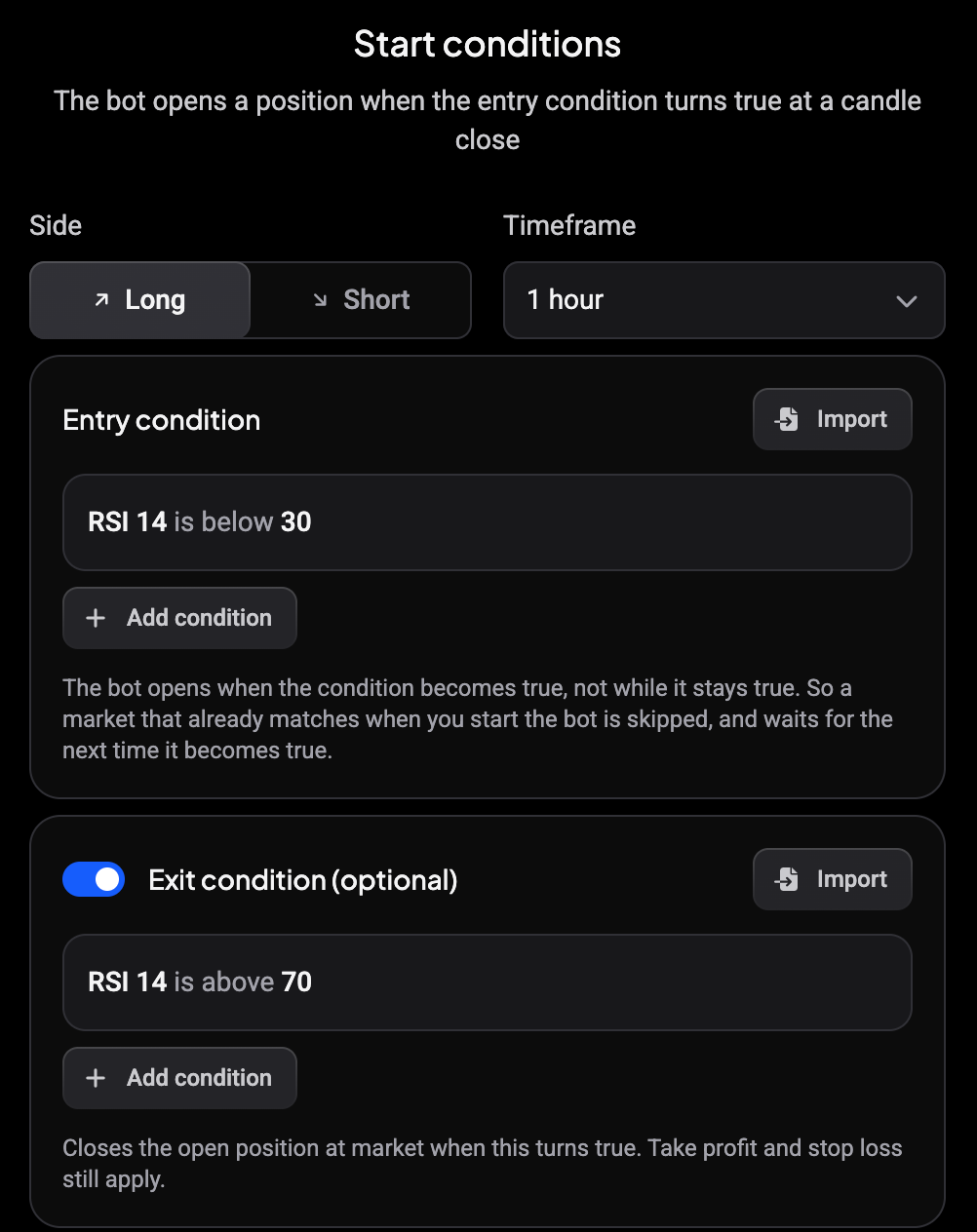
The Start conditions step sets when the bot opens and, optionally, when it closes.
- Side: Long or Short.
- Timeframe: the candle size the conditions are checked on. The smallest is 3 minutes.
- Entry condition: click a condition to edit the indicator, comparison and value, or Add condition to combine several. Besides the above and below comparisons, you can use crosses above and crosses below: a crossover is only true on the candle where the indicator moves across the value or the other indicator.
- Exit condition (optional): turn it on to close the position at market when this condition turns true. Take profit and stop loss still apply.
 🔍 Click the image to see a larger version
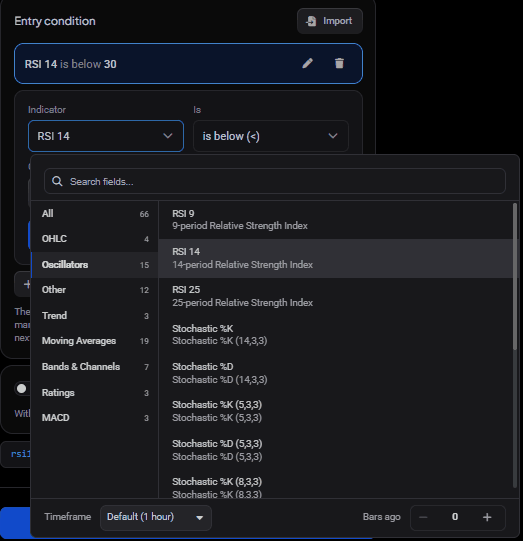
Each indicator in a condition can have its own timeframe and can look back at earlier candles. Click the Indicator field and use the footer under the list:
- Timeframe: Default uses the bot’s timeframe. Pick another timeframe to calculate only this indicator on it.
- Bars ago: 0 uses the latest candle. Raise it to read the value from that many candles back.
 🔍 Click the image to see a larger version
For example, RSI 14 at 1 bar ago is at or below 30 AND RSI 14 is above 30 matches the candle where RSI moves up through 30, the same as RSI 14 crosses above 30. These settings work the same way as in the TA Scanner: see How do I create a TA Scanner strategy?.
Altrady checks indicator bots every minute and evaluates each bot once per closed candle of its timeframe: a 5 minute bot once per 5-minute candle, a 1 hour bot once per hour. The check runs 1 to 2 minutes after the candle closes, once the indicator values are ready. Every candle close is checked, so a condition that is true for only one candle, like a crossover, is not missed.
The bot opens when the condition becomes true on a candle close, not while it stays true. A market that already matches when you start the bot is skipped until the next time the condition turns true. After a position closes, the condition must turn false and then true again before the bot re-enters that market. Your cooldowns still apply, and the bot needs a free position slot.
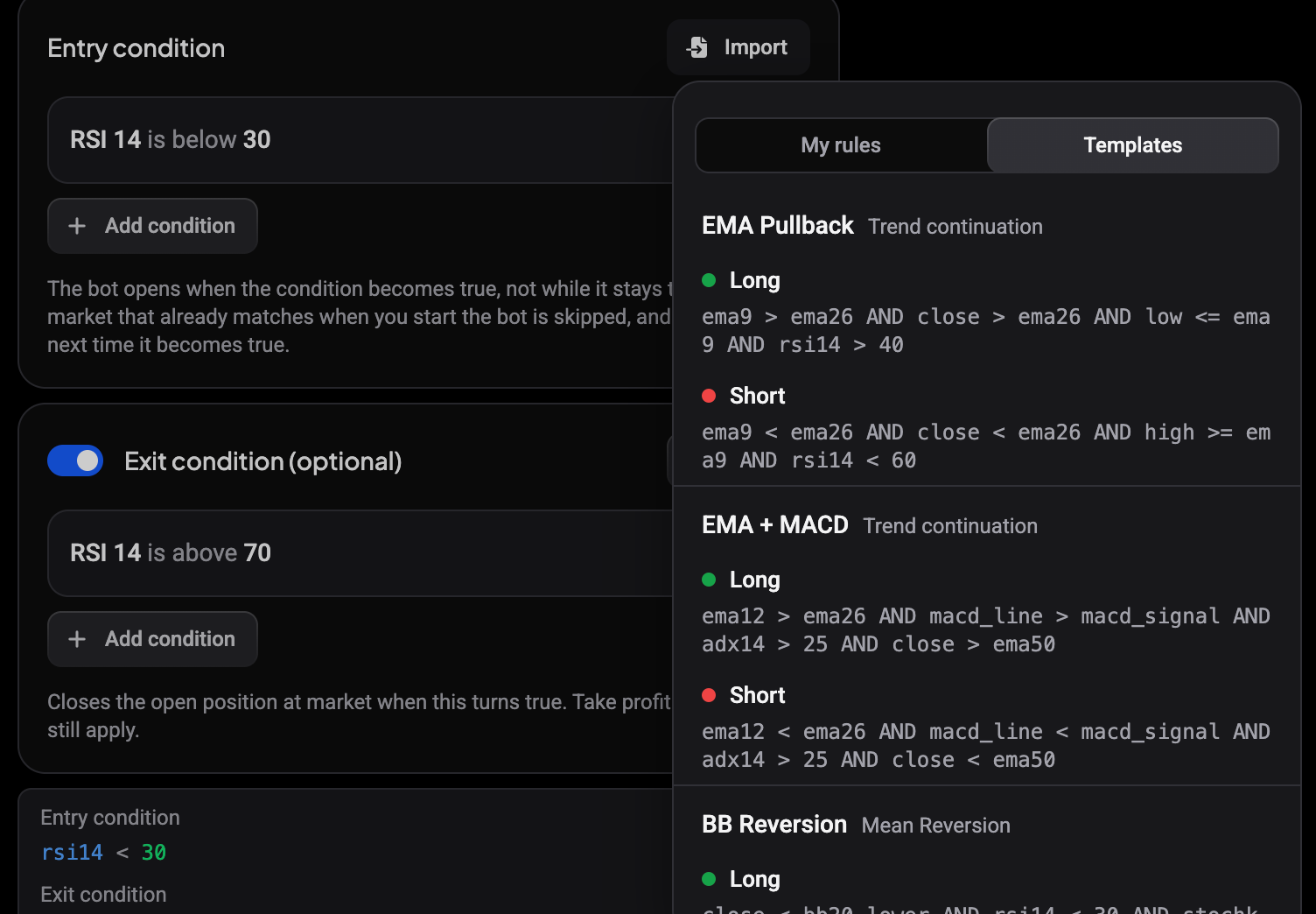
Already built a rule in the TA Scanner? Click Import to load one from My rules, or start from one of the Templates. A rule the bot can’t use is greyed out, with the reason shown underneath.
 🔍 Click the image to see a larger version
Price move start: set the trigger
The Price move step sets how far price has to move.
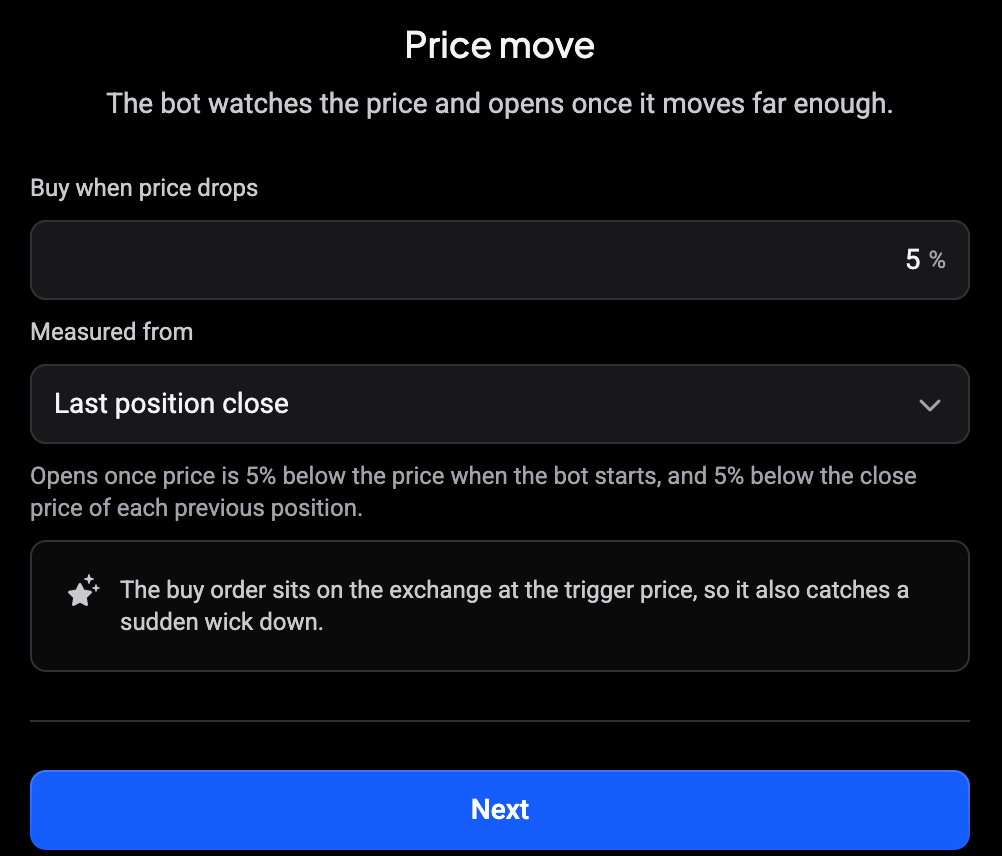
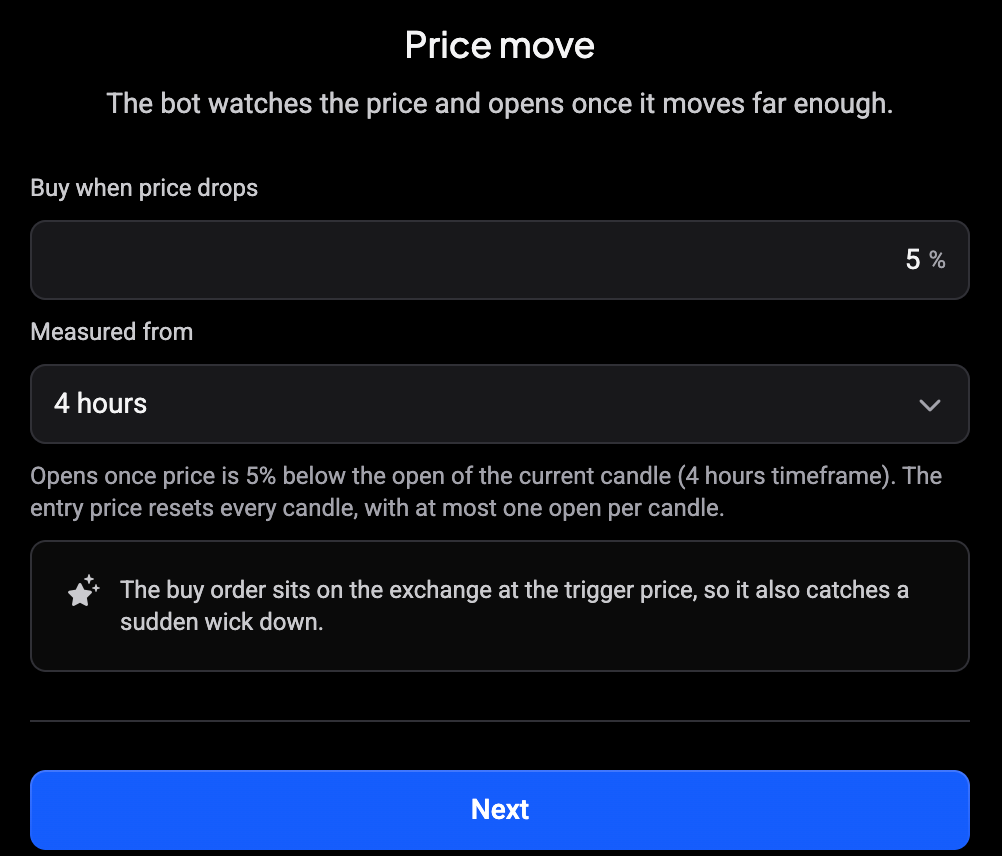
- Buy when price drops: the percentage.
-
Measured from: what the percentage is measured against.
- Last position close: from the price when the bot starts, and after that from the close price of each previous position.
- A candle interval, such as 4 hours: from the open of the current candle. The entry price resets at every new candle, and the bot opens at most once per candle.
 🔍 Click the image to see a larger version
 🔍 Click the image to see a larger version
The buy order waits on the exchange at the trigger price, so it also fills on a sudden wick down. With a candle interval, the waiting order moves to the new trigger price when the next candle starts (candles follow UTC). If you edit that waiting entry by hand, the bot replaces your edit at the next candle. The entry order type and entry price deviation settings don’t apply to Price move bots.
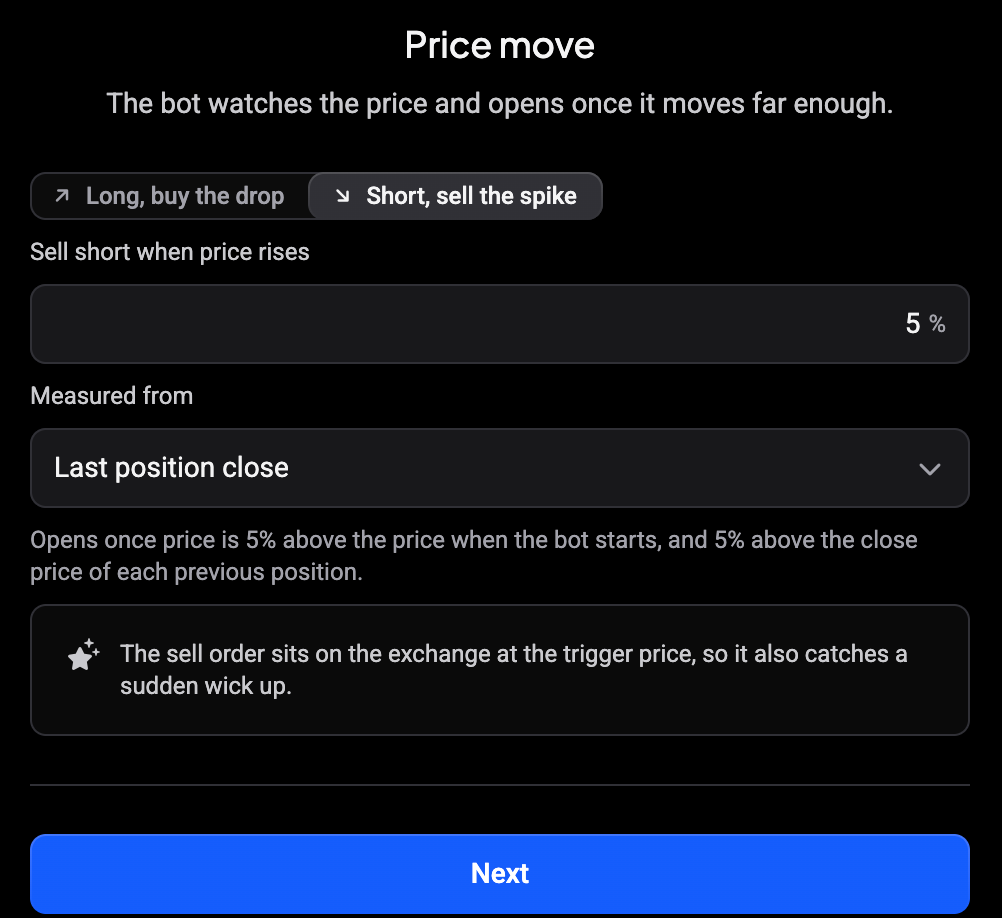
On a futures account you also get Long, buy the drop and Short, sell the spike. With Short selected the field changes to Sell short when price rises.
 🔍 Click the image to see a larger version
Review your DCA bot
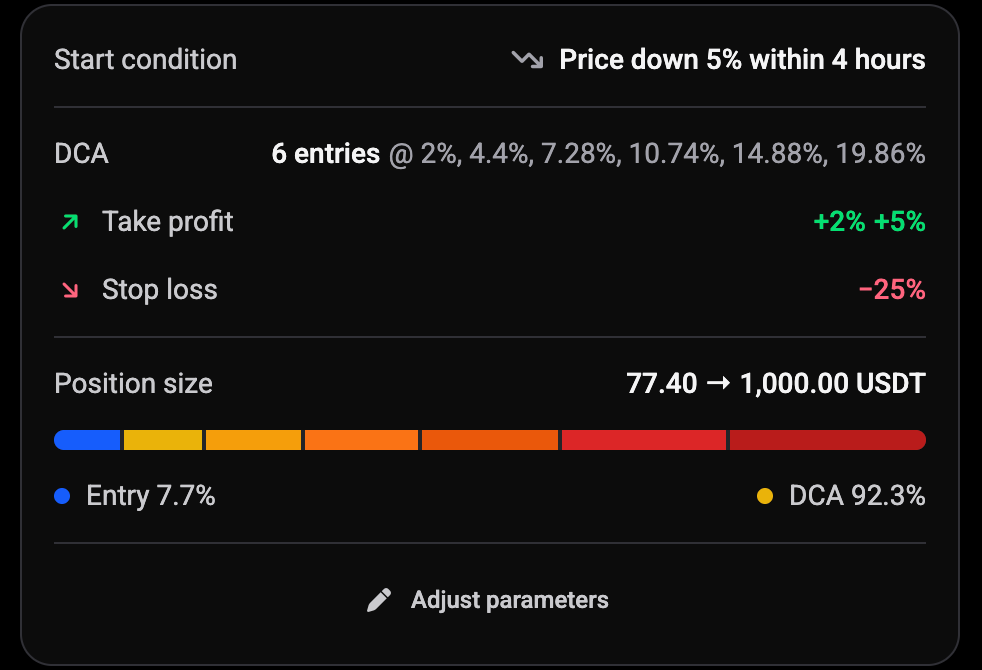
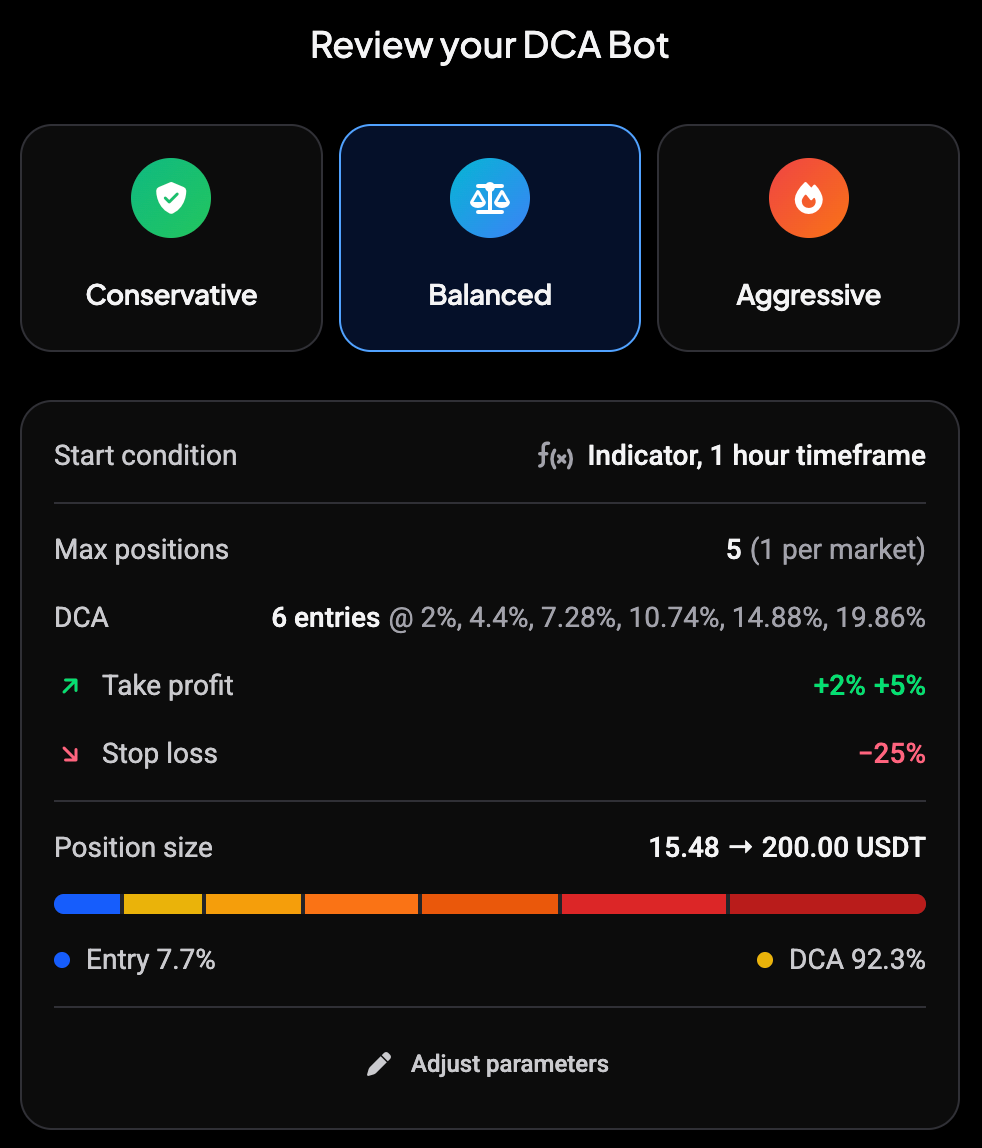
The review step shows a summary of what the bot will do. Pick a risk variant (Conservative, Balanced or Aggressive) to change the safety orders, take profit and stop loss in one go.
The Start condition line shows how the bot opens, for example Immediate, Indicator, 1 hour timeframe or Price down 5% within 4 hours.
 🔍 Click the image to see a larger version
 🔍 Click the image to see a larger version
Indicator and Price move bots also show a Backtest panel here. See Backtest a DCA bot before you start it.
Adjust settings, then start
Click Adjust parameters to fine-tune the variant. Adjust settings has five tabs, and the start button appears once you’ve opened every tab.
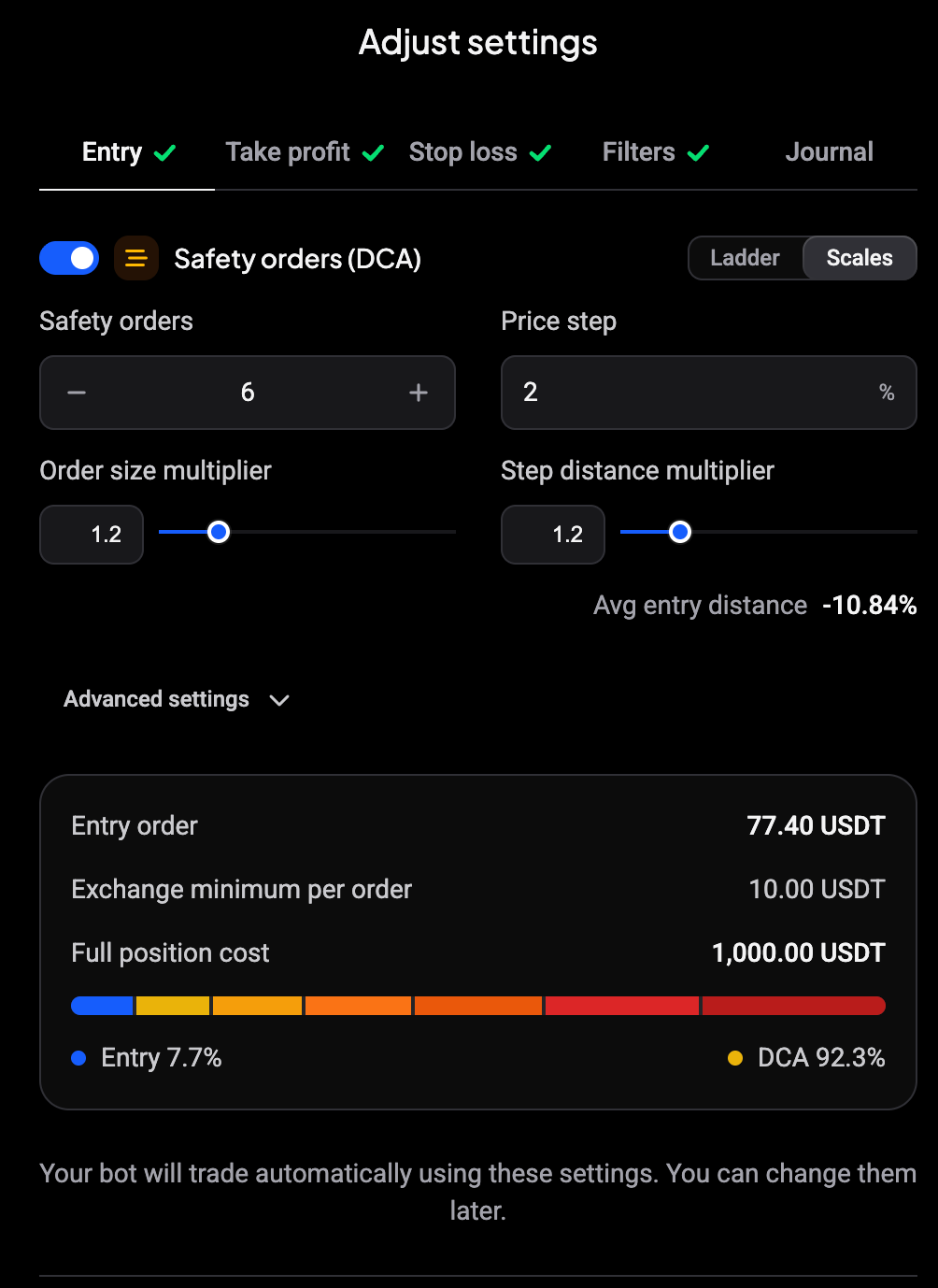
- Entry: safety orders (DCA) as a Ladder or Scales, and Auto close under Advanced settings. Indicator and Price move bots also have Entry order expiration, which works as it does on a signal bot: if the entry order hasn’t filled within the time you set, that position is cancelled. Once the entry has filled, the expiration no longer applies. The card below shows the entry order and full position cost.
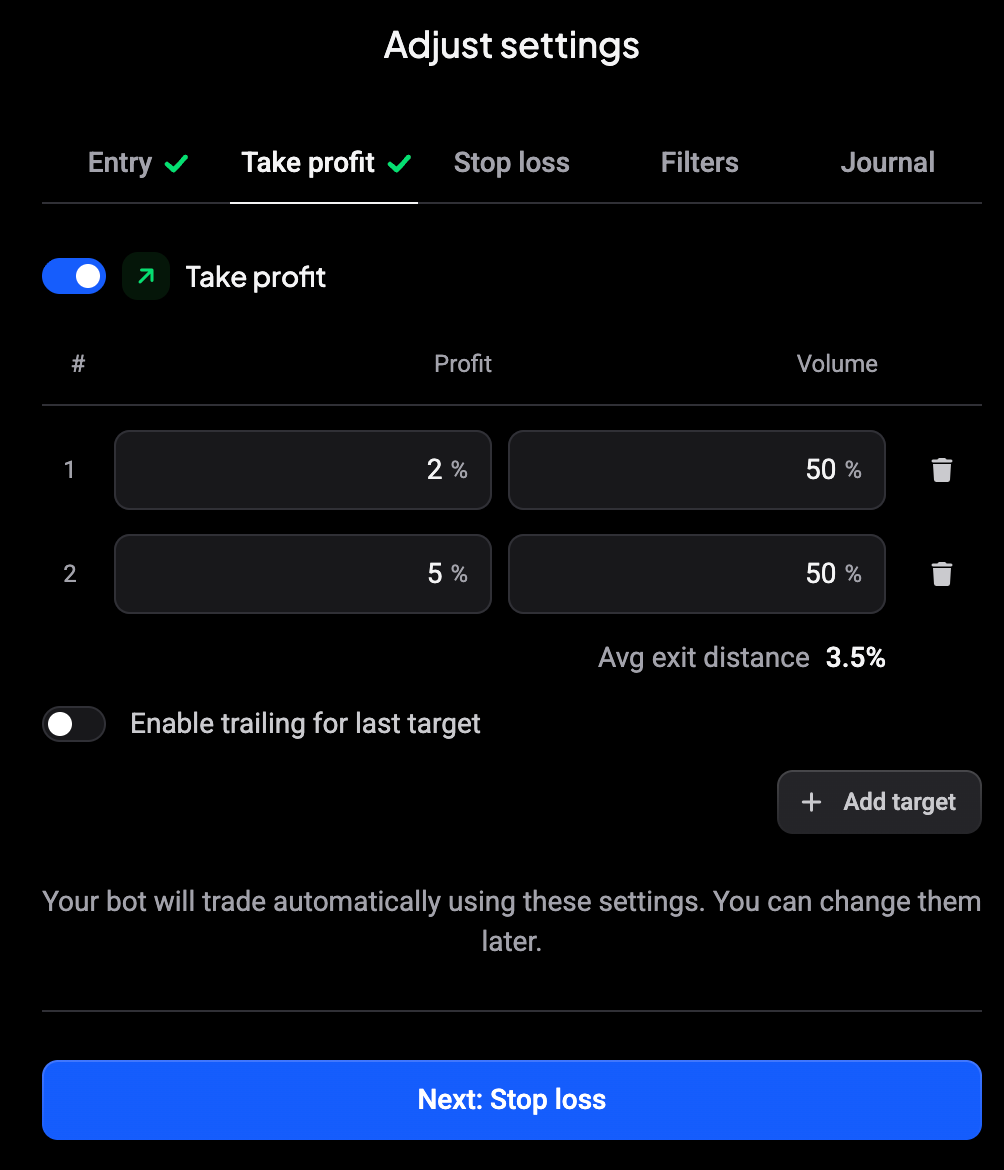
- Take profit: one or more targets with profit and volume, and trailing for the last target.
- Stop loss: stop distance and Protection (None, Break even, Follow TP or Follow price).
- Filters: Cool down after opening and Cool down after Stop loss. A bot on several markets also gets volume, price, white list and black list filters. A bot on one market shows only the cooldowns.
- Journal: Mark closed positions as reviewed in journal.
 🔍 Click the image to see a larger version
 🔍 Click the image to see a larger version
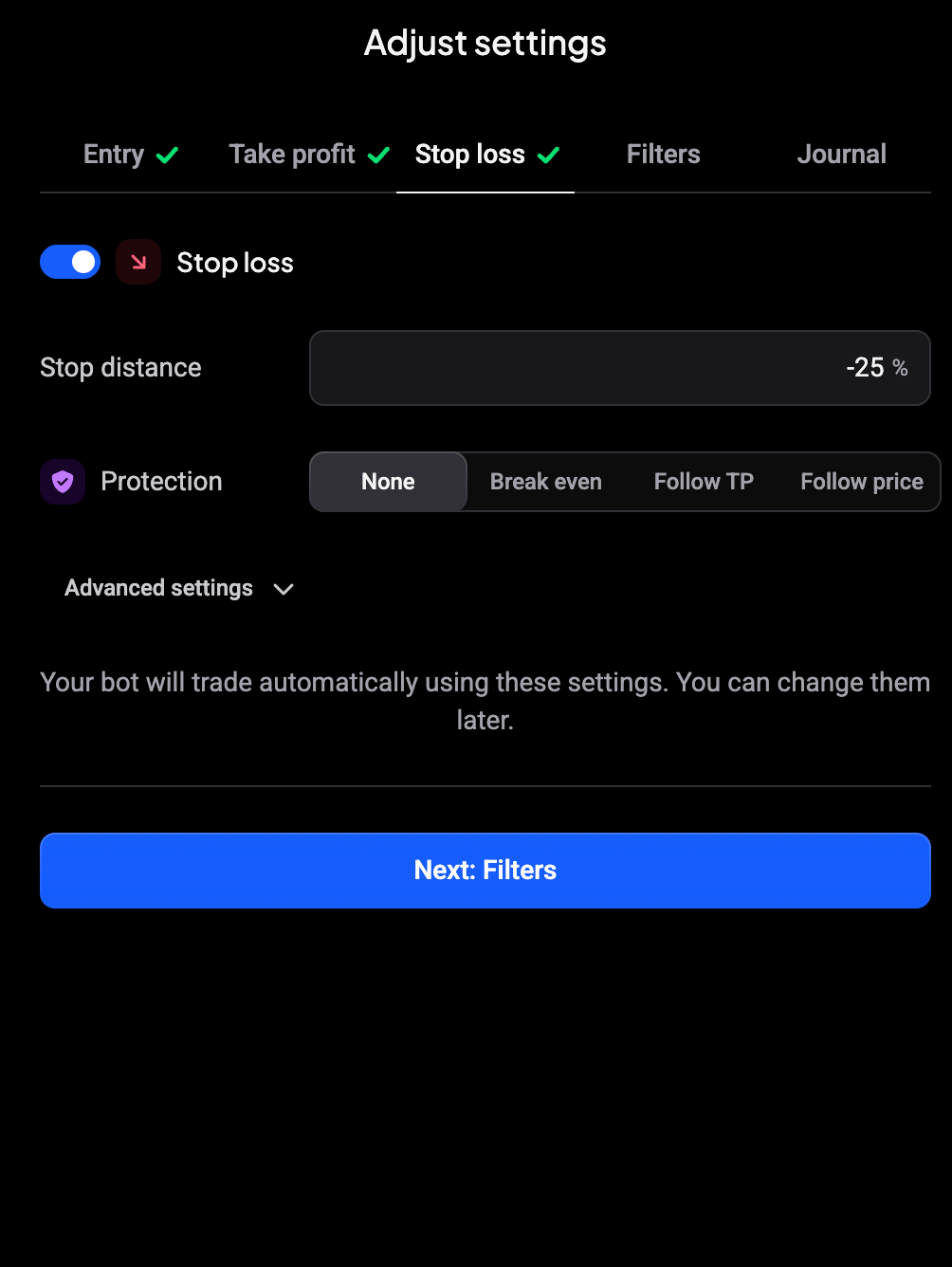 🔍 Click the image to see a larger version
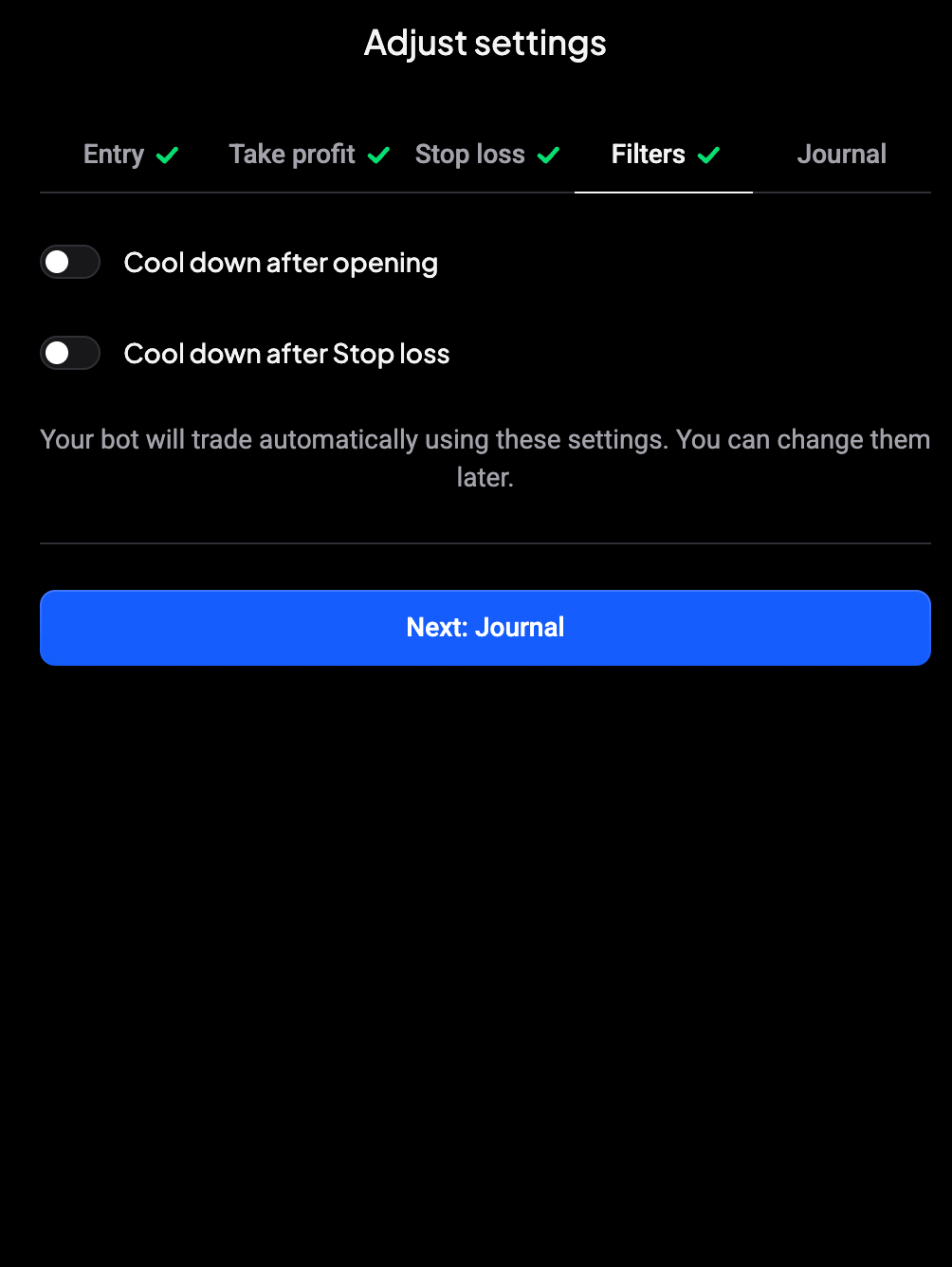 🔍 Click the image to see a larger version
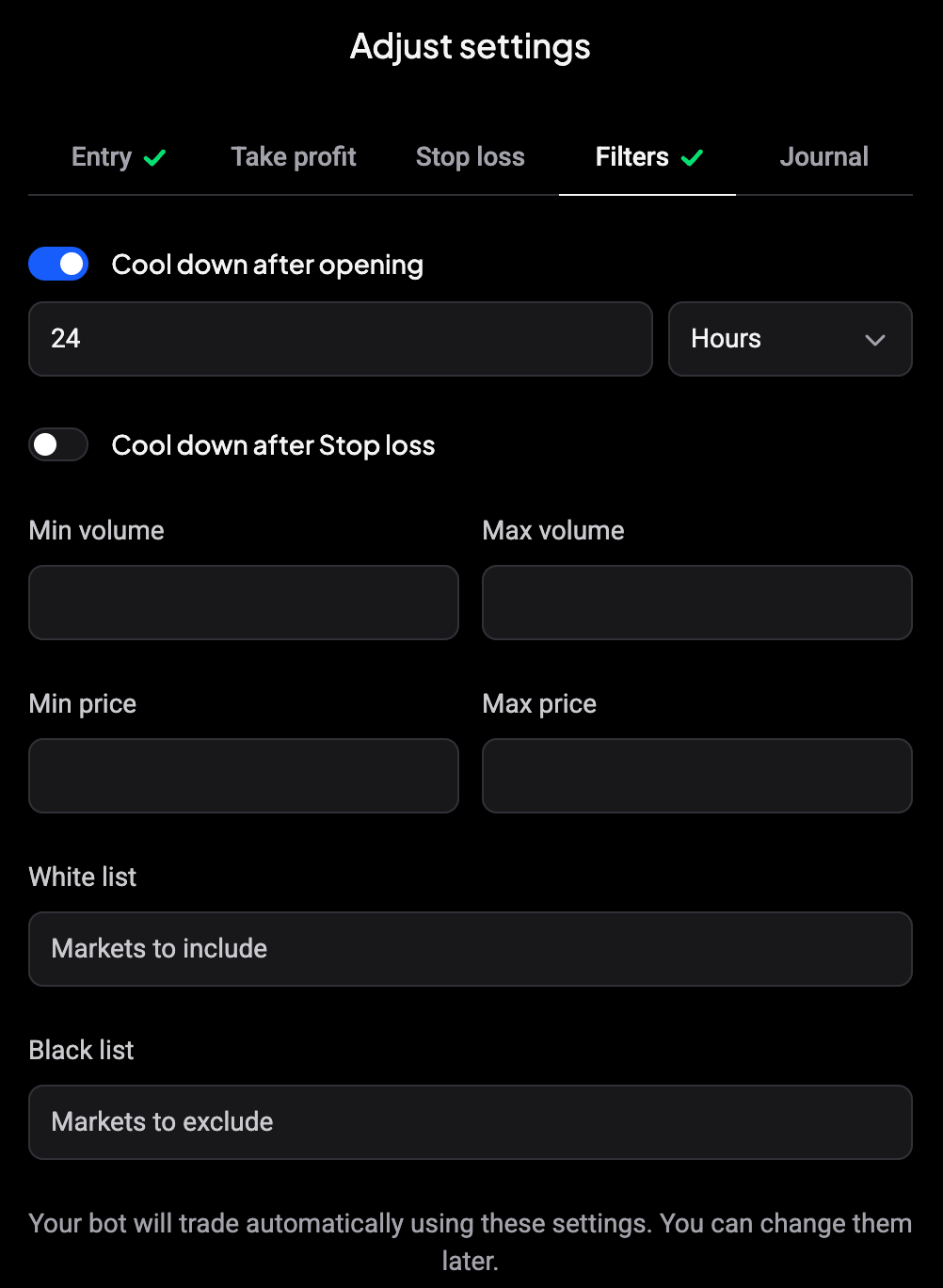 🔍 Click the image to see a larger version
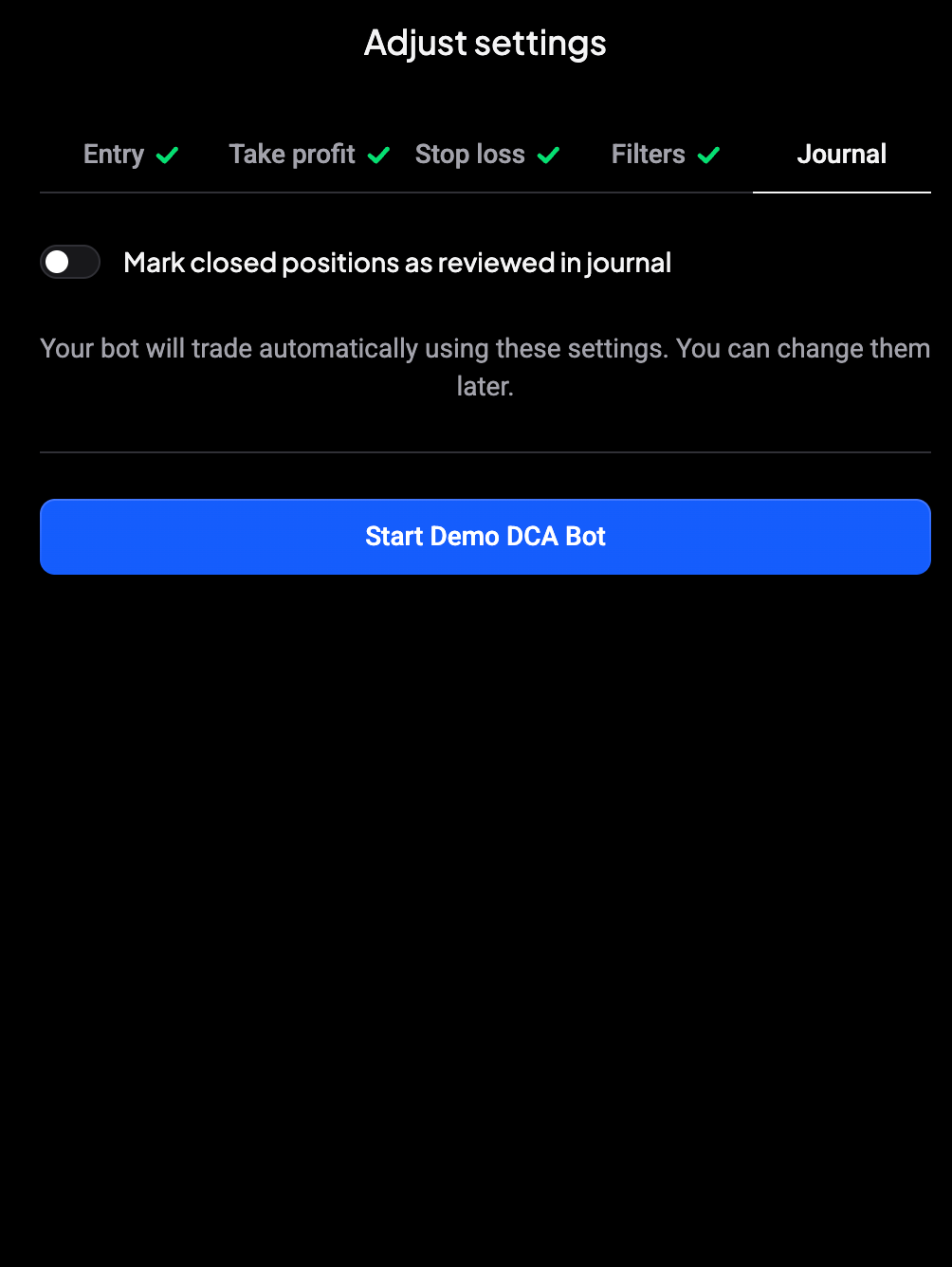 🔍 Click the image to see a larger version
Click Start Live DCA Bot, or Start Demo DCA Bot on a demo account.
After you start
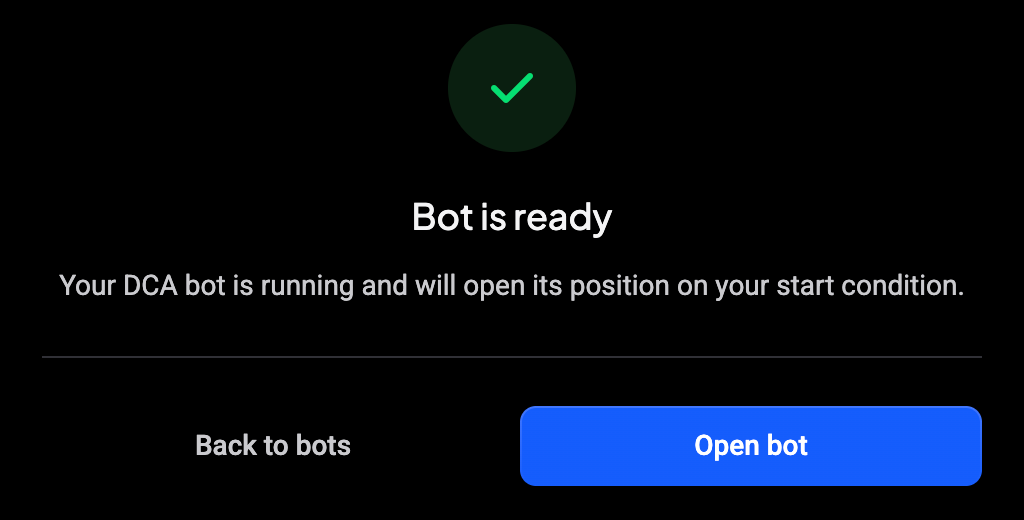
Bot is ready confirms the bot is running and will open its position on your start condition. Immediate, Indicator and Price move bots drive themselves, so there’s no webhook payload to set up. Click Open bot to see its details.
 🔍 Click the image to see a larger version
Don’t worry if an Indicator or Price move bot doesn’t open straight away: it waits for its condition. An Indicator bot opens on the first candle close where the condition turns true, and a Price move bot’s buy order already waits on the exchange. If opening a position fails, Altrady tries again after 5 minutes.
Still stuck?
If your DCA bot isn’t doing what you expect, reach out via support chat and we’ll look at your bot with you.