
Backtest a DCA bot before you start it
A backtest replays your DCA bot’s conditions and settings on past candles, so you can see how often it would have opened and how those positions would have closed. You can backtest while creating an Indicator or Price move bot, or on the DCA bot backtest page. Backtests use historical data only: past results do not indicate future performance.
Backtest while you create a bot
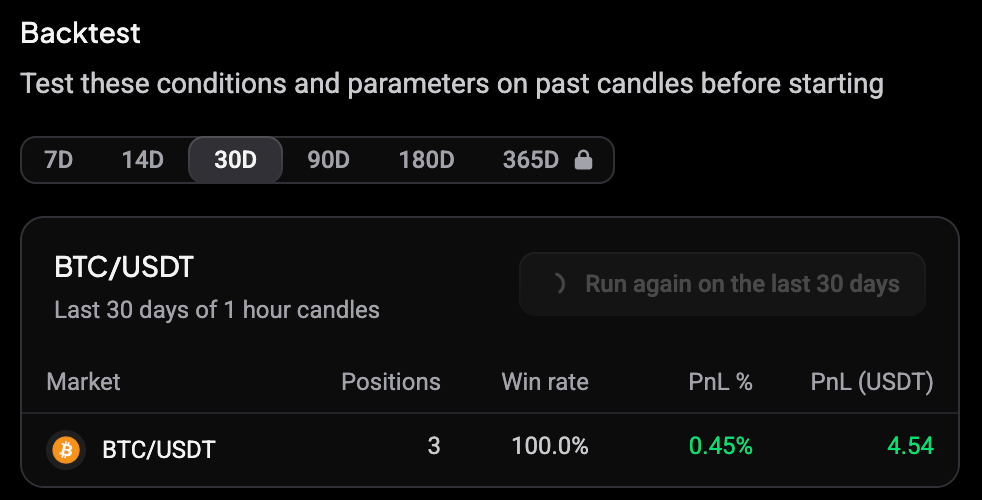
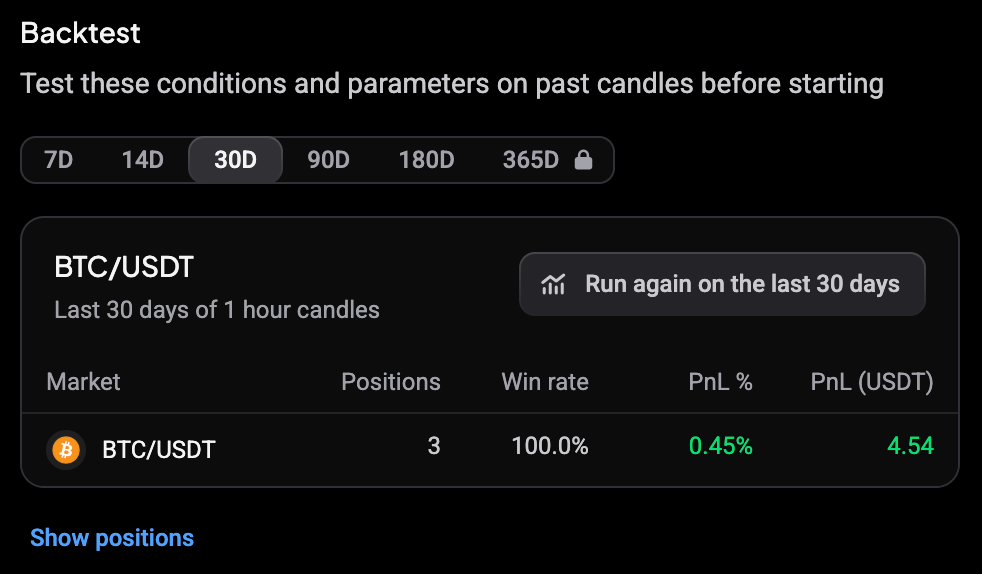
On the review step of an Indicator or Price move DCA bot, the Backtest panel sits under the summary. The first run starts on its own on the last 30 days.
 🔍 Click the image to see a larger version
 🔍 Click the image to see a larger version
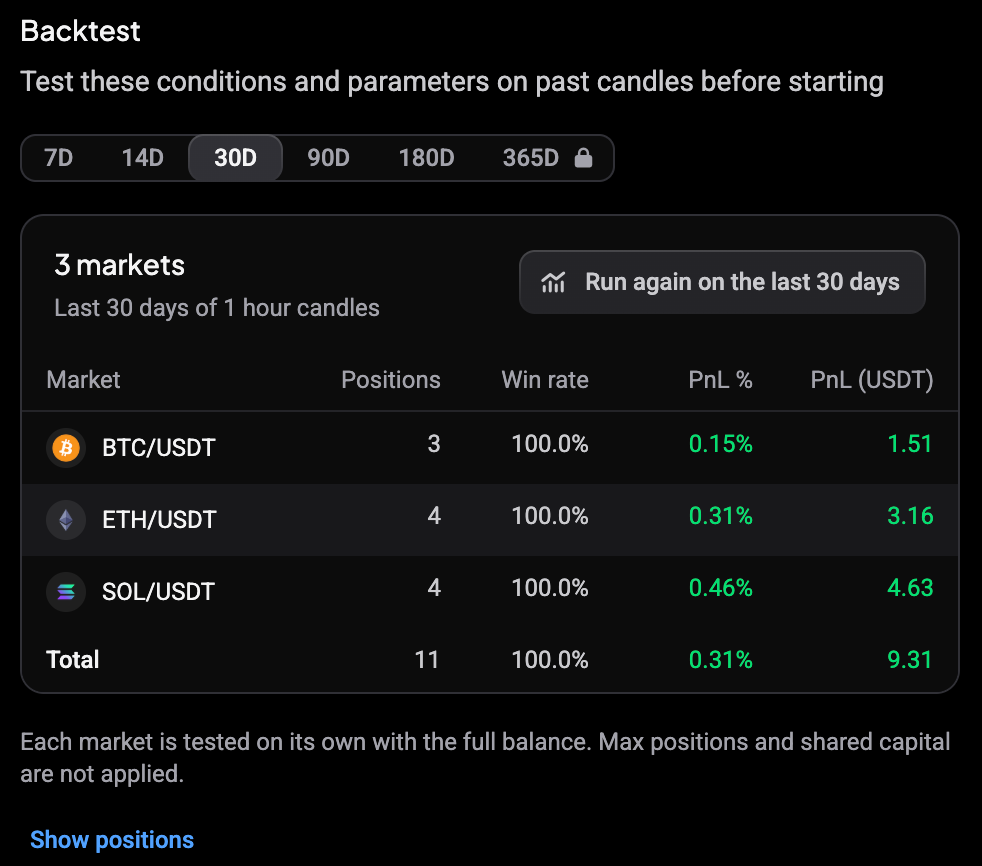
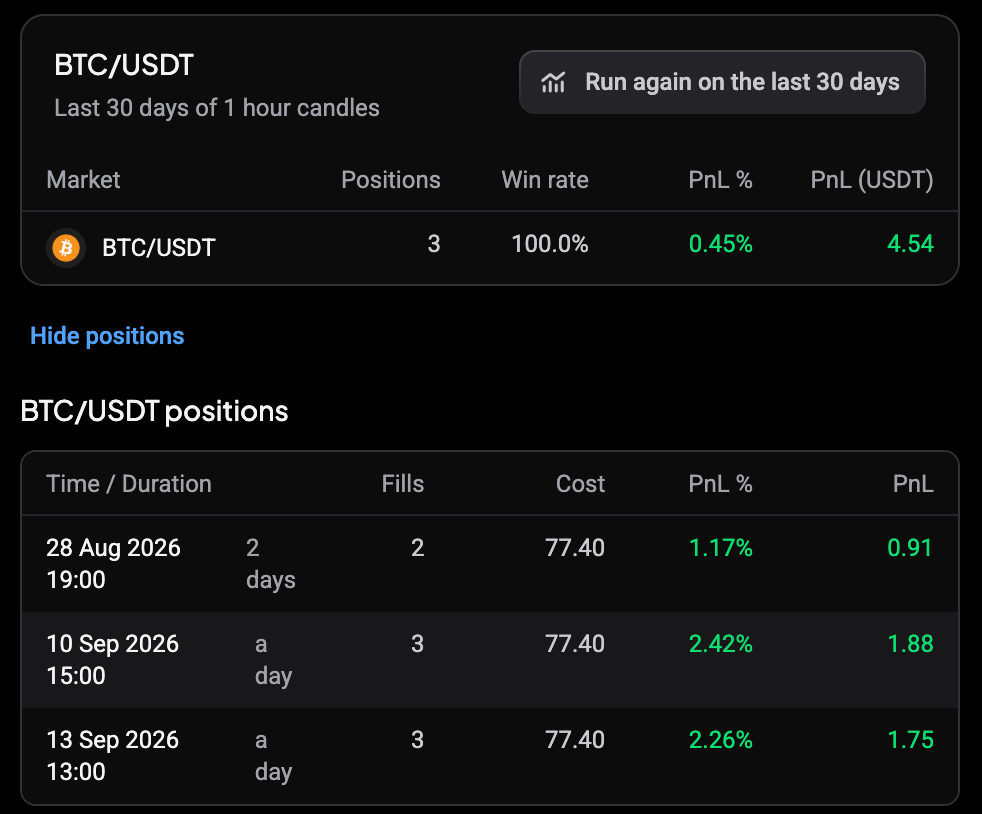
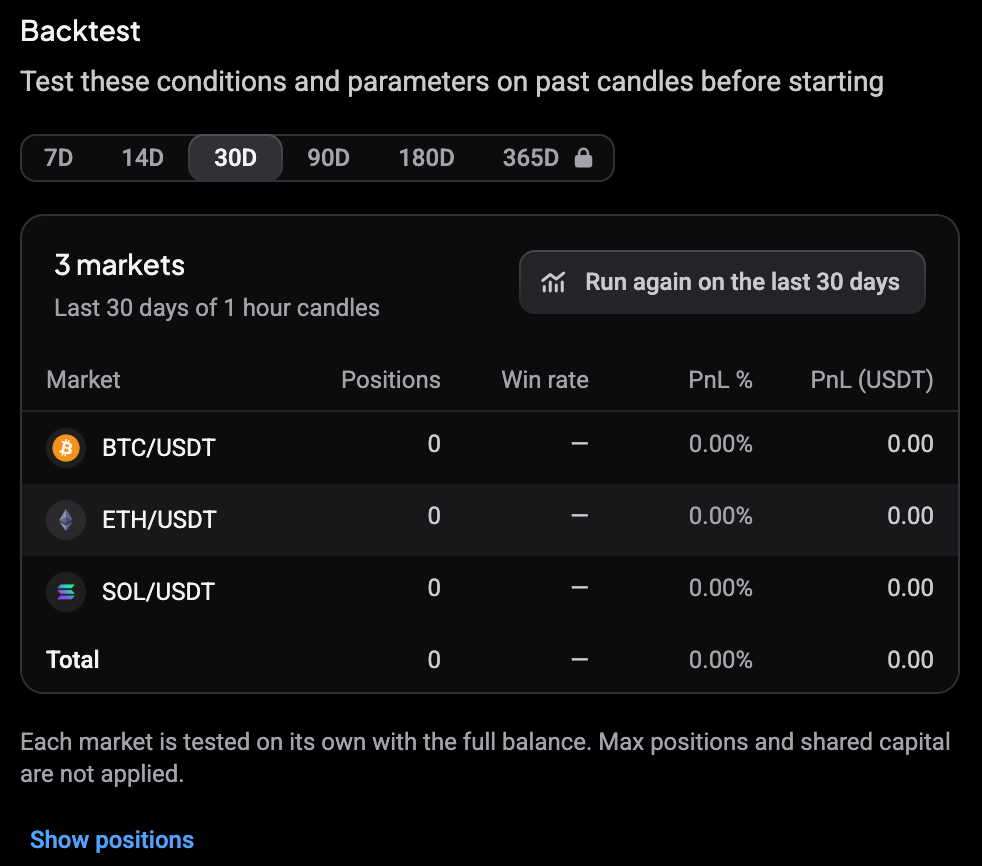
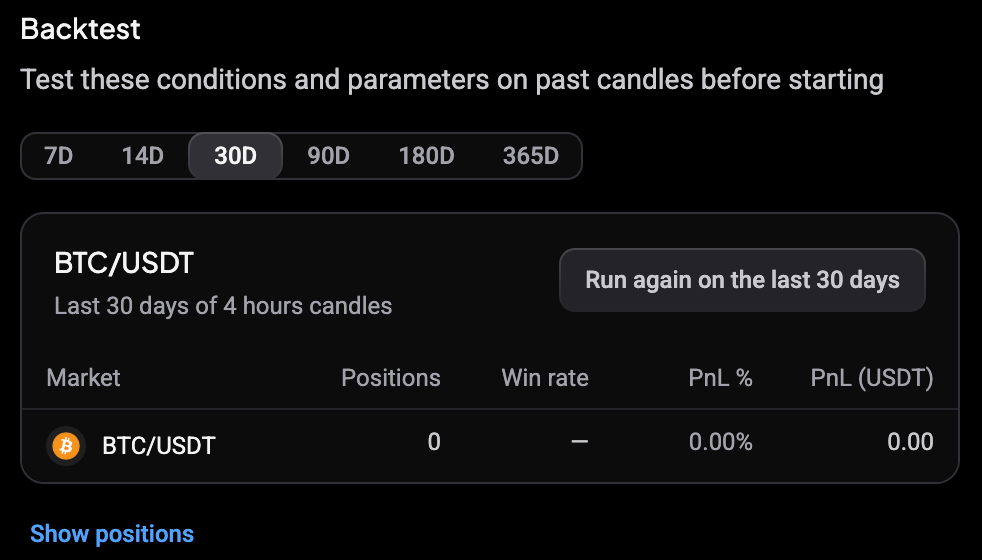
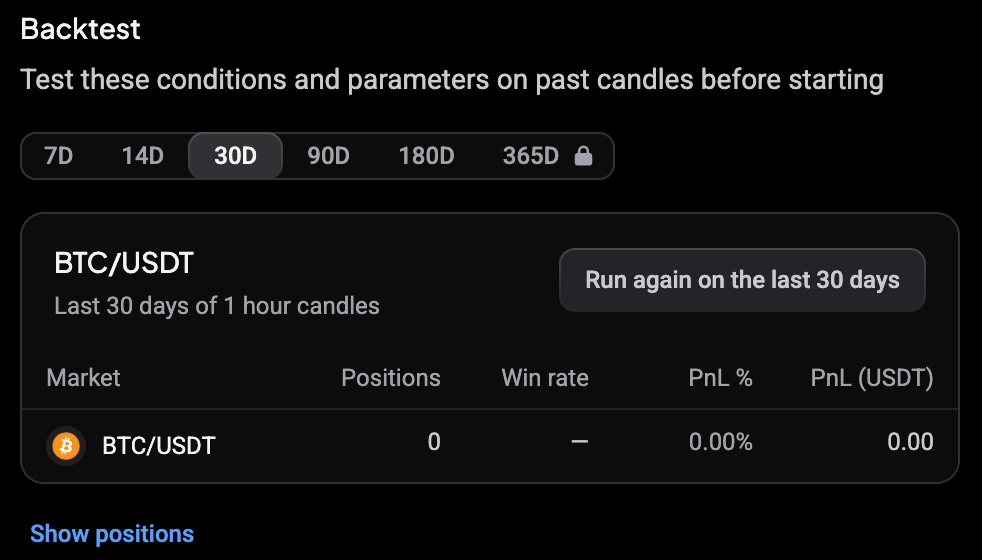
The panel lists each market with its Positions, Win rate, PnL % and PnL, plus a Total row when the bot trades several markets. Each market is tested on its own with the full investment, so max positions and shared capital don’t apply. Click Show positions to see every backtested position for the selected market: when it opened, how long it ran, its fills, cost and PnL. A position that was still open at the end of the window shows Still open.
 🔍 Click the image to see a larger version
 🔍 Click the image to see a larger version
The win rate counts positions, not individual orders, and only positions that have closed.
Pick the backtest window
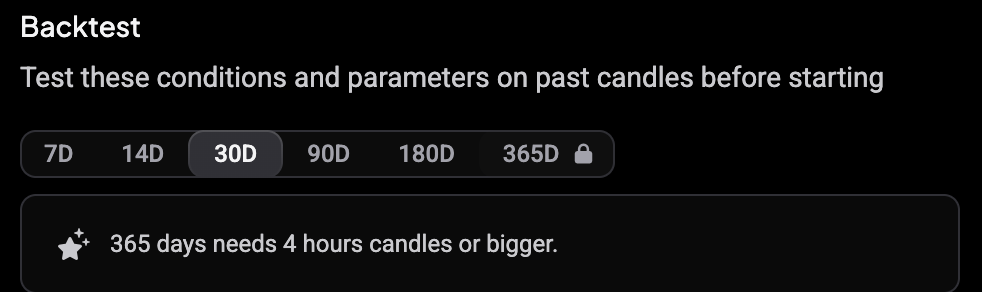
The window tabs run from 7D to 365D. How far back you can go depends on your plan: 30 days on Free and Basic, 90 days on Essential and 365 days on Premium. A lock on a tab means it isn’t available.
A backtest can use at most 5,000 candles, so longer windows need bigger candles. When a window is too long for your timeframe, a note tells you which candle size it needs.
 🔍 Click the image to see a larger version
A backtest covers up to 100 markets, and you can run one backtest at a time.
When your settings change
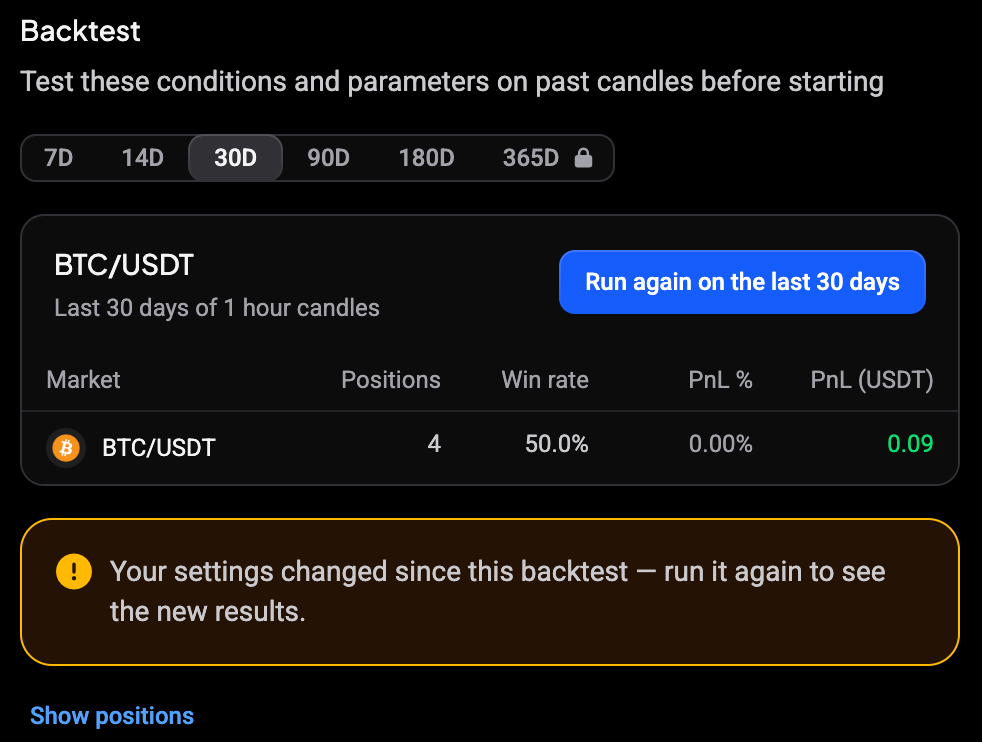
Change a setting after a run, such as the risk variant, and the old result stays on screen with a warning that your settings changed since this backtest. Click Run again on the last 30 days (or the window you picked) to update it.
 🔍 Click the image to see a larger version
If you open Adjust parameters and come back to the review, a fresh backtest starts automatically with your adjusted settings.
When a backtest can’t show results
- No positions: the conditions never triggered in this window. Loosen them, or test a longer period.
- A market failed: its error shows under the market row. Shorten the window or pick another market, then run it again.
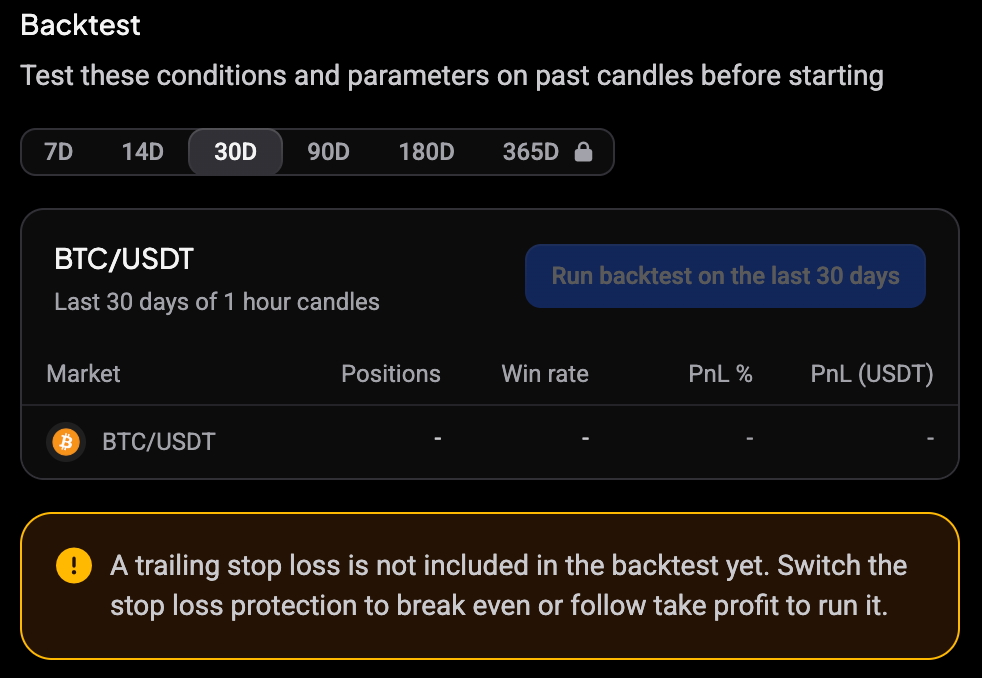
- Trailing stop loss: a stop loss with Follow price protection isn’t included in the backtest yet. Switch the protection to Break even or Follow TP to run it.
 🔍 Click the image to see a larger version
 🔍 Click the image to see a larger version
Backtesting a Price move bot
A Price move bot’s panel works the same way. With a candle interval, such as 4 hours, the backtest runs on those candles. With Last position close it runs on 1 hour candles.
 🔍 Click the image to see a larger version
 🔍 Click the image to see a larger version
The DCA bot backtest page
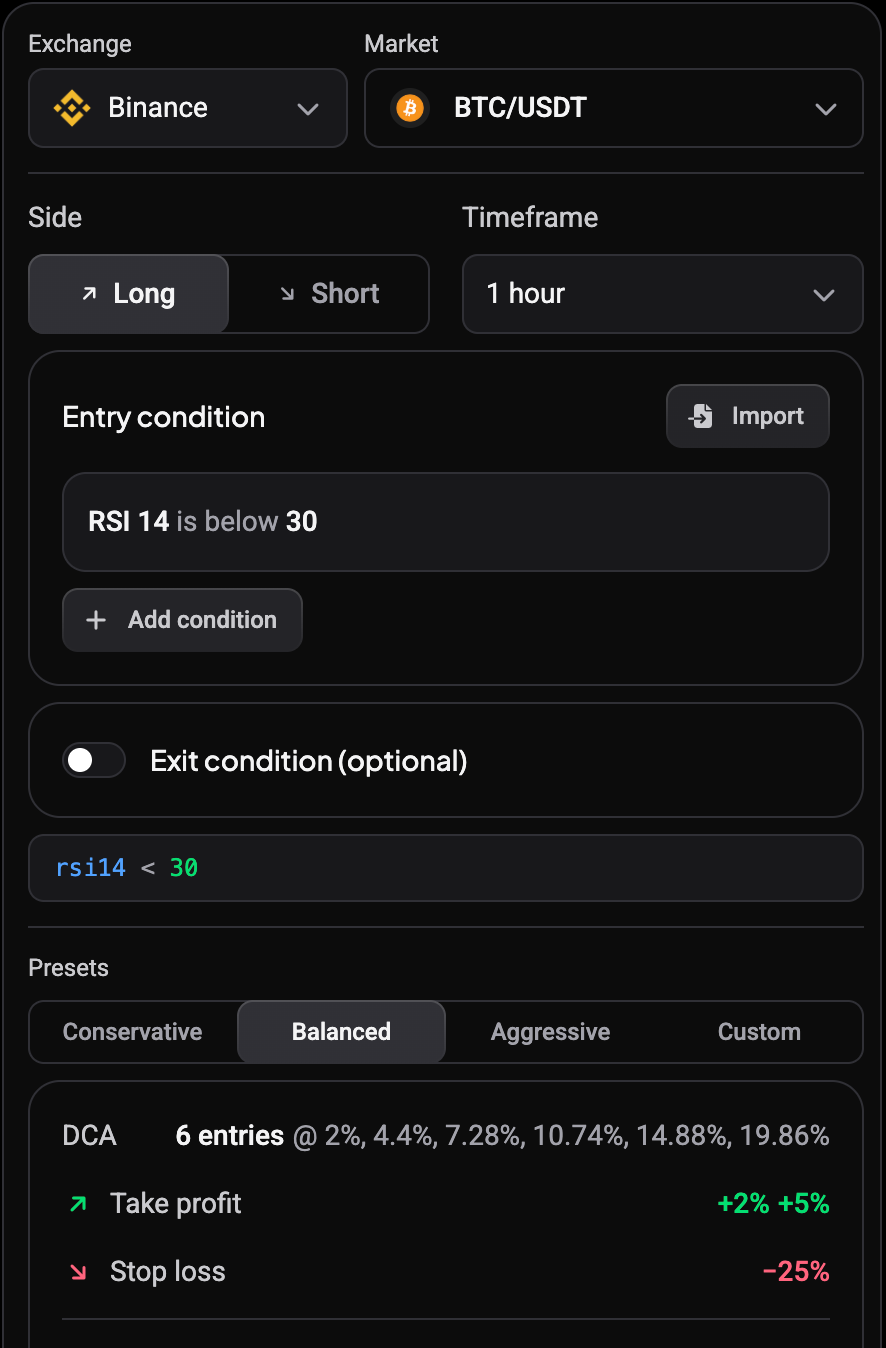
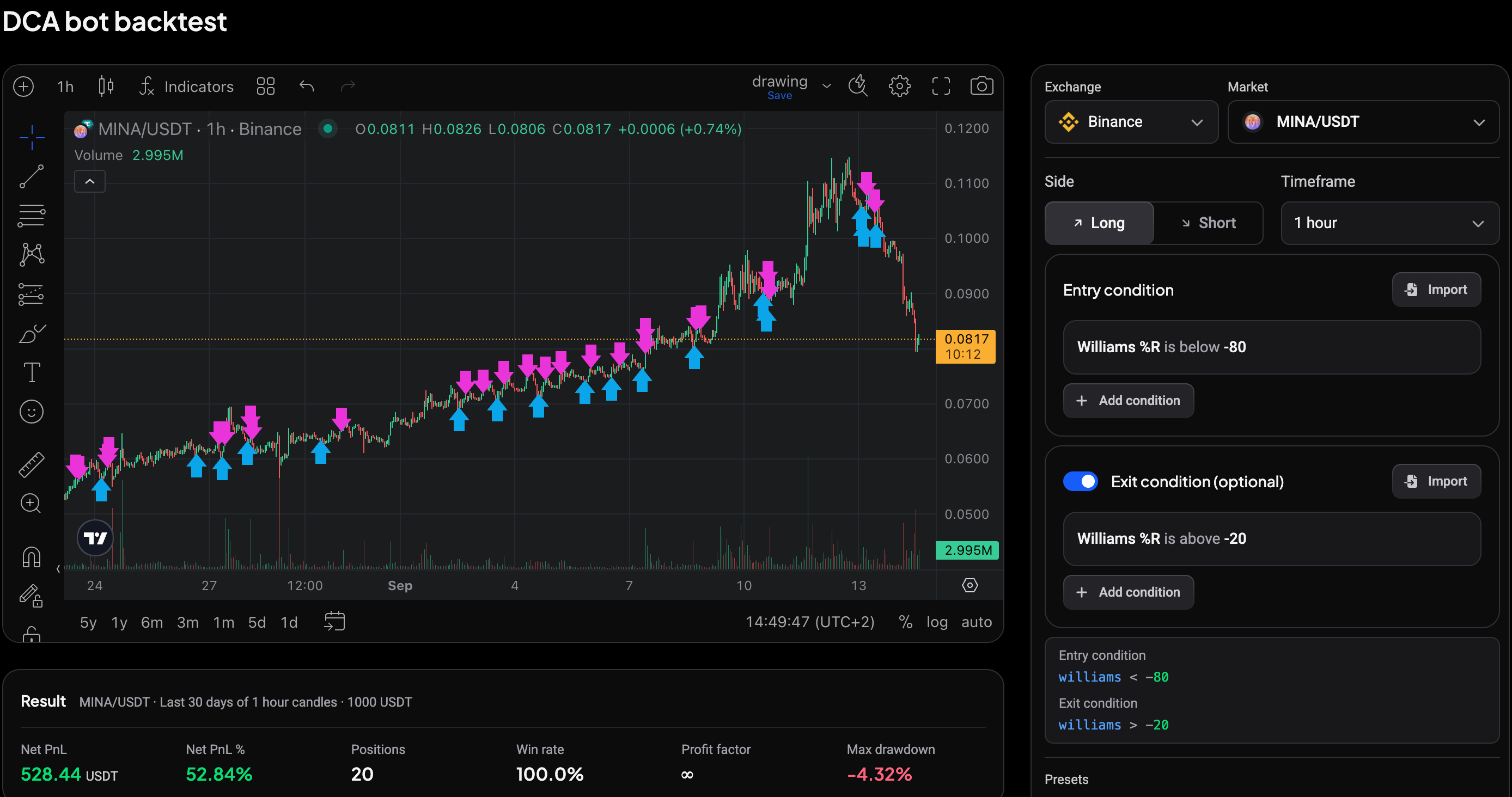
For more room to experiment, open the DCA bot backtest page from Backtest indicator conditions first at the bottom of the Create a bot dialog. The setup sits on the right:
- Exchange and Market.
- Side, Timeframe, Entry condition and Exit condition (optional), with Import for TA Scanner rules.
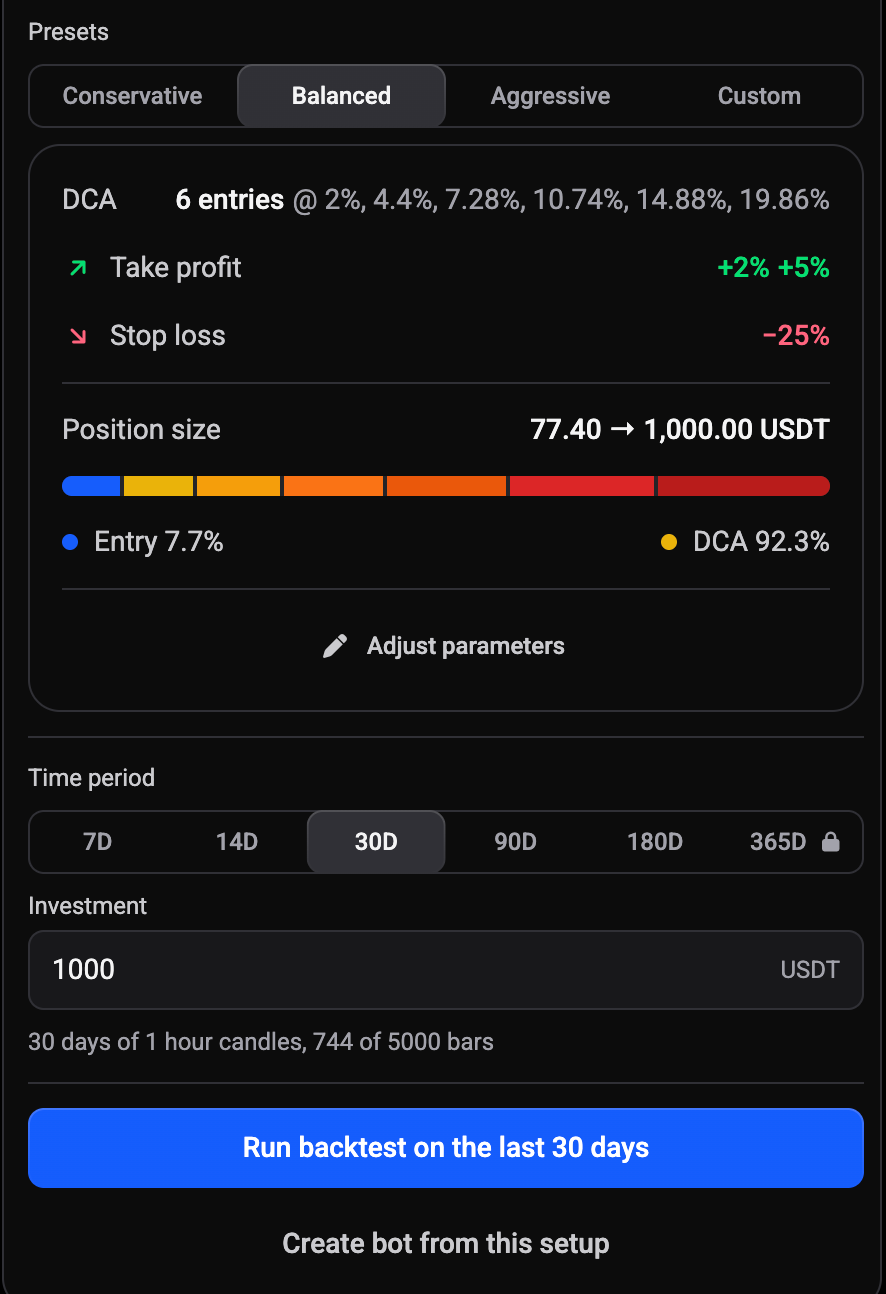
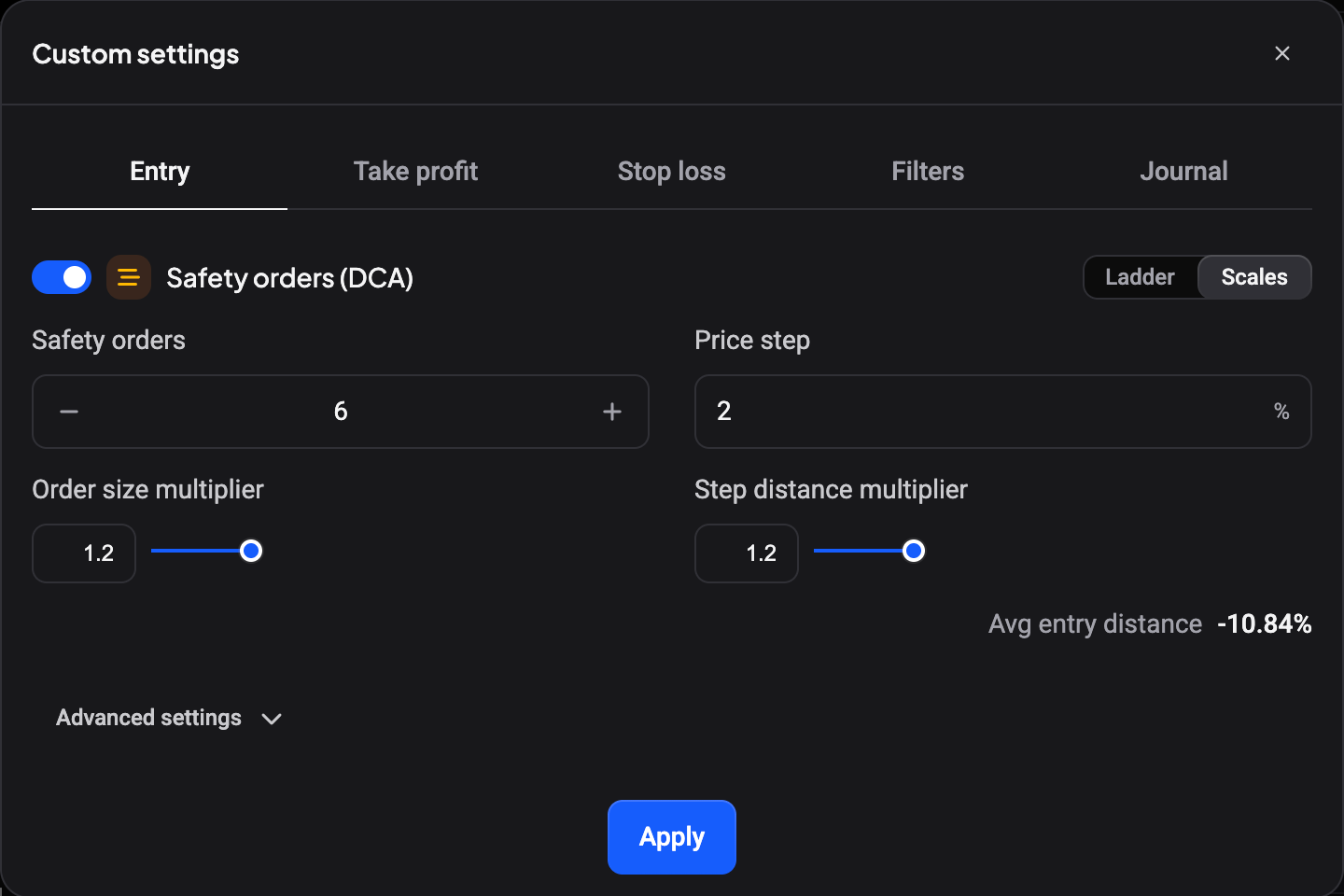
- Presets: Conservative, Balanced, Aggressive or Custom. Custom opens Custom settings with the same Entry, Take profit, Stop loss, Filters and Journal tabs as the bot wizard.
- Time period tabs, with locks for windows your plan or timeframe doesn’t allow.
- Investment.
- Run backtest on the last 30 days, or Create bot from this setup.
 🔍 Click the image to see a larger version
 🔍 Click the image to see a larger version
 🔍 Click the image to see a larger version
Read the results
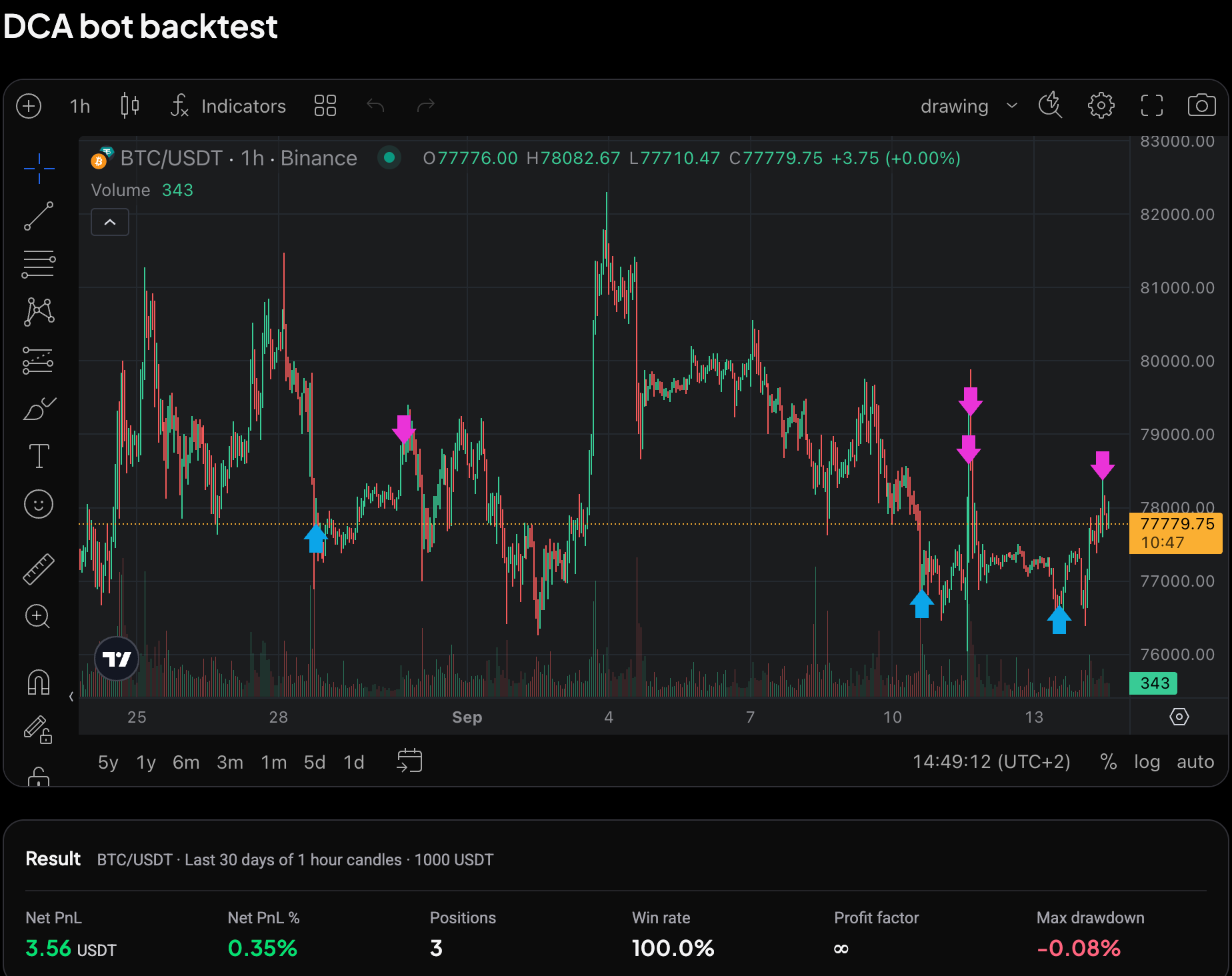
After a run, the chart marks each simulated buy (blue arrow) and sell (pink arrow). Every partial take profit is its own sell marker, so a position can show more than one. The Result card under the chart shows Net PnL, Net PnL %, Positions, Win rate, Profit factor and Max drawdown. Profit factor shows ∞ when no position closed at a loss.
 🔍 Click the image to see a larger version
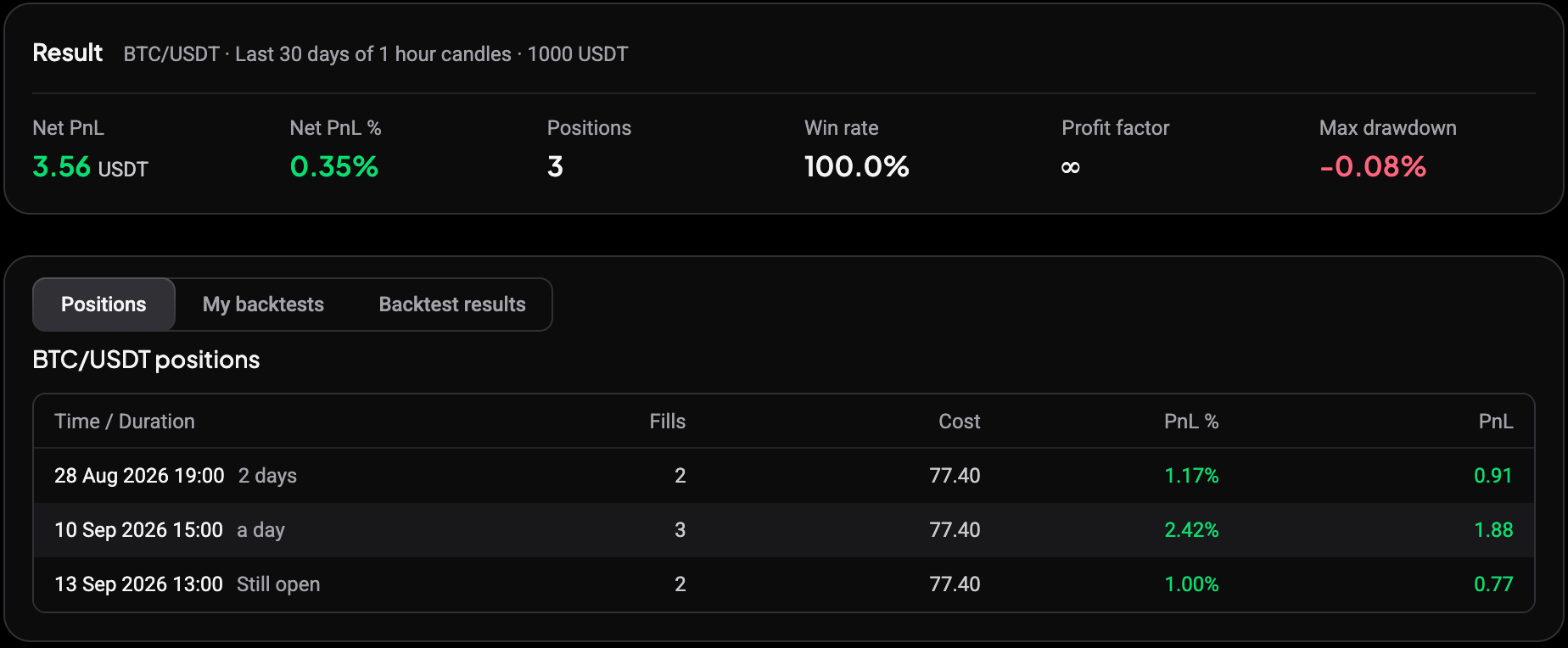
The Positions tab lists each position, including any that are Still open.
 🔍 Click the image to see a larger version
Past runs and backtest results
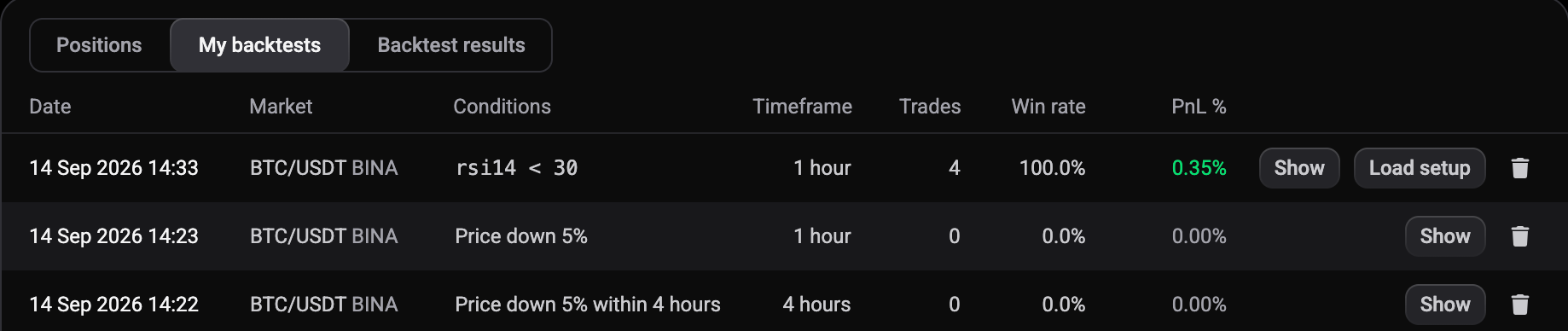
My backtests lists your earlier runs with their date, market, conditions, timeframe, trades, win rate and PnL %. Show opens a run’s results, and Load setup puts its settings back into the setup.
 🔍 Click the image to see a larger version
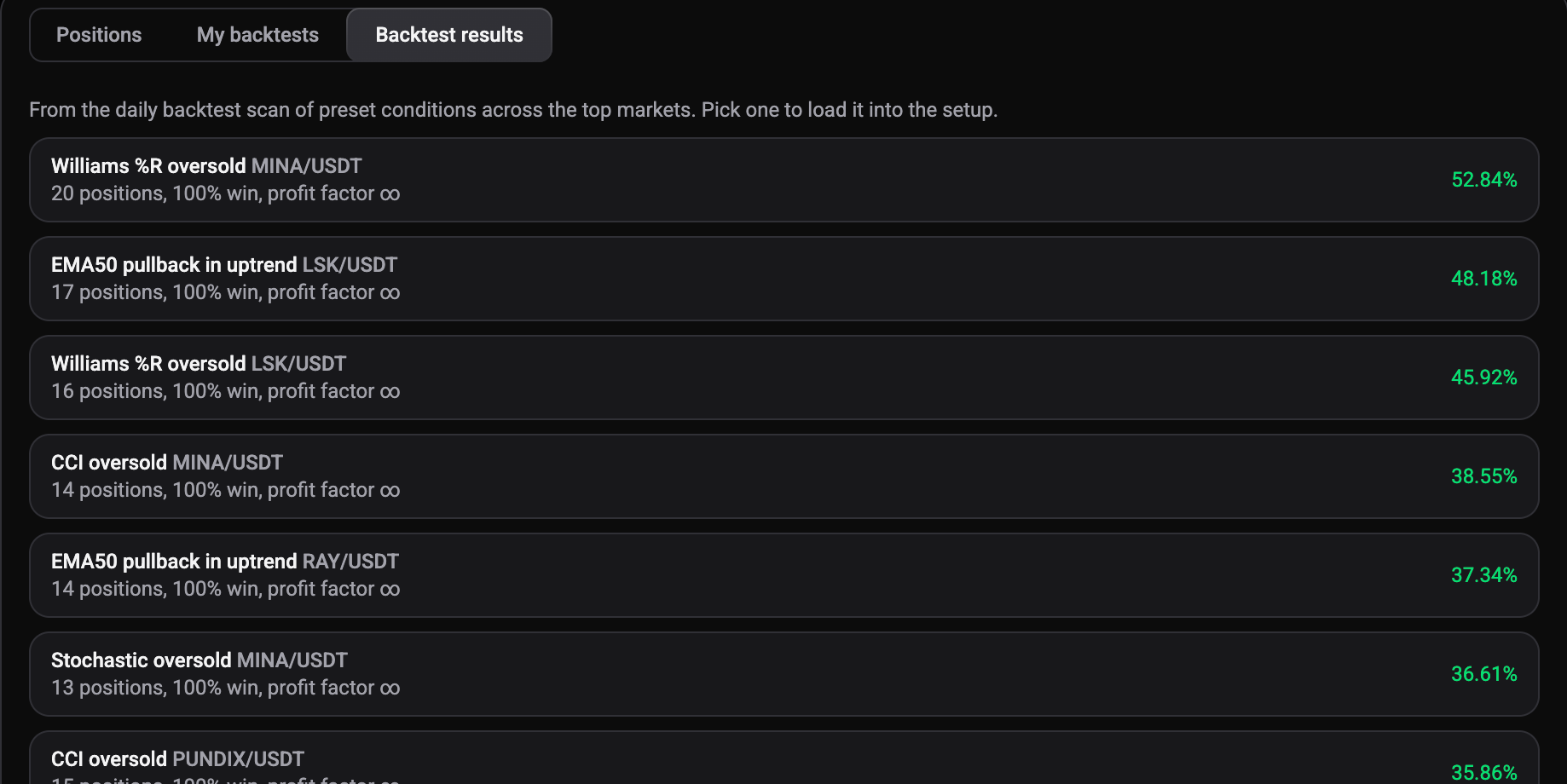
Backtest results lists configurations from Altrady’s daily backtest scan of preset conditions across the top markets. Pick one to load it into the setup, then adjust and run it yourself.
 🔍 Click the image to see a larger version
 🔍 Click the image to see a larger version
Create a bot from your setup
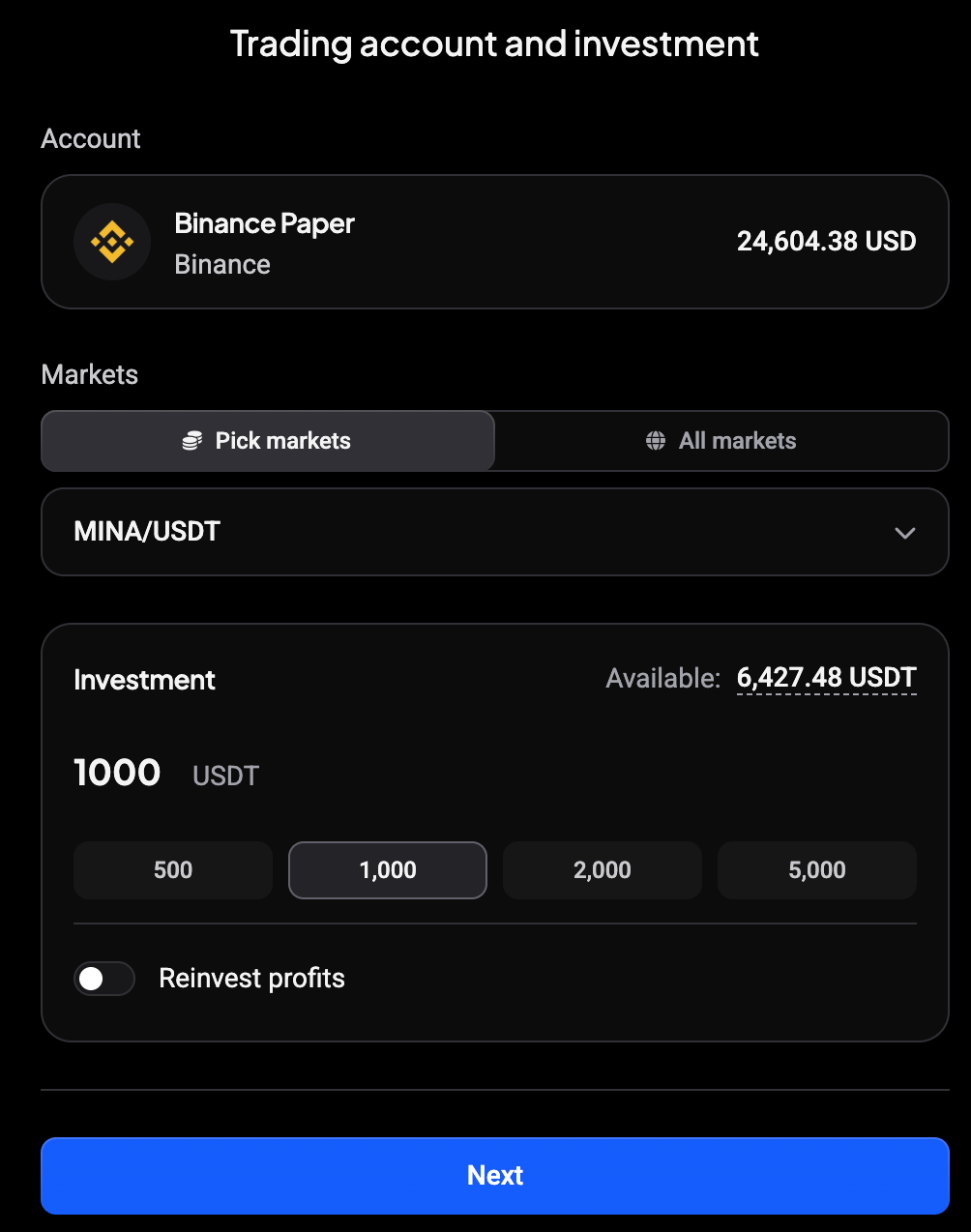
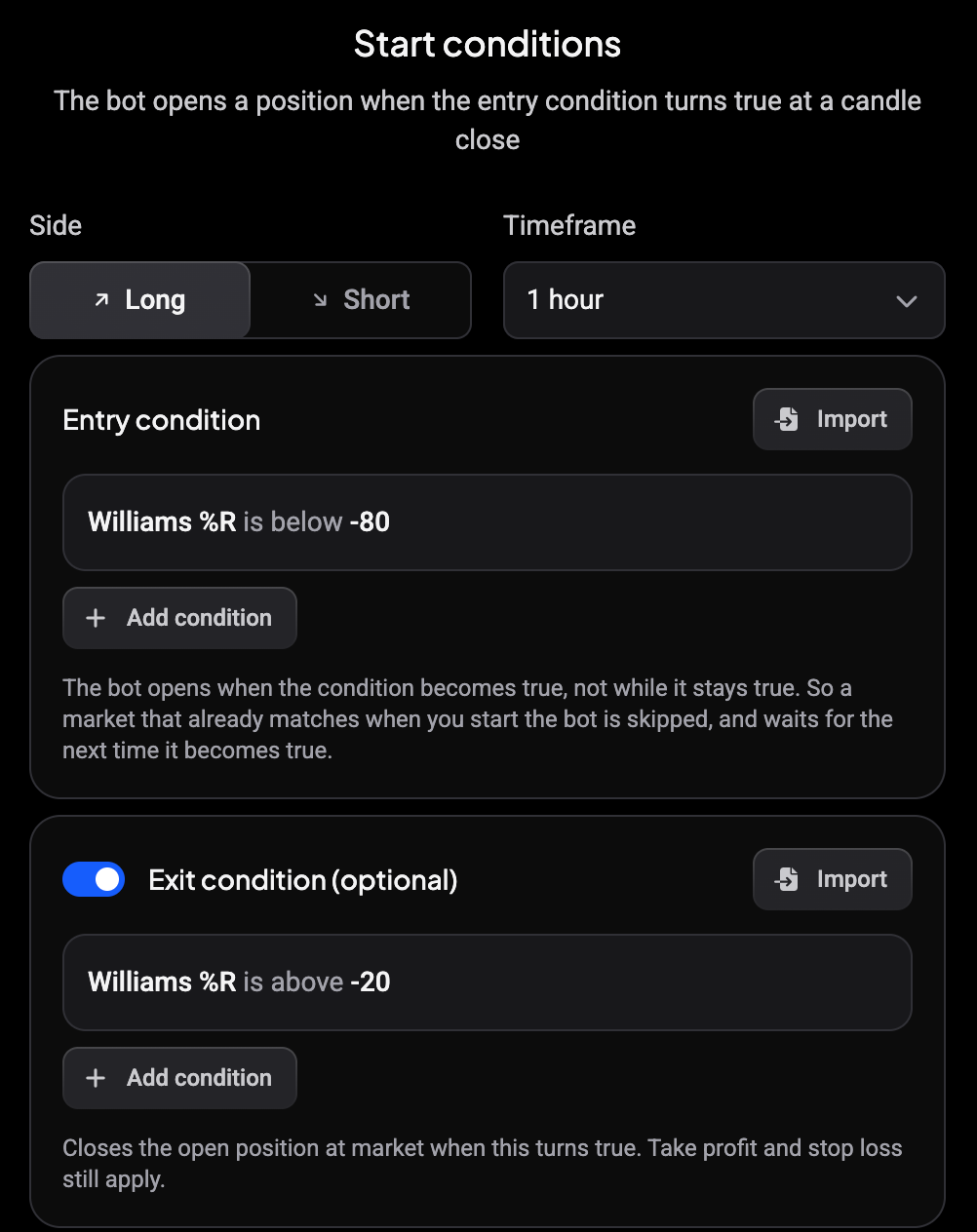
Click Create bot from this setup. The DCA bot wizard opens with your market, investment and conditions already filled in, so you only review and start it.
 🔍 Click the image to see a larger version
 🔍 Click the image to see a larger version
Still stuck?
If a backtest doesn’t run or its results don’t make sense, reach out via support chat and we’ll look at it with you.