
Getting started with the Script Editor
The Script Editor is where you write your own indicators and strategies in Altrady, either by describing them to the AI assistant, by typing code, or by importing a Pine Script. A first script takes a few minutes, and you can see it on your chart straight away. The Script Editor works in the web app and the desktop app, but not on the phone.
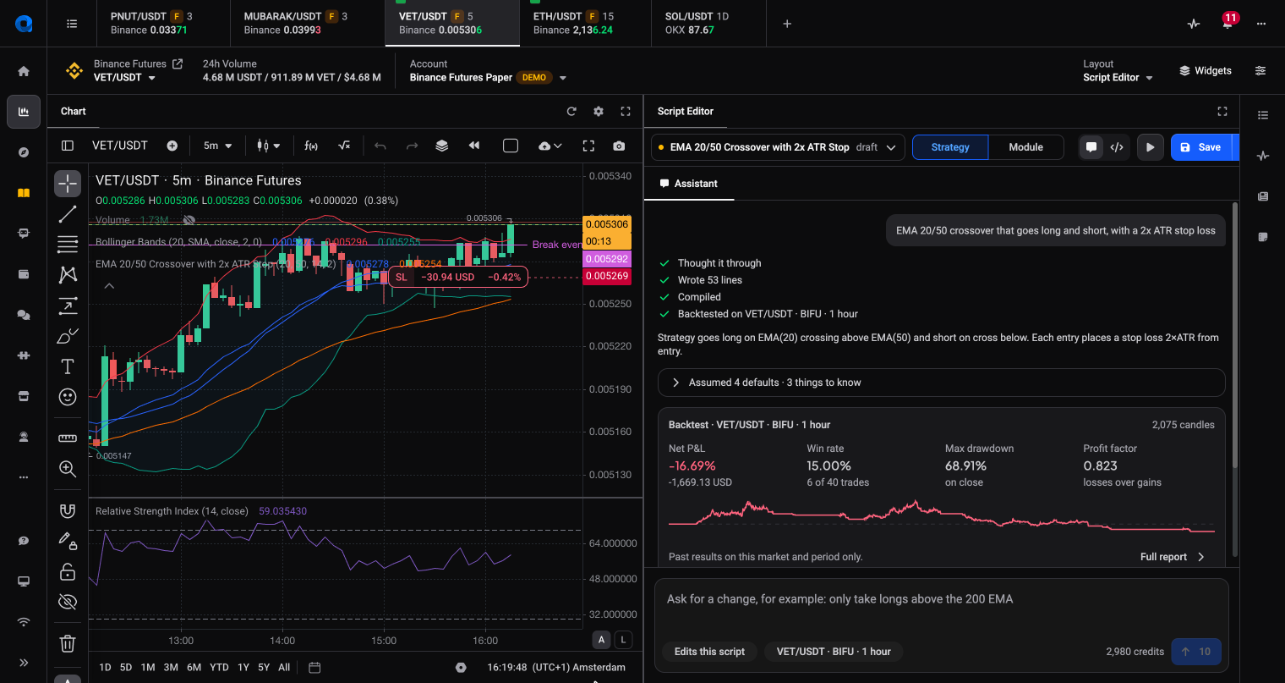
Open the Script Editor
 🔍 Click the image to see a larger version
 🔍 Click the image to see a larger version
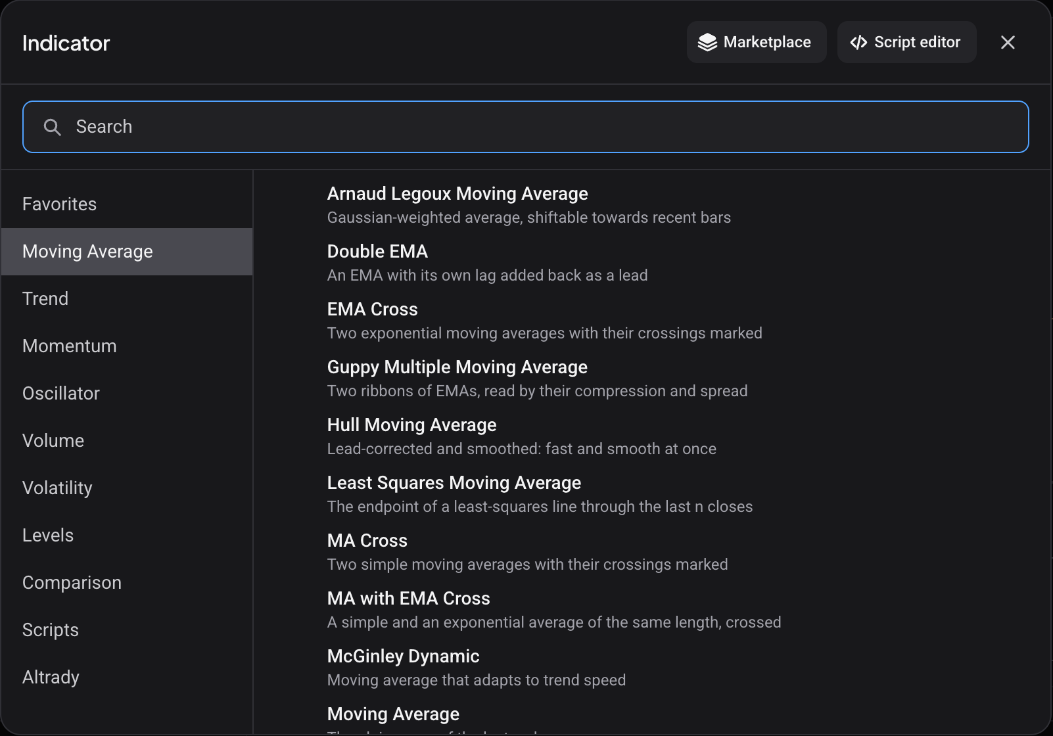
There are two ways in.
- On a chart in the Trading Terminal, open the indicator picker and click Script editor at the top, next to the close button.
- Or switch the terminal to the Script Editor layout from the layout menu.
The editor opens next to your chart. When you are done, click the X (Close script editor) in the editor’s top bar and you return to the layout you came from.
To pick a script, open the script menu at the top. It has the tabs My scripts, Public and Built-in (plus Purchased if you own marketplace indicators). Click New script under My scripts to start an empty one. Built-in and public scripts are read-only: use Copy to my scripts to get a version you can change.
Describe a script to the AI assistant
 🔍 Click the image to see a larger version
 🔍 Click the image to see a larger version
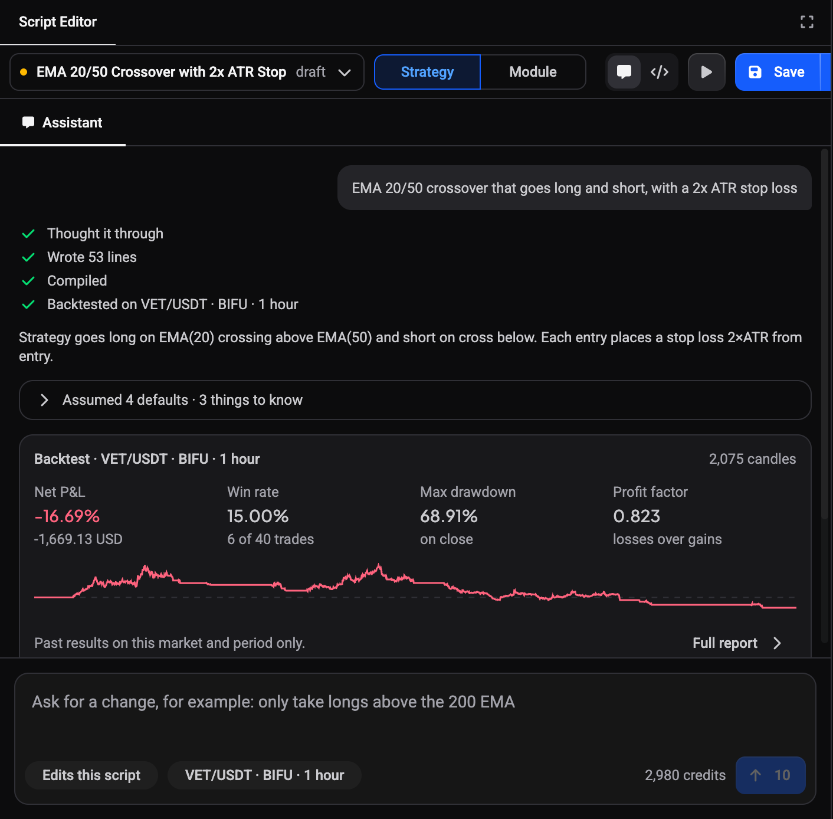
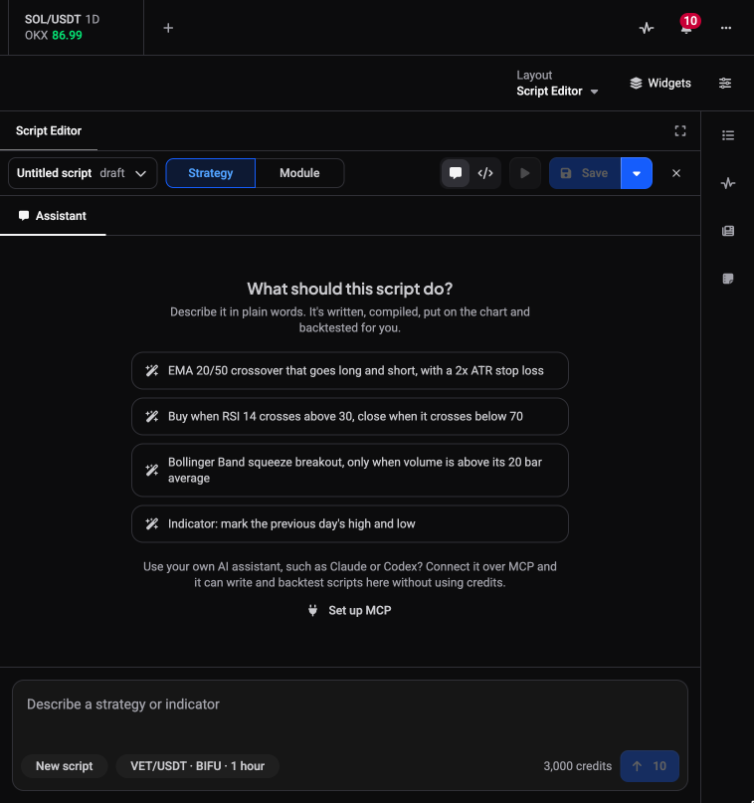
The Assistant pane sits beside the code. Tell it in plain words what the script does, for example “EMA 20/50 crossover that goes long and short, with a 2x ATR stop loss”, or pick one of the starter prompts.
- Click the box that says Describe a strategy or indicator and type your request.
- Press Enter (or click Send). Use Shift + Enter for a new line.
- Watch the steps: Think, Write the code, Compile and Backtest. Planning usually takes 20 to 50 seconds, and you can keep using the chart meanwhile.
- When it finishes, the script is on your chart and a short backtest result sits in the thread, with a Full report link.
Each request uses AI credits, and the Send button shows how many. If the script does not compile, the assistant says so and offers Fix the errors, which also uses credits. If you are out of credits you can still edit, run and backtest the code yourself, and credits refill monthly with your plan. Use Undo this change under a reply if you do not like what it did.
Once a script exists, the box changes to Ask for a change, for example “only take longs above the 200 EMA”, and the assistant edits the script you have open.
Prefer your own AI assistant, such as Claude? Connect it over MCP and it can write and backtest scripts here without using credits.
Import a Pine Script
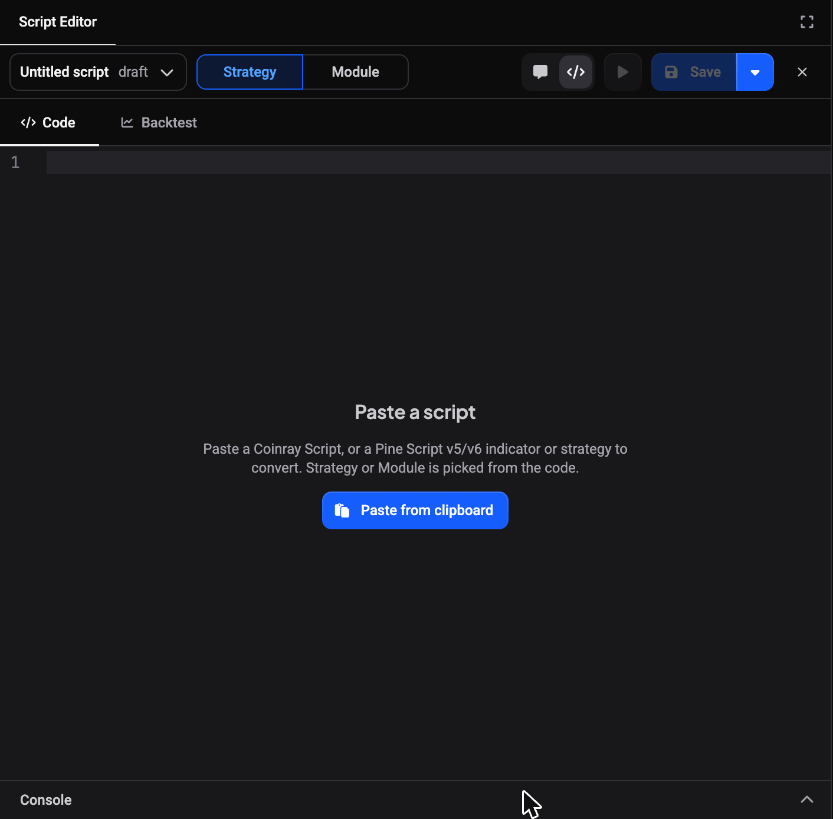 🔍 Click the image to see a larger version
Altrady scripts are written in Coinray Script. If you already have a TradingView Pine Script v5 or v6 indicator or strategy, you can convert it.
- Open New script. The empty editor shows Paste a script.
- Click Paste from clipboard, or paste the code with your keyboard.
- Altrady recognises Pine and shows “This is Pine Script”. Click Convert.
- If something could not be translated, the converted script says how many warnings there are. The marked lines and the Console tell you what was left out, so check those before you rely on the result.
Until you convert, Run on chart and Save are switched off, and the AI assistant is hidden because it works on Coinray Script.
Run it, save it and add it to your charts
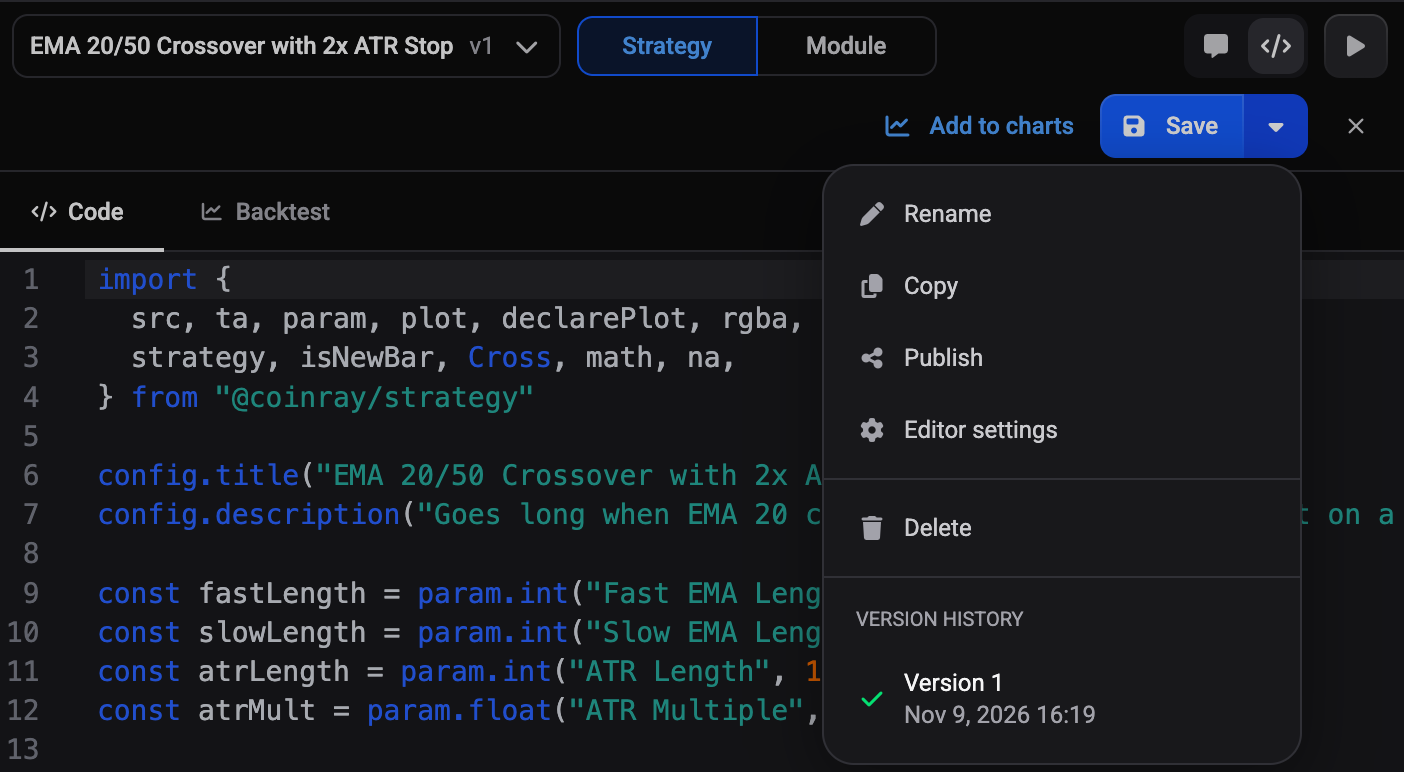 🔍 Click the image to see a larger version
- Click Run on chart (just a play icon when the editor panel is narrow) to compile the script and draw it on the chart you have open. Errors show in the Console at the bottom, with the line they belong to.
- Click Save. New scripts are named Untitled script until you rename them from the menu next to Save.
- Click Add to charts to keep the script on your charts in other layouts too.
The same menu next to Save lets you rename, duplicate, publish and delete the script, and open the version history. Each save creates a new version.
Share code between scripts with modules
A module is a script that only holds helper functions, with no drawing of its own. Altrady detects this from the code and offers Make it a module (or Make it a strategy the other way round). After you save a module, click Copy import and paste the line into another script to use its functions.
Next steps
Test your script on past candles with Backtesting a script on one or many markets, or get notified when it signals with Alerts on your scripts. To add and tune the indicators that come with Altrady, see How do I add and configure indicators on my chart?.
Still stuck?
Open the support chat in the bottom corner of Altrady and tell us which step you are on. We will help you from there.