
Alerts on your scripts
You can set an alert on any indicator or strategy script that runs on your chart, and Altrady notifies you when the script’s condition is met, even when the chart is closed. This works for your own scripts, built-in indicators and indicators you bought in the marketplace. Setting one up takes about a minute.
Start from the script on your chart
 🔍 Click the image to see a larger version
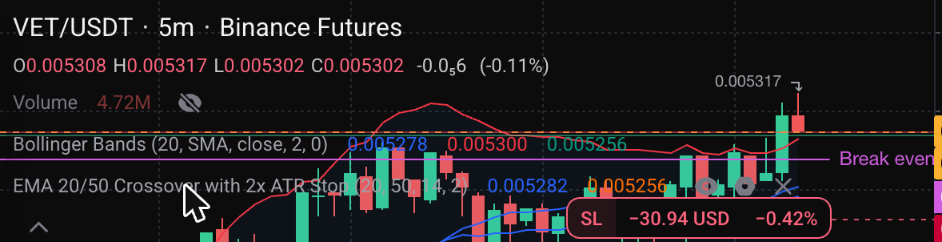
- Open a chart in the Trading Terminal that has the script on it. If it is not there yet, see Getting started with the Script Editor.
- Hover the script’s name in the chart legend and click the bell icon.
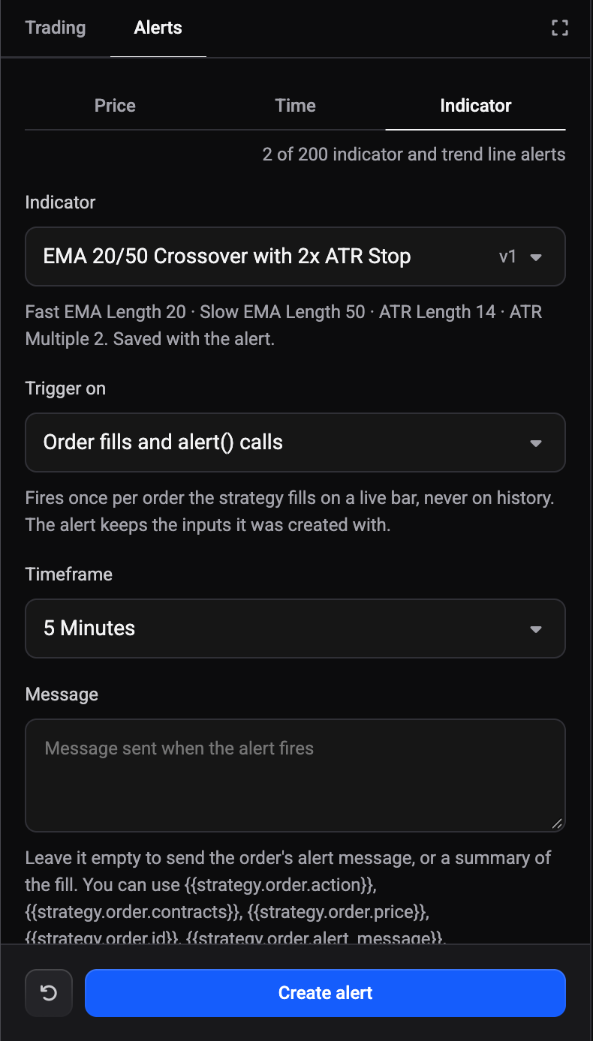
- The alert dialog opens on the Indicator tab with that script already selected. A saved version number such as v1 shows next to it, and the inputs you have on the chart are saved with the alert.
If Altrady asks you to activate the Alerts widget, add it to your layout first from Widgets.
No bell? The chart has no indicators yet. You can also open the alert dialog and pick the Indicator tab from there. Price, time and trend line alerts work as described in How do I set a price alert in Altrady?.
Choose what the alert watches
 🔍 Click the image to see a larger version
What you can pick depends on what the script declares. In the Condition list you see these kinds:
- Script alert: the script itself raises an alert. The alert fires when the script does that on a bar close. The Message is pre-filled from the script’s alert.
- Plot condition: you compare one of the script’s plots with something. Pick the Plot, the Operator and what to Compare with. Operators include crossing, crossing up, crossing down, greater than and less than. For a channel you set a Lower and an Upper value, and for a move you set how far it travels in the Move within one bar field.
Click Add condition to combine several conditions. All must be true together before the alert fires.
If a script declares neither alerts nor plots nor orders, it cannot trigger anything and Altrady tells you so.
Alerts on strategy orders
 🔍 Click the image to see a larger version
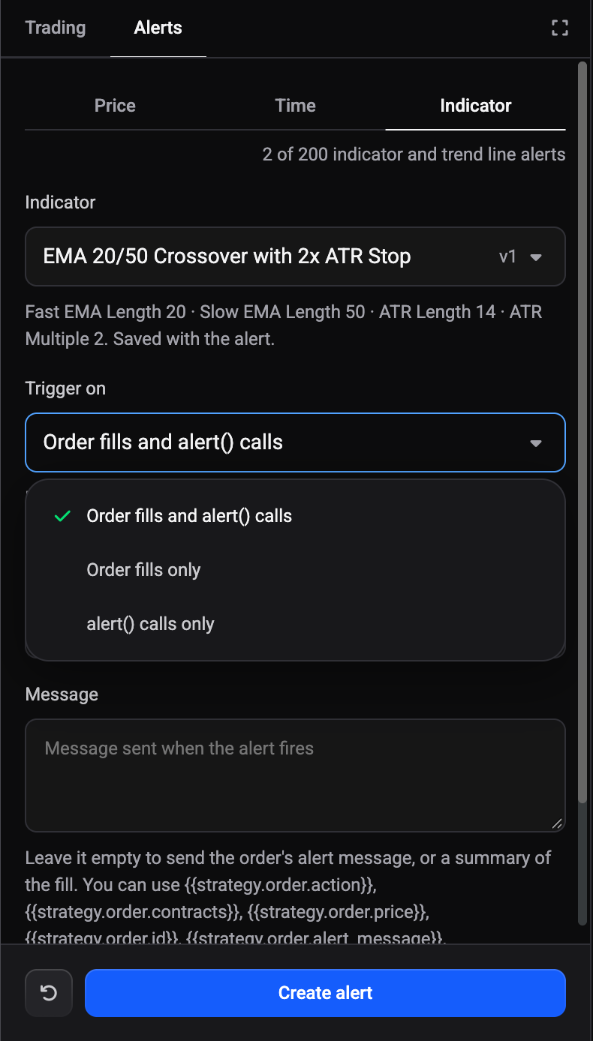
A strategy script places its own orders in a backtest, and an alert can tell you when it does. Under Trigger on, choose one of:
- Order fills and alert() calls
- Order fills only
- alert() calls only
The alert fires once per order the strategy fills on a live bar. It never fires on history, and it keeps the inputs it was created with. Leave Message empty to get the order’s own alert message or a short summary of the fill.
Set the trigger, message and delivery
- Pick the Trigger. Script alerts fire on a bar close, so only Once on bar close and Once per bar close are available with them. Strategy alerts use Every order fill or alert() call.
- Pick the Timeframe, or keep Same as chart. If the chart’s timeframe is not available for indicator alerts, Altrady tells you which one it uses instead.
- Write a Message if you like. You can use placeholders that are replaced when the alert fires, and for script alerts also a plot name in braces.
- Optionally set Expire at and a Webhook: send to an Altrady Signal Bot or to an External URL.
- Click Create alert. Use Save changes later when you edit it.
Where and how you are notified is set up in How do I turn on push and email notifications for trade and custom alerts?.
Limits and paused alerts
If you reach an alert limit, the dialog tells you, and you can edit, pause or delete an alert to make room. To manage the alerts you already have, see How do I manage, edit, or delete my alerts?.
An alert can also pause itself, and it tells you why:
- There are not enough free indicator alert slots. Free up slots, then click Resume.
- The script stopped with an error. Fix the script, then resume.
- You no longer have access to the script.
- Your access to a marketplace indicator ended. Alerts on it pause, and are deleted 7 days later unless you renew.
When a built-in indicator gets a newer version, the alert keeps running the old version until you click Use the new version and save.
Still stuck?
Open the support chat in the bottom corner of Altrady and tell us which alert you are setting up. We will help you from there.