
Backtesting a script on one or many markets
A backtest runs your script on past candles and shows what it would have done: how many trades it made, how they ended and how far the account fell along the way. You can test one market, or run the same script across many markets at once. The numbers are based on historical data; past results do not indicate future performance.
Run a backtest on one market
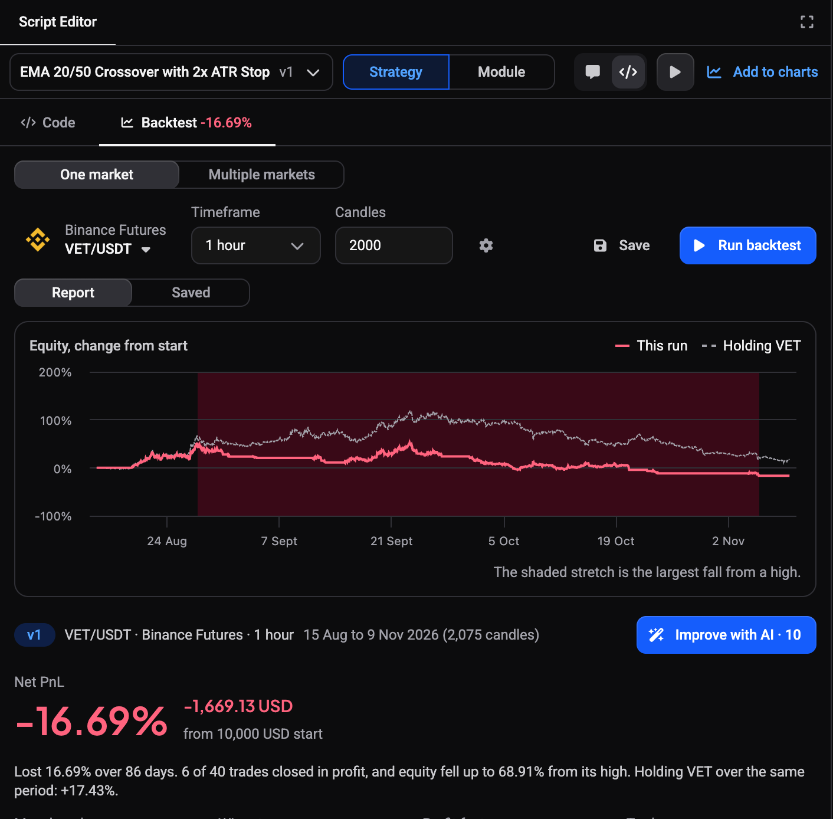 🔍 Click the image to see a larger version
- Open the Script Editor and pick or write a script. A script must compile before it can be tested; see Getting started with the Script Editor.
- Open the Backtest tab next to the Assistant and Code tabs.
- Check the toolbar: the market (the one on your chart), the Timeframe and the number of Candles.
- Click Run backtest. A run usually takes 5 to 15 seconds.
The AI assistant also runs a short backtest by itself after it writes a script. Click Full report in the thread to see the complete result here.
Read the report
 🔍 Click the image to see a larger version
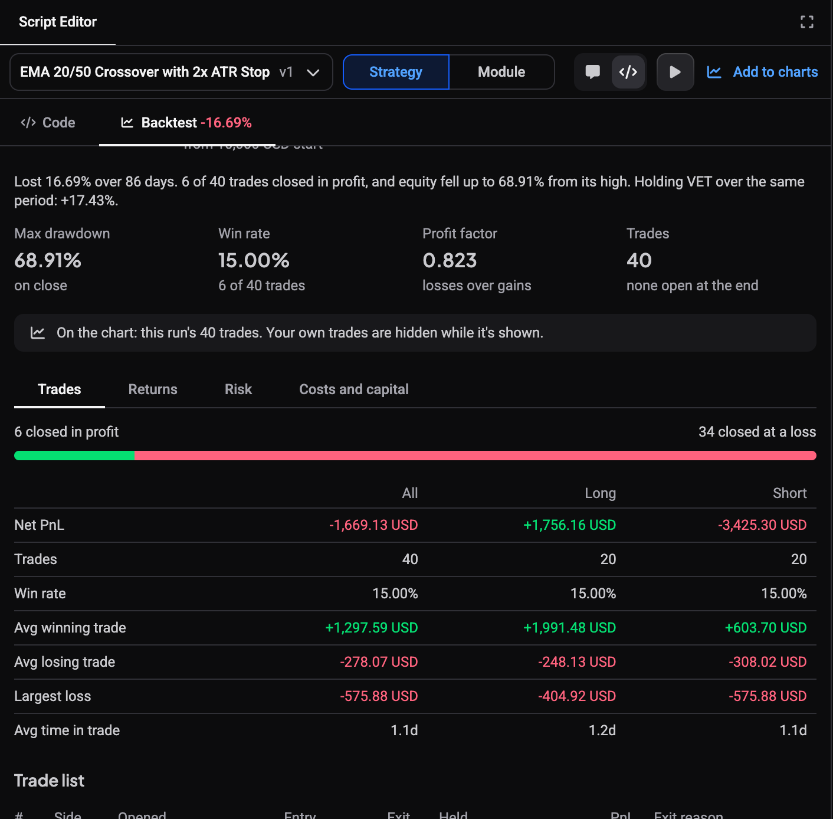
The report starts with a plain sentence, for example how much the account gained or lost over the period and how many trades closed in profit. Below it are the key figures:
- Net PnL, shown against your starting capital
- Win rate, with the number of won trades out of all trades
- Max drawdown, the largest fall from a previous equity high
- Profit factor, gains compared with losses
- Trades, and how many were still open at the end
The equity chart shows the change from the start, with the largest fall shaded, and a line for simply holding the coin over the same period. The tabs Trades, Returns, Risk and Costs and capital go deeper: the trade list with Exit reason, PnL by month, Sharpe and Sortino ratios, fees paid and more.
The trades of the run are drawn on your chart while the report is open. Fees are included in the result; slippage and funding are not. The result covers one market and one period only, so test another market or period before you draw conclusions.
Change the backtest settings
 🔍 Click the image to see a larger version
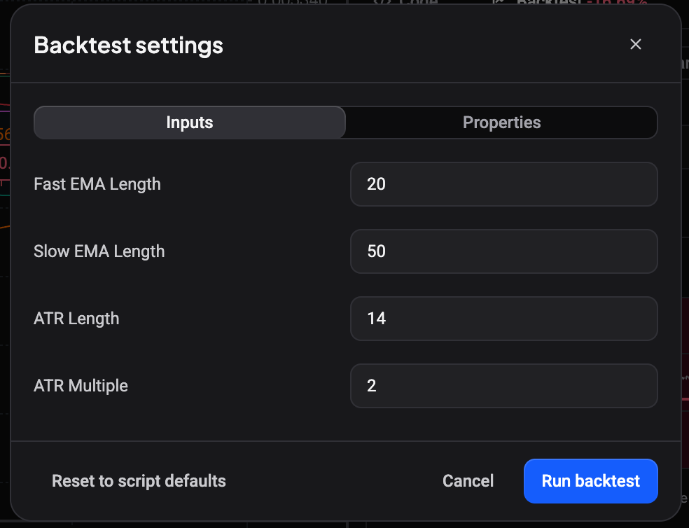
Click Backtest settings in the toolbar to change how the test runs.
- Inputs: the parameters the script declares.
- Properties: Initial capital, Default order size (as a percentage of equity, a quote amount, a base amount or risk-based), Pyramiding, Commission, Margin and Max leverage, and under Advanced things like Slippage, Limit fill distance and Fill orders on bar close.
Use Reset to script defaults to go back, then Run backtest again.
Save and compare runs
 🔍 Click the image to see a larger version
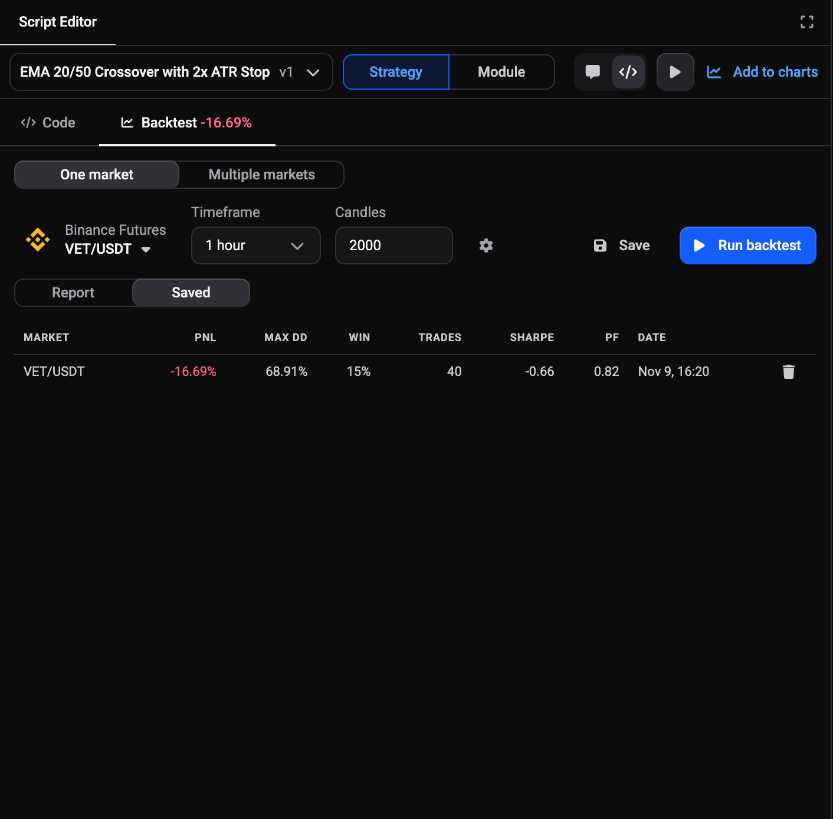
Save the script first, then click the save icon (Save this backtest) to keep a run. Saved runs appear on the Saved tab next to Report. A timeline of your runs lets you switch between them and compare the figures against the previous run. If the script has changed since a run, Altrady tells you, and a button offers to restore that run’s version of the script in the editor.
Backtest on multiple markets
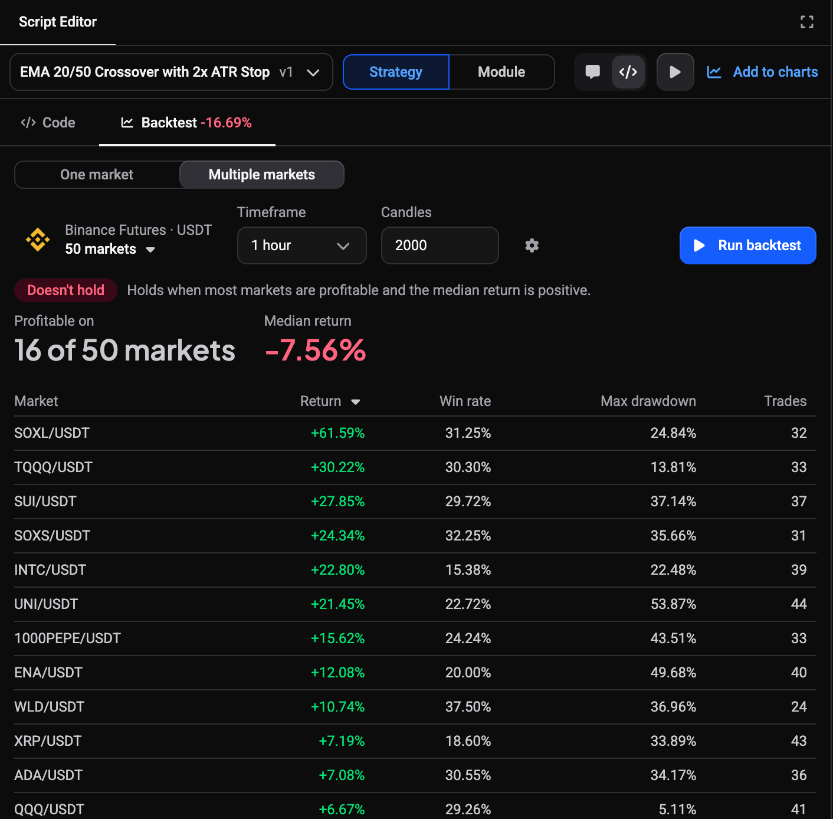 🔍 Click the image to see a larger version
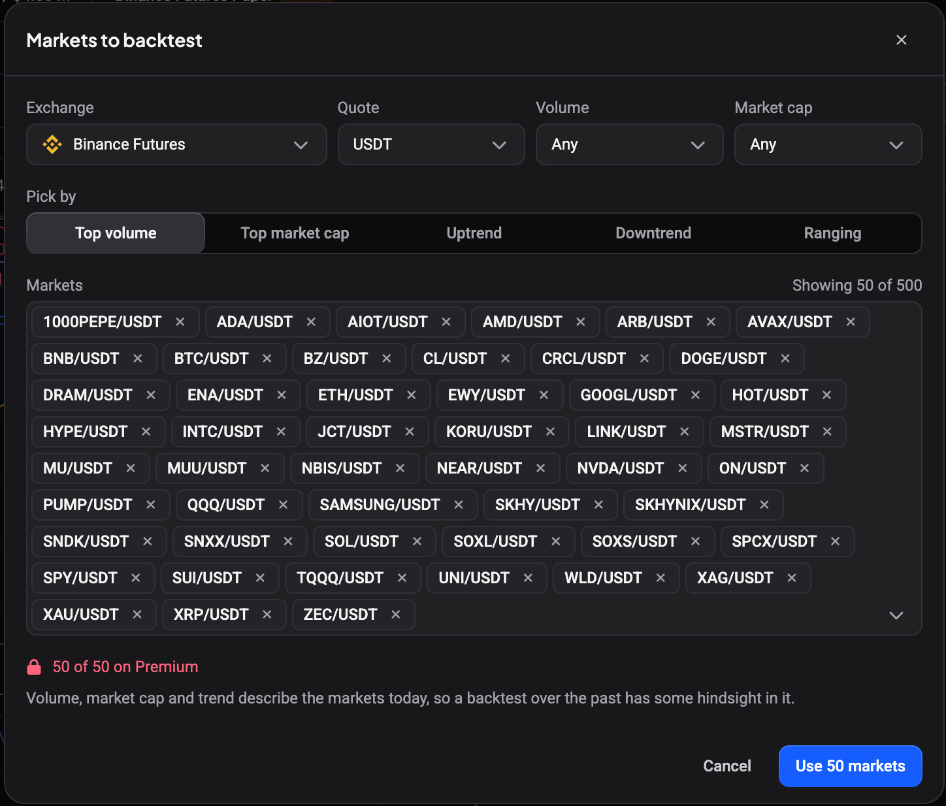 🔍 Click the image to see a larger version
A good result on one market can be luck. To see whether a script behaves the same elsewhere, test many markets in one go. Multi-market backtesting is only available on plans that include it; otherwise Altrady tells you it is not part of your plan.
- In the Backtest tab, switch from One market to Multiple markets.
- Click Pick markets. Choose an Exchange and a Quote currency.
- Under Pick by, choose Top volume, Top market cap, Uptrend, Downtrend or Ranging, or narrow it with the Volume and Market cap bands. You can also add or remove markets by hand. The number of markets is capped by your plan, up to 50.
- Click Use N markets, then Run backtest.
Volume, market cap and trend describe the markets today, so a test over the past has some hindsight in it.
The summary shows a label, Holds, Mixed or Doesn’t hold. It is a description of past results only: Holds means most markets were profitable and the median return was positive. You also see how many markets were profitable and the Median return. The table lists each market with Return, Win rate, Max drawdown and Trades. Click a row to open the full report for that market, and use Back to all N markets to return. Markets with no trades, or that failed to run, are listed separately and are not counted.
When there are no trades or a run fails
If the entry conditions never matched, the report says No trades in this period. Click Use more candles, Pick another market, or Ask the assistant why. If a run fails, use Run again or Use 1,000 candles. A script that does not compile cannot be tested: fix the errors in the Code tab first.
Still stuck?
Open the support chat in the bottom corner of Altrady and tell us which backtest you are running. We will help you from there.