
How do I create and use a trading strategy (checklist and risk profile)?
A strategy in Altrady is a saved trading plan: a name, a trading style, a checklist of rules, and an optional risk profile. Once you create one, you can pick it while you trade and attach it to any position, and Altrady tracks how closely you followed your own rules and how that strategy performs over time.
Create a strategy
 🔍 Click the image to see a larger version
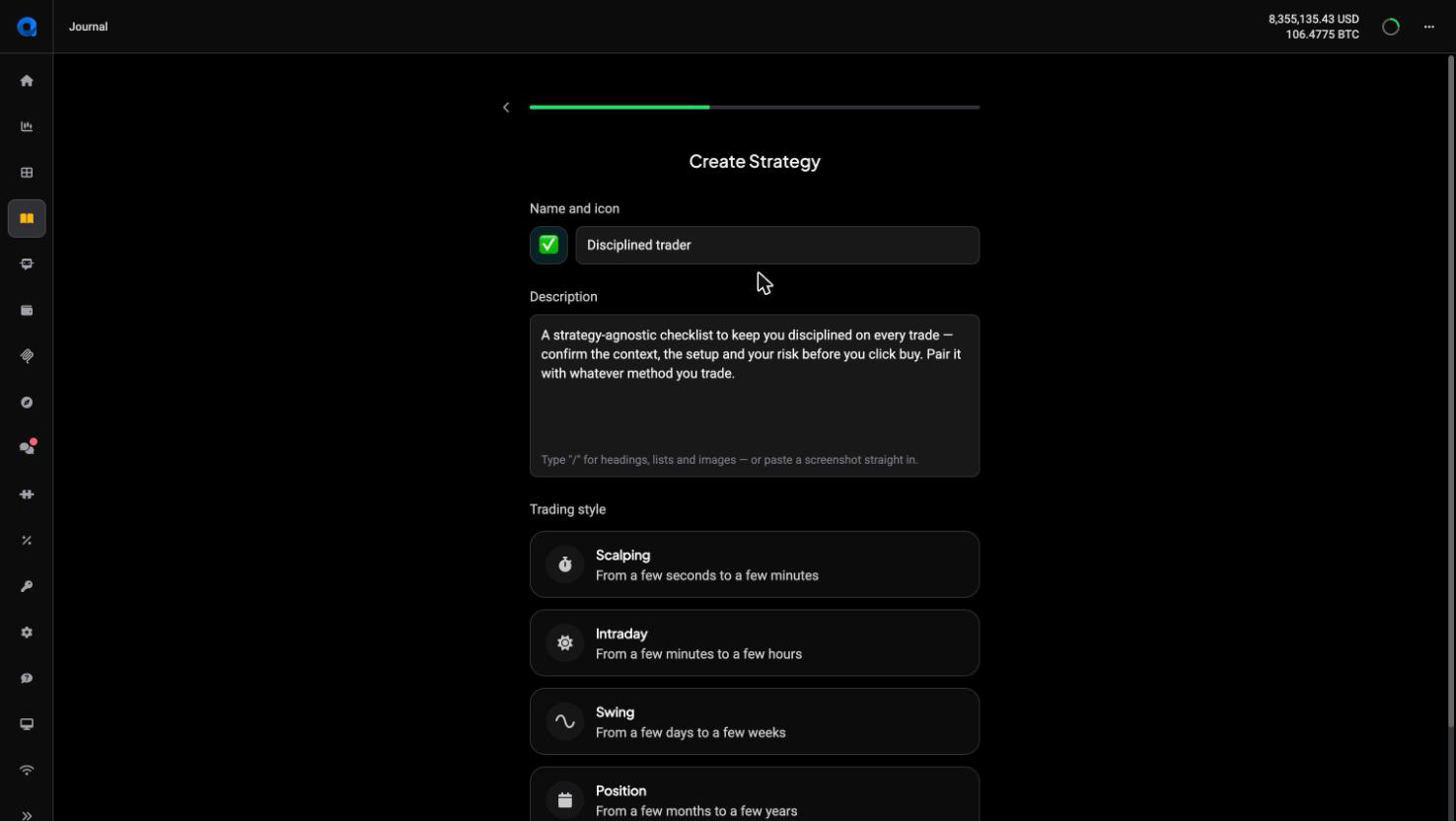
- Go to Journal > Strategies and click Create.
- On the first step, choose Blank strategy to build everything yourself, or start from a template. The templates are grouped by style (Scalping, Intraday, Swing, Position), and cover the common setups: support and resistance bounces, trend following, consolidation breakouts, trend-pullback continuations, range trading, flags, Fibonacci retracements and more. Each one pre-fills a checklist you can edit right after, and each is a starting configuration rather than trading advice: you decide what to keep.
- Give the strategy a name, pick a colour and emoji so it is easy to spot in lists, and add a description.
- Choose a trading style: Scalping (a few seconds to a few minutes), Intraday (a few minutes to a few hours), Swing (a few days to a few weeks), or Position (a few months to a few years). This just reflects how you plan to hold trades under this strategy; it does not restrict what you can trade.
- Work through the three tabs, General info, Rules and Risk profile, then finish. Altrady opens the new strategy’s page straight away.
When you edit a strategy later, you can jump to any tab and click Save changes from there, without stepping through the others.
You can also create one without leaving a signal bot. On the bot’s Journal settings tab, Create strategy makes a strategy and attaches it to that bot’s positions in one step. The button is greyed out while an existing strategy is already selected there, so clear the selection first, or create the strategy here and then pick it on the bot.
Build the checklist
The Rules tab is where you write the rules you want to follow every time you trade this way. A new strategy starts with sections for entry, exit and invalidation conditions. Click a section name to rename it, add lines under each section, and drag rows to reorder them (this works on touch screens too). Keep it short enough that you will actually tick it off: a scalping checklist works better as four lines than twenty.
You tick the checklist in two places: in the trading terminal while you place the order, and on the position’s Review page after the trade. See how do I review, rate and tag my trades.
Choose a risk profile
 🔍 Click the image to see a larger version
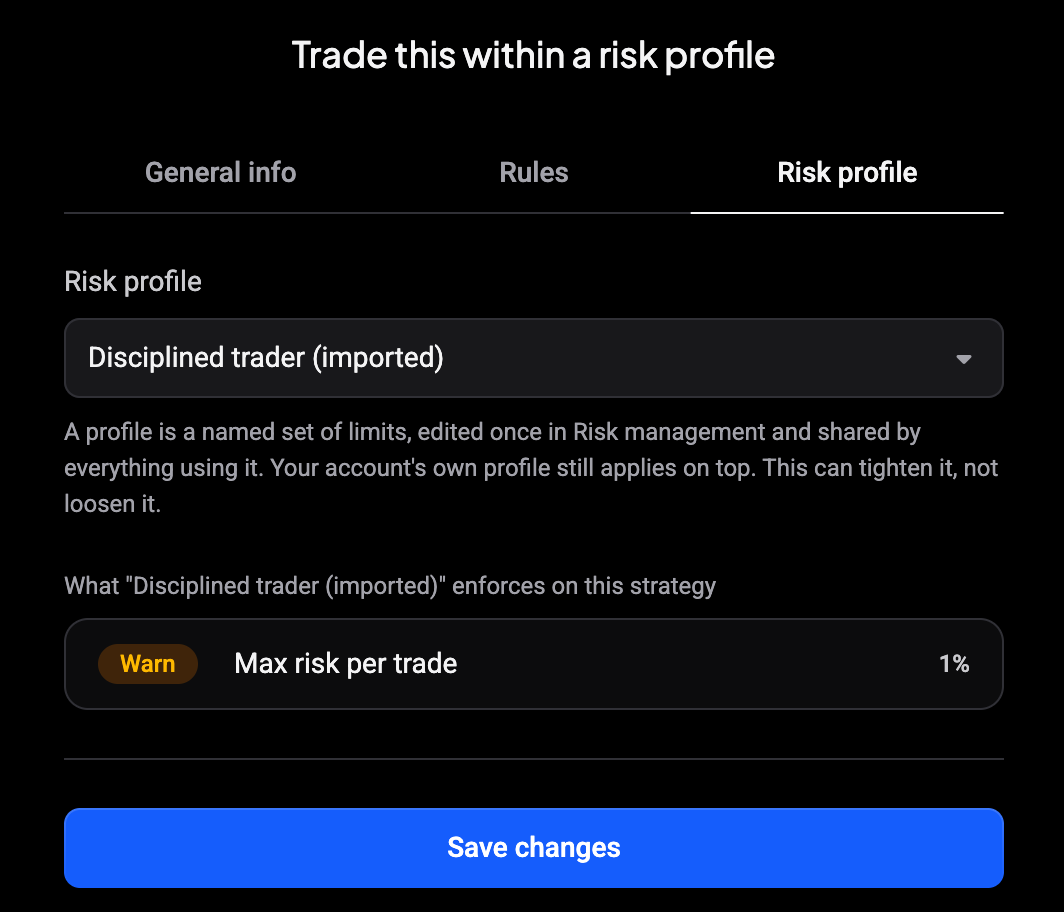
The Risk profile tab asks you to trade this strategy within a risk profile: a named set of limits you manage once on the Journal’s Risk management tab and share between accounts and strategies.
- Pick a profile from the Risk profile dropdown, or leave it on No profile.
- Check the list below it: it shows what that profile enforces on this strategy, with each rule’s Warn or Block level and value.
Your account’s own profile still applies on top, so a strategy profile can tighten your limits but not loosen them. Account-wide rules in the profile, like a daily loss limit, only apply to accounts and are left out here. No profiles yet? Create one first: see setting risk rules. These limits are boundaries you set for yourself; you always decide the trade.
Use the checklist in the trading terminal
 🔍 Click the image to see a larger version
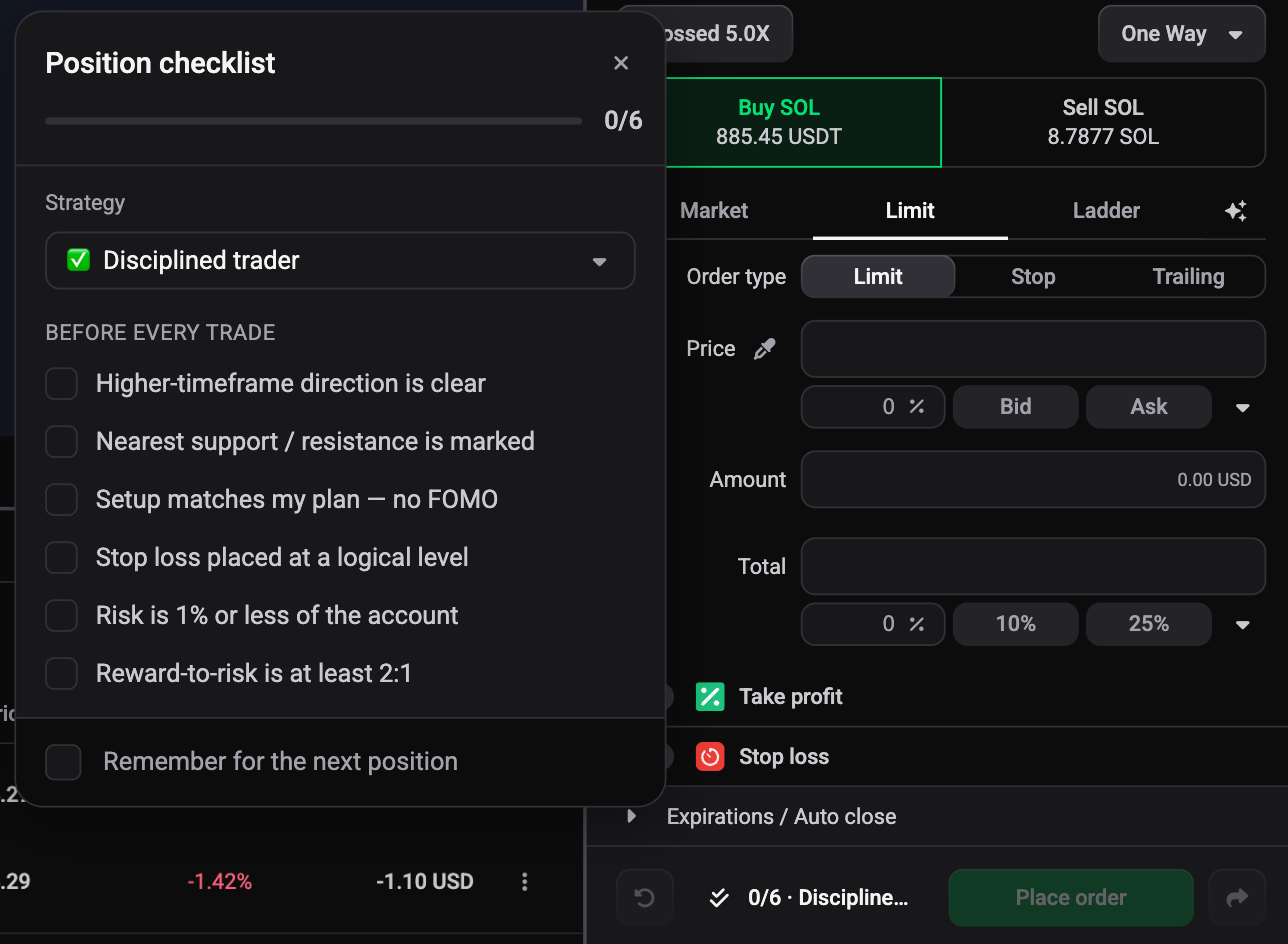
Next to Place order in the trading form is the strategy button.
- Click Select strategy and choose one. The Position checklist opens with that strategy’s rules.
- Tick the rules as you check them. The button shows your progress first, for example 0/6 followed by the strategy name.
- Tick Remember for the next position to keep the same strategy selected for your next order.
Picking a strategy also brings its risk profile into the order check. Whether the checklist stays open when you click on the chart is up to you: in the trading form’s settings, set Keep the checklist open to Yes to keep it on screen until you close it, or No to close it as soon as you click outside it.
Backtest a strategy
 🔍 Click the image to see a larger version
When you create a backtest session you can pick the strategy you want to practise; starting one from the trading terminal carries over the strategy you already picked there. A strategy’s page lists its linked sessions under Backtests, with Run new backtest to start another. When you close a backtest position, the journaling prompt is filled in with the backtest’s strategy. Backtest results are based on historical data; past results do not indicate future performance.
Attach a strategy to a position
 🔍 Click the image to see a larger version
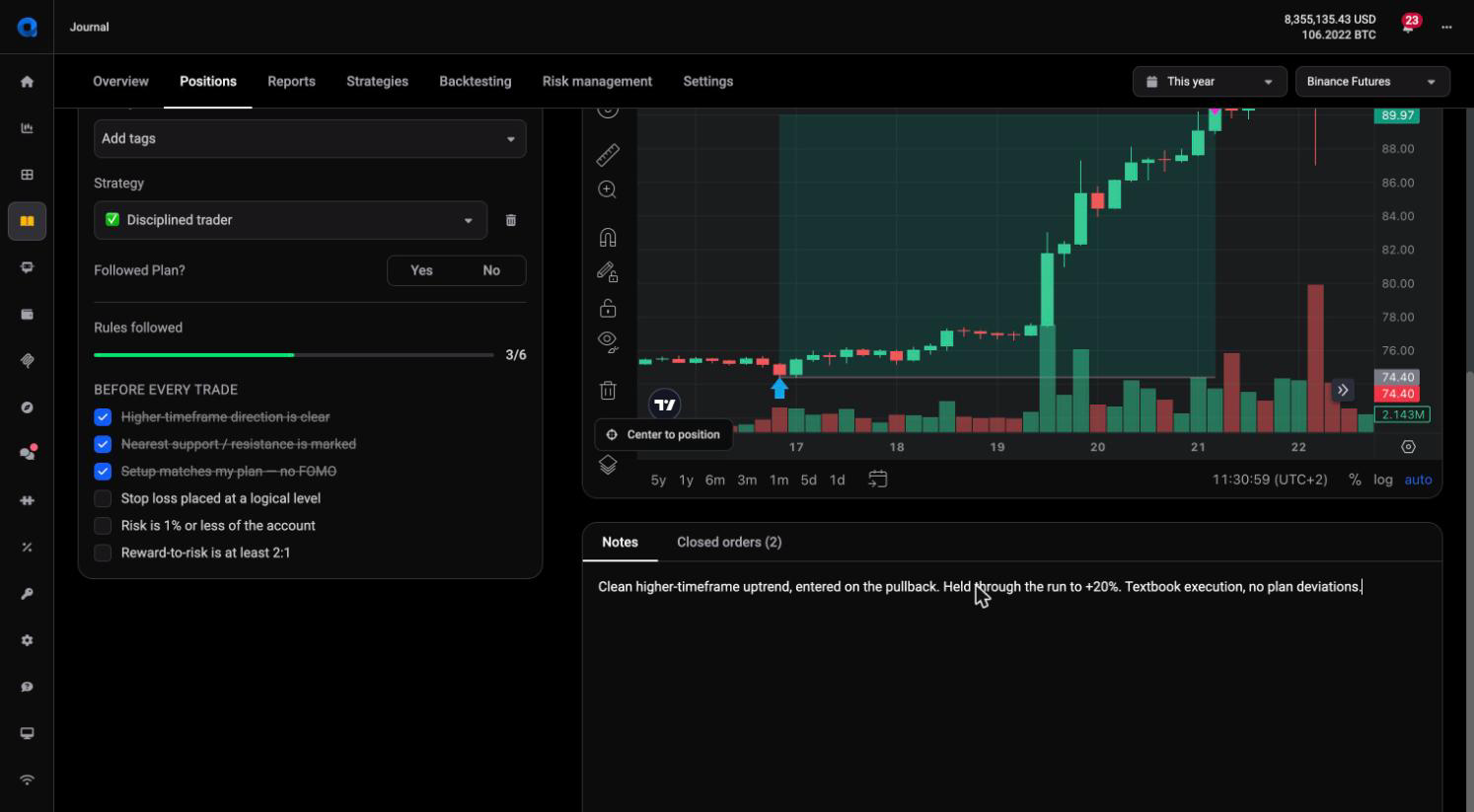
Besides picking one while you place the order, there are four places to attach a strategy:
- The position’s Review page, from the Strategy dropdown. A trash icon unassigns it later. As soon as it is assigned, its checklist appears inline with a progress bar and tickable items grouped by section.
- The Strategy column on the Journal’s Positions list, without opening the trade.
- Bulk Actions > Assign strategy on the Positions list, across many trades at once.
- The Position Info widget in the trading terminal, which carries the same strategy dropdown and works on open positions as well as closed ones.
See how do I review, rate and tag my trades for the full review flow.
Read the Strategies list
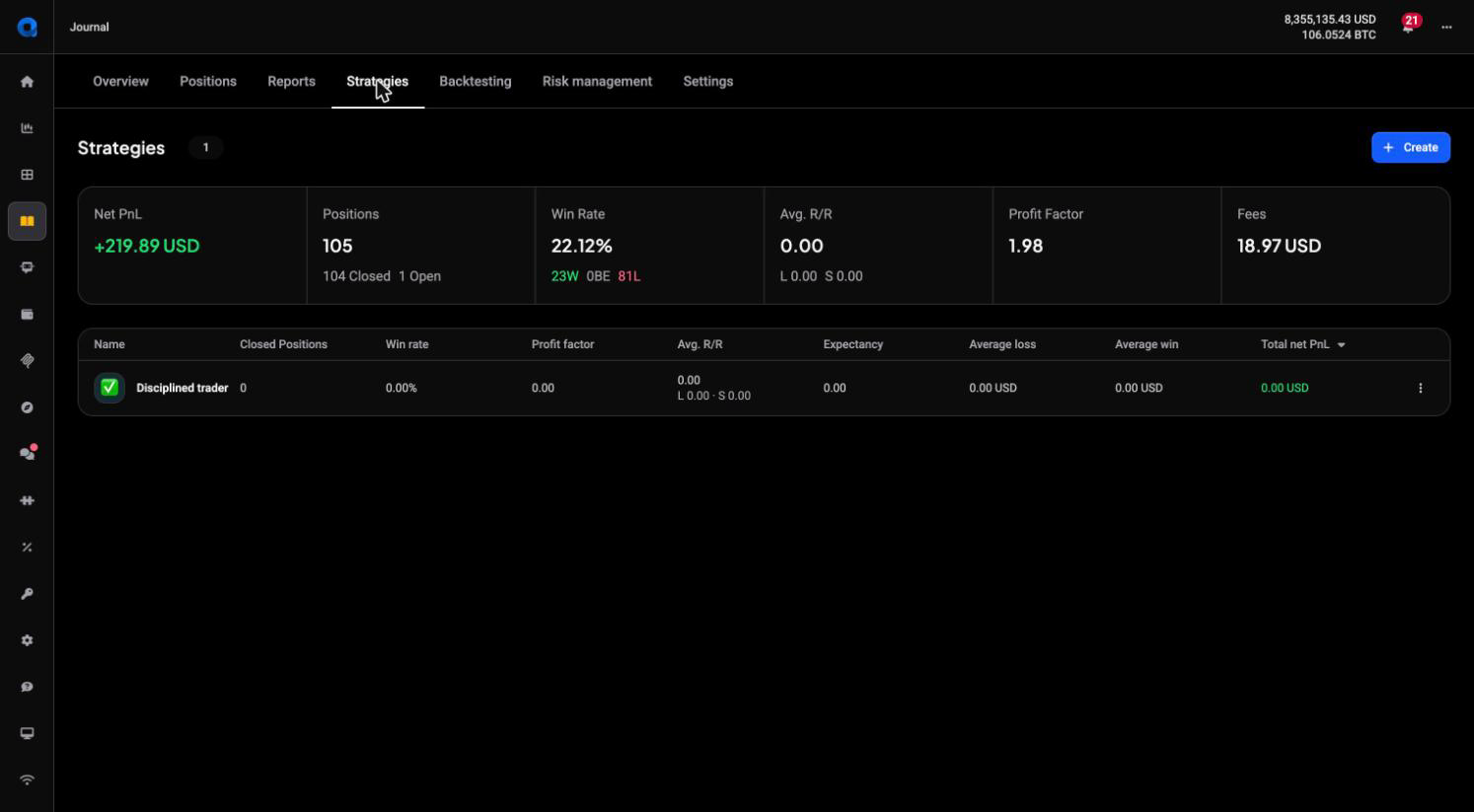 🔍 Click the image to see a larger version
Journal > Strategies lists every strategy you have created, above a summary strip (Net PnL, Positions, Win Rate, Avg. R/R, Profit Factor and Fees across all of them) and a table with a row per strategy: Closed Positions, Win rate, Profit factor, Avg. R/R, Expectancy, Average loss, Average win and Total net PnL. Click a row to open the strategy’s page; the menu at the end of a row offers edit and delete.
Two things shape what you see here. Only reviewed positions are counted, so a strategy can look emptier than it is if its trades have not been reviewed yet. And Avg. R/R and the related risk figures only calculate for smart positions created in Altrady, not for positions synced or imported from your exchange.
Plans and limits
How many strategies you can keep depends on your plan: 1 on Basic, 5 on Essential, and unlimited on Premium. The strategy checklist feature is available from Essential up, and risk profiles for accounts and strategies are part of Premium.
Still stuck?
If a strategy is not showing up on a position’s Review page, or its stats look off, check that the trades are reviewed first, since unreviewed positions are left out of every report. Then reach out through in-app support chat and the team will take a look with you.