
How do I review, rate, and tag my trades in the Trading Journal?
Once a position closes, open it from the Trading Journal and use the Position Review card to rate your execution, tag what happened, tick off the rules you actually followed, and write a note. That is what turns a list of closed trades into a journal you can learn from.
Find the position
 🔍 Click the image to see a larger version
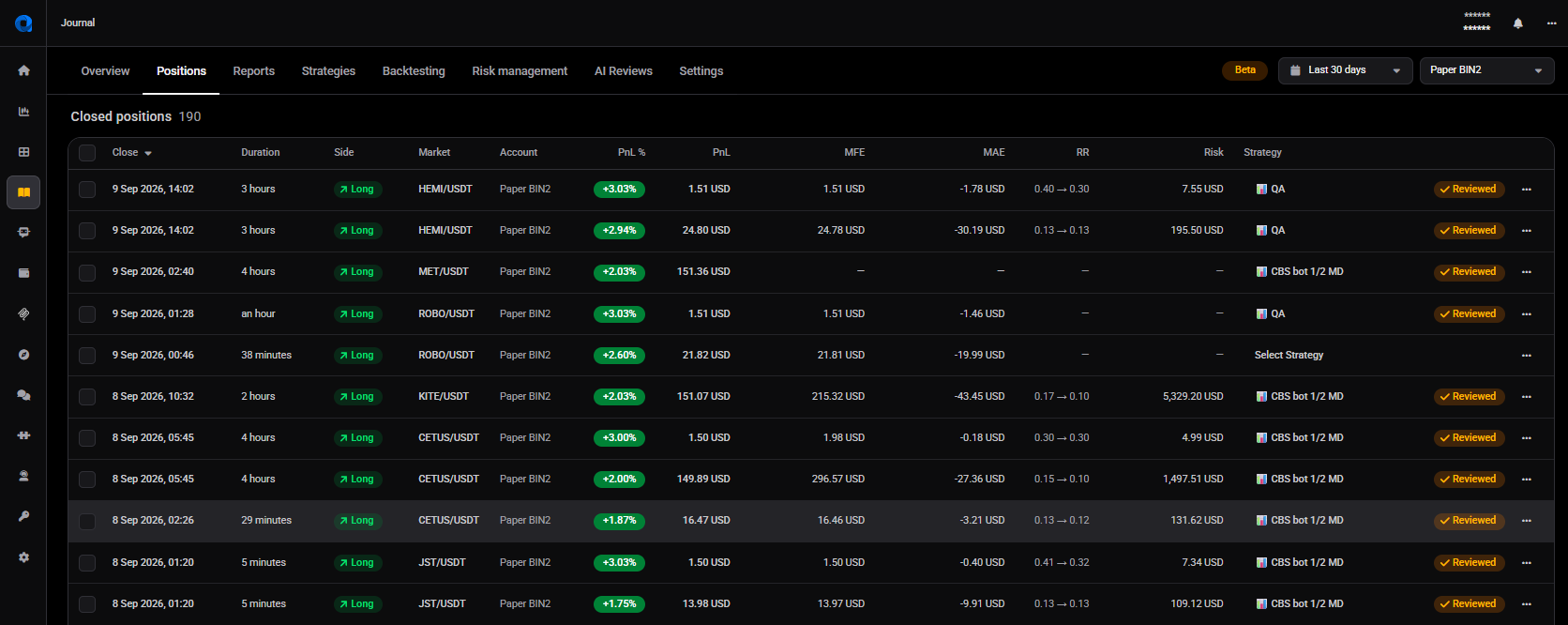
The Trading Journal has eight tabs across the top: Overview, Positions, Reports, Strategies, Backtesting, Risk management, AI Reviews, and Settings. Open Positions to see your trades, listed as an Open positions table above a Closed positions table, each with its own count.
Each row shows the close date, duration, side, market, account, PnL % and PnL, plus MFE, MAE, RR, Risk and Strategy columns. The RR column reads as planned to realized, so 0.40 → 0.30 means you planned a reward-to-risk of 0.40 and realized 0.30. The Strategy cell is editable in place: click Select Strategy to attach one without opening the trade. A gold Reviewed badge sits at the end of every row you have already reviewed.
Use Search by market at the top to jump to a symbol, and click any row to open that position’s Review page.
 🔍 Click the image to see a larger version
The … menu at the end of a row holds the journaling actions for that one trade: on a closed position, Mark reviewed or Mark unreviewed, Exclude from journal, and Delete position. Rows in the Open positions table carry the same journaling actions plus the usual trading ones, such as viewing, sharing, and closing the position.
Read the trade summary
The card at the top of the Review page shows Net PnL, MAE and MFE. Click Show details for the position size, average entry and exit prices, and the Stop Loss and Take Profit you planned. Those two show only the price you actually set, so they stay empty on a trade without a stop loss or take profit. Altrady remembers whether you leave the details open. The chart marks your average entry price.
Rate your execution
 🔍 Click the image to see a larger version
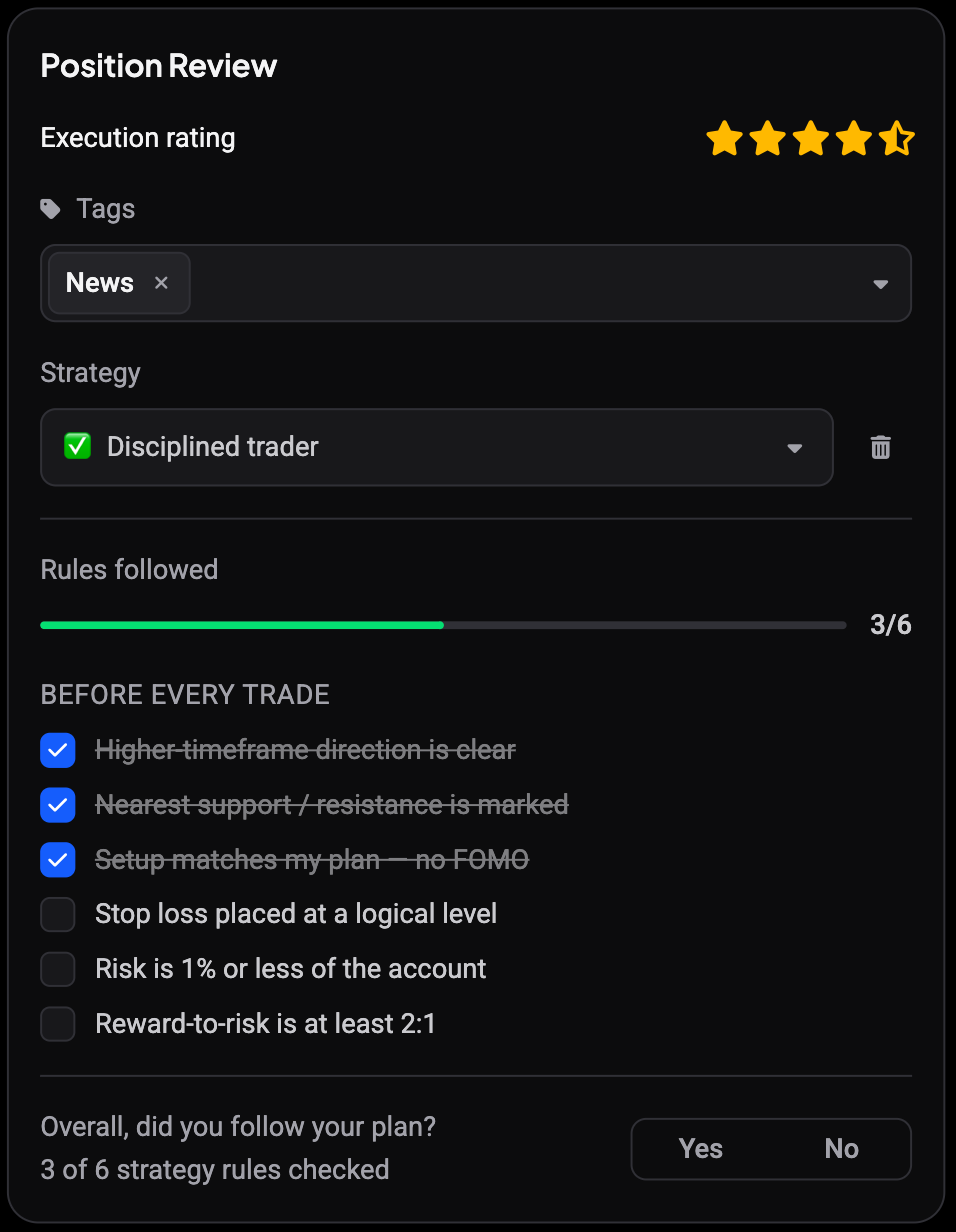
At the top of the Position Review card is the Execution rating: 1 to 5 stars, and half stars work too. Rate the decision, not the result: how well did you follow your plan? A well-executed trade can still lose and a careless one can still win, so scoring execution separately is what shows which habits are actually working over a run of trades. Hover the help icon next to the label for a reminder.
Tag what happened
 🔍 Click the image to see a larger version
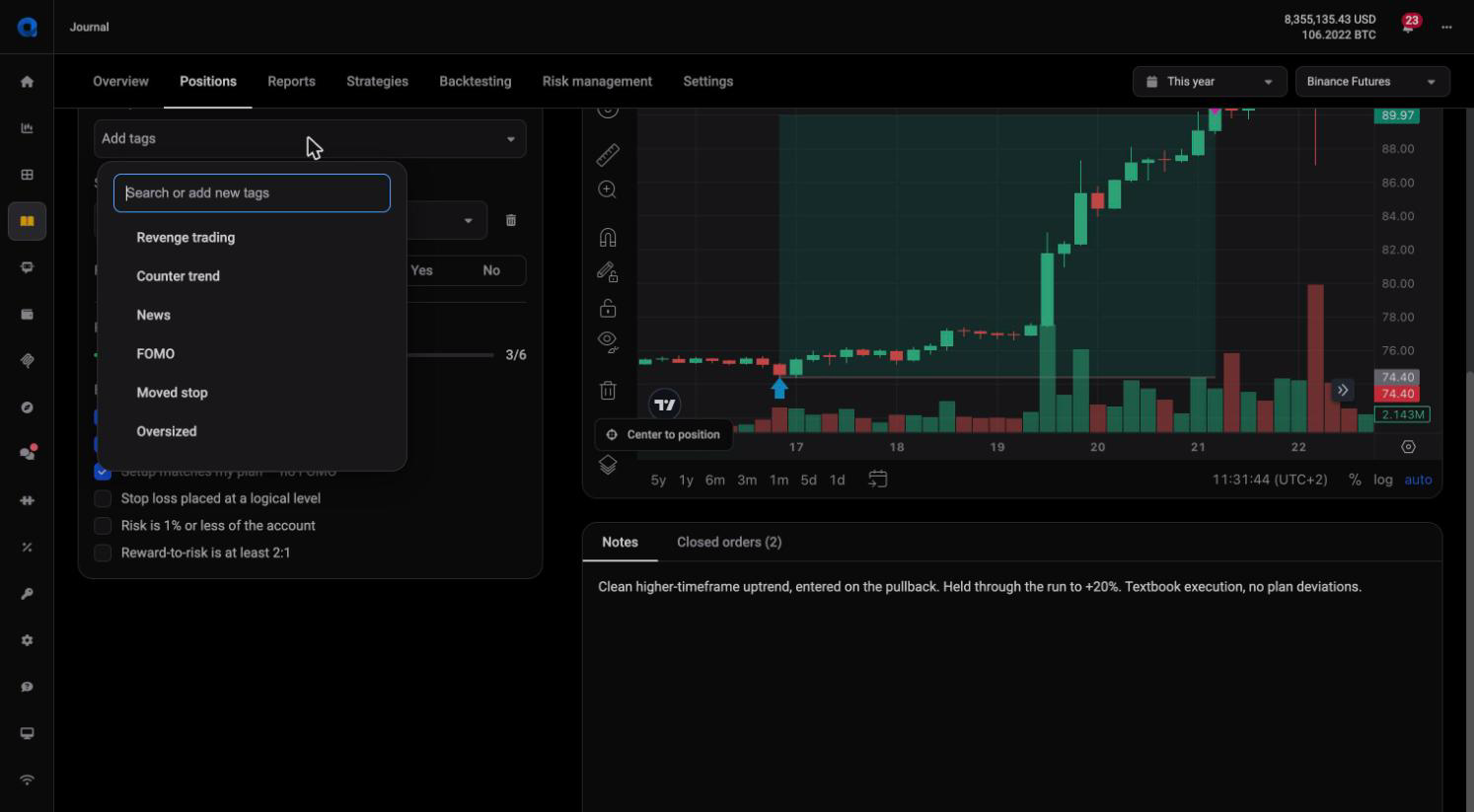
Below the rating is Tags, a free-form field. Open Add tags, then type any label and add it, or pick from the ready-made tags Altrady seeds: Revenge trading, Counter trend, News, FOMO, Moved stop, Oversized, Early exit, and No plan. Add as many as apply, or none. Over time these tags are what let you spot patterns, like noticing how many of your losing trades are tagged FOMO. You can manage the tag list from the Journal’s Settings tab.
Assign a strategy and tick the checklist
Use the Strategy dropdown to attach the trading strategy you were following (or leave it on No strategy for a one-off). A trash icon next to the dropdown removes it again. The same dropdown appears in the Position Info widget in the trading terminal, on open and closed positions alike.
As soon as a strategy is assigned, its checklist appears under Rules followed, grouped by section with a progress bar. Tick each rule you actually stuck to during the trade. Leaving items unticked is useful information too: it is an honest record of where you drifted from the plan, not a grade to pass.
Below the checklist comes Overall, did you follow your plan? (Yes / No), with a count such as “3 of 6 strategy rules checked” underneath. The checklist scores each rule on its own; this question is your overall verdict, so you can answer Yes even if one minor rule was missed. If you have not set up strategies yet, see How do I create and use a trading strategy?.
Write down what you learned
Below the chart are tabs for the AI review, Notes, Closed orders and, for positions opened in Altrady, Setup. The Notes prompt says it plainly: why did you take this trade, did you follow your rules, and note any emotions, chart patterns or trade-management lessons. A couple of honest sentences here is worth more than a perfect star rating.
Closed orders and Setup
 🔍 Click the image to see a larger version
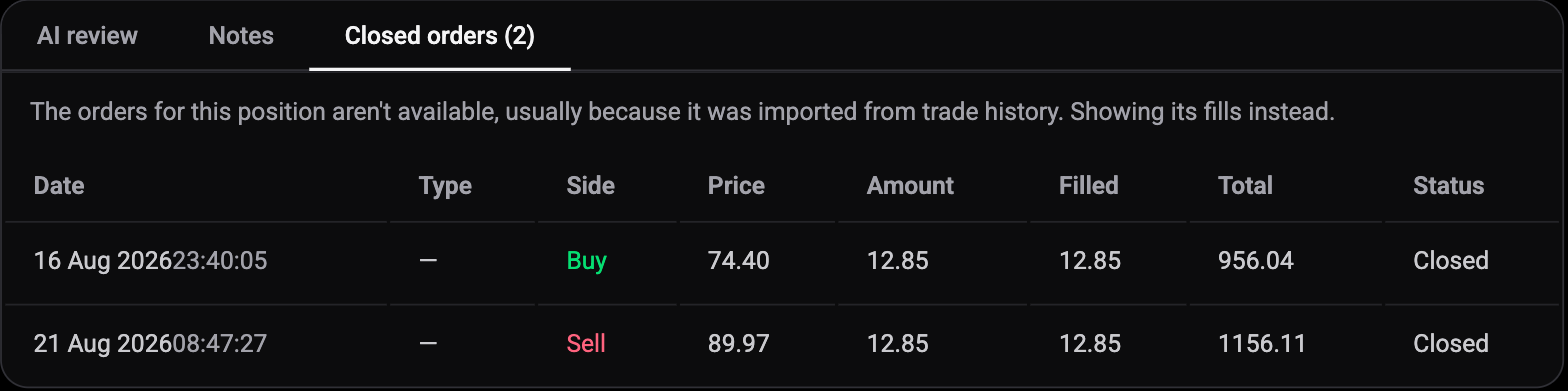
Closed orders lists the trade one row per exchange order, with date, type, side, price, amount, filled, total and status.
 🔍 Click the image to see a larger version
Positions imported from your trade history often have no orders on record. Don’t worry, nothing is missing from your results: a note says the orders aren’t available and the tab lists the individual fills instead.
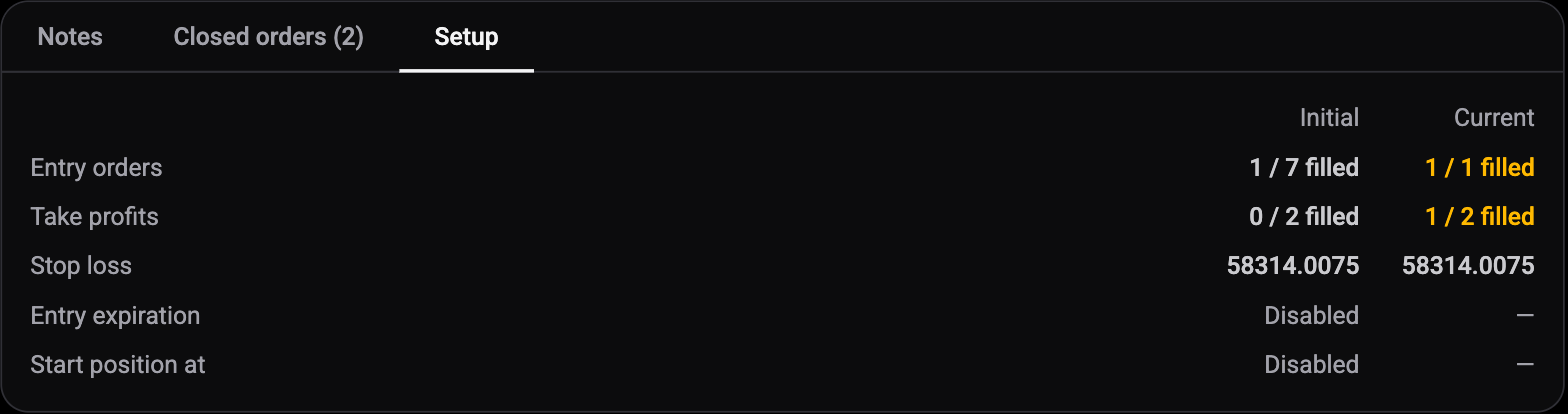
Setup compares two moments in an Initial and a Current column for entry orders, take profits and stop loss, and highlights anything that differs. Initial is the setup right after the first entry filled; Current is the setup now. So entries you added later, such as a DCA order or an increase, and entries that were cancelled later both show up as a difference. Entry expiration and Start position at only show their initial value, because they switch off once the entry fills.
Journal a position the moment you open it
You do not have to wait until a trade closes to start journaling it. When you place or update a position in the trading terminal, Altrady shows a quick prompt, Why did you open this position?, with a note field and a strategy dropdown, so you can capture your reasoning while it is fresh. What you write carries through to the position’s Review page, where you rate and tag it after it closes.
Which of these prompts appear is up to you: the Journal’s Settings tab has a Journaling prompts section with a switch for placing a position, updating one, and closing one.
Reviewed status
As you fill in the rating, tags, strategy and notes, Altrady marks the position Reviewed: a badge appears next to the market name at the top of the page, and a matching badge appears on that trade’s row in the Positions list. Reviewed trades drop off the review prompts on the Overview tab, so you can focus on the ones still waiting. Positions that closed months ago are left out of those prompts, and tapping a Review position push notification opens the position it is about.
Only reviewed positions count in your reports
Marking a position reviewed does more than tidy your list. The Overview, Reports, Strategies and AI Reviews tabs are all built from reviewed positions only. A position that is closed, inside your selected period, and on a selected account will still be absent from every stat until it has been reviewed.
This catches people out most often with bot positions, which arrive in bulk and are never reviewed by hand. If a report looks emptier than your trading was, check the Positions tab for unreviewed trades before you check your filters.
There are three ways to get positions counted:
- Review one at a time. Filling in a rating, tags, strategy or notes marks the position reviewed automatically.
- Review in bulk. Select rows on the Positions tab and use Bulk Actions > Mark reviewed.
- Have a bot do it for you. A signal bot can mark its own closed positions reviewed as they close. See the next section.
Exclude from journal does the opposite: it keeps a position out of your reports deliberately, which is useful for trades you do not want polluting your stats. Include in journal puts it back.
Have a signal bot journal its own positions
 🔍 Click the image to see a larger version
Reviewing bot positions by hand does not scale. A signal bot can do it for you.
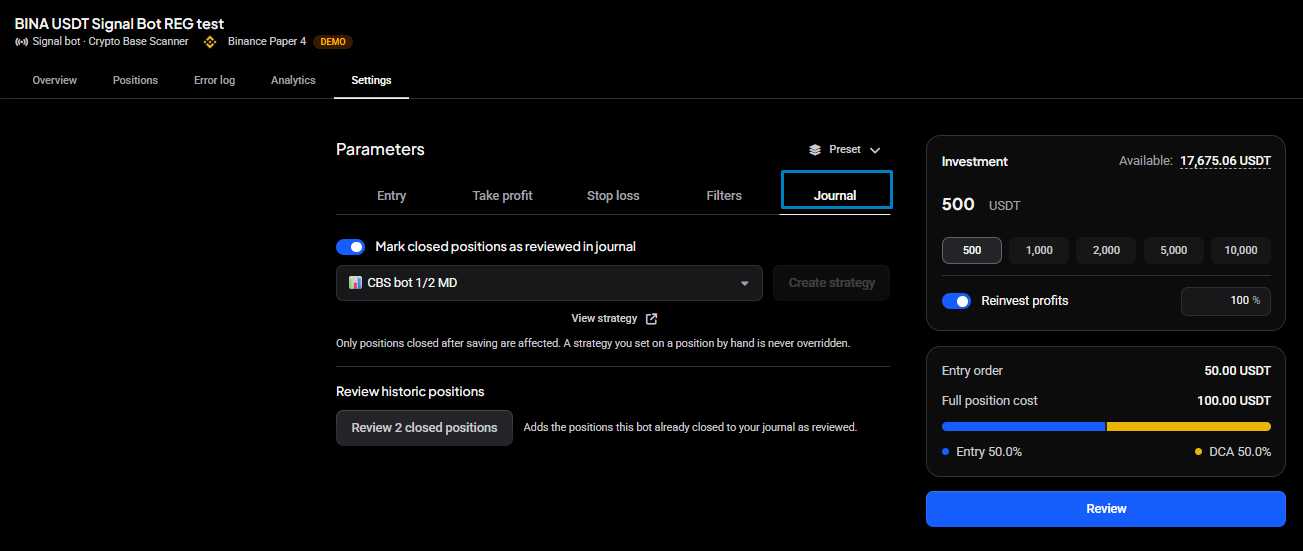
- Open the bot, go to Settings, and open the Journal tab in the Parameters panel (alongside Entry, Take profit, Stop loss and Filters).
- Turn on Mark closed positions as reviewed in journal. From now on every position this bot closes lands in your journal already reviewed, so it counts in your reports without you touching it.
- Optionally pick a strategy from the dropdown. The bot’s positions are tagged with it automatically, which is what makes the Strategies report meaningful for bot trading.
Two things are worth knowing about the strategy setting. Only positions closed after you save are affected, so turning it on does not retag your history. And a strategy you set on a position by hand is never overridden by the bot.
To bring in the positions the bot has already closed, use Review historic positions. The button names the count, for example Review 2 closed positions, and adds those trades to your journal as reviewed.
If you want a brand new strategy for this bot, Create strategy next to the dropdown makes one. It is greyed out while an existing strategy is selected, so clear the selection first, or create the strategy on the Journal’s Strategies tab and then pick it here.
ℹ️ Note
This applies to signal bots. Grid bots have no Journal tab, and grid bot positions are not journaled at all at the moment, so they do not appear in your Positions list or in any report.
Reviewing several at once
 🔍 Click the image to see a larger version
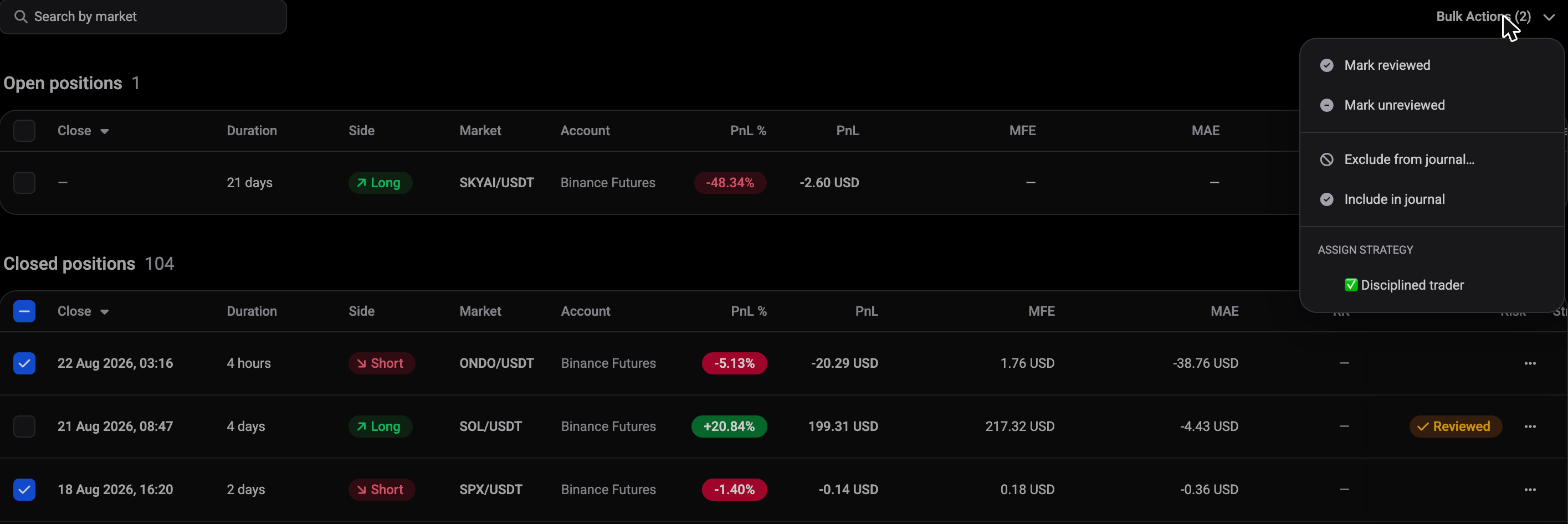
You do not have to open every position one by one. Tick the rows you want on the Positions list and use Bulk Actions to apply an action across all of them at once: Mark reviewed, Mark unreviewed, Exclude from journal, Include in journal, or Assign strategy.
To take a run of trades, click the first, hold Shift, and click the last. The checkbox in the header row selects everything currently listed, and the Bulk Actions button carries the count of what you have selected. This is the quickest way to clear a backlog of bot trades or small positions where a full rating and note are not worth the time.
Why RR and Risk are sometimes blank
The RR and Risk columns, and the Avg. R/R figures elsewhere in the Journal, only fill in for smart positions you opened inside Altrady. Risk and reward are calculated from the stop loss, and positions synced from an exchange or imported from your trade history do not carry a stored take-profit or stop loss. Seeing those columns blank on an imported trade is expected, not a sync problem.
Still stuck?
If a position will not open for review, a strategy’s checklist is not showing up, or something in the Journal looks off, reach out through support chat in the app and the team will take a look.