
Risk profiles: set your limits once, apply them to accounts and strategies
⭐ Important
Risk rules are a Premium plan feature. See the pricing page to compare.
Altrady’s Risk management lets you write down the limits you want to trade by and then holds you to them: risk per trade, exposure, leverage, a daily loss cap, and more. You save those limits as a named risk profile, then assign the profile to your exchange accounts, your strategies, or both. When an order would cross a limit, Altrady either warns you or blocks it before the position opens.
Already had risk rules on an account or inside a strategy? Don’t worry, nothing is lost: they were converted into profiles automatically. Profiles made from a strategy’s old rules carry the strategy name with (imported) after it.
Open Risk management
 🔍 Click the image to see a larger version
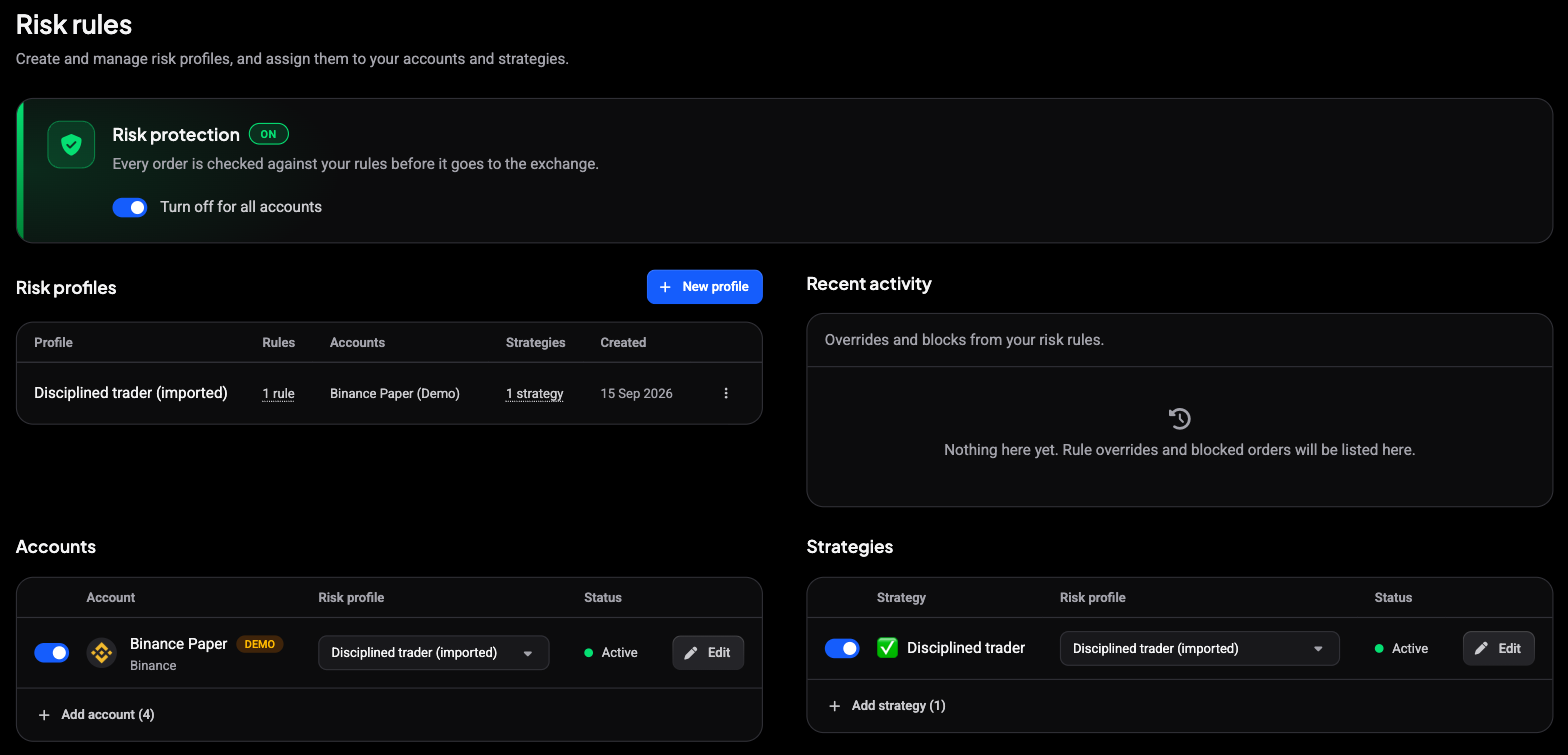
Open the Journal, then the Risk management tab. The page is titled Risk rules and has four parts:
- The Risk protection banner at the top, with one switch that turns protection off for all accounts.
- Risk profiles: a table of your profiles with their rules and the accounts and strategies using each one.
- Recent activity: overrides and blocks from your risk rules.
- Accounts and Strategies: the accounts and strategies that have a profile assigned.
Create a risk profile
 🔍 Click the image to see a larger version
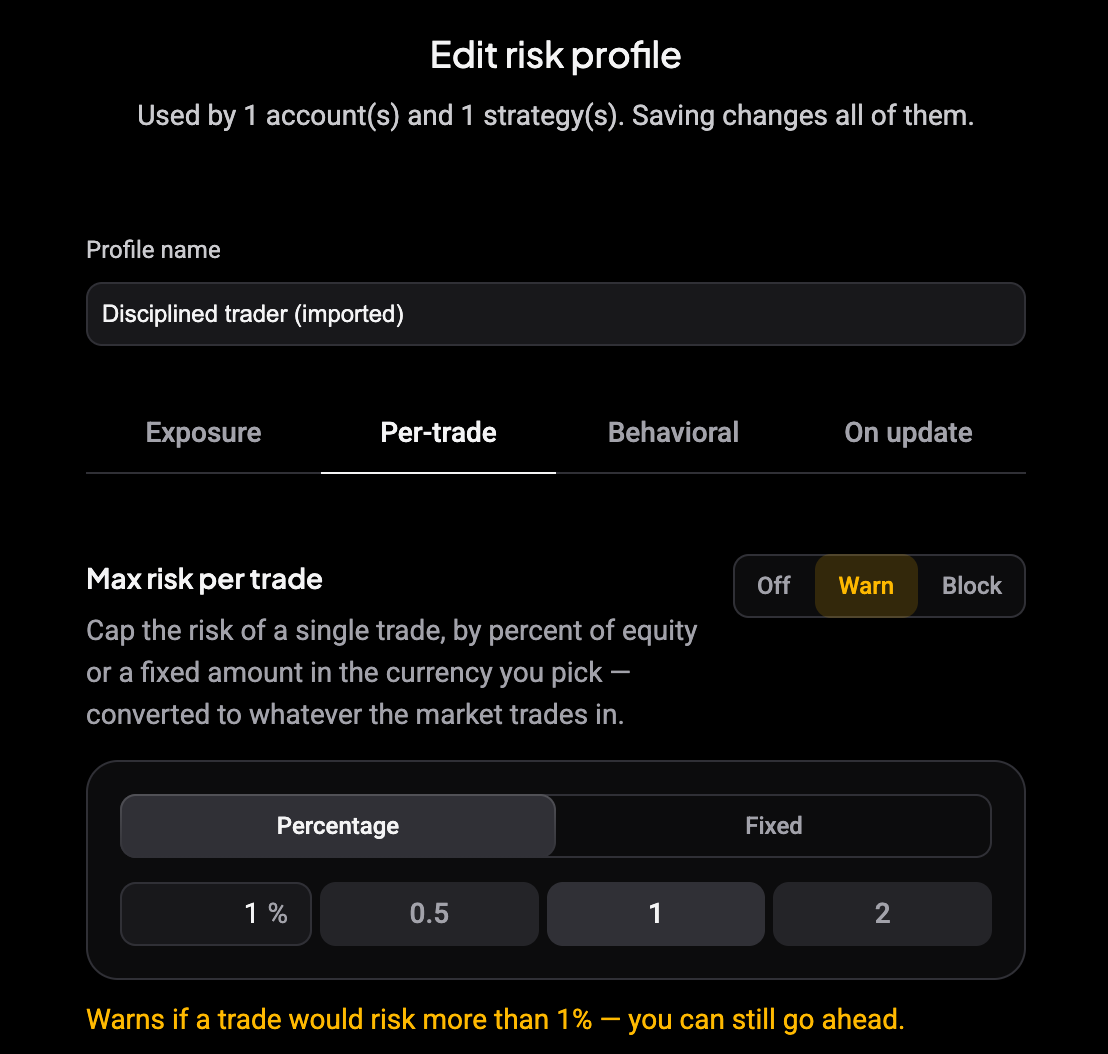
- Click New profile.
- Give it a Profile name, for example “Swing account limits”.
- Switch on the rules you want on the Exposure, Per-trade, Behavioral and On update tabs.
- Click Save.
To change a profile later, use Edit in the menu at the end of its row. If the profile is in use, the editor tells you how many accounts and strategies use it, because saving changes all of them. The same menu has Duplicate and Delete. Deleting a profile that is in use leaves those accounts and strategies with no risk rules.
Off, Warn, or Block: how every rule works
 🔍 Click the image to see a larger version
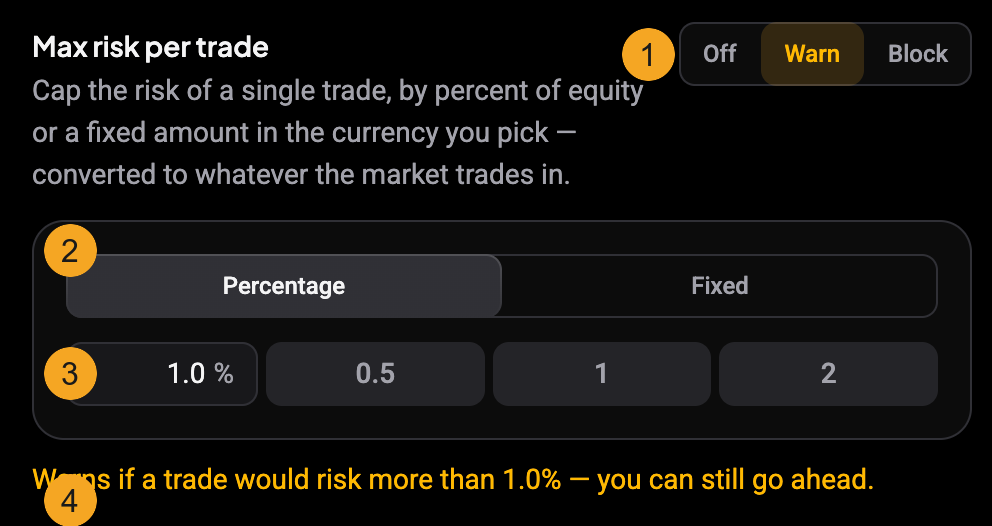
Every rule shares the same shape, so once you can read one you can set them all. The markers above:
- An Off / Warn / Block switch. Warn lets the order through but flags it; Block stops the order until you bring it back inside the limit.
- A Percentage / Fixed choice for rules that take a size or risk: a percent of your equity, or a fixed amount in a currency you pick (Altrady converts it to whatever the market trades in).
- The value, with quick presets so you do not have to type common ones.
- A plain-language line that spells out exactly what the rule will do at the value you set.
Exposure: limits across all your positions
 🔍 Click the image to see a larger version
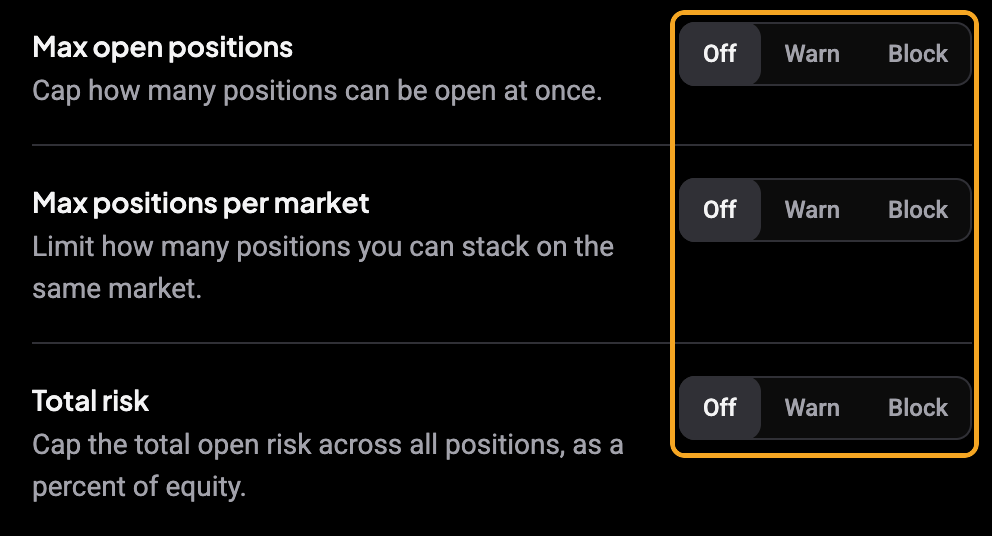
Exposure rules cap how much you have working at once:
- Max open positions: how many positions can be open at the same time.
- Max positions per market: how many you can stack on one market.
- Total risk: the combined open risk across all positions, as a percent of equity.
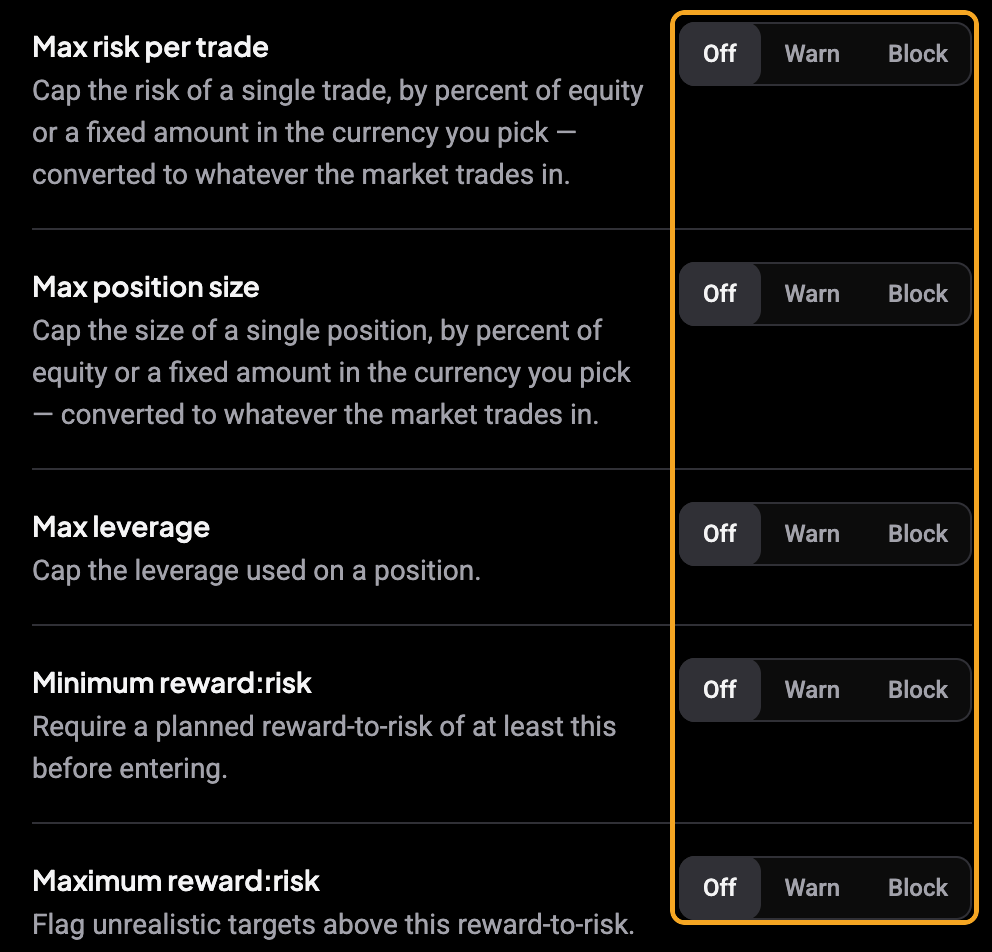
Per-trade: limits on a single trade
 🔍 Click the image to see a larger version
Per-trade rules apply to each position as you open it:
- Max risk per trade: the most a single trade may risk, by percent of equity or a fixed amount.
- Max position size: the largest a single position may be, by percent of equity or a fixed amount.
- Max leverage: the highest leverage a position may use.
- Minimum reward:risk: require a planned reward-to-risk of at least this before entering.
- Maximum reward:risk: flag targets set unrealistically far above your risk.
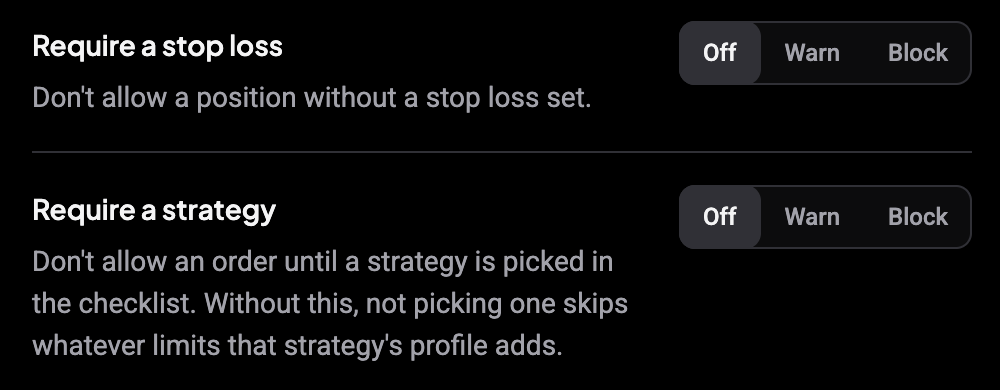
- Require a stop loss: do not allow a position without a stop set.
- Require a strategy: do not allow an order until a strategy is picked in the order form’s checklist.
- Max stop distance and Min stop distance: flag stops placed further from, or tighter to, entry than the percent you set.
 🔍 Click the image to see a larger version
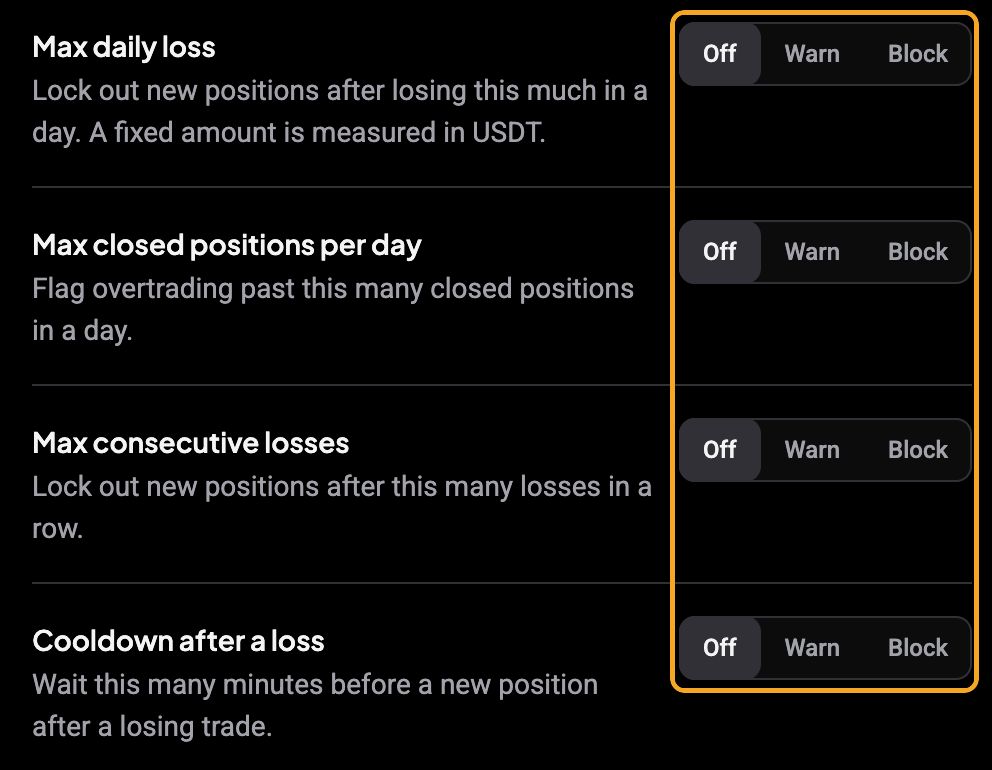
Behavioral: guarding against a bad streak
 🔍 Click the image to see a larger version
Behavioral rules watch your day rather than a single order:
- Max daily loss: lock out new positions once the day is down by this much.
- Max closed positions per day: flag overtrading past this many closed positions in a day.
- Max consecutive losses: lock out new positions after this many losses in a row.
- Cooldown after a loss: wait this many minutes before opening again after a losing trade.
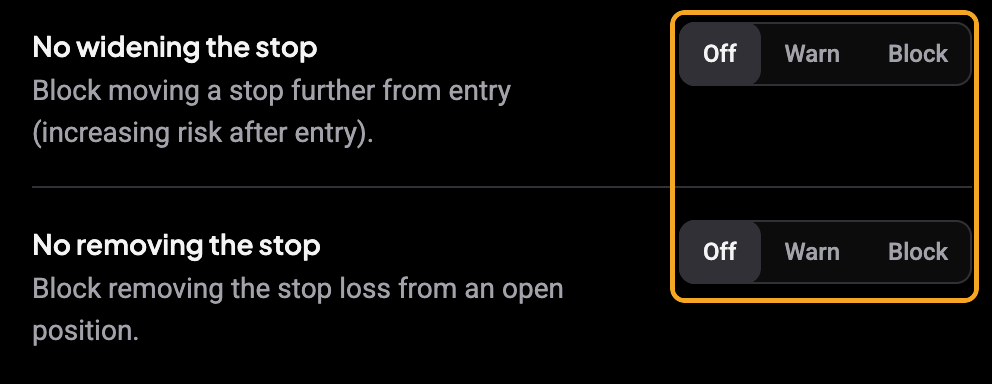
Protect your stop after entry
 🔍 Click the image to see a larger version
On-update rules apply after a position is already open, when you edit it:
- No widening the stop: block moving a stop further from entry, which would increase your risk after the fact.
- No removing the stop: block taking the stop loss off an open position entirely.
Assign a profile to accounts and strategies
A profile does nothing until something uses it. The Accounts and Strategies lists at the bottom of the page show only what already has a profile.
- Click Add account or Add strategy to show the rest.
- Pick a profile in the Risk profile dropdown on that row. Choose No rules to remove it again.
- The Status column shows Active once rules are enforced.
Each row also has its own switch. Turn it off to pause enforcement for that account or strategy without losing the assignment. You can also pick a strategy’s profile while editing the strategy: see how do I create and use a trading strategy.
Which rules apply to a strategy
A strategy’s profile is checked on top of the account’s profile, so it can tighten your limits but never loosen them. Only rules that make sense for a single strategy are used there: the per-trade rules, Max open positions, and the on-update rules. Account-wide rules in that profile (Max positions per market, Total risk, the behavioral rules and Require a strategy) are ignored for the strategy, and the strategy editor tells you how many were skipped.
Still stuck?
If a rule is not firing the way you expect, check that its profile is assigned to the right account or strategy, that the row’s switch is on, and that the rule is set to Warn or Block rather than Off. Then reach out through support chat in the app.