
What is the TA Scanner and how does it work?
The TA Scanner is a Trading Terminal widget that watches markets across exchanges and timeframes for you, checking them against technical-analysis rules you build yourself, and firing an alert the moment one matches.
What the TA Scanner does
Instead of you flipping through charts looking for a setup, the TA Scanner runs your conditions continuously in the background. Each rule is built from indicators such as SMA, EMA, RSI, Stochastic, MACD, Bollinger Bands, plus price and volume, combined with AND/OR logic (for example “EMA9 crosses above EMA26 AND RSI14 is above 40”). When a market on a timeframe you’re scanning satisfies a rule, Altrady raises an alert like:
“BTC/USDT (1h) matched rule: Long in EMA Pullback”
That alert shows the market, the timeframe, which rule fired, and which strategy it belongs to, so you know exactly what triggered it without having to reconstruct the logic from memory.
Where to find it
The TA Scanner lives in the Trading Terminal. Add it from the sidebar like any other widget: open the widget list and choose TA Scanner. It’s listed with the description “Market scanner” alongside the other trading widgets.
You need either a running trial or an active plan to use it. The TA Scanner works throughout your trial, and on the Basic, Essential and Premium plans. If you have no subscription, or your trial has expired, Altrady shows an upgrade prompt when you try to open it rather than the scanning interface. What your plan changes is how much you can do with it, which is covered under Plan limits below.
Building rules: presets or fully custom
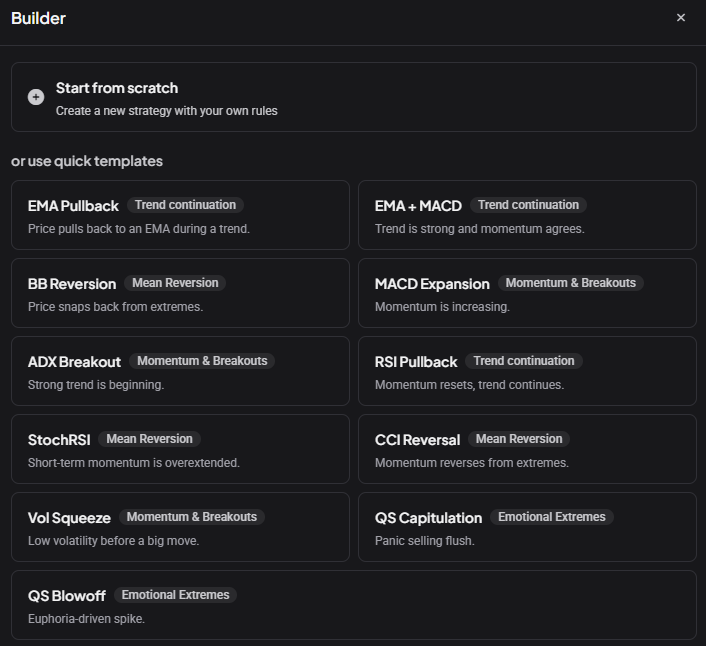 🔍 Click the image to see a larger version
This is what sets the TA Scanner apart from Altrady’s other scanners: you define the indicator logic yourself. There are two ways to do it:
🔍 Click the image to see a larger version
This is what sets the TA Scanner apart from Altrady’s other scanners: you define the indicator logic yourself. There are two ways to do it:
- Ready-made presets. Altrady ships templates such as “EMA Pullback” (price pulling back to an EMA during a trend), “EMA + MACD” (trend and momentum agreeing), “BB Reversion” (price snapping back from a Bollinger Band extreme), and crossover templates such as “EMA Cross” and “MACD Cross”. Pick one as a starting point.
- Fully custom rules. Use the rule builder to combine any of the supported indicators (SMA, EMA, RSI, Stochastic, MACD, Bollinger Bands, price and volume) into your own conditions, with AND/OR logic and your own long and short rules.
Presets are configurations based on common technical-analysis patterns, not recommendations to trade a certain way. Whether and how you act on a fired alert is entirely your call. For a step-by-step walkthrough of building a rule, see How do I create a TA Scanner strategy?. For a full list of every indicator you can use in conditions, see What indicators and conditions are available in the TA Scanner?.
Fewer false alerts, better setups
A few settings give you more control over when a rule matches:
| Setting | What it does |
|---|---|
| Trigger on: Tick or Close | Tick checks your rules on every price update, so alerts arrive sooner but can fire on a candle that’s still forming. Close waits for the candle to finish, so you get fewer, more settled alerts. |
| Timeframe per indicator | Calculate one indicator on a different timeframe from the rest of the strategy, for example a 4h EMA 200 as a trend filter inside a 15m strategy. |
| Bars ago | Read an indicator’s value from up to 20 completed candles back, for example to check that RSI has been rising for three candles. |
Crossovers (x> crosses above, x< crosses below) |
Match only on the candle where one line crosses another, instead of every candle it stays above or below. Use them with Trigger on: Close. Each crossover counts as 2 conditions towards your plan limit. |
All of these are covered step by step in How do I create a TA Scanner strategy?.
How it’s different from the Base Scanner
Altrady has two scanning widgets:
- TA Scanner: you build the indicator logic. Alerts fire when your custom or preset rule matches.
- Base Scanner: uses fixed drop-percentage and success-rate “base-cracking” logic to surface markets that dropped and historically recovered. You don’t write conditions here, you filter and sort a built-in scan.
The TA Scanner replaced the old Quick Scanner. The Quick Scanner’s Drop, Rise and Fat Finger detection now live inside the TA Scanner as indicators you can use in your own rules. If you had Quick Scanner filters set up, they were automatically migrated when you first opened the TA Scanner.
Plan limits
The number of strategies, rules, and conditions you can create depends on your subscription plan.
| Feature | Basic | Essential | Premium |
|---|---|---|---|
| Active strategies | 1 | 2 | 10 |
| Rules per strategy | 1 | 3 | 5 |
| Conditions per rule | 2 | 5 | 10 |
| Timeframes | 5m, 10m | 2m to 30m | 1m to 1D (all) |
| Exchanges | 1 | 3 | 5 |
| Quote currencies | 1 | 3 | 5 |
| Flat candles filter | No | Yes | Yes |
| Max alerts/hour | 5 | Unlimited | Unlimited |
| Max alert history | 5 | 20 | 200 |
A crossover condition (x> or x<) counts as 2 conditions towards the conditions per rule limit, because it checks both the current and the previous candle.
When you reach a limit, Altrady shows an upgrade prompt with a link to manage your subscription. For full plan details, see altrady.com/pricing.
TA Scanner on mobile
The TA Scanner is available in the Altrady mobile app. On mobile you can turn the scanner on or off, select which strategy to view, and see triggered alerts. Strategy creation and editing is only available on the desktop and web versions. Push notifications for scanner alerts are not currently supported on mobile.
Keeping an eye on alerts
Once a rule matches, the alert appears in the TA Scanner widget so you can review which market and timeframe triggered it, and jump to the chart from there. If you’re setting up your first rule, start from a preset, watch a session or two of alerts, and adjust the conditions once you see how often it fires on the markets you follow. See How do I manage TA Scanner alerts and filters? for how to filter, mute, and clear alerts.
Still stuck?
If the TA Scanner isn’t showing an upgrade prompt but also isn’t scanning, check Why isn’t the TA Scanner triggering alerts?, or reach out through the in-app support chat and the team will walk you through it.